Tag: AI Agents

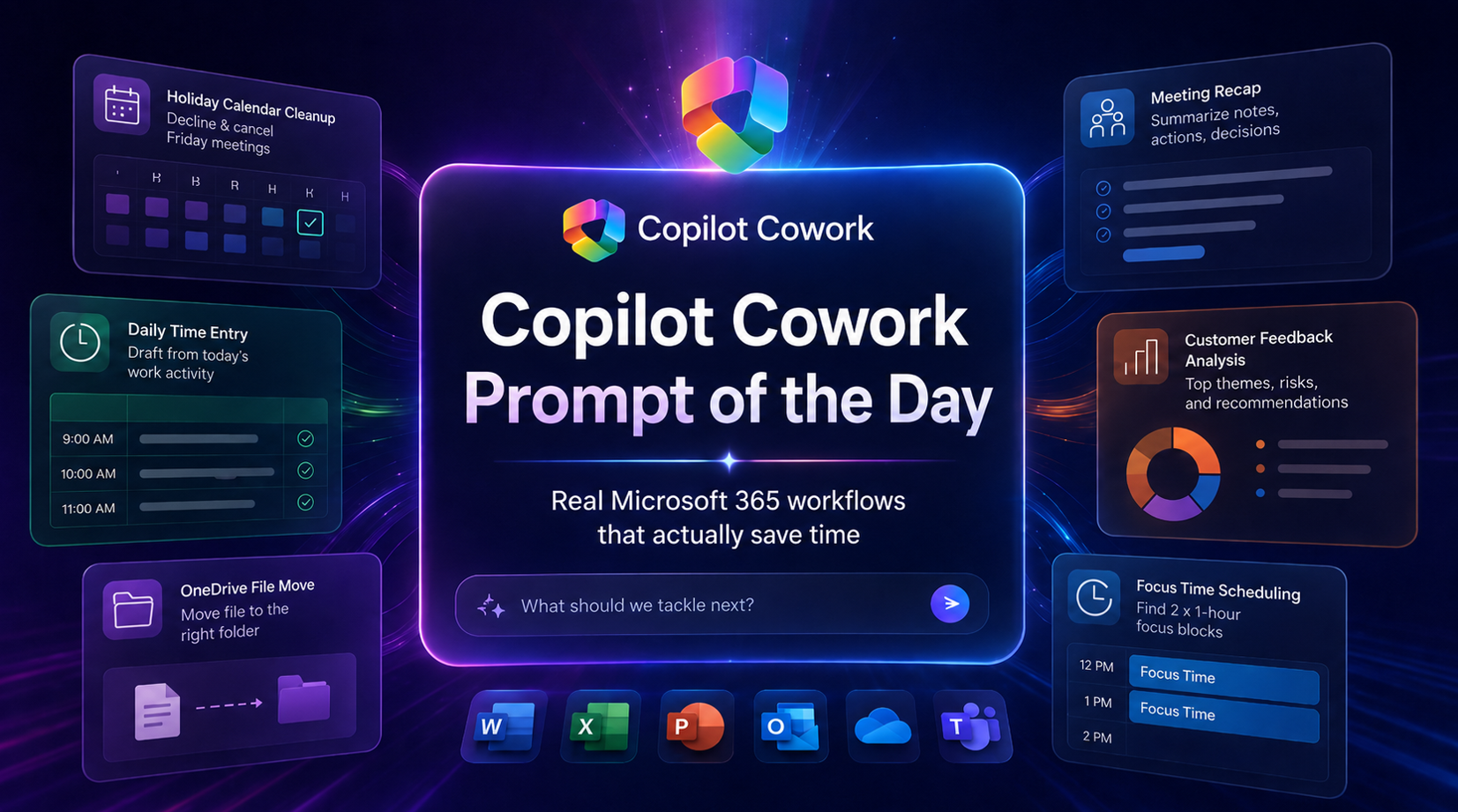
  • Copilot Cowork Prompt of the Day: Real Microsoft 365 Workflows That Actually Save Time

    Copilot Cowork Prompt of the Day: Real Microsoft 365 Workflows That Actually Save Time

    Copilot Cowork Prompt of the Day: Real Microsoft 365 Workflows That Actually Save Time

    I have been testing Copilot Cowork across real work patterns inside Microsoft 365: meetings, calendar cleanup, files, time entries, customer feedback, follow-ups, and workspace history.

    The pattern is becoming clear.

    The strongest Copilot Cowork prompts do not just ask for an answer. They assign a business outcome. They define the source of truth. They set guardrails. They tell Cowork what finished work should look like.

    That is where this gets serious.

    Below is a practical prompt library based on my Copilot Cowork Prompt of the Day posts across X and LinkedIn. I grouped them by scenario so the examples are easier to scan, reuse, and adapt.

    Note: Some examples use demo companies, files, customers, and project names. Replace those with your own Microsoft 365 content, folders, meetings, and business context.

    Table of Contents

    Calendar and Focus Management

    Calendar work looks simple until it eats your day. Declining meetings, cancelling organizer-owned events, protecting focus time, and finding clean openings are perfect examples of work that should be delegated.

    These prompts show Cowork acting like a real calendar operator, not a passive chatbot.

    Decline and Cancel Holiday Meetings

    The situation

    Friday is a holiday. Your calendar still has meetings. Some meetings were created by other people. Some meetings may be yours. You need everything cleaned up properly.

    The important part is the distinction between declining and cancelling. If you are only an attendee, Cowork should decline the meeting. If you are the organizer, Cowork should cancel it and send a note so attendees know why it disappeared.

    Copilot Cowork using calendar management to decline meetings and cancel organizer-owned meetings for a holiday.

    The prompt

    [Day] is a holiday. Check [Date].
    - Decline every meeting.
    - If I’m the organizer, cancel it and send a note.
    Use /calendar-management

    What Cowork should do

    • Check the target date.
    • Find every meeting on that day.
    • Decline meetings where you are an attendee.
    • Cancel meetings where you are the organizer.
    • Send a professional cancellation note where needed.
    • Summarize what changed.

    This is the kind of task that burns attention. The value is not only the minutes saved. The real value is that Cowork understands the difference between attendee action and organizer responsibility.

    Cancelling a meeting you own sends a different signal than declining a meeting someone else owns.

    How I would tighten the prompt

    For a production-style version, I would add the wording for the cancellation note directly into the prompt.

    Friday is a company holiday. Check April 3rd in my calendar.
    For every meeting that day:
    - If I am only an attendee, decline the meeting.
    - If I am the organizer, cancel the meeting.
    - For cancelled meetings, send this note:
    “April 3rd is a holiday, so I’m cancelling this meeting.
    Please reschedule for the following week if still needed.”
    After you finish, send me a summary grouped by declined meetings
    and cancelled meetings.
    Use /calendar-management

    Create Focus Time from Your Phone

    The situation

    This one is simple. That is why it matters.

    I used the iOS app from bed and told Cowork to find two separate one-hour focus blocks for Monday morning. Cowork checked my calendar, found the openings, and created both events.

    No desktop. No calendar hunting. No dragging blocks around half asleep.

    The prompt

    Set some focus time for me up for Monday morning.
    Find 2 separate 1 hour blocks so I can focus on:
    1) <Task>
    2) <Task>

    What Cowork should do

    • Review your Monday morning calendar.
    • Find two separate one-hour openings.
    • Create calendar events for each focus block.
    • Name each block clearly based on the task.
    • Add useful context where available.

    Focus time only helps if it actually lands on the calendar. A lot of people know what they need to work on, then lose the day to meetings, messages, and context switching.

    This turns focus protection into a command.

    That is the kind of small task agents should crush first. Scheduling. Calendar juggling. Protecting time. Removing the coordination mess.

    How I would tighten the prompt

    I would add preferred working hours, meeting buffer rules, and event details.

    Set up 2 separate 1-hour focus blocks for Monday morning.
    Focus areas:
    1) <Task 1>
    2) <Task 2>
    Rules:
    - Only schedule between 8:00 AM and 12:00 PM.
    - Do not overlap existing meetings.
    - Leave at least 15 minutes between meetings and focus blocks where possible.
    - Use clear calendar titles: “Focus: <Task>”.
    - Add a short note to each event with the goal for that focus block.
    After scheduling, tell me the times you picked.

    ↑ Back to top


    Time Entry and Work Reporting

    Time entry is one of the best Cowork use cases because the evidence already exists across Microsoft 365. Meetings, chats, emails, files, edits, and shared work all tell the story of the day.

    The hard part is turning that messy activity trail into believable time-entry comments that a human can review.

    Build a Daily Time Entry Summary from Microsoft 365 Activity

    The situation

    This prompt asks Cowork to review the day’s Microsoft 365 activity and produce a structured time-entry draft. The goal is not perfect accounting. The goal is a practical, honest draft that can be reviewed and corrected quickly.

    The real power is that Cowork is not only looking at meetings. It is asked to look across calendar activity, Teams chats, email, files, transcripts, meeting notes, and other signals.

    Daily time entry draft created from Microsoft 365 work activity.

    The prompt

    Review ALL of MY Microsoft 365 work activity from TODAY in
    [your timezone] and build a realistic, structured daily time entry
    summary.
    Then send it as a [direct Teams message / Email].
    Use every available signal from today:
    - calendar meetings
    - transcripts and recaps
    - meeting chats
    - Teams chats and channel messages
    - emails
    - files opened, edited, or shared
    - any other work activity signals
    Rules:
    1. Only use today in my local timezone.
    2. Look across all evidence, not just meetings.
    3. Infer the best-fit project, client, internal initiative, or business
    development category.
    4. Map work to a project whenever possible.
    5. If unclear, use: Business Development, Internal Operations,
    Practice Development, Admin, or Learning / Enablement.
    6. Consolidate fragmented activity into meaningful work blocks.
    7. Target a full day close to 8.0 hours.
    8. Acceptable total range: 6.0-8.0 hours.
    9. Accuracy first, then use reasonable consolidation to close gaps.
    10. Do not invent fake meetings, deliverables, or project names.
    11. If evidence is weak, make the best possible mapping, but keep
    descriptions honest.
    12. Avoid over-fragmenting. Prefer fewer, stronger entries.
    13. Write descriptions like real time-entry comments, not AI summaries.
    14. Keep descriptions concise but useful.
    15. Group short related activities under the same project.
    16. If there is clear prep or follow-up around meetings, emails,
    chats, or docs, include that under the relevant project when evidence
    supports it.
    17. Capture business development work where relevant:
    sales support, proposal work, internal planning, networking,
    demos, enablement, certifications, or content creation.
    Format the Teams message as HTML:
    - Bold heading: Daily Time Entry Draft – [YYYY-MM-DD]
    - Bold "Summary:" plus a 1-2 line plain-text summary
    - HTML table: # | Project Name | Description | Duration | Date
    - One row per entry, ordered largest to smallest
    - Duration in decimal hours, e.g. 3.0 hrs or 0.5 hrs
    - Bold "Total: X.X hours" at the bottom
    Quality bar: practical, believable, timesheet-ready.
    Use real work patterns. Balance to 6-8 hours.
    If today has limited evidence, still produce the best possible draft.

    What Cowork should do

    • Build a workday view from Microsoft 365 evidence.
    • Classify activity into projects, clients, or internal categories.
    • Consolidate short fragments into stronger time-entry rows.
    • Keep the wording practical and timesheet-ready.
    • Send the finished draft as a Teams message.

    This is a serious consulting and professional services scenario.

    Timesheets fail when people are forced to reconstruct their day from memory. Cowork can inspect the activity trail and give you a draft while the day is still fresh.

    You still review it. You still own it. Cowork reduces the blank-page problem.

    Important guardrails

    The guardrails are the real prompt design lesson here.

    • Do not invent fake meetings, deliverables, or project names.
    • Keep weak evidence honest.
    • Prefer fewer, stronger entries.
    • Write like a real time-entry comment.

    That is how you keep this useful without letting the agent drift into fantasy work logs.

    ↑ Back to top


    Meeting Intelligence and Follow-Up

    Meetings create a lot of residue: transcripts, AI notes, chats, files, agendas, decisions, action items, and follow-up messages.

    The problem is that the value disappears when nobody turns that residue into something clean.

    Create a Meeting Recap and Send It to Attendees

    The situation

    This prompt gives Cowork one target meeting and asks it to pull all available meeting content. The output is a structured recap and a concise email to attendees.

    The prompt also changes the recap style based on the meeting type. A requirements session should not be summarized the same way as a standup or UAT meeting.

    Meeting recap generated from meeting content, notes, transcript, chat, and related files.

    The prompt

    Use the meeting provided in context: <Meeting>.
    Meeting type: [Requirements | Standup | Training | UAT | Other]
    Treat this as the only target meeting. Pull all available meeting content
    including AI notes, transcript, meeting chat, shared files, agenda,
    description, and attached notes.
    Create a recap with:
    - purpose
    - key discussion points
    - decisions
    - action items
    - owners
    - due dates
    - follow-ups
    Adapt the recap based on the meeting type:
    - Requirements: needs, requested features, pain points, constraints,
    open requirements
    - Standup: progress, blockers, next steps
    - Training: what was taught, guidance shared, takeaways, resources
    - UAT: what was tested, issues found, defects, next steps for fixes or
    retesting
    - Other: use the most appropriate structure
    If anything is unclear or missing, state that clearly instead of guessing.
    Then draft and send a concise, professional recap email to all attendees.

    What Cowork should do

    • Use only the meeting provided in context.
    • Pull available transcript, recap, chat, files, agenda, and notes.
    • Build a recap that matches the meeting type.
    • Call out missing or unclear details.
    • Send a concise recap email to attendees.

    The most useful meeting recap is not a generic summary. It captures the operating details that move work forward: decisions, owners, due dates, and follow-ups.

    This prompt also handles one of the biggest issues with AI meeting summaries: context control. It tells Cowork to treat the provided meeting as the only target meeting.

    How I would tighten the prompt

    For client-facing work, I would add a review step before sending.

    Use the meeting provided in context: <Meeting>.
    Meeting type: [Requirements | Standup | Training | UAT | Other]
    Treat this as the only target meeting. Pull all available meeting conten
    including AI notes, transcript, meeting chat, shared files, agenda,
    description, and attached notes.
    Create a recap with:
    - Purpose
    - Key discussion points
    - Decisions
    - Action items
    - Owners
    - Due dates
    - Follow-ups
    Adapt the recap based on the meeting type.
    If anything is unclear or missing, state that clearly instead of guessing.
    Draft a concise, professional recap email to all attendees,
    but do not send it until I review and approve it.

    ↑ Back to top


    Customer Feedback and Leadership Deliverables

    This is the most advanced scenario in the set.

    The assignment is not just “summarize feedback.” The assignment is to turn scattered customer signals into a leadership-ready action package.

    That means Cowork has to analyze, prioritize, create deliverables, flag weak evidence, and prepare different outputs for different audiences.

    Turn Customer Feedback into a Product Action Plan

    The situation

    Kavora’s marketing department has customer feedback scattered across interviews, surveys, comments, web signals, and meeting notes.

    Leadership needs the real story:

    • What customers are saying.
    • What matters most.
    • What needs action.
    • What needs human judgment before the team moves.

    For the demo, the input files were:

    • Customer interview notes
    • Product feedback survey and web signal export
    • Source customer comments
    • Marketing leadership request and context email

    The Cowork assignment was to review the feedback, find the strongest themes, rank them by impact and urgency, flag gaps or contradictions, then build the deliverables a marketing team would actually need.

    Copilot Cowork turning scattered customer feedback into a brief, deck, emails, Teams update, and decision tracker.

    The expected outputs

    • Executive feedback brief
    • Stakeholder-ready presentation deck
    • Customer follow-up email pack
    • Launch squad Teams update
    • Leadership decision tracker

    The prompt

    Act as my marketing operations lead.
    Goal:
    I’m working on turning messy customer product feedback into a clear
    action plan for product, marketing, and leadership teams.
    Sources:
    Use the attached files and project folder as the source of truth.
    These may include customer interview notes, survey results,
    web/funnel data, Teams meeting summaries, support themes,
    website feedback, campaign comments, and leadership request emails.
    Task:
    1. Review the materials and identify the strongest customer feedback
    themes.
    2. Prioritize the themes by customer impact, urgency, revenue risk, and
    brand risk.
    3. Pull proof points from the source material, including customer
    quotes, survey signals, and web/funnel trends.
    4. Identify gaps, contradictions, sampling bias, or anything that needs
    validation before decisions are made.
    5. Recommend the next best actions for product, marketing,
    customer success, and leadership.
    Produce:
    • A polished executive feedback brief
    • A stakeholder-ready presentation deck
    • A customer follow-up email pack
    • A Teams update for the launch squad
    • A leadership decision tracker with priorities, owners, and dates
    Guardrails:
    • Separate facts from recommendations
    • Do not invent evidence
    • Call out assumptions clearly
    • Flag anything that needs human review
    • Make the outputs ready for me to review, edit, and share

    What Cowork should do

    • Review all supplied source material.
    • Find repeated customer themes.
    • Rank themes by impact, urgency, revenue risk, and brand risk.
    • Pull quotes and proof points from the evidence.
    • Flag contradictions, bias, gaps, and validation needs.
    • Create separate deliverables for leadership, product, launch teams, and customer follow-up.

    The best part of this prompt is the deliverable design. It does not stop at analysis. It asks for the assets the business actually needs:

    • A brief for executives.
    • A deck for stakeholders.
    • Email drafts for customers.
    • A Teams update for the launch squad.
    • A decision tracker for leadership.

    That is the difference between “tell me what the files say” and “help me move the business forward.”

    The human review layer

    This prompt gets the review model right. It tells Cowork to separate facts from recommendations and flag assumptions.

    That matters because customer feedback can be messy. You can have contradictory signals, loud power users, small samples, weak survey patterns, or feedback that sounds urgent but needs validation.

    The agent can organize the evidence. The human still owns the judgment.

    How I would tighten the prompt

    I would add a scoring model so the ranking is easier to audit.

    When ranking feedback themes, score each theme from 1-5 across:
    - Customer impact
    - Urgency
    - Revenue risk
    - Brand risk
    - Evidence strength
    Then calculate a priority recommendation of P0, P1, or P2.
    For every theme, include:
    - Evidence used
    - Customer quote or signal
    - Recommended owner
    - Recommended next action
    - What needs human validation before action

    ↑ Back to top


    File and Workspace Operations

    Some of the best agent use cases are boring. That is the point.

    Moving files, finding folders, reviewing previous sessions, and organizing workspace context are small tasks by themselves. Across a week, they become attention tax.

    Move a File in OneDrive

    The situation

    I downloaded a zip file on my phone, uploaded it to OneDrive, and told Cowork to move it into the right demo folder.

    No laptop. No desk. No clicking through folders.

    Cowork found the file, found the destination folder, and moved it.

    Copilot Cowork finding a recently uploaded zip file and moving it to the right OneDrive folder.

    The prompt

    I just uploaded a <file or folder> to OneDrive.
    Can you move it to the Copilot Cowork Demos folder

    What Cowork should do

    • Search OneDrive for the uploaded file or folder.
    • Search OneDrive for the destination folder.
    • Move the item.
    • Confirm the exact file or folder that was moved.

    This is the kind of work nobody wants to do. It is small enough to feel annoying and common enough to keep stealing attention.

    Agents should handle the annoying little tasks first.

    Find the file. Find the folder. Move it. Confirm it.


    Review Past Cowork Sessions

    The situation

    This is a fun one for understanding the workspace Cowork builds around your work.

    The prompt asks Cowork to look across previous sessions and tell you what you have built together, then pick its favorite session.

    Your Cowork sessions are stored in:

    Documents > Coworker > sessions
    Copilot Cowork reviewing previous sessions and summarizing what has been built.

    The prompt

    based on all our sessions, can you tell me the things we have built
    together, and your most favorite session?

    What Cowork should do

    • Enumerate previous session folders.
    • Identify deliverables created in each session.
    • Summarize patterns across the work.
    • Pick a favorite session and explain why.

    This shows Cowork as more than a one-off task runner. It can review the body of work created across sessions and help you understand what has been built.

    That becomes useful when you are building demos, content, project assets, templates, or repeatable internal workflows.

    How I would tighten the prompt

    I would ask for the output in a reusable inventory format.

    Review all our Cowork sessions stored in
    Documents > Coworker > sessions.
    Create a structured inventory with:
    - Session name
    - Date if available
    - Business scenario
    - Deliverables created
    - Files produced
    - Skills or tools used
    - Reusable assets I should keep
    - Your favorite session and why
    Group the results by scenario type.

    ↑ Back to top


    The Prompt Design Pattern

    After testing these scenarios, the pattern is obvious.

    A strong Copilot Cowork prompt usually needs these parts:

    1. Assign the role

    Example

    Act as my marketing operations lead.

    This gives Cowork a working frame. A calendar assistant, marketing operations lead, project coordinator, meeting analyst, or time-entry assistant will make different choices.

    2. Define the business goal

    Example

    I’m working on turning messy customer product feedback into a clear
    action plan for product, marketing, and leadership teams.

    The goal keeps Cowork focused on the outcome instead of wandering through the source material.

    3. Name the source of truth

    Example

    Use the attached files and project folder as the source of truth.

    This matters because Cowork may have access to a lot of context. You need to tell it what evidence matters.

    4. Add rules and guardrails

    Example

    Do not invent evidence.
    Call out assumptions clearly.
    Flag anything that needs human review.

    Guardrails keep the work usable. They also make the output safer to review, edit, and share.

    5. Specify the finished output

    Example

    Produce:
    - A polished executive feedback brief
    - A stakeholder-ready presentation deck
    - A customer follow-up email pack
    - A Teams update for the launch squad
    - A leadership decision tracker with priorities, owners, and dates

    Do not make Cowork guess what “done” means. Define the deliverables.

    6. Keep human review in the loop

    Example

    Make the outputs ready for me to review, edit, and share.

    This is the right operating model. Cowork can create the draft, organize the work, and prepare the package. You still make the judgment call.

    ↑ Back to top

    Final Thought

    Copilot Cowork gets interesting when you stop treating it like a chat box and start treating it like a worker with an assignment.

    The best prompts are direct. They give Cowork the goal, the evidence, the rules, and the expected output.

    That is how you move from “write me a summary” to:

    • Clean up my calendar.
    • Protect my focus time.
    • Draft my time entries.
    • Summarize the meeting and follow up.
    • Turn customer feedback into an action plan.
    • Move the file where it belongs.
    • Review the work we have already built.

    Small tasks. Big tasks. Same lesson.

    Give the agent clear work. Keep the guardrails tight. Review the output like a professional.

    That is where Copilot Cowork starts to feel like real capacity.

    ↑ Back to top

  • Copilot Cowork to Prep for a Board Meeting Under Pressure

    Copilot Cowork to Prep for a Board Meeting Under Pressure

    How Executives Can Use Copilot Cowork When Board Prep Turns Into a Fire Drill

    A board meeting gets moved up by 48 hours.

    Now the executive needs the story fast.

    Finance has numbers. Operations has risks. Strategy has updates. AI transformation has progress, blockers, and governance questions. The deck is not ready. The briefing memo is not ready. The board will still expect clear answers.

    That is exactly the kind of pressure where Copilot Cowork starts to make sense.

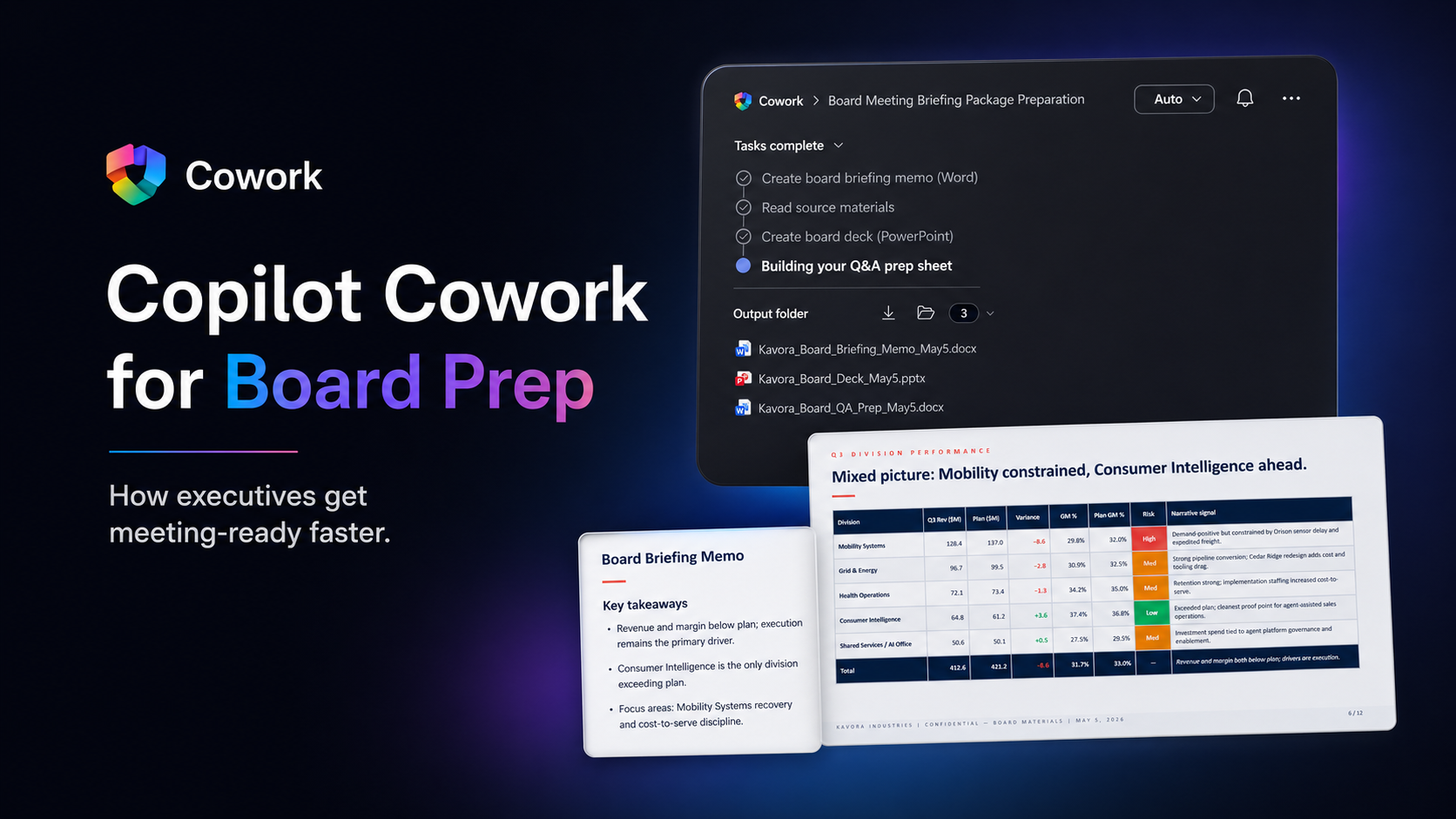
    For this scenario, I used a fictional company called Kavora Industries. I stepped into the role of Chief Strategy Officer, and the ask was simple: prepare a board-ready package under pressure.

    The company is fictional. The work pattern is very real.

    Executive takeaway: Copilot Cowork is strongest when it helps leaders turn scattered business context into decision-ready artifacts.

    Insert screenshot here: Cowork prompt asking for the board meeting briefing package.

    The Real Executive Problem

    Board prep is not just about creating a PowerPoint deck.

    The harder part is knowing what matters.

    What changed since the last update? Where are the risks? Which numbers are final and which are preliminary? What decisions does the board need to make? What questions are they likely to ask?

    That is where executive prep gets expensive.

    The information already exists, but it is spread across too many places:

    • Executive emails
    • Strategy notes
    • Finance workbooks
    • Leadership updates
    • AI transformation reports
    • Draft presentation content
    • Q&A notes

    An executive does not need another place to search. They need the scattered pieces pulled into one clean operating picture.

    The Cowork Approach

    I gave Copilot Cowork a focused executive task:

    Prepare for a board meeting that was moved up by 48 hours using the provided source material, then create the artifacts needed to walk into the meeting prepared.

    The Prompt

    The prompt followed a simple structure:

    Role:
    Act as my executive strategy assistant for Kavora Industries.
    Goal:
    Help me prepare for a board meeting that was moved up by 48 hours.
    Sources:
    Use the provided executive emails, strategy notes, finance workbook,
    AI transformation report, and leadership updates.
    Task:
    Create a board-ready briefing package that includes:
    1. Executive summary
    2. Key risks and decisions
    3. AI transformation progress
    4. Financial and operational issues
    5. Likely board questions
    6. Recommended talking points
    Outputs:
    - Create a Word briefing memo
    - a PowerPoint board deck
    - a Q&A prep sheet
    Guardrails:
    - Keep the tone executive-ready, concise, factual, and decision-focused.
    - Do not invent facts outside the source material.
    - Use Kavora branding when creating files.

    This is the part executives should pay attention to.

    The prompt is not asking Cowork for a generic answer. It assigns a job. It points Cowork at the source material. It defines the output. It adds guardrails. It asks for files the business can actually use.

    The move: Do not ask for a summary when the real need is a briefing package. Ask for the work product.

    Insert screenshot here: Cowork task progress showing the memo, deck, and Q&A prep sheet being created.

    What Copilot Cowork Created

    Cowork created three core board prep artifacts and packaged them into a reviewable executive workflow.

    1. Board Briefing Memo

    The briefing memo became the anchor document.

    It pulled the scattered business context into a single executive narrative: current state, key numbers, strategic signals, risks, and decisions needed.

    This matters because executives need more than information. They need the story behind the information.

    The memo made the situation easier to review, challenge, and sharpen before the board meeting.

    2. Board Deck

    Cowork also created the board deck.

    The deck organized the material into a board-level flow: performance, division signals, risks, AI transformation progress, and decisions requested from the board.

    The important part was not just that slides were created. The important part was that the slides were structured around the meeting the executive actually needed to lead.

    One slide showed division performance and risk signals. Another brought the board back to the required decisions.

    That is exactly what an executive needs. Less noise. Clearer framing. Decisions visible.

    3. Board Q&A Prep Sheet

    This was the strongest artifact in the workflow.

    Cowork created a Q&A prep sheet with likely board questions, direct answers, anchor phrases, and source references.

    That is real executive value.

    The board is going to ask sharper questions than the internal team. Preparing for those questions before the meeting changes how the executive shows up.

    Instead of walking in with slides only, the executive walks in with prepared answers.

    4. Executive Review Email

    I prompted Cowork to also prepare and send an email with the board packet attached.

    Work does not end when the file is created. The package still needs to move to the right people with the right context.

    The email summarized what was included, called out the wording discipline applied, and highlighted the decision priority order.

    That is a complete workflow: source material to artifacts to communication.

    The executive shift: Cowork gets the leader to the decision point faster, with better context and real artifacts already in motion.

    That is the agent boss pattern in practice.

    The human stays accountable. The agent does the heavy lifting around gathering, synthesis, drafting, formatting, and first-pass artifact creation.

    That is how an executive should think about Copilot Cowork.

    The Executive Workflow

    This board prep scenario follows a workflow executives can reuse:

    1. Define the pressure moment.
    2. Point Cowork at the right source material.
    3. Ask for decision-ready artifacts.
    4. Review the output like an executive.
    5. Tighten the narrative.
    6. Send the right package to the right people.

    That workflow applies beyond board meetings.

    You could use the same pattern for quarterly business reviews, operating reviews, customer escalations, strategy offsites, town halls, finance reviews, and AI transformation steering committees.

    The structure stays the same. Pressure, sources, task, outputs, guardrails, review.

    What I Like About This Scenario

    This scenario works because it feels like real executive pressure.

    No gimmick. No fake magic. No perfect blank-page setup.

    Just a leader with scattered information, limited time, and a meeting that requires clear judgment.

    That is where AI at work becomes useful.

    Not when it sounds impressive in a chat window. When it produces the memo, the deck, the Q&A sheet, and the email that move the work forward.

    Best use case: Use Copilot Cowork to reduce the cost of preparation, then spend your human time on judgment.

    Final Thought

    Executives do not need AI that only sounds smart.

    They need AI that helps them get ready.

    That means finding the signal, organizing the story, creating the artifacts, and helping the leader walk into the room prepared.

    This is where Copilot Cowork gets practical.

    Board prep under pressure is not a productivity trick. It is a clear example of how executives can start working differently with AI agents inside the flow of work.

  • How I Keep Copilot Cowork Sessions Alive with a requirements.md File

    How I Keep Copilot Cowork Sessions Alive with a requirements.md File

    Copilot Cowork is strong at creating files. Documents, markdown files, HTML files, specs, plans, summaries, all of it.

    So I started using that strength against one of the biggest pain points in agent work: losing context.

    1. The Problem
    2. The Workaround
    3. The Prompt I Use
    4. What I Want Cowork To Track
    5. The Recovery Flow
      1. Step 1: Open the Output Folder
      2. Step 2: Copy the OneDrive Link
      3. Step 3: Start a New Cowork Session
    6. Why This Works
    7. My Recommendation
    8. Final Take

    The Problem

    Sometimes a session can glitch, freeze, or reach a point where starting fresh is easier.

    The painful part is not starting a new session.

    The painful part is rebuilding the context.

    You have to explain the goal again. Rebuild the requirements. Re-upload or reconnect files. Remind it what decisions were already made. Recreate the mental map of the work.

    That burns time.

    So I started giving Copilot Cowork a job before it does any other job:

    Keep the context alive.

    The Workaround

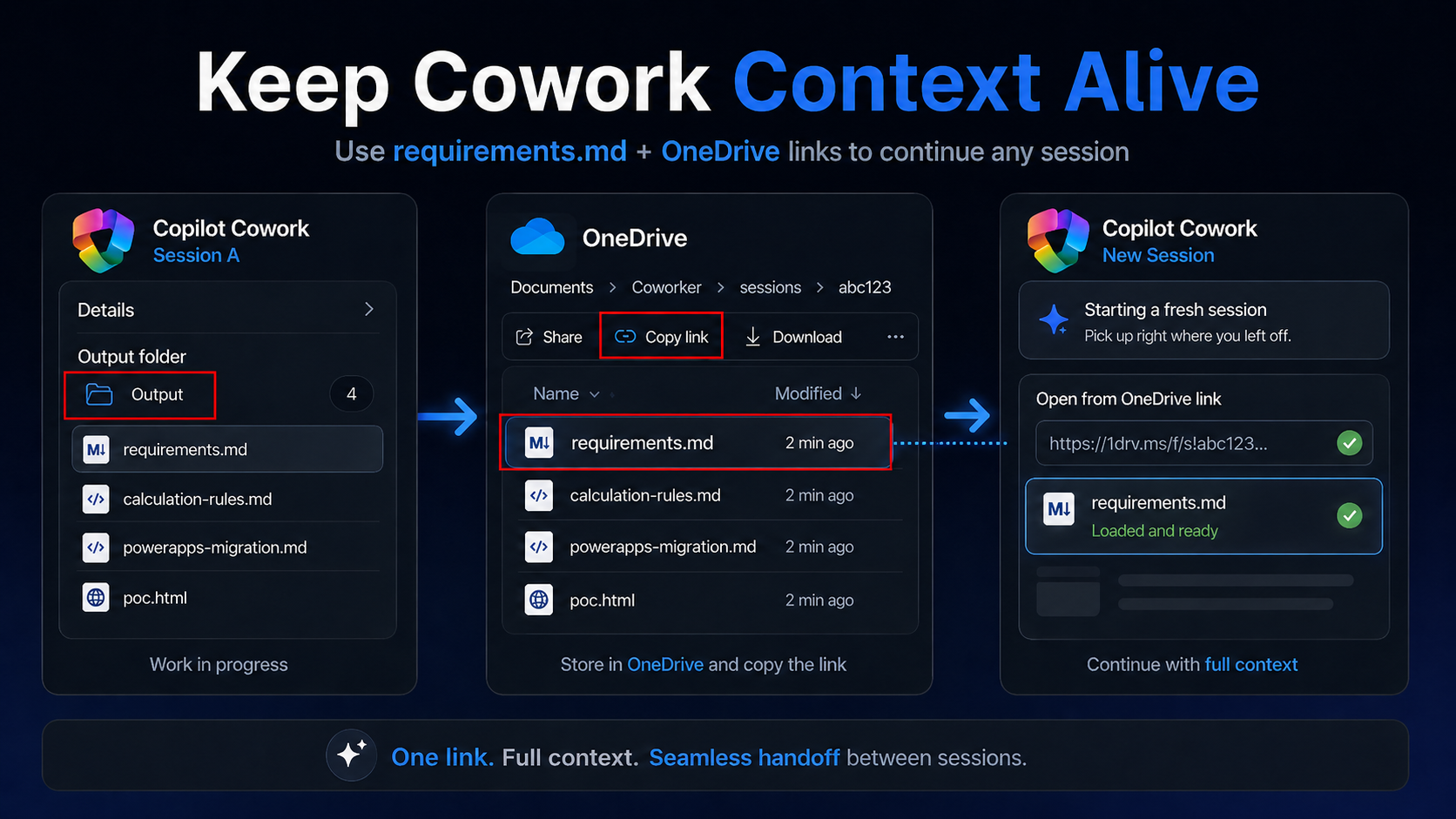
    At the start of the session, tell Cowork to create a requirements.md file and keep it updated while you work.

    That file becomes the session brain.

    It gives you a portable record of the work that can move from one Cowork session to another.

    Think of it like a handoff file.

    Not a final deliverable. Not a pretty summary. A working memory file.

    The Prompt I Use

    Create a requirements.md file and keep it updated throughout this session.
    Use it to track the full context of our work, including:
    - requirements
    - decisions made
    - open items
    - files created
    - key conversation details
    - risks
    - assumptions
    - and next steps
    I want to be able to pass this file to another Copilot Cowork session
    so it can continue with full context.

    You can change the file name if you want.

    For some sessions, I might use project-context.md, demo-notes.md, or handoff.md.

    But I like requirements.md because it forces the session to stay grounded in what is actually being built.

    Note

    This works best when the requirements.md file is updated throughout the session, not only at the end. When decisions change, files are created, or blockers appear, tell Cowork to update the file.

    What I Want Cowork To Track

    The file should not be a fluffy recap.

    I want it tracking the stuff that matters:

    • Session goal
    • Current objective
    • Requirements
    • Decisions made
    • Files created
    • Important assumptions
    • Open questions
    • Risks or blockers
    • Next actions
    • Anything another session would need to continue the work

    That last one is the key.

    Do not just ask Cowork to summarize.

    Ask it to prepare the next session to continue the work.

    The Recovery Flow

    If the session glitches, breaks, or you want to continue in a fresh session, here is the flow I use.

    Step 1: Open the Output Folder

    In Copilot Cowork, open the details pane and look for the Output folder.

    Click the folder icon to open the generated files in OneDrive.

    Once the folder opens in OneDrive, click Copy link.

    This gives you a link to the folder that contains the files from the previous Cowork session.

    Step 3: Start a New Cowork Session

    Open a new Copilot Cowork session.

    Paste the OneDrive folder link into the new session and tell Cowork:

    Im continuing the <Project or task name>.
    Use the files from our previous session. ( <Paste OneDrive Link> )
    Start by reading the requirements.md file.
    Then continue the work from there.

    Now Cowork has a fighting chance at picking up where the previous session left off.

    Why This Works

    Agent workflows are only as strong as the context behind them.

    If the context is trapped inside one chat session, you are exposed.

    If the context is written into a file, you can move it.

    That changes the way you work with Cowork.

    You are no longer relying only on the chat thread.

    You are creating a portable project trail that can survive a new session.

    My Recommendation

    Make this part of your normal Copilot Cowork workflow.

    Before you ask it to build the document, analyze the data, write the plan, or generate the assets, tell it to create the context file first.

    Then keep pushing Cowork to update that file as the session evolves.

    When a decision is made, tell it to update the file.

    When a requirement changes, tell it to update the file.

    When a file is created, tell it to update the file.

    Small habit.

    Big protection.

    Final Take

    Copilot Cowork can generate the work.

    But you should also make it generate the trail.

    The requirements file keeps the important context outside the chat window, inside the actual working folder, where another session can use it.

    That is the move.

    Use Cowork to build the output.

    Use Cowork to protect the context.

    This is currently a limitation on the product, which I assume the Team will fix in the future. But for now, this is how I manage long running tasks and work with Copilot Cowork.

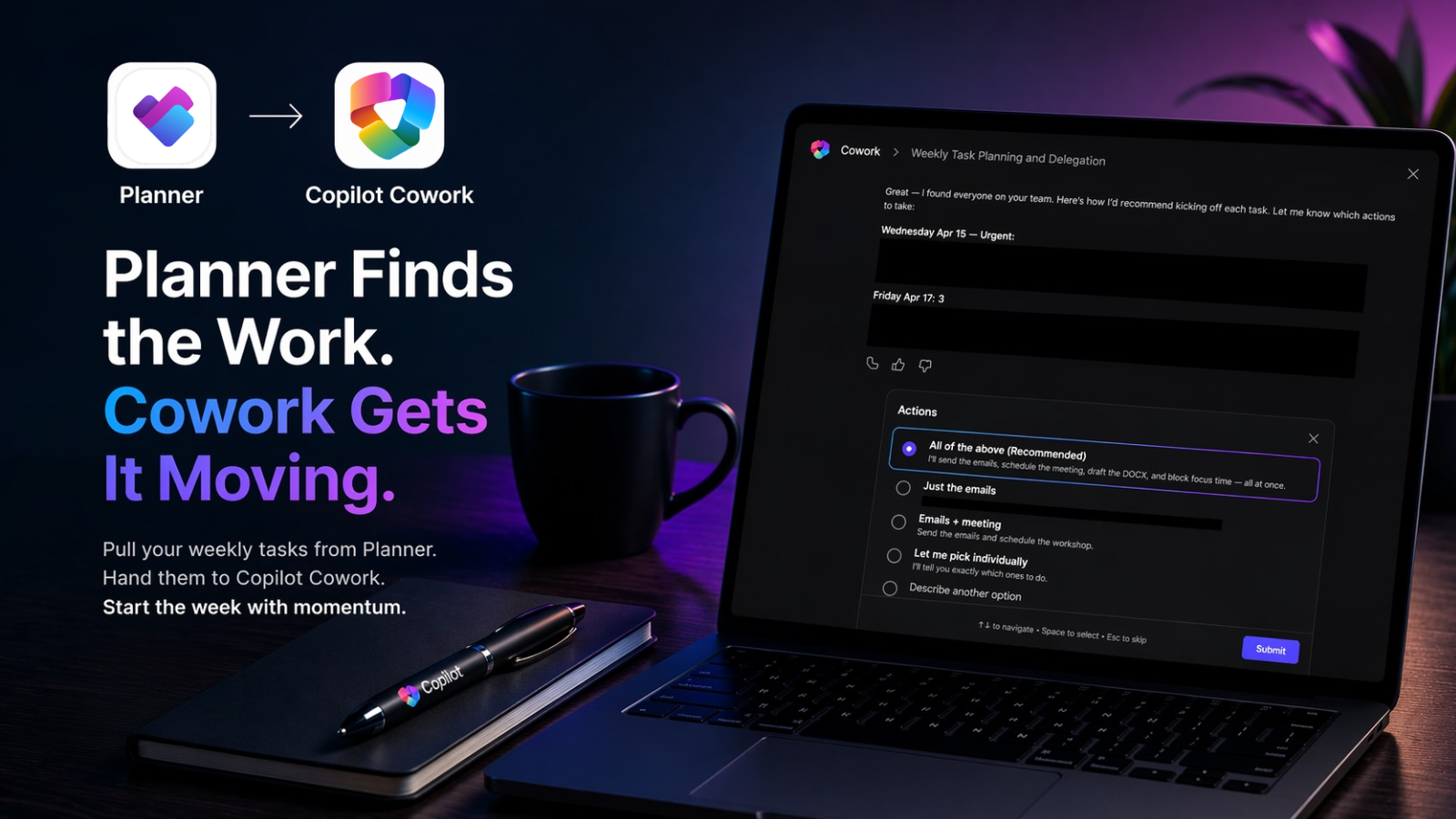
  • Boost Productivity with Planner and Copilot Cowork

    Boost Productivity with Planner and Copilot Cowork

    Copilot Cowork Prompt of the Day: Planner + Cowork

    Most people open Planner, see a wall of tasks, and then burn time figuring out where to start.

    Bad move.

    A better play is to use the Planner (Frontier) agent to pull everything due this week, then hand that full output to Copilot Cowork so it can start moving the work immediately.

    That is exactly what I did here.

    I had 6 tasks due in the upcoming week. Instead of manually opening each one, rewriting the context, drafting emails, setting meetings, and creating documents one by one, I used Planner to extract the full list and Copilot Cowork to help kick things off.

    The scenario

    I had a packed week ahead with multiple tasks already assigned to me in Planner. I needed a fast way to get organized and get the work moving before the week started tightening up.

    So I used the new Planner (Frontier) agent to give me a full view of what was due, then I passed that output directly into Copilot Cowork.

    That gave Cowork real context to work with: due dates, notes, priorities, task titles, and the actual work that needed to happen.

    Step 1: Pull the weekly task list from Planner

    First, I asked Planner to show me everything due this week and give me the full details.

    Show me tasks that are due this week.
    Give me full details.
    I will be giving your output to Copilot Cowork to do the tasks.

    Planner returned the task list with the details I needed. Then I asked it for one more thing: put the output into a code block.

    Can you output this in code block

    That extra step is smart. It makes the output much easier to copy and paste cleanly without wrecking the formatting or losing structure. Also AI loves it.

    Step 2: Hand the extract to Copilot Cowork

    Next, I dropped that Planner output into Copilot Cowork with a very simple prompt.

    I pulled the list of items I need to get done this week coming up.
    Get these things going and started, so I can get them done on time.
    Here is the extract from Planner:
    <Paste output from Planner agent from step 1>

    No complicated framework. No giant system prompt. Just the actual task extract from Planner and a direct ask.

    That is where this gets good. Cowork is no longer guessing what matters. It has the real list in front of it.

    Step 3: Let Cowork start the work

    Once Cowork had the context, it started breaking the workload down and pushing the execution forward.

    In my example, the work included:

    • Drafting emails and Teams messages to align what was still left for the team to build
    • Setting up workshop meetings to gather more requirements
    • Checking availability and scheduling the right people
    • Creating a procedure document
    • Helping move general dev work forward

    That is a strong workflow because it cuts out the dead time between seeing the work and starting the work.

    Instead of looking at six tasks and thinking, I should probably get on this, Cowork starts lining up the actual actions that move those tasks forward.

    Teams message sent to group chat:


    Procedure document generated:

    Meeting scheduled:

    Recap

    Planner and Cowork each do a different job, and that is exactly why this combo works.

    • Planner gives you the structured workload
    • Planner gives you the dates, notes, priority, and task details
    • Cowork uses that context to help draft, schedule, create, and coordinate

    You are not starting from a blank chat. You are starting from actual work that already exists inside Microsoft 365.

    Prompt recap

    Planner prompt

    Show me tasks that are due this week.
    Give me full details.
    I will be giving your output to Copilot Cowork to do the tasks.

    Planner follow-up

    Can you output this in code block

    Copilot Cowork prompt

    I pulled the list of items I need to get done this week coming up.
    Get these things going and started, so I can get them done on time.
    Here is the extract from Planner:
    <Paste output from Planner agent from step 1>

    Why I like this prompt

    This one is simple, practical, and dangerous in a good way.

    You take a task list that usually just sits there, and you turn it into momentum.

    That is the real win. Less dragging. More movement.

    If you are already using Planner, this is one of the easiest Copilot Cowork workflows to start using right now.

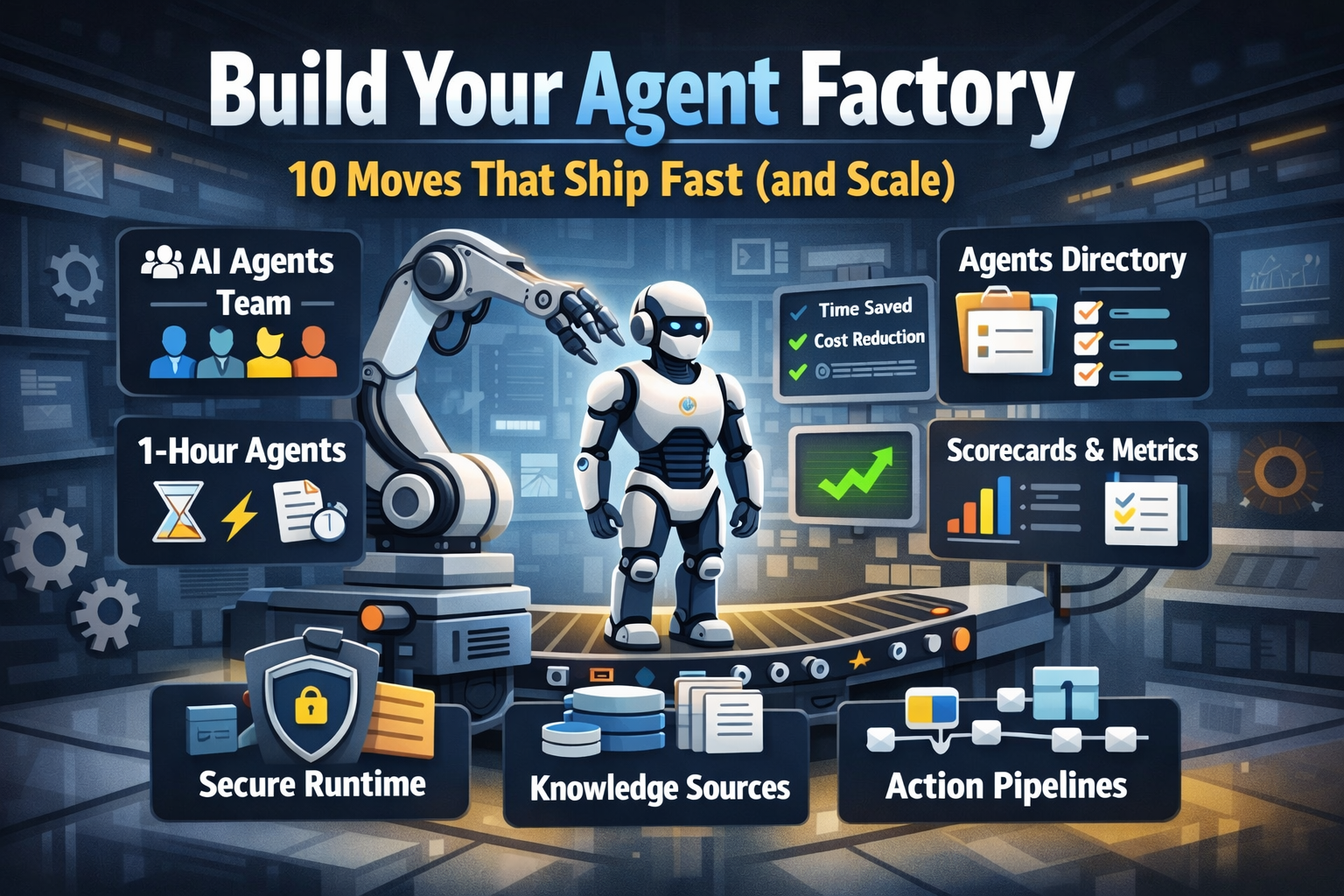
  • Build Your Agent Factory: 10 Moves That Ship Fast (and Scale)

    Build Your Agent Factory: 10 Moves That Ship Fast (and Scale)

    Build Your Agent Factory: 10 Moves That Ship Fast (and Scale)

    Agents at scale. Not POCs.

    Here’s the playbook I’d hand any exec or builder who wants working agents in production—without turning the org into a science fair.

    1) Stand up an AI Agents Workforce

    What it is: A small cross-functional crew with authority to hunt repetitive work and ship agents.

    Who’s in:

    • 1 product owner
    • 1 engineer (Copilot Studio/Power Automate)
    • 1 data person
    • 1 security/governance lead
    • 1 domain SME.

    Ship this week: Write a one-page charter with scope, decision rights, and a 30-day roadmap (first 5 agents + metrics).

    2) Win with horizontals first, then go vertical

    Horizontals (1-hour wins): drafting, summarizing, policy Q&A, meeting notes to actions, form-fill helpers.

    Verticals (outsized ROI): pick 1–2 per business unit where there’s money, risk, or SLA pain.

    Guardrail: don’t start with the hardest workflow; start where you can close the loop and measure value inside two weeks.

    3) Make an Agents Directory the front door

    Why: Ideas die in email. A directory turns “we should build X” into spec and governance.

    Minimum intake fields:

    • use case name
    • goal
    • users
    • decision rights
    • data sources + who owns it
    • tools
    • PII/sensitivity
    • KPIs
    • business owner
    • risk level
    • rollout plan.

    Outcome: Every request auto-generates a lightweight PRD (goal, inputs, outputs, metrics, guardrails) and a yes/no gate.

    4) Create the 1-Hour Agent template

    Template anatomy:

    Goal + success criteria Input schema (what the user provides) Tools (actions/connectors) and permissions Knowledge sources (files, sites, indexes) Safety rules (allowed/blocked actions, escalation) Evaluation set (10–20 test prompts with expected outcomes) Deploy script (Dev → Test → Prod)

    Rule: If a use case can’t fit this page, it’s not a 1-hour agent—park it for later.

    5) Tie every agent to a visible scorecard

    Metrics to publish: time saved, cost avoided, error rate, CO₂/efficiency (where relevant), user satisfaction.

    Simple formula: monthly users × average minutes saved × loaded cost = value.

    Make it public internally: green/red status, owner, last review, next improvement.

    6) Run on a secure, managed agent runtime

    Non-negotiables: identity passthrough, content safety, audit logs, tool call restrictions, data boundary controls, environment isolation.

    Practical tip: standardize a “sensitive sources” policy and block tools by default; allow case-by-case.

    7) Split the stack to move fast without breaking things

    Experience layer: Copilot Studio for UX, channels, and connectors.

    Agent runtime/orchestration: managed agent service for threads, tool calls, safety, and evaluations.

    Why it works: builders ship quickly at the edge; platform team keeps shared guardrails, monitoring, and upgrades stable.

    8) Mix knowledge + action (or you’ll stall)

    Knowledge: structured grounding (SharePoint/Fabric/Search), doc versioning, citations-on by default.

    Action: flows/Logic Apps, Graph, line-of-business APIs; always ship with a dry-run mode first.

    Design pattern: Answer → show sources → propose actions → execute on approval. When confidence is high and stakes are low, allow auto-execute.

    9) Keep humans in the loop—by design

    HITL patterns that work:

    Shadow mode (observe only) → suggest mode → execute with approval → auto-execute.

    Confidence thresholds where low confidence routes to a human. Escalation logic when guardrails trip or data is missing.

    UX rule: one click to approve, one click to undo.

    10) Plan to scale on day one

    Pipelines: Dev → Test → Prod with approvals and rollback.

    Evals: pre-ship test set per agent; weekly drift checks; quarterly red-team.

    Ops: central logging, cost dashboards, incident playbook.

    Program ritual: a quarterly “Agent Backlog Day” to harvest new ideas and retire underperformers.

    Starter Architecture (fast and boring)

    Experience: Copilot Studio (web, Teams, M365, chat, plugins)

    Actions: Power Automate/Logic Apps + custom APIs

    Knowledge: SharePoint/Fabric/AI Search with retrieval policies

    Runtime: managed agent service for tool orchestration, identity, safety

    Observability: evaluations, telemetry, and a simple agent scorecard per app

    Security: Entra ID RBAC, private endpoints, DLP, approval gates

    Prompts and policies that save you pain

    Prompt contract (keep it in the repo): role, goals, inputs, allowed tools, forbidden actions, decision rights, escalation, output format, citation rules.

    Data contract: what sources are permitted, freshness expectations, sensitivity tags.

    Failure modes: what the agent must do when unsure (ask for clarification, route to human, or stop).

    Anti-patterns I keep seeing

    • Starting with an “AI strategy deck” instead of shipping 3 agents.
    • Agents that answer but can’t act—users stop coming back.
    • No owner, no scorecard, no sunset date.
    • Canary-testing in production without a rollback plan.
    • Letting one giant use case block 20 small wins.

    Your first week mapped

    Day 1: Form the team and publish the charter.

    Day 2: Launch the Agents Directory (intake + PRD autogeneration).

    Day 3–4: Build two 1-hour agents (drafting + policy Q&A) with eval sets.

    Day 5: Ship to a pilot group with scorecards visible. Book the first backlog day.