Tag: Copilot Credits

  • Copilot Cowork Billing Setup: Turn On GA Without Opening the Credit Floodgates

    Copilot Cowork Billing Setup: Turn On GA Without Opening the Credit Floodgates

    Copilot Cowork is generally available.

    That is the headline.

    But before you run into the tenant, turn everything on, and let users start throwing goals and long-running tasks at it, you need to understand the billing side.

    Copilot Cowork runs on Copilot Credits. That means the admin work is not just, “Can the user access it?” It is also, “Who can spend credits, how much can they spend, which billing method gets charged, and who gets warned before usage goes sideways?”

    Turning Copilot Cowork on is easy. Turning it on responsibly is where the real admin work starts.

    In this walkthrough, I am setting up Copilot Cowork billing from the Microsoft 365 admin center and showing the choices I would pay attention to before giving users access.

    What changed with Copilot Cowork GA

    Microsoft announced Copilot Cowork general availability on June 16, 2026. Cowork requires a Microsoft 365 Copilot user subscription license, and Cowork usage is billed separately on a usage basis using Copilot Credits.

    That matters because Copilot Cowork is not just another chat surface. It is designed for complex, long-running, multi-tool work. It can retrieve context, call tools, use models, create artifacts, and keep working through a task. All of that value has a meter behind it.

    Microsoft’s current Cost Management experience for usage-based billing applies to Copilot Cowork and Work IQ API right now, with more agents and services expected to come into that experience over time.

    Microsoft 365 admin center Cost management page showing Copilot Cowork and Work IQ API usage-based billing
    Cost Management in the Microsoft 365 admin center is where Copilot Cowork and Work IQ API usage-based billing is configured.

    Start with the right mental model

    Access and consumption are two different things.

    Access lets a user get into the experience. Consumption happens when the experience starts doing work. If Cowork runs a goal, uses a model, retrieves context, calls tools, or performs longer-running work, that activity can consume Copilot Credits.

    That is why billing policies matter. Without them, you are basically handing out an AI gas card and hoping the bill looks reasonable at the end of the month.

    That is not a strategy.

    The better approach is billing plus governance. Set the billing method, define the spending policy, decide who is in scope, add limits, configure alerts, and then expand once you understand real usage.

    Check your admin roles before you start

    If you do not see the option in the admin center, check your role first.

    Billing setup and policy governance may not be handled by the same person in a real organization. Your Microsoft 365 admin, AI admin, Power Platform admin, billing admin, and finance owner might all be different people.

    That matters because the person configuring the billing method needs the right permissions, and the person managing policy limits and alerts also needs the right permissions. Do not discover that halfway through the rollout call. Get the right people in the room before you begin.

    Choose the billing method intentionally

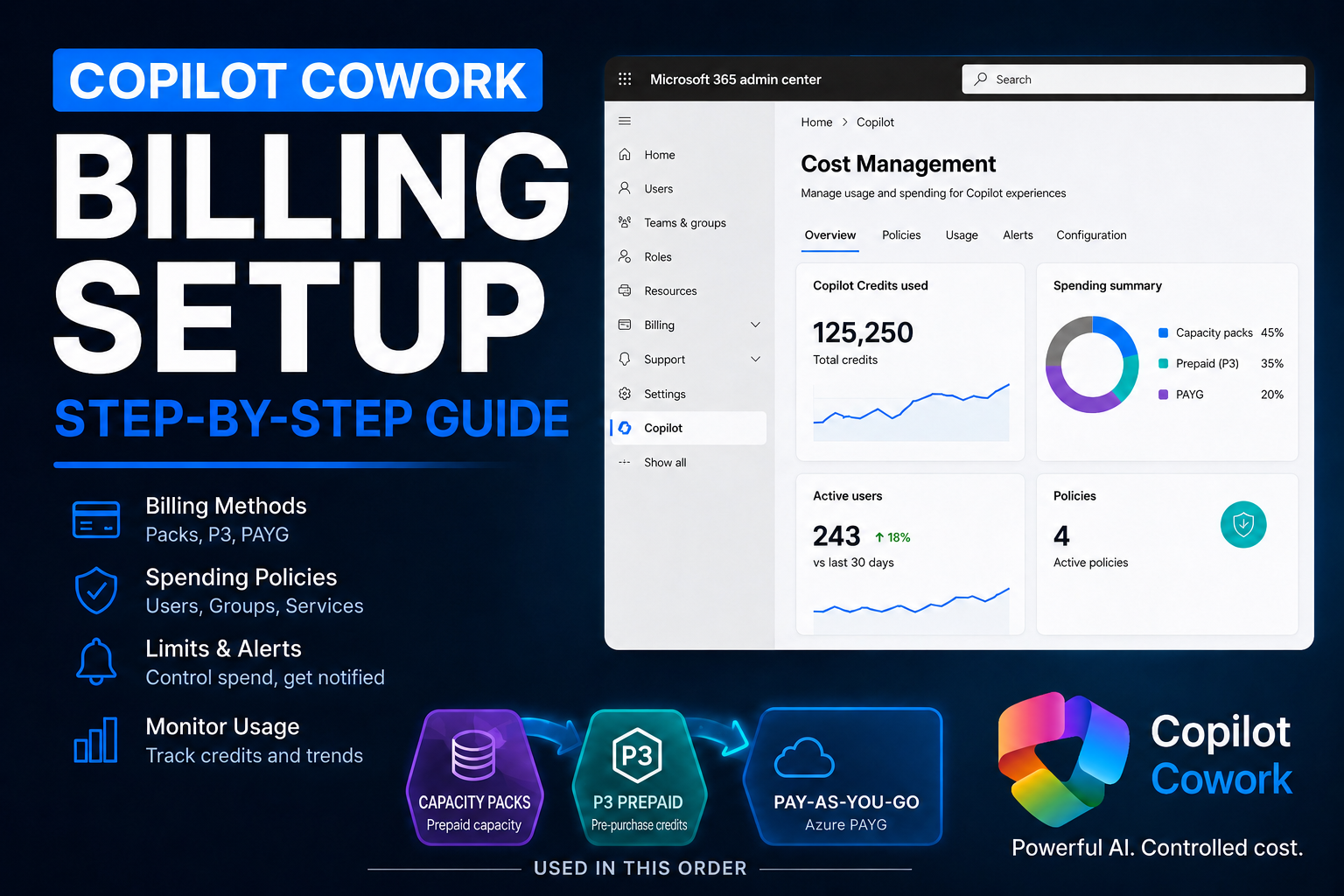
    In the setup flow, you may see more than one billing method. In my tenant example, I had Capacity Packs available and also had the option to use a pay-as-you-go subscription.

    Capacity Packs let you bill against prepaid Copilot Credit capacity. Pay-as-you-go can keep services running once capacity pack credits run out, but it also means the meter can keep running against the connected subscription.

    Neither option is automatically good or bad. The point is to make the choice on purpose.

    Billing method options for Copilot Credits showing Capacity Packs and pay-as-you-go subscription
    Select the billing method intentionally. Capacity Packs and pay-as-you-go behave differently when credits run out.

    For a personal tenant or a controlled pilot, I would usually start with the most bounded option. For a production rollout where interruption would be a problem, you may choose to include pay-as-you-go, but that decision should involve the billing owner.

    What if you have no Copilot Credits?

    If your tenant does not already have Copilot Credits available, do not let that push you into an unlimited rollout. Start with pay-as-you-go, but treat it like a metered pilot, not an open tab.

    Microsoft lists PayGo for Copilot Cowork at $0.01 per Copilot Credit. That means 25,000 credits would be about $250 if you let usage land entirely on pay-as-you-go.

    That is the point where the economics should make you stop and re-check the licensing path. Microsoft lists Copilot Studio credit packs at 25,000 Copilot Credits for $200 per pack per month. So if you expect usage to get anywhere near 25,000 credits in a month, PAYG is no longer just a convenient starter option. It may be more expensive than buying a capacity pack.

    The practical setup I would use is this: enable PAYG to get started, set the monthly policy limit at 25,000 credits, turn alerts on well before that point, and review usage before the policy hits the cap.

    • At 10,000 credits, check whether the pilot group is using Cowork the way you expected.
    • At 20,000 credits, start the capacity pack conversation because the $200 pack economics are already close.
    • At 25,000 credits, do not just increase the PAYG limit without a decision. Buy a P3 or Copilot Credit capacity pack if monthly usage is becoming predictable.

    PAYG is still useful. It is the fastest way to start when you have no credits, and it is a good safety net for overages. But once usage becomes steady, capacity packs are the cleaner budgeting conversation.

    Do not assume the visible credit pool is unused

    This is the part admins need to slow down on.

    In my example, the Cost Management setup showed 50,000 credits available. But in the Power Platform admin center, 10,000 of those Copilot Studio messages were already allocated to a specific environment.

    Power Platform admin center Capacity add-ons page showing Microsoft Copilot Studio messages allocated from a 50,000 credit pool
    Before assigning a Cowork policy, check whether Copilot Credits are already supporting other Power Platform or Copilot Studio workloads.

    The lesson is simple: do not treat the number in one setup panel as the whole story.

    Copilot Credits can support more than one AI workload. If your organization is already using Copilot Studio, Dynamics 365, Power Platform, or other metered AI capabilities, make sure you understand what that credit pool is already expected to cover.

    The last thing you want is for a Cowork pilot to burn through credits that another production agent was relying on.

    Do not start unlimited

    The setup flow gives you the choice to limit monthly spending or leave monthly spending unlimited.

    My recommendation for most organizations starting with Copilot Cowork is simple: do not start unlimited.

    Launch it like a controlled pilot. Give it a monthly policy budget, watch usage, learn what normal looks like, then increase the limit later if the usage is healthy.

    In my example, I set the policy budget to 40,000 credits because I wanted to keep 10,000 credits available for other Copilot Studio usage in the tenant. Your number will be different. The principle is the same.

    Set a per-user monthly limit

    The per-user monthly spending limit is optional, but I would seriously consider enabling it.

    Without a user limit, one person can potentially consume a large chunk of the available credits. They may not be doing anything malicious. They might just be experimenting, running long tasks, testing browser automation, asking for big research outputs, or sending Cowork work that should have stayed in regular Copilot Chat.

    That kind of experimentation is a sign adoption is happening. But adoption without guardrails becomes waste.

    Set a policy-level monthly budget, consider a per-user monthly limit, and configure alerts before activating the policy.

    In the demo tenant, I used a 40,000 credit policy limit and a 20,000 credit per-user limit because the pilot only had two users. That is an example, not a universal recommendation.

    The right number depends on how many users are in scope, what tasks they will run, how much existing Copilot Credit capacity is already committed, and how much risk you are willing to tolerate during the first rollout.

    Turn alerts on before usage surprises you

    Do not wait until the end of the month to learn usage went sideways.

    Cost Management lets you define alerts so the right people get notified when usage reaches a threshold. That could be the Microsoft 365 admin, billing owner, finance stakeholder, platform owner, or whoever is accountable for the pilot.

    In my example, with a 40,000 credit monthly policy limit, I used a 30,000 credit alert threshold. That gives the owner time to investigate before the policy hits the cap.

    This is how you move from reactive admin to proactive admin.

    Do not activate for everyone by default

    This is the part of the setup that is easy to rush.

    If you activate broadly, you may be enabling access across the whole organization depending on how the policy is configured. For some organizations, that might be fine. For most first rollouts, I would not start there.

    Customize the setup configuration and scope the policy to a security group.

    Microsoft 365 admin center security group creation screen with the name Copilot Cowork Access
    Create a clear security group for the pilot, such as Copilot Cowork Access, instead of starting with the entire tenant.

    Use a clear name like Copilot Cowork Access or Copilot Cowork Pilot Users. Add a small group of trusted users first: admins, builders, business champions, finance, operations, or the people who will give you useful feedback.

    Think of this like a pilot program. You want people who will use it seriously, report what worked, report what wasted credits, and help you understand whether the budget is realistic.

    Cost Management access group configuration scoped to specific security groups
    Scope the policy to specific groups so you know exactly who can consume Copilot Credits through Cowork.

    Review the policy before you activate it

    Before clicking activate, review the setup like a change request:

    • Which services are enabled by the policy?
    • Which billing method will be charged?
    • Is the monthly spending limit set?
    • Is the per-user limit set?
    • Who receives alerts?
    • What threshold triggers those alerts?
    • Which users or groups are in scope?
    • Are other workloads already using the same credit pool?

    In my setup, the final shape was:

    • Billing method: Capacity Packs
    • Policy monthly limit: 40,000 credits
    • Per-user monthly limit: 20,000 credits
    • Alert threshold: 30,000 credits
    • Access scope: a specific security group for Copilot Cowork access

    Again, those are demo values. Do not copy them blindly. Copy the pattern: limit, alert, scope, observe, then scale.

    The rollout pattern I would use

    If I were rolling out Copilot Cowork in a tenant, I would not start with the whole organization. I would use this pattern:

    1. Confirm the admin roles needed for billing and policy management.
    2. Review existing Copilot Credit usage in Microsoft 365 and Power Platform.
    3. Choose the billing method with the billing owner involved.
    4. Create a bounded monthly spending policy.
    5. Add a per-user limit for the pilot group.
    6. Set alerts before the policy limit is reached.
    7. Create a security group for pilot access.
    8. Add a small number of serious users.
    9. Monitor usage and identify what tasks burn credits.
    10. Increase limits or expand access only after you understand normal usage.

    This gives you control. You know who has access, what they can consume, which budget they are under, and when someone needs to pay attention.

    That is how you test Copilot Cowork without turning the tenant into a free-for-all.

    Final thought

    Copilot Cowork is powerful because it can take on real work. But the more real the work gets, the more important the admin controls become.

    Cost Management is not the boring part of Copilot Cowork. It is the part that lets you adopt it without surprising finance, burning shared credits, or giving every user an unlimited meter on day one.

    Start controlled. Learn the usage. Then scale with confidence.

    Sources

  • Copilot Cowork /goal Prompt Vault:

    Copilot Cowork /goal Prompt Vault:

    I’ve been using Copilot Cowork since March, and the biggest lesson is simple: stop treating it like a chat box.

    Give it a real goal.

    The /goal skill is where Cowork gets serious. When you point it at the right files, context, assets, and instructions, it can move from “give me ideas” to “go figure this out, build the plan, show me the sources, and wait for approval.”

    Each prompt will include the use case, the exact prompt, the expected result, and the follow-up prompts you can use to push Cowork further.

    1. Prompt #1 — Create an Organization Branding Kit
    2. Prompt #2: Find Copilot-Only Automation Use Cases from Work IQ

    Prompt #1 — Create an Organization Branding Kit

    Use case

    Use this when you want Copilot Cowork to pull together a practical branding kit for an organization using available internal context, public website branding, existing files, logos, icons, and PowerPoint decks.

    This is useful when the organization already has branding scattered across folders, decks, documents, images, and websites, but there is no clean source of truth.

    The goal is simple: get Cowork to discover what already exists first, then build the branding kit from real assets instead of guessing.

    The /goal prompt

    /goal Create a complete branding kit for [Organization Name].
    Use all available context you can access, including internal files, shared documents, PowerPoint decks, Word documents, PDFs, images, logos, icons, and the organization’s public domain: [Website URL].
    Your first job is discovery.
    Look for:
    - Existing logos and icon files
    - PNG and JPEG image files containing official logos, icons, or brand graphics
    - PowerPoint decks that appear to be templates or close to templates
    - Sales decks, pitch decks, marketing decks, one-pagers, proposals, product sheets, and internal documents
    - Existing colors, fonts, layouts, screenshots, visual patterns, and repeated design styles
    - Website branding, tone, product language, and positioning from the public domain
    Asset handling guardrails:
    - Do not recreate, redraw, regenerate, restyle, or reimagine any existing logo or icon.
    - Use the actual existing image assets when they are available.
    - Prefer the original PNG or JPEG files for logos, icons, and other brand images.
    - If multiple versions exist, identify the best available source file and note the others.
    - Preserve the original appearance of logos and icons, including proportions, colors, spacing, and transparency.
    - Do not generate substitute logos or substitute icons.
    - If an official asset cannot be found, clearly mark it as missing and recommend that it be provided.
    - If an asset is unclear, low quality, duplicated, or inconsistent, flag it instead of attempting to remake it.
    Do not invent brand rules. If something is not clearly available, mark it as “recommended” instead of “confirmed.”
    Create a practical branding kit that includes:
    1. Brand overview
    Summarize the organization’s visual identity, positioning, tone, and audience.
    2. Logo guidance
    Identify the available logo and icon assets, especially the PNG and JPEG files, and recommend how they should be used across slides, documents, social posts, and web assets.
    3. Color palette
    Extract or infer the main brand colors from existing assets. Include hex codes when possible. Separate confirmed colors from recommended supporting colors.
    4. Typography guidance
    Identify any fonts used in existing materials if possible. If the fonts are unclear, recommend a clean Microsoft-friendly font stack that matches the brand.
    5. Presentation style
    Review existing PowerPoint decks and identify the best deck or slides to use as the closest template. Explain what makes it the best starting point.
    6. Slide design rules
    Create clear rules for title slides, section dividers, content slides, screenshots, diagrams, callout slides, and closing slides.
    7. Icon and image style
    Define the icon style, image style, screenshot style, and visual treatment the organization should use consistently, based only on existing assets and patterns you find.
    8. Voice and tone
    Define how the organization should sound in external content, internal content, sales material, and social posts.
    9. Reusable asset recommendations
    List the assets that should be created next, including PowerPoint template, Word template, social post template, proposal template, one-page product sheet, and icon set.
    10. Gaps and questions
    List anything missing, unclear, inconsistent, or worth confirming before the branding kit becomes official.
    Before creating the final branding kit, show me:
    - The files and sources you found
    - Which logo and icon image files you found, especially PNG and JPEG assets
    - Which PowerPoint deck is the best starting point
    - Any assumptions you are making
    - Any missing or questionable assets
    - The proposed structure for the final branding kit
    Wait for my approval before creating the final output.

    Expected result

    Cowork should search the available context, identify the real brand assets, review existing decks and documents, and build a branding kit grounded in what already exists.

    The important part is that it should separate confirmed brand rules from recommended brand rules.

    • Confirmed means Cowork found evidence in the files, website, images, decks, or documents.
    • Recommended means Cowork is filling a gap based on the closest available context.

    That distinction matters because branding work can go sideways fast when the AI starts inventing things. The prompt forces Cowork to find the source material first, flag gaps, and wait for approval before creating the final output.

    The guardrails around logos and icons are also important. Cowork should use the actual image files where possible. It should not recreate or redesign official assets.

    How to extend / prompt more

    Once Cowork creates the first version of the branding kit, keep driving it with follow-up prompts like these:

    Add this <logo.png> as the main logo for the branding kit. Use the actual image file. Do not recreate, redraw, or modify the logo.
    Use this <icon.png> as the primary app or product icon. Keep the original proportions, colors, and transparency.
    Using this brand kit, generate a new Word template I can use for general letter headings.
    Using this brand kit, create a Word proposal template with a cover page, section headings, body styles, callout sections, and a closing page.
    Using this brand kit, create a PowerPoint template structure with a title slide, section divider, agenda slide, content slide, screenshot slide, quote or callout slide, and closing slide.
    Use this existing <presentation.pptx> as the closest visual reference and create a cleaner template based on its style.
    Create a one-page brand cheat sheet for employees that shows the logo usage, colors, fonts, tone, and common do and don’t rules.
    Create a social post template guide using this branding kit for LinkedIn and X.
    Create a reusable prompt I can paste into Cowork any time I want it to generate on-brand content for this organization.
    Create a list of missing brand assets I should upload next, including logo formats, icons, PowerPoint templates, Word templates, screenshots, and product images.
    Create a lightweight version of this branding kit for sales, delivery, and support teams.
    Review this generated template against the branding kit and tell me what is off-brand before I use it.

    Final note

    This is where Copilot Cowork starts to become more than a chat experience.

    You are giving it a goal, pointing it at real organizational context, adding guardrails, and forcing it to work from actual assets.

    That is how you get better output.


    Prompt #2: Find Copilot-Only Automation Use Cases from Work IQ

    This prompt is designed for Copilot Cowork when you want to look across your Microsoft 365 work patterns and find practical automation opportunities that can be handled with Copilot first.

    The key constraint is important:

    The first three use cases must be possible using only Copilot.

    No Power Automate. No Azure. No custom code. No developer work.

    Then the prompt asks for one bonus use case where Power Automate is allowed, but only if the workflow truly needs a trigger, system action, approval, notification, or reliable automation beyond what a prompt can do.

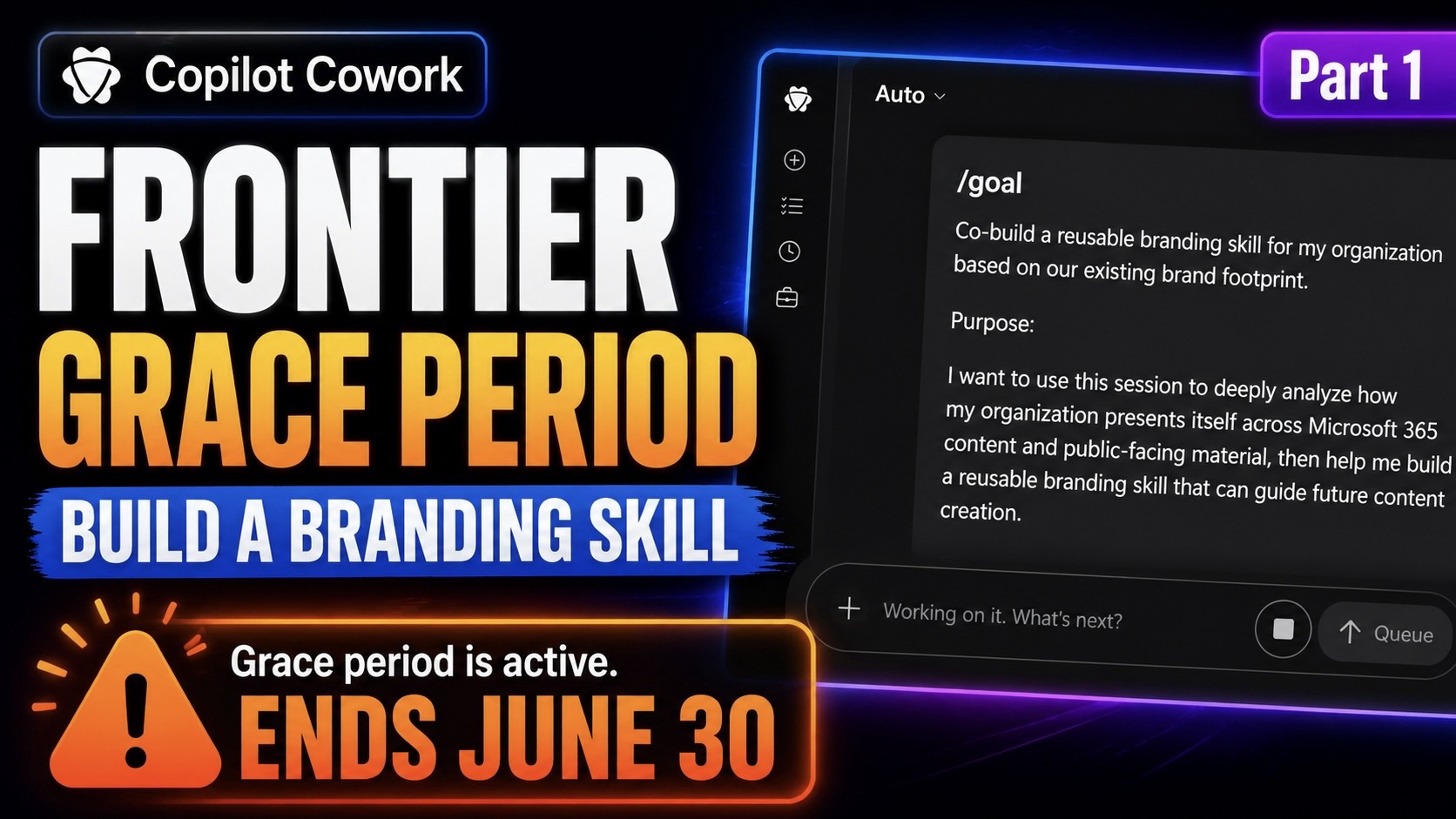
    This is a strong Frontier grace period test because it helps you answer a very practical question:

    What recurring work can we improve with Copilot alone before we start building anything heavier?

    What this /goal does

    • Looks for recurring work patterns across Microsoft 365
    • Identifies repeated meeting prep, follow-ups, updates, summaries, and content work
    • Shortlists possible Copilot-only automation use cases
    • Selects the top 3 practical use cases
    • Builds setup blueprints for each one
    • Drafts scheduled prompts, Cowork skill drafts, /goal workflows, or Copilot Chat prompts
    • Adds one bonus Power Automate use case where automation is actually justified

    The /goal prompt

    /goal
    Analyze my Work IQ and Microsoft 365 work patterns to identify the top Copilot-only automation use cases.
    Purpose:
    I want you to look deeply at my available Microsoft 365 work context and Work IQ signals to find the best recurring work patterns that can be improved using only Microsoft 365 Copilot and Copilot Cowork.
    This should not be a generic brainstorm.
    I want practical use cases that can be implemented with Copilot capabilities only, such as:
    - Microsoft 365 Copilot scheduled prompts
    - Copilot Cowork skills
    - Copilot Cowork /goal workflows
    - Microsoft 365 Copilot Chat prompts
    - Copilot agents where available
    For the first 3 use cases, do not require Power Automate, Azure, custom code, external connectors, or developer work.
    After the top 3 Copilot-only use cases, include a 4th bonus use case where Power Automate is allowed.
    Primary goal:
    Find the top 3 recurring work patterns that can be improved using only Copilot, then create a practical setup plan for each one.
    Then identify one additional use case where Power Automate would be the better option.
    Important guardrails:
    - Do not force Power Automate into the first 3 use cases
    - Do not recommend custom code
    - Do not recommend Azure Functions
    - Do not recommend complex integrations
    - Do not recommend external tools
    - Do not create anything unless I approve
    - Do not schedule anything unless I approve
    - Do not send emails
    - Do not post in Teams
    - Do not modify files
    - Do not create automations
    - Clearly separate Copilot-only use cases from the Power Automate use case
    - Base recommendations on real work patterns where possible
    - If Work IQ signals are limited, use available Microsoft 365 context such as meetings, emails, chats, files, recurring collaboration patterns, and repeated tasks
    - Be practical
    - Recommend the lightest approach that solves the problem
    Step 1: Create a work plan
    Before starting, create a short work plan.
    Explain:
    - What Microsoft 365 work context you will analyze
    - What Work IQ signals you will look for
    - How you will identify repeated work patterns
    - How you will decide whether something can be handled with Copilot only
    - How you will decide whether something needs Power Automate
    - What outputs you will create
    Then proceed.
    Step 2: Analyze Work IQ and Microsoft 365 work patterns
    Review available work signals and look for recurring patterns such as:
    - Repeated meeting prep
    - Repeated meeting follow-up
    - Weekly status updates
    - Recurring stakeholder updates
    - Repeated executive summaries
    - Repeated project updates
    - Repeated customer updates
    - Repeated inbox triage
    - Repeated action item tracking
    - Repeated document drafting
    - Repeated research tasks
    - Repeated content creation
    - Repeated review workflows
    - Recurring decisions that need summaries
    - Recurring risks that need monitoring
    - Work that happens before meetings
    - Work that happens after meetings
    - Work that requires pulling context from multiple Microsoft 365 sources
    - Work that could run on a schedule
    - Work that could be standardized with a skill
    - Work that could be delegated to Cowork
    - Work that should stay lightweight in Copilot Chat
    Create a short summary of the main patterns you found.
    Step 3: Create a shortlist of Copilot-only candidates
    Create a shortlist of at least 10 possible Copilot-only use cases.
    For each candidate, include:
    - Use case name
    - Work pattern it is based on
    - Why it matters
    - Who benefits
    - Frequency
    - Business value
    - Time savings potential
    - Complexity
    - Data sensitivity
    - Best Copilot capability
    - Why this can be done with Copilot only
    - Why it does not need Power Automate
    The best Copilot capability should be one of:
    - Microsoft 365 Copilot scheduled prompt
    - Copilot Cowork skill
    - Copilot Cowork /goal workflow
    - Microsoft 365 Copilot Chat prompt
    - Copilot agent, where available
    - Combination of Copilot capabilities only
    Step 4: Select the top 3 Copilot-only use cases
    Rank the candidates and select the top 3 use cases that can be implemented with Copilot only.
    Score each candidate from 1 to 5 for:
    - Business value
    - Frequency
    - Time savings
    - Ease of setup
    - User adoption likelihood
    - Scheduled prompt fit
    - Cowork skill fit
    - Cowork /goal fit
    - Governance risk
    - Data sensitivity
    - Repeatability
    For each top 3 use case, explain:
    - Why it made the top 3
    - Why it is more valuable than the other candidates
    - Why it can be handled with Copilot only
    - Why Power Automate is not required
    - Whether the best approach is a scheduled prompt, Cowork skill, /goal workflow, Copilot Chat prompt, or combination
    Step 5: Build the setup blueprint for each Copilot-only use case
    For each of the top 3 Copilot-only use cases, create a complete setup blueprint.
    Include:
    - Use case name
    - Business problem
    - Work pattern evidence
    - Main users
    - Trigger or schedule
    - Required context
    - Microsoft 365 sources needed
    - Recommended Copilot capability
    - Setup steps
    - Prompt text
    - Expected output
    - Human review points
    - Governance notes
    - What success looks like
    - What could go wrong
    - What should not be automated
    - How to test it
    - How to improve it after testing
    Step 6: Draft the actual Copilot assets
    For each top 3 use case, draft the actual Copilot setup assets.
    If it should be a scheduled prompt, include:
    - Scheduled prompt name
    - Recommended schedule
    - Why that schedule makes sense
    - Full scheduled prompt text
    - Expected output
    - Who should review it
    - What the user should do with the output
    - Guardrails
    - What the scheduled prompt should not do
    If it should be a Copilot Cowork skill, include:
    - Skill name
    - Skill purpose
    - When users should use it
    - What the skill should ask the user
    - What context it needs
    - What steps it should follow
    - What outputs it should create
    - What it should never do
    - How it should handle uncertainty
    - Approval points
    - Validation checklist
    If it should be a Copilot Cowork /goal workflow, include:
    - Goal name
    - Goal purpose
    - Full /goal prompt
    - Expected outputs
    - Why Cowork is the right fit
    - Approval points
    - How to avoid unnecessary credit usage
    If it should stay in Microsoft 365 Copilot Chat, include:
    - Prompt name
    - Full prompt text
    - When to use it
    - When not to use it
    - Expected output
    - How to reuse it
    Step 7: Add one Power Automate bonus use case
    After the top 3 Copilot-only use cases, identify one additional use case where Power Automate is actually justified.
    This should be a workflow where:
    - A real trigger is needed
    - A system action needs to happen automatically
    - A record needs to be created or updated
    - An approval needs to be routed
    - A notification needs to be sent
    - A process needs reliability beyond a prompt
    - Copilot alone is not enough
    For the Power Automate use case, include:
    - Use case name
    - Why Copilot alone is not enough
    - Why Power Automate is justified
    - Trigger
    - Core flow steps
    - Inputs
    - Outputs
    - Approvals
    - Error handling
    - Where Copilot fits
    - Where Cowork fits
    - Governance notes
    - What should stay manual
    - What should be tested first
    Step 8: Compare the top 4
    Create a comparison table with:
    - Use case
    - Copilot-only or Power Automate
    - Best tool
    - Why this tool fits
    - Setup effort
    - Business value
    - Risk
    - Data sensitivity
    - User adoption likelihood
    - First test to run
    Step 9: Final output
    At the end, give me:
    - Executive summary
    - Work IQ pattern summary
    - Top 10 Copilot-only candidate list
    - Top 3 Copilot-only use cases
    - Why those 3 won
    - Full setup blueprint for each top 3 use case
    - Scheduled prompt drafts
    - Cowork skill drafts
    - Cowork /goal drafts
    - Copilot Chat prompt drafts
    - One Power Automate bonus use case
    - Comparison table
    - Rollout recommendations
    - Governance concerns
    - What should be tested first
    - What should not be automated yet
    - Assumptions
    - Data gaps
    - Confidence level
    Final instruction:
    Be strict.
    The first 3 use cases must be possible with Copilot only.
    Do not sneak Power Automate into the first 3.
    Only the 4th bonus use case can use Power Automate.
    I want the strongest practical Copilot-only use cases, not flashy demos.

    Why this prompt works?

    This prompt forces Cowork to stay practical.

    The first three use cases must be possible with Copilot only, so the output should focus on things like scheduled prompts, Cowork skills, /goal workflows, Copilot Chat prompts, and agents where available.

    Then the fourth use case gives you a clean escalation path for Power Automate when the process actually needs a trigger, approval, notification, record update, or reliable system action.

    That is the real value: start with Copilot, then only move to automation when the work pattern justifies it.