Get Your Tenant Ready for Day 1: Joining Microsoft 365 Frontier for Copilot Cowork
If you’ve been following the buzz around Copilot Cowork, you already know it’s going to change how we work inside Microsoft 365. But here’s the thing — Day 1 readiness doesn’t happen on Day 1. It happens now.
In this post, I’ll walk you through exactly how to get your tenant set up: the right licenses, how to join the Frontier program, enabling the Anthropic sub-processor, configuring pilot groups, and locking down governance before you open the floodgates.
Copilot Cowork is expected to be available for Frontier customers late March or later.
Step 1: Make Sure You Have the Right Licenses
Before you can enable anything, your tenant needs the right foundation.
| Requirement | Details |
|---|---|
| Microsoft 365 Copilot license | Required for all end users who will access Copilot Cowork. Available as an add-on on E3, E5, Business Standard, and Business Premium plans. |
| AI Administrator role | Required to make changes in the Copilot settings area of the Admin Center. |
| Microsoft Entra ID P1 or P2 | Needed for group-based access control and conditional access (P1 minimum). |
| SharePoint Online | Included in most M365 plans — required for Cowork’s document grounding. |
Admin tip: Before you go further, run a license audit. In the Microsoft 365 Admin Center, go to Billing > Licenses and confirm Copilot licenses are assigned — unassigned licenses won’t show up in Frontier eligibility checks.
Step 2: Join Microsoft 365 Frontier
Microsoft 365 Frontier is the early adopter program that gives your tenant access to upcoming Copilot features before general availability — including Copilot Cowork.
What you’ll need first
You must have AI Administrator access to complete this setup. If you don’t have this role, work with your Global Admin to get it assigned before you start.
How to join Frontier
- Start from office.com and open the Admin Center.
- Navigate to Copilot → Settings → Frontier.
- On the Frontier settings page, enable early access.
- Under Web Apps, select the users who should be included.
- Click Save.
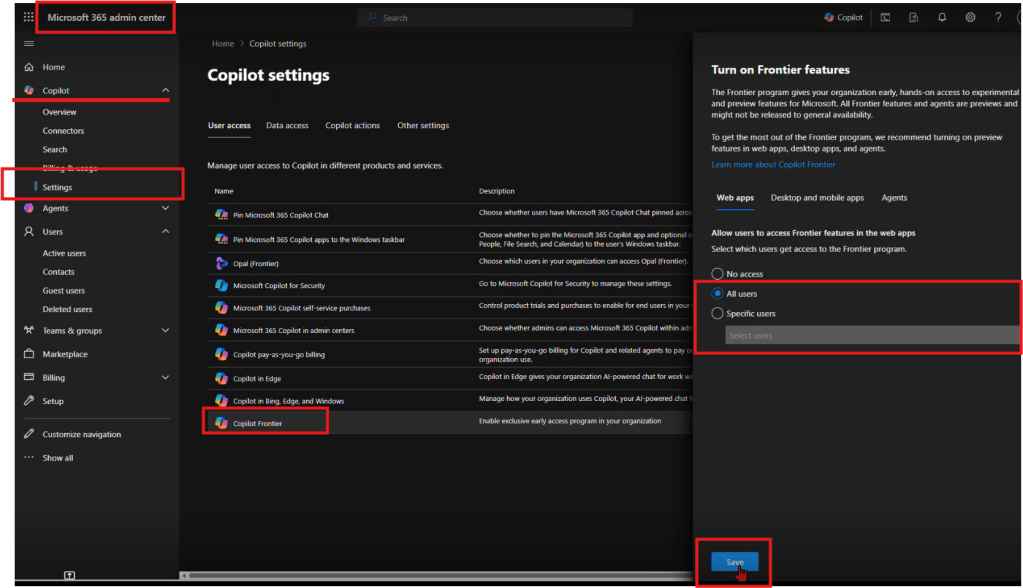
That’s it — your tenant is now enrolled in Frontier.
Step 3: Enable Anthropic as an AI Provider
After Frontier is enabled, you need to turn on the AI providers that power the new Copilot experiences. This is the step most admins don’t realize is required.
How to enable Anthropic
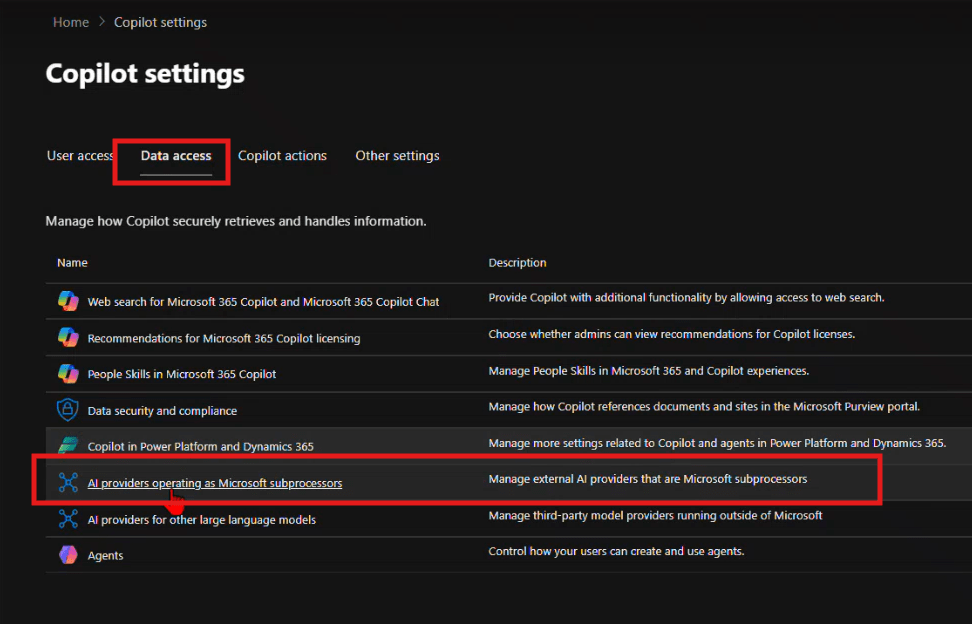
- From the same Copilot settings area, navigate to Data access.
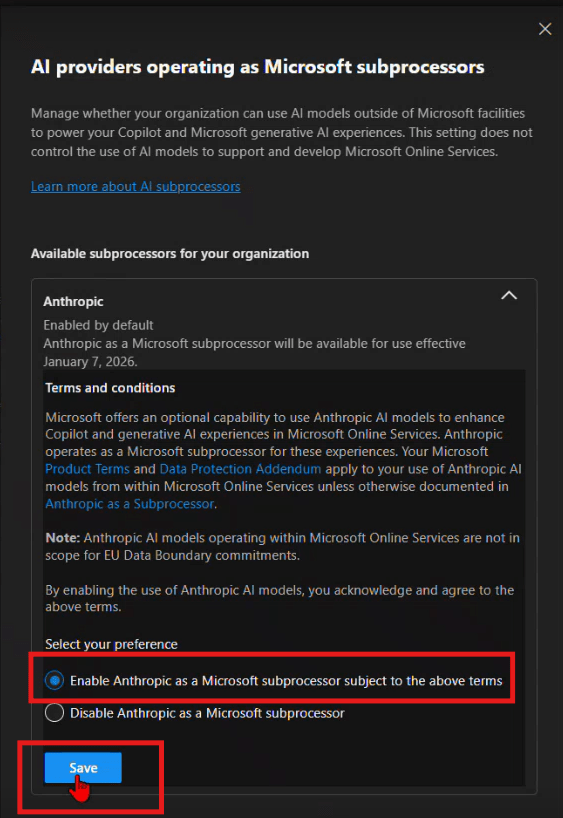
- Enable the available AI providers — the recommendation is to enable as many as possible.
- Specifically, find Anthropic and enable it for Copilot.
Step 4: Set Up Pilot Groups (Optional)
Don’t roll Frontier out to your entire organization on Day 1. A phased pilot protects your environment and gives you time to validate the experience before broad deployment.
Recommended pilot structure
| Phase | Group | Purpose |
|---|---|---|
| Wave 1 — Champions | 5–10 power users (IT, Copilot champions) | Validate setup, surface issues early |
| Wave 2 — Early Adopters | 50–100 users across key departments | Real-world workflow testing |
| Wave 3 — Broad Rollout | All licensed users | Full deployment |
How to configure
- Create security groups in Microsoft Entra ID — for example,
SG-CopilotCowork-Wave1andSG-CopilotCowork-Wave2. - In the Frontier settings from Step 2, assign early access to your Wave 1 group first using the Web Apps user selection.
- Expand to Wave 2 once Wave 1 has validated the experience.
Pro tip: Set up a Microsoft Teams channel for your pilot group — something like #cowork-pilot-feedback — so you have a central place to collect issues and wins before you scale.
Step 5: Governance — Lock Down Oversharing Before You Start
This is the step most organizations skip — and regret. When Copilot can surface content from across your tenant, oversharing becomes a data exposure risk, not just a governance annoyance. Lock this down before you enable Cowork broadly.
Key controls to review
| Control | Where to set it | Recommendation |
|---|---|---|
| External sharing | SharePoint Admin Center → Policies → Sharing | Set to “Existing guests only” or “Only people in your org” during Frontier rollout |
| Default sharing links | SharePoint Admin Center → Policies → Sharing | Change from “Anyone with the link” to “People in your organization” |
| Site-level permissions | Individual site settings | Audit “Everyone except external users” — this is the #1 oversharing culprit |
| Sensitivity labels | Microsoft Purview | Apply labels to classify and restrict access to confidential content |
| Guest access expiration | Entra ID → External collaboration settings | Set guest access to expire after 90 days |
SharePoint Admin Agent Prompt: Oversharing Audit
Use this prompt directly with the SharePoint Admin agent in the Microsoft 365 Admin Center to get a fast, prioritized oversharing assessment:
Review my SharePoint environment for oversharing risks before a Copilot rollout. Specifically:
1. Identify all sites that have 'Everyone' or 'Everyone except external users' granted any level of access.
 2. List sites where external sharing is enabled but shouldn't be (e.g., HR, Finance, Legal).
 3. Show me any files or folders shared via 'Anyone with the link' in the last 90 days.
 4. Flag any sites with more than 500 unique permissions (permission explosion).
 5. Recommend which sites should have sensitivity labels applied but currently don't.
Format results as a prioritized remediation list — highest risk first.
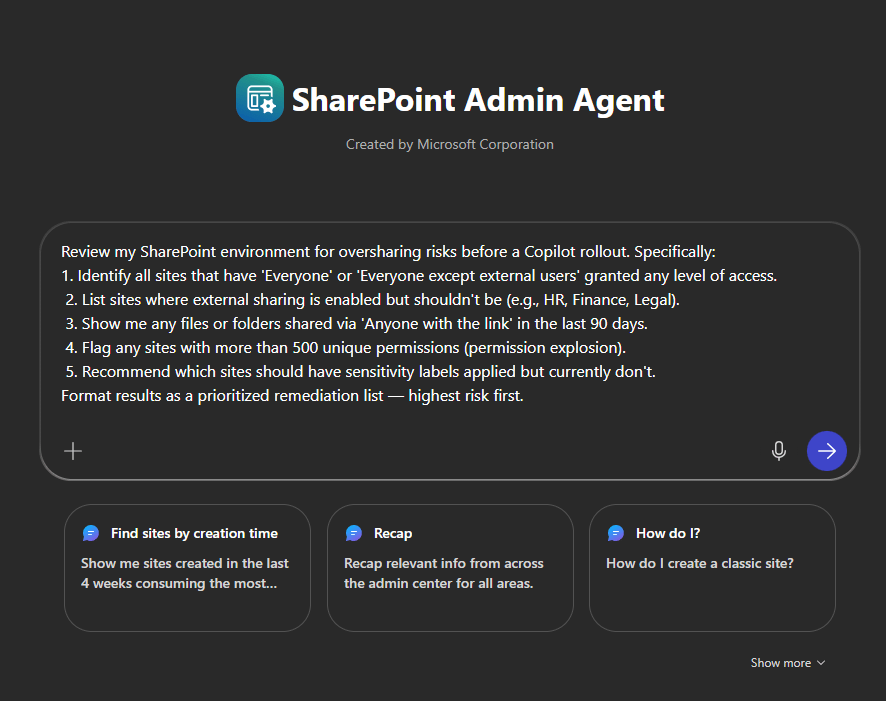
This gives you an actionable list to work through before any end user asks Copilot Cowork a question about a document they shouldn’t be able to see.
Your Day 1 Readiness Checklist
- [ ] M365 Copilot licenses assigned to target users
- [ ] AI Administrator role confirmed
- [ ] Tenant enrolled in Frontier (Copilot → Settings → Frontier)
- [ ] Early access enabled and Web Apps users selected
- [ ] Anthropic enabled under Data access → AI providers
- [ ] Pilot security groups created (Wave 1, 2, 3)
- [ ] SharePoint oversharing audit completed using Admin agent prompt
- [ ] External sharing policies tightened
- [ ] Sensitivity labels deployed for confidential content
- [ ] Pilot feedback channel set up in Teams
Final Thought
Copilot Cowork is a new way of working. The organizations that will get the most out of Day 1 are the ones doing this prep work right now. Join Frontier, enable Anthropic, run your oversharing audit, and start small with a tight pilot group.
The foundation is simple: Frontier starts with admin enablement and provider access. Once that’s in place, you’re ready for everything that comes next.
 Flow Alt Delete - Josh Cook [Microsoft MVP]