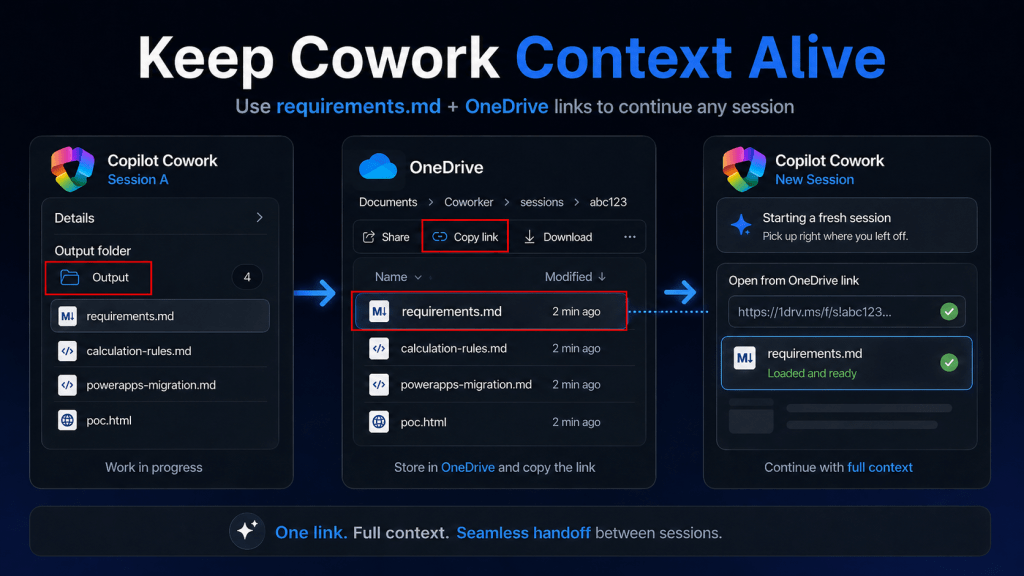
Copilot Cowork is strong at creating files. Documents, markdown files, HTML files, specs, plans, summaries, all of it.
So I started using that strength against one of the biggest pain points in agent work: losing context.
- The Problem
- The Workaround
- The Prompt I Use
- What I Want Cowork To Track
- The Recovery Flow
- Why This Works
- My Recommendation
- Final Take
The Problem
Sometimes a session can glitch, freeze, or reach a point where starting fresh is easier.
The painful part is not starting a new session.
The painful part is rebuilding the context.
You have to explain the goal again. Rebuild the requirements. Re-upload or reconnect files. Remind it what decisions were already made. Recreate the mental map of the work.
That burns time.
So I started giving Copilot Cowork a job before it does any other job:
Keep the context alive.
The Workaround
At the start of the session, tell Cowork to create a requirements.md file and keep it updated while you work.
That file becomes the session brain.
It gives you a portable record of the work that can move from one Cowork session to another.
Think of it like a handoff file.
Not a final deliverable. Not a pretty summary. A working memory file.
The Prompt I Use
Create a requirements.md file and keep it updated throughout this session.Use it to track the full context of our work, including:- requirements- decisions made- open items- files created- key conversation details- risks- assumptions- and next stepsI want to be able to pass this file to another Copilot Cowork sessionso it can continue with full context.
You can change the file name if you want.
For some sessions, I might use project-context.md, demo-notes.md, or handoff.md.
But I like requirements.md because it forces the session to stay grounded in what is actually being built.
Note
This works best when the requirements.md file is updated throughout the session, not only at the end. When decisions change, files are created, or blockers appear, tell Cowork to update the file.
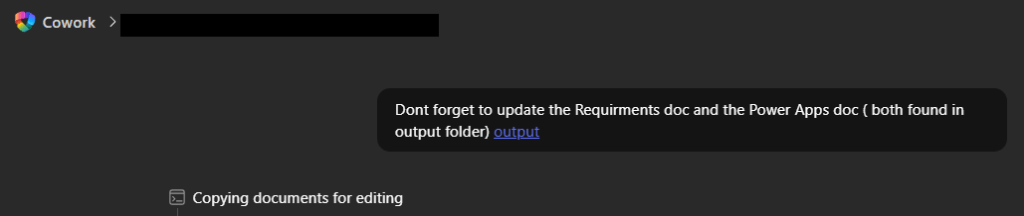
What I Want Cowork To Track
The file should not be a fluffy recap.
I want it tracking the stuff that matters:
- Session goal
- Current objective
- Requirements
- Decisions made
- Files created
- Important assumptions
- Open questions
- Risks or blockers
- Next actions
- Anything another session would need to continue the work
That last one is the key.
Do not just ask Cowork to summarize.
Ask it to prepare the next session to continue the work.
The Recovery Flow
If the session glitches, breaks, or you want to continue in a fresh session, here is the flow I use.
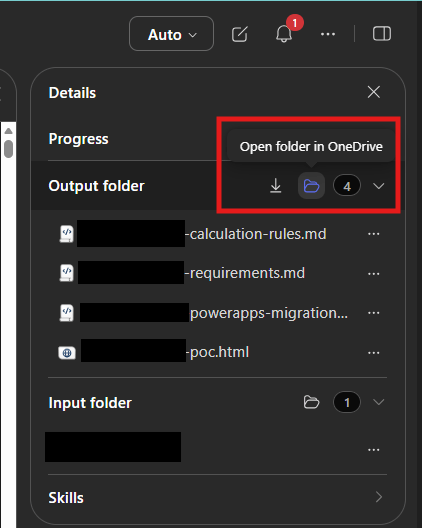
Step 1: Open the Output Folder
In Copilot Cowork, open the details pane and look for the Output folder.
Click the folder icon to open the generated files in OneDrive.
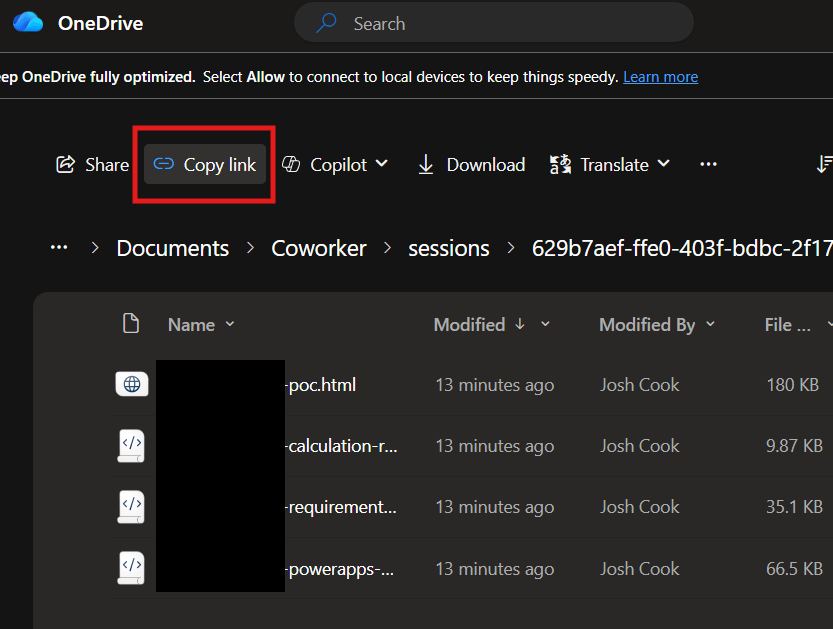
Step 2: Copy the OneDrive Link
Once the folder opens in OneDrive, click Copy link.
This gives you a link to the folder that contains the files from the previous Cowork session.
Step 3: Start a New Cowork Session
Open a new Copilot Cowork session.
Paste the OneDrive folder link into the new session and tell Cowork:
Im continuing the <Project or task name>.Use the files from our previous session. ( <Paste OneDrive Link> )Start by reading the requirements.md file.Then continue the work from there.
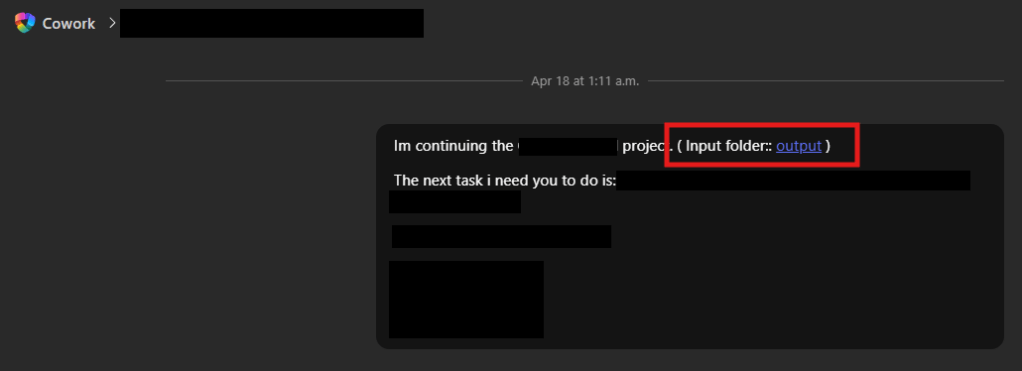
Now Cowork has a fighting chance at picking up where the previous session left off.
Why This Works
Agent workflows are only as strong as the context behind them.
If the context is trapped inside one chat session, you are exposed.
If the context is written into a file, you can move it.
That changes the way you work with Cowork.
You are no longer relying only on the chat thread.
You are creating a portable project trail that can survive a new session.
My Recommendation
Make this part of your normal Copilot Cowork workflow.
Before you ask it to build the document, analyze the data, write the plan, or generate the assets, tell it to create the context file first.
Then keep pushing Cowork to update that file as the session evolves.
When a decision is made, tell it to update the file.
When a requirement changes, tell it to update the file.
When a file is created, tell it to update the file.
Small habit.
Big protection.
Final Take
Copilot Cowork can generate the work.
But you should also make it generate the trail.
The requirements file keeps the important context outside the chat window, inside the actual working folder, where another session can use it.
That is the move.
Use Cowork to build the output.
Use Cowork to protect the context.
This is currently a limitation on the product, which I assume the Team will fix in the future. But for now, this is how I manage long running tasks and work with Copilot Cowork.
 Flow Alt Delete - Josh Cook [Microsoft MVP]