But if you open the model picker and only see GPT 5.5, the problem may not be your Cowork license or the rollout.
There is one Microsoft 365 admin setting you need to check first.
OpenAI must be enabled as a Microsoft subprocessor before users can access the new OpenAI-operated models.
Before OpenAI is enabled as a Microsoft subprocessor, the Copilot Cowork model picker may show GPT 5.5 but not GPT 5.6 Sol or Terra.
The hidden dependency behind GPT-5.6 in Cowork
Microsoft now supports OpenAI-operated models in Microsoft 365 Copilot experiences. That is different from OpenAI models operated by Microsoft through Azure OpenAI.
For GPT-5.6, Microsoft’s documentation is direct: if you want to use GPT-5.6, you need to enable OpenAI-operated models.
That means the model picker is not the first place to troubleshoot. Start in the Microsoft 365 admin center.
Where to enable OpenAI as a subprocessor
You need to be a Global Administrator or AI Administrator to change this setting.
Go to the Microsoft 365 admin center and follow these steps:
Open Copilot.
Select Settings.
Select View all.
Open AI providers operating as Microsoft subprocessors.
In the Microsoft 365 admin center, go to Copilot > Settings > View all, then open AI providers operating as Microsoft subprocessors.
Choose who gets access
Expand OpenAI. From there, choose which users can access OpenAI-operated models:
All users
No users
Specific users and groups
Then select Save.
OpenAI is disabled by default in the current admin experience. Admins can enable it for everyone or scope access to specific users and security groups.
For a pilot, I would start with Specific users and groups.
This setting is applied at the provider level across supported Microsoft 365 Copilot and Copilot Studio experiences. Scoping it to a security group gives you a clean way to test the new models with a small group before expanding access.
What users see after the setting is enabled
After the setting is saved, go back to Copilot Cowork and open the model picker again.
In my tenant, the new choices appeared as:
GPT 5.6 Sol — the most capable GPT-5.6 model for complex work.
GPT 5.6 Terra — the balanced GPT-5.6 model for high-volume work.
After enabling OpenAI as a Microsoft subprocessor, GPT 5.6 Sol and GPT 5.6 Terra appear in the Copilot Cowork model picker.
That is the before-and-after test.
If GPT-5.6 is missing, check the provider setting before you spend time troubleshooting the user, the browser, or Cowork itself.
The governance detail admins should not skip
Enabling this setting is not just a feature toggle. It is a data-processing decision.
Microsoft says OpenAI operates these models as a Microsoft subprocessor under contractual safeguards and appropriate technical and organizational measures. Microsoft Product Terms, the Microsoft Data Protection Addendum, and Enterprise Data Protection apply, subject to Microsoft’s documented exclusions.
There are also two details worth reviewing with your governance team:
OpenAI-operated models are currently excluded from in-country processing commitments where those commitments apply.
They are not currently available in GCC, GCC High, DoD, or sovereign clouds.
Do not turn this on just because the new model names look interesting. Decide who needs access, document the data-processing change, and start with a controlled group.
One rollout date to pay attention to
Microsoft says OpenAI-operated models are currently disabled for customers. Starting July 24, 2026, they will be enabled for all users in eligible commercial tenants unless an admin explicitly selects No users.
That makes this a setting every Microsoft 365 Copilot admin should review, even if the organization is not ready to use GPT-5.6 yet.
The question is no longer just, “How do I turn GPT-5.6 on?”
It is also, “Who should get it, and what should our policy be before the default changes?”
The practical rollout pattern
Confirm the Global Administrator or AI Administrator who owns the setting.
Review the OpenAI subprocessor terms and data-processing notes.
Create a security group for the first Cowork users.
Enable OpenAI for that group.
Confirm GPT 5.6 Sol and Terra appear in the Cowork model picker.
Test real work with a small group before expanding access.
Review the setting again before the July 24 default change.
The technical step takes a minute.
The admin decision behind it deserves more attention.
If GPT-5.6 is missing in Copilot Cowork, start with the OpenAI subprocessor setting.
Copilot Cowork browsing is a powerful capability, but there is one admin setting you need to turn on first.
If you want Copilot Cowork to complete browser-based work using Microsoft Edge, browser access must be enabled in the Microsoft 365 admin center.
Where to enable Copilot Cowork browsing
Go to the Microsoft 365 admin center and follow these steps:
Open Copilot
Select Settings
Select View all
Find Cowork
Turn on Allow browser access
Select Save
Copilot Cowork browser access setting in the Microsoft 365 admin center.
This setting is off by default.
Once enabled, Copilot Cowork can use Microsoft Edge to interact with web apps and services on behalf of users. That means it can navigate pages, enter data, and complete browser-based tasks when APIs are not available.
What users see before using browsing
After browsing is available, users still see a confirmation screen before starting. The prompt explains that Cowork browsing is in preview, can perform tasks on the user’s behalf, and may make mistakes or misinterpret instructions.
The confirmation screen users see before starting Copilot Cowork browsing.
This is the right pattern for enterprise use. Admins control whether browser access is available. Users acknowledge the risks before using it. Cowork asks for approval before sensitive actions.
Why this matters
A lot of business work still happens inside web applications that do not have clean APIs, connectors, or automation-friendly interfaces. Browser access gives Copilot Cowork another way to help users complete real work across those systems.
Examples I would test first
The best Copilot Cowork browsing scenarios are the annoying business tasks trapped inside web apps.
Portals. Admin screens. Expense systems. Vendor sites. Internal tools. Places where the work still requires a person to open a browser, navigate pages, enter data, review details, and decide what happens next.
Here are the types of scenarios I would start testing.
1. Expense reports in a web expense system
This is one of the cleanest examples because the work is structured, repetitive, and still needs human review.
Cowork could gather receipt context from Outlook or OneDrive, open the expense system in Edge, fill in the draft expense report, ask for missing details, and stop before submission.
Prompt idea:
File my expense report for last week's trip.
Use receipts from Outlook and OneDrive as the source of truth.
Open the expense portal in Edge and draft the report.
Ask me for anything missing.
Do not submit until I approve the final details.
2. Vendor portal status checks
A lot of finance and operations work happens inside vendor portals. Invoice status, payment status, shipment updates, support tickets, contract renewals, and order details are often sitting behind a web login.
Cowork browsing could open the vendor portal, search for the right invoice or order, capture the current status, and draft a response for the internal team.
Prompt idea:
Check the vendor portal for invoice 10482.
Find the current status, payment date if available, and any open notes.
Summarize what you found.
Then draft a short Teams message to finance with the update.
Do not send it until I review it.
3. Customer portal research
Customer service teams often need to check external portals before replying to a customer. That could mean checking an order, subscription, case, shipment, license, claim, or account record.
This is a strong Cowork browsing scenario because it combines browser work with communication work.
Prompt idea:
Open the customer portal and check the status for customer Contoso.
Look for the latest open request, current status, owner, and next action.
Summarize the findings.
Then draft a customer-ready email response.
Do not send the email until I approve it.
4. HR onboarding portal updates
Onboarding work is full of small browser tasks. Create a profile. Fill out required fields. Check what is missing. Update a checklist. Confirm access requests.
Cowork browsing could help prepare those steps while keeping the human in control for sensitive actions.
Prompt idea:
Open the HR onboarding portal for the new hire listed in this email.
Review what fields are required.
Draft the onboarding profile using the source email and attached documents.
Flag anything missing.
Stop before saving or submitting changes.
5. Municipal or government web form work
This is where I think browsing gets very interesting for public sector and municipal scenarios.
There are still many web forms, portals, service request systems, permit lookups, inspection pages, and public-facing intake tools that require browser-based work.
Cowork browsing could help collect information, check status, prepare form entries, and draft the next action while keeping final submission under human approval.
Prompt idea:
Open the permit status portal and check application PR-2026-0142.
Capture the current status, last update, required action, and any missing documents.
Summarize the result.
Then draft an internal update for the service team.
Do not submit any forms or make changes without approval.
The pattern
The pattern is simple.
Use Cowork for browser tasks that are repetitive.
Use it where the user already has access.
Use it where the work involves checking, entering, preparing, or summarizing information.
Keep human approval in place before anything sensitive is submitted.
I would not start with high-risk demos like payments, account changes, or anything that feels too close to personal data. Start with business workflow examples where the value is obvious and the review step is clean.
Before testing Copilot Cowork browser-based scenarios, check the admin setting first.
One checkbox can completely change what Copilot Cowork is able to do.
But before you run into the tenant, turn everything on, and let users start throwing goals and long-running tasks at it, you need to understand the billing side.
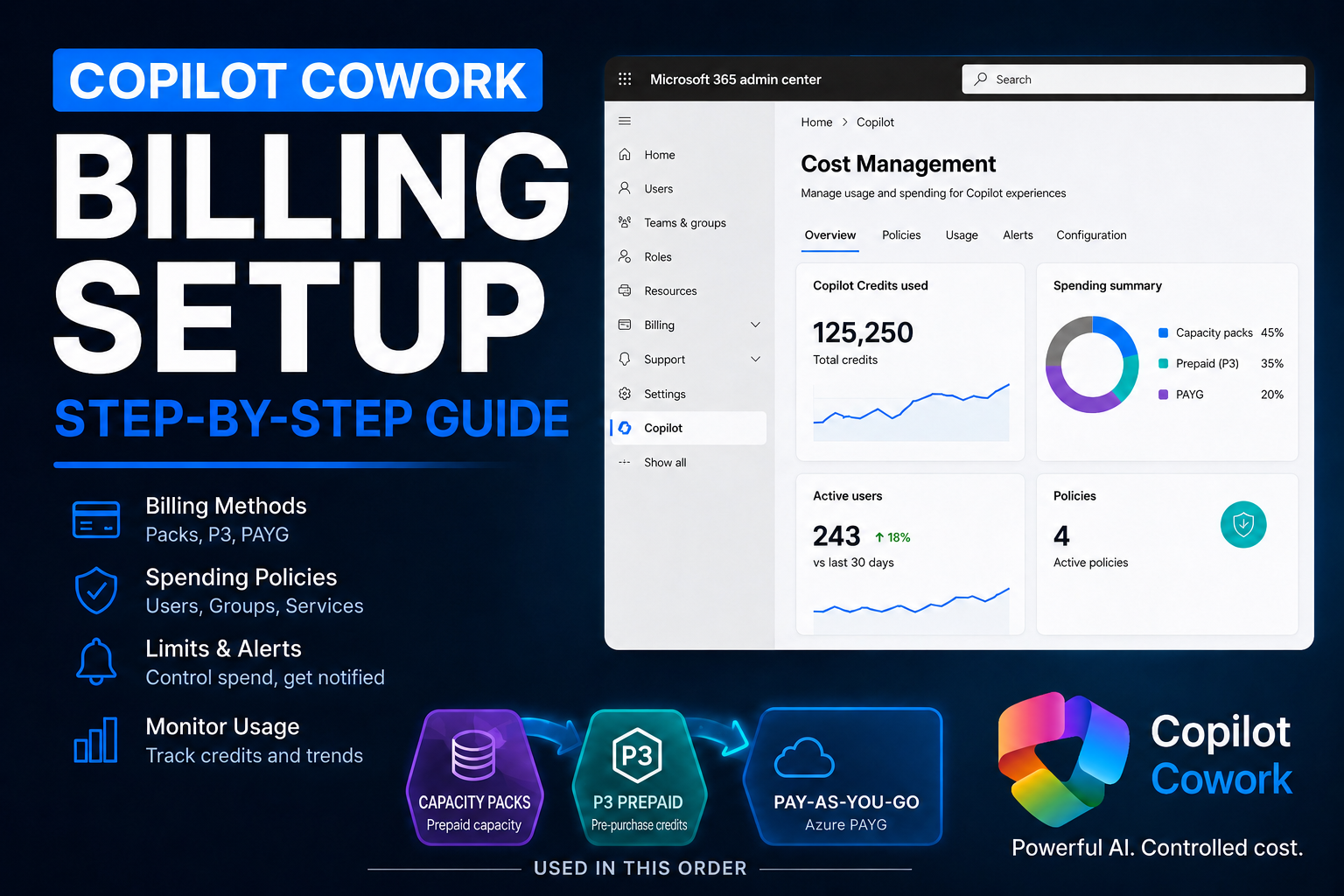
Copilot Cowork runs on Copilot Credits. That means the admin work is not just, “Can the user access it?” It is also, “Who can spend credits, how much can they spend, which billing method gets charged, and who gets warned before usage goes sideways?”
Turning Copilot Cowork on is easy. Turning it on responsibly is where the real admin work starts.
In this walkthrough, I am setting up Copilot Cowork billing from the Microsoft 365 admin center and showing the choices I would pay attention to before giving users access.
What changed with Copilot Cowork GA
Microsoft announced Copilot Cowork general availability on June 16, 2026. Cowork requires a Microsoft 365 Copilot user subscription license, and Cowork usage is billed separately on a usage basis using Copilot Credits.
That matters because Copilot Cowork is not just another chat surface. It is designed for complex, long-running, multi-tool work. It can retrieve context, call tools, use models, create artifacts, and keep working through a task. All of that value has a meter behind it.
Microsoft’s current Cost Management experience for usage-based billing applies to Copilot Cowork and Work IQ API right now, with more agents and services expected to come into that experience over time.
Cost Management in the Microsoft 365 admin center is where Copilot Cowork and Work IQ API usage-based billing is configured.
Start with the right mental model
Access and consumption are two different things.
Access lets a user get into the experience. Consumption happens when the experience starts doing work. If Cowork runs a goal, uses a model, retrieves context, calls tools, or performs longer-running work, that activity can consume Copilot Credits.
That is why billing policies matter. Without them, you are basically handing out an AI gas card and hoping the bill looks reasonable at the end of the month.
That is not a strategy.
The better approach is billing plus governance. Set the billing method, define the spending policy, decide who is in scope, add limits, configure alerts, and then expand once you understand real usage.
Check your admin roles before you start
If you do not see the option in the admin center, check your role first.
Billing setup and policy governance may not be handled by the same person in a real organization. Your Microsoft 365 admin, AI admin, Power Platform admin, billing admin, and finance owner might all be different people.
That matters because the person configuring the billing method needs the right permissions, and the person managing policy limits and alerts also needs the right permissions. Do not discover that halfway through the rollout call. Get the right people in the room before you begin.
Choose the billing method intentionally
In the setup flow, you may see more than one billing method. In my tenant example, I had Capacity Packs available and also had the option to use a pay-as-you-go subscription.
Capacity Packs let you bill against prepaid Copilot Credit capacity. Pay-as-you-go can keep services running once capacity pack credits run out, but it also means the meter can keep running against the connected subscription.
Neither option is automatically good or bad. The point is to make the choice on purpose.
Select the billing method intentionally. Capacity Packs and pay-as-you-go behave differently when credits run out.
For a personal tenant or a controlled pilot, I would usually start with the most bounded option. For a production rollout where interruption would be a problem, you may choose to include pay-as-you-go, but that decision should involve the billing owner.
What if you have no Copilot Credits?
If your tenant does not already have Copilot Credits available, do not let that push you into an unlimited rollout. Start with pay-as-you-go, but treat it like a metered pilot, not an open tab.
Microsoft lists PayGo for Copilot Cowork at $0.01 per Copilot Credit. That means 25,000 credits would be about $250 if you let usage land entirely on pay-as-you-go.
That is the point where the economics should make you stop and re-check the licensing path. Microsoft lists Copilot Studio credit packs at 25,000 Copilot Credits for $200 per pack per month. So if you expect usage to get anywhere near 25,000 credits in a month, PAYG is no longer just a convenient starter option. It may be more expensive than buying a capacity pack.
The practical setup I would use is this: enable PAYG to get started, set the monthly policy limit at 25,000 credits, turn alerts on well before that point, and review usage before the policy hits the cap.
At 10,000 credits, check whether the pilot group is using Cowork the way you expected.
At 20,000 credits, start the capacity pack conversation because the $200 pack economics are already close.
At 25,000 credits, do not just increase the PAYG limit without a decision. Buy a P3 or Copilot Credit capacity pack if monthly usage is becoming predictable.
PAYG is still useful. It is the fastest way to start when you have no credits, and it is a good safety net for overages. But once usage becomes steady, capacity packs are the cleaner budgeting conversation.
Do not assume the visible credit pool is unused
This is the part admins need to slow down on.
In my example, the Cost Management setup showed 50,000 credits available. But in the Power Platform admin center, 10,000 of those Copilot Studio messages were already allocated to a specific environment.
Before assigning a Cowork policy, check whether Copilot Credits are already supporting other Power Platform or Copilot Studio workloads.
The lesson is simple: do not treat the number in one setup panel as the whole story.
Copilot Credits can support more than one AI workload. If your organization is already using Copilot Studio, Dynamics 365, Power Platform, or other metered AI capabilities, make sure you understand what that credit pool is already expected to cover.
The last thing you want is for a Cowork pilot to burn through credits that another production agent was relying on.
Do not start unlimited
The setup flow gives you the choice to limit monthly spending or leave monthly spending unlimited.
My recommendation for most organizations starting with Copilot Cowork is simple: do not start unlimited.
Launch it like a controlled pilot. Give it a monthly policy budget, watch usage, learn what normal looks like, then increase the limit later if the usage is healthy.
In my example, I set the policy budget to 40,000 credits because I wanted to keep 10,000 credits available for other Copilot Studio usage in the tenant. Your number will be different. The principle is the same.
Set a per-user monthly limit
The per-user monthly spending limit is optional, but I would seriously consider enabling it.
Without a user limit, one person can potentially consume a large chunk of the available credits. They may not be doing anything malicious. They might just be experimenting, running long tasks, testing browser automation, asking for big research outputs, or sending Cowork work that should have stayed in regular Copilot Chat.
That kind of experimentation is a sign adoption is happening. But adoption without guardrails becomes waste.
Set a policy-level monthly budget, consider a per-user monthly limit, and configure alerts before activating the policy.
In the demo tenant, I used a 40,000 credit policy limit and a 20,000 credit per-user limit because the pilot only had two users. That is an example, not a universal recommendation.
The right number depends on how many users are in scope, what tasks they will run, how much existing Copilot Credit capacity is already committed, and how much risk you are willing to tolerate during the first rollout.
Turn alerts on before usage surprises you
Do not wait until the end of the month to learn usage went sideways.
Cost Management lets you define alerts so the right people get notified when usage reaches a threshold. That could be the Microsoft 365 admin, billing owner, finance stakeholder, platform owner, or whoever is accountable for the pilot.
In my example, with a 40,000 credit monthly policy limit, I used a 30,000 credit alert threshold. That gives the owner time to investigate before the policy hits the cap.
This is how you move from reactive admin to proactive admin.
Do not activate for everyone by default
This is the part of the setup that is easy to rush.
If you activate broadly, you may be enabling access across the whole organization depending on how the policy is configured. For some organizations, that might be fine. For most first rollouts, I would not start there.
Customize the setup configuration and scope the policy to a security group.
Create a clear security group for the pilot, such as Copilot Cowork Access, instead of starting with the entire tenant.
Use a clear name like Copilot Cowork Access or Copilot Cowork Pilot Users. Add a small group of trusted users first: admins, builders, business champions, finance, operations, or the people who will give you useful feedback.
Think of this like a pilot program. You want people who will use it seriously, report what worked, report what wasted credits, and help you understand whether the budget is realistic.
Scope the policy to specific groups so you know exactly who can consume Copilot Credits through Cowork.
Review the policy before you activate it
Before clicking activate, review the setup like a change request:
Which services are enabled by the policy?
Which billing method will be charged?
Is the monthly spending limit set?
Is the per-user limit set?
Who receives alerts?
What threshold triggers those alerts?
Which users or groups are in scope?
Are other workloads already using the same credit pool?
In my setup, the final shape was:
Billing method: Capacity Packs
Policy monthly limit: 40,000 credits
Per-user monthly limit: 20,000 credits
Alert threshold: 30,000 credits
Access scope: a specific security group for Copilot Cowork access
Again, those are demo values. Do not copy them blindly. Copy the pattern: limit, alert, scope, observe, then scale.
The rollout pattern I would use
If I were rolling out Copilot Cowork in a tenant, I would not start with the whole organization. I would use this pattern:
Confirm the admin roles needed for billing and policy management.
Review existing Copilot Credit usage in Microsoft 365 and Power Platform.
Choose the billing method with the billing owner involved.
Create a bounded monthly spending policy.
Add a per-user limit for the pilot group.
Set alerts before the policy limit is reached.
Create a security group for pilot access.
Add a small number of serious users.
Monitor usage and identify what tasks burn credits.
Increase limits or expand access only after you understand normal usage.
This gives you control. You know who has access, what they can consume, which budget they are under, and when someone needs to pay attention.
That is how you test Copilot Cowork without turning the tenant into a free-for-all.
Final thought
Copilot Cowork is powerful because it can take on real work. But the more real the work gets, the more important the admin controls become.
Cost Management is not the boring part of Copilot Cowork. It is the part that lets you adopt it without surprising finance, burning shared credits, or giving every user an unlimited meter on day one.
Start controlled. Learn the usage. Then scale with confidence.
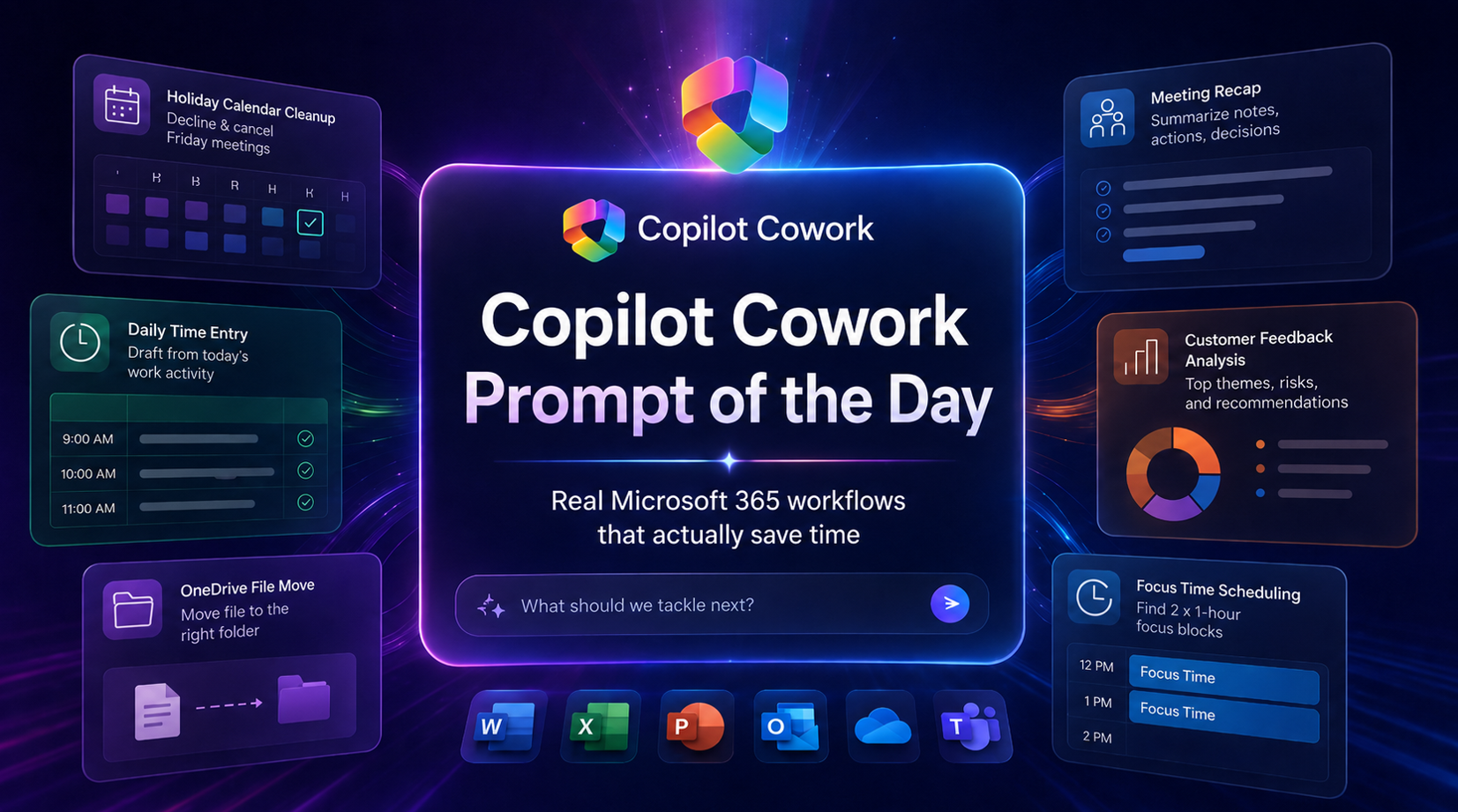
Copilot Cowork Prompt of the Day: Real Microsoft 365 Workflows That Actually Save Time
I have been testing Copilot Cowork across real work patterns inside Microsoft 365: meetings, calendar cleanup, files, time entries, customer feedback, follow-ups, and workspace history.
The pattern is becoming clear.
The strongest Copilot Cowork prompts do not just ask for an answer. They assign a business outcome. They define the source of truth. They set guardrails. They tell Cowork what finished work should look like.
That is where this gets serious.
Below is a practical prompt library based on my Copilot Cowork Prompt of the Day posts across X and LinkedIn. I grouped them by scenario so the examples are easier to scan, reuse, and adapt.
Note: Some examples use demo companies, files, customers, and project names. Replace those with your own Microsoft 365 content, folders, meetings, and business context.
Calendar work looks simple until it eats your day. Declining meetings, cancelling organizer-owned events, protecting focus time, and finding clean openings are perfect examples of work that should be delegated.
These prompts show Cowork acting like a real calendar operator, not a passive chatbot.
Decline and Cancel Holiday Meetings
The situation
Friday is a holiday. Your calendar still has meetings. Some meetings were created by other people. Some meetings may be yours. You need everything cleaned up properly.
The important part is the distinction between declining and cancelling. If you are only an attendee, Cowork should decline the meeting. If you are the organizer, Cowork should cancel it and send a note so attendees know why it disappeared.
Copilot Cowork using calendar management to decline meetings and cancel organizer-owned meetings for a holiday.
The prompt
[Day] is a holiday. Check [Date].
- Decline every meeting.
- If I’m the organizer, cancel it and send a note.
Use /calendar-management
What Cowork should do
Check the target date.
Find every meeting on that day.
Decline meetings where you are an attendee.
Cancel meetings where you are the organizer.
Send a professional cancellation note where needed.
Summarize what changed.
This is the kind of task that burns attention. The value is not only the minutes saved. The real value is that Cowork understands the difference between attendee action and organizer responsibility.
Cancelling a meeting you own sends a different signal than declining a meeting someone else owns.
How I would tighten the prompt
For a production-style version, I would add the wording for the cancellation note directly into the prompt.
Friday is a company holiday. Check April 3rd in my calendar.
For every meeting that day:
- If I am only an attendee, decline the meeting.
- If I am the organizer, cancel the meeting.
- For cancelled meetings, send this note:
“April 3rd is a holiday, so I’m cancelling this meeting.
Please reschedule for the following week if still needed.”
After you finish, send me a summary grouped by declined meetings
and cancelled meetings.
Use /calendar-management
Create Focus Time from Your Phone
The situation
This one is simple. That is why it matters.
I used the iOS app from bed and told Cowork to find two separate one-hour focus blocks for Monday morning. Cowork checked my calendar, found the openings, and created both events.
No desktop. No calendar hunting. No dragging blocks around half asleep.
The prompt
Set some focus time for me up for Monday morning.
Find 2 separate 1 hour blocks so I can focus on:
1) <Task>
2) <Task>
What Cowork should do
Review your Monday morning calendar.
Find two separate one-hour openings.
Create calendar events for each focus block.
Name each block clearly based on the task.
Add useful context where available.
Focus time only helps if it actually lands on the calendar. A lot of people know what they need to work on, then lose the day to meetings, messages, and context switching.
This turns focus protection into a command.
That is the kind of small task agents should crush first. Scheduling. Calendar juggling. Protecting time. Removing the coordination mess.
How I would tighten the prompt
I would add preferred working hours, meeting buffer rules, and event details.
Set up 2 separate 1-hour focus blocks for Monday morning.
Focus areas:
1) <Task 1>
2) <Task 2>
Rules:
- Only schedule between 8:00 AM and 12:00 PM.
- Do not overlap existing meetings.
- Leave at least 15 minutes between meetings and focus blocks where possible.
- Use clear calendar titles: “Focus: <Task>”.
- Add a short note to each event with the goal for that focus block.
Time entry is one of the best Cowork use cases because the evidence already exists across Microsoft 365. Meetings, chats, emails, files, edits, and shared work all tell the story of the day.
The hard part is turning that messy activity trail into believable time-entry comments that a human can review.
Build a Daily Time Entry Summary from Microsoft 365 Activity
The situation
This prompt asks Cowork to review the day’s Microsoft 365 activity and produce a structured time-entry draft. The goal is not perfect accounting. The goal is a practical, honest draft that can be reviewed and corrected quickly.
The real power is that Cowork is not only looking at meetings. It is asked to look across calendar activity, Teams chats, email, files, transcripts, meeting notes, and other signals.
Daily time entry draft created from Microsoft 365 work activity.
The prompt
Review ALL of MY Microsoft 365 work activity from TODAY in
[your timezone] and build a realistic, structured daily time entry
summary.
Then send it as a [direct Teams message / Email].
Use every available signal from today:
- calendar meetings
- transcripts and recaps
- meeting chats
- Teams chats and channel messages
- emails
- files opened, edited, or shared
- any other work activity signals
Rules:
1. Only use today in my local timezone.
2. Look across all evidence, not just meetings.
3. Infer the best-fit project, client, internal initiative, or business
development category.
4. Map work to a project whenever possible.
5. If unclear, use: Business Development, Internal Operations,
Practice Development, Admin, or Learning / Enablement.
6. Consolidate fragmented activity into meaningful work blocks.
7. Target a full day close to 8.0 hours.
8. Acceptable total range: 6.0-8.0 hours.
9. Accuracy first, then use reasonable consolidation to close gaps.
10. Do not invent fake meetings, deliverables, or project names.
11. If evidence is weak, make the best possible mapping, but keep
demos, enablement, certifications, or content creation.
Format the Teams message as HTML:
- Bold heading: Daily Time Entry Draft – [YYYY-MM-DD]
- Bold "Summary:" plus a 1-2 line plain-text summary
- HTML table: # | Project Name | Description | Duration | Date
- One row per entry, ordered largest to smallest
- Duration in decimal hours, e.g. 3.0 hrs or 0.5 hrs
- Bold "Total: X.X hours" at the bottom
Quality bar: practical, believable, timesheet-ready.
Use real work patterns. Balance to 6-8 hours.
If today has limited evidence, still produce the best possible draft.
What Cowork should do
Build a workday view from Microsoft 365 evidence.
Classify activity into projects, clients, or internal categories.
Consolidate short fragments into stronger time-entry rows.
Keep the wording practical and timesheet-ready.
Send the finished draft as a Teams message.
This is a serious consulting and professional services scenario.
Timesheets fail when people are forced to reconstruct their day from memory. Cowork can inspect the activity trail and give you a draft while the day is still fresh.
You still review it. You still own it. Cowork reduces the blank-page problem.
Important guardrails
The guardrails are the real prompt design lesson here.
Do not invent fake meetings, deliverables, or project names.
Keep weak evidence honest.
Prefer fewer, stronger entries.
Write like a real time-entry comment.
That is how you keep this useful without letting the agent drift into fantasy work logs.
Meetings create a lot of residue: transcripts, AI notes, chats, files, agendas, decisions, action items, and follow-up messages.
The problem is that the value disappears when nobody turns that residue into something clean.
Create a Meeting Recap and Send It to Attendees
The situation
This prompt gives Cowork one target meeting and asks it to pull all available meeting content. The output is a structured recap and a concise email to attendees.
The prompt also changes the recap style based on the meeting type. A requirements session should not be summarized the same way as a standup or UAT meeting.
Meeting recap generated from meeting content, notes, transcript, chat, and related files.
- Training: what was taught, guidance shared, takeaways, resources
- UAT: what was tested, issues found, defects, next steps for fixes or
retesting
- Other: use the most appropriate structure
If anything is unclear or missing, state that clearly instead of guessing.
Then draft and send a concise, professional recap email to all attendees.
What Cowork should do
Use only the meeting provided in context.
Pull available transcript, recap, chat, files, agenda, and notes.
Build a recap that matches the meeting type.
Call out missing or unclear details.
Send a concise recap email to attendees.
The most useful meeting recap is not a generic summary. It captures the operating details that move work forward: decisions, owners, due dates, and follow-ups.
This prompt also handles one of the biggest issues with AI meeting summaries: context control. It tells Cowork to treat the provided meeting as the only target meeting.
How I would tighten the prompt
For client-facing work, I would add a review step before sending.
The assignment is not just “summarize feedback.” The assignment is to turn scattered customer signals into a leadership-ready action package.
That means Cowork has to analyze, prioritize, create deliverables, flag weak evidence, and prepare different outputs for different audiences.
Turn Customer Feedback into a Product Action Plan
The situation
Kavora’s marketing department has customer feedback scattered across interviews, surveys, comments, web signals, and meeting notes.
Leadership needs the real story:
What customers are saying.
What matters most.
What needs action.
What needs human judgment before the team moves.
For the demo, the input files were:
Customer interview notes
Product feedback survey and web signal export
Source customer comments
Marketing leadership request and context email
The Cowork assignment was to review the feedback, find the strongest themes, rank them by impact and urgency, flag gaps or contradictions, then build the deliverables a marketing team would actually need.
Copilot Cowork turning scattered customer feedback into a brief, deck, emails, Teams update, and decision tracker.
The expected outputs
Executive feedback brief
Stakeholder-ready presentation deck
Customer follow-up email pack
Launch squad Teams update
Leadership decision tracker
The prompt
Act as my marketing operations lead.
Goal:
I’m working on turning messy customer product feedback into a clear
action plan for product, marketing, and leadership teams.
Sources:
Use the attached files and project folder as the source of truth.
These may include customer interview notes, survey results,
web/funnel data, Teams meeting summaries, support themes,
website feedback, campaign comments, and leadership request emails.
Task:
1. Review the materials and identify the strongest customer feedback
themes.
2. Prioritize the themes by customer impact, urgency, revenue risk, and
brand risk.
3. Pull proof points from the source material, including customer
quotes, survey signals, and web/funnel trends.
4. Identify gaps, contradictions, sampling bias, or anything that needs
validation before decisions are made.
5. Recommend the next best actions for product, marketing,
customer success, and leadership.
Produce:
• A polished executive feedback brief
• A stakeholder-ready presentation deck
• A customer follow-up email pack
• A Teams update for the launch squad
• A leadership decision tracker with priorities, owners, and dates
Guardrails:
• Separate facts from recommendations
• Do not invent evidence
• Call out assumptions clearly
• Flag anything that needs human review
• Make the outputs ready for me to review, edit, and share
What Cowork should do
Review all supplied source material.
Find repeated customer themes.
Rank themes by impact, urgency, revenue risk, and brand risk.
Pull quotes and proof points from the evidence.
Flag contradictions, bias, gaps, and validation needs.
Create separate deliverables for leadership, product, launch teams, and customer follow-up.
The best part of this prompt is the deliverable design. It does not stop at analysis. It asks for the assets the business actually needs:
A brief for executives.
A deck for stakeholders.
Email drafts for customers.
A Teams update for the launch squad.
A decision tracker for leadership.
That is the difference between “tell me what the files say” and “help me move the business forward.”
The human review layer
This prompt gets the review model right. It tells Cowork to separate facts from recommendations and flag assumptions.
That matters because customer feedback can be messy. You can have contradictory signals, loud power users, small samples, weak survey patterns, or feedback that sounds urgent but needs validation.
The agent can organize the evidence. The human still owns the judgment.
How I would tighten the prompt
I would add a scoring model so the ranking is easier to audit.
When ranking feedback themes, score each theme from 1-5 across:
- Customer impact
- Urgency
- Revenue risk
- Brand risk
- Evidence strength
Then calculate a priority recommendation of P0, P1, or P2.
Some of the best agent use cases are boring. That is the point.
Moving files, finding folders, reviewing previous sessions, and organizing workspace context are small tasks by themselves. Across a week, they become attention tax.
Move a File in OneDrive
The situation
I downloaded a zip file on my phone, uploaded it to OneDrive, and told Cowork to move it into the right demo folder.
No laptop. No desk. No clicking through folders.
Cowork found the file, found the destination folder, and moved it.
Copilot Cowork finding a recently uploaded zip file and moving it to the right OneDrive folder.
The prompt
I just uploaded a <file or folder> to OneDrive.
Can you move it to the Copilot Cowork Demos folder
What Cowork should do
Search OneDrive for the uploaded file or folder.
Search OneDrive for the destination folder.
Move the item.
Confirm the exact file or folder that was moved.
This is the kind of work nobody wants to do. It is small enough to feel annoying and common enough to keep stealing attention.
Agents should handle the annoying little tasks first.
Find the file. Find the folder. Move it. Confirm it.
Review Past Cowork Sessions
The situation
This is a fun one for understanding the workspace Cowork builds around your work.
The prompt asks Cowork to look across previous sessions and tell you what you have built together, then pick its favorite session.
Your Cowork sessions are stored in:
Documents > Coworker > sessions
Copilot Cowork reviewing previous sessions and summarizing what has been built.
The prompt
based on all our sessions, can you tell me the things we have built
together, and your most favorite session?
What Cowork should do
Enumerate previous session folders.
Identify deliverables created in each session.
Summarize patterns across the work.
Pick a favorite session and explain why.
This shows Cowork as more than a one-off task runner. It can review the body of work created across sessions and help you understand what has been built.
That becomes useful when you are building demos, content, project assets, templates, or repeatable internal workflows.
How I would tighten the prompt
I would ask for the output in a reusable inventory format.
After testing these scenarios, the pattern is obvious.
A strong Copilot Cowork prompt usually needs these parts:
1. Assign the role
Example
Act as my marketing operations lead.
This gives Cowork a working frame. A calendar assistant, marketing operations lead, project coordinator, meeting analyst, or time-entry assistant will make different choices.
2. Define the business goal
Example
I’m working on turning messy customer product feedback into a clear
action plan for product, marketing, and leadership teams.
The goal keeps Cowork focused on the outcome instead of wandering through the source material.
3. Name the source of truth
Example
Use the attached files and project folder as the source of truth.
This matters because Cowork may have access to a lot of context. You need to tell it what evidence matters.
4. Add rules and guardrails
Example
Do not invent evidence.
Call out assumptions clearly.
Flag anything that needs human review.
Guardrails keep the work usable. They also make the output safer to review, edit, and share.
5. Specify the finished output
Example
Produce:
- A polished executive feedback brief
- A stakeholder-ready presentation deck
- A customer follow-up email pack
- A Teams update for the launch squad
- A leadership decision tracker with priorities, owners, and dates
Do not make Cowork guess what “done” means. Define the deliverables.
6. Keep human review in the loop
Example
Make the outputs ready for me to review, edit, and share.
This is the right operating model. Cowork can create the draft, organize the work, and prepare the package. You still make the judgment call.
Important: the Application / Client ID is not the same as the OAuth registration ID you will create later.
Keep those two values separate.
Step 2: Configure the Power Platform environment
Next, configure the Power Platform environment that contains your Dataverse data.
You need the Dataverse environment to allow MCP clients.
Open Power Platform admin center and go to the target environment.
Open Power Platform admin center
Go to Manage
Select Environments
Open your target environment
Open Settings
Go to Product
Open Features
Find the Dataverse MCP setting
Allow MCP clients to interact with Dataverse MCP server
Only check the GA version of the MCP server > Click Save
The exact wording may change because this area is still moving, but the goal is the same: allow MCP clients for that environment
Add the allowed MCP client
Now add your Entra Application / Client ID as an allowed MCP client for the environment.
Click “Go to Advanced Settings” link under Step 2
Click +New > fill in the details like this: – Name: Cowork Dataverse MCP – <env name> – Unique Name: new_CoworkDataverseMCP<envName> – Application Id: Paste your application Id from the App Registration you created in section 1 – Is Enabled: Yes
Click Save & Close
That part matters.
The value you add here is the Entra Application / Client ID.
Also make sure the allowed MCP client is enabled.
If this step is wrong, the plugin can look fine but still fail when Cowork tries to use Dataverse.
Before leaving the admin center, grab the Environment URL.
Capture the Dataverse URL
You need your Dataverse Org URL
It looks like this:
https://yourorg.crm.dynamics.com
The MCP server URL is the same URL with /api/mcp added to the end.
https://yourorg.crm.dynamics.com/api/mcp
Step 3: Create the OAuth registration in Teams Developer Portal
Use the Client ID and secret from the Entra app registration you created earlier.
After saving the OAuth registration, copy the OAuth registration ID.
You will use that value in the plugin manifest as the connector referenceId.
Important: the OAuth registration ID goes into the plugin manifest.
Step 4: Build the plugin
For this approach, the plugin should stay focused on the Dataverse MCP connector.
To make this even easier, I created a Cowork-Plugin skill to assist in building the Plugin with a template.
Import Plugin Builder skill
Download my /cowork-plugin-builder skill
In Copilot Cowork > attach the skill and prompt: Add this skill
After import refresh your browser
Build Dataverse Plugin with Template
We will use the skill you just imported to help build the plugin.
Inside Copilot Cowork craft a prompt and add the cowork-plugin-builder skill
Add these details or Copilot Cowork will ask you for these values (NOTE: If your using the Checklist app I created to track progress, click the Copy setup summary. Paste this into the prompt as well)
Prompt to use:
/cowork-plugin-builder to build a Dataverse plugin using this template:
Organization name:
Connector display name:
description:
Tenant ID:
Client ID:
Org URL:
MCP URL:
OAuth registration ID:
OAuth scope:
Connector referenceId:
Fill in everything you can.
I created a Dataverse-style icon with a Cowork badge so the plugin is easy to recognize when it appears in Cowork. (Included in the template)
When Copilot Cowork is done, you should receive a zip file.
Download the zip file.
Step 5: Deploy the plugin
After the package is ready, deploy it to a test user or test group first.
M365 Admin Center > Agents > All agents > Upload custom app > pick dataverse-<pluginname>.zip
Publish to users: add yourself first
Install (optional): add yourself so it auto-appears
Accept permissions > Review & finish
Apply Template (default should be fine)
Review Permissions (should be none, since permissions are done through the App registration)
Publish
Keep the first deployment small.
Connect Plugin
Open a fresh Copilot Cowork session
Click + > Manage Plugins
Click … Browse Plugins
Find the Plugin > Click Add
Scroll down and click Connect
Start with a simple prompt like this:
Use the <Plugin name> to confirm you can access the Dataverse MCP server.
Important: when you change the plugin package, update the version before uploading again.
Also start a fresh Cowork session after deployment changes.
Otherwise, you can end up testing against a stale session and thinking the plugin is broken.
Step 6: Create a schema-aware skill
This is the step that makes the plugin more useful.
The plugin gives Cowork access to Dataverse.
The schema skill helps Cowork understand what to do with that access.
In the schema skill, give Cowork the details it needs to query your model properly.
Table logical names
Table purpose
Primary columns
Lookup columns
Relationships between tables
Status fields
Rules for what matters
Data-quality checks
Example prompts
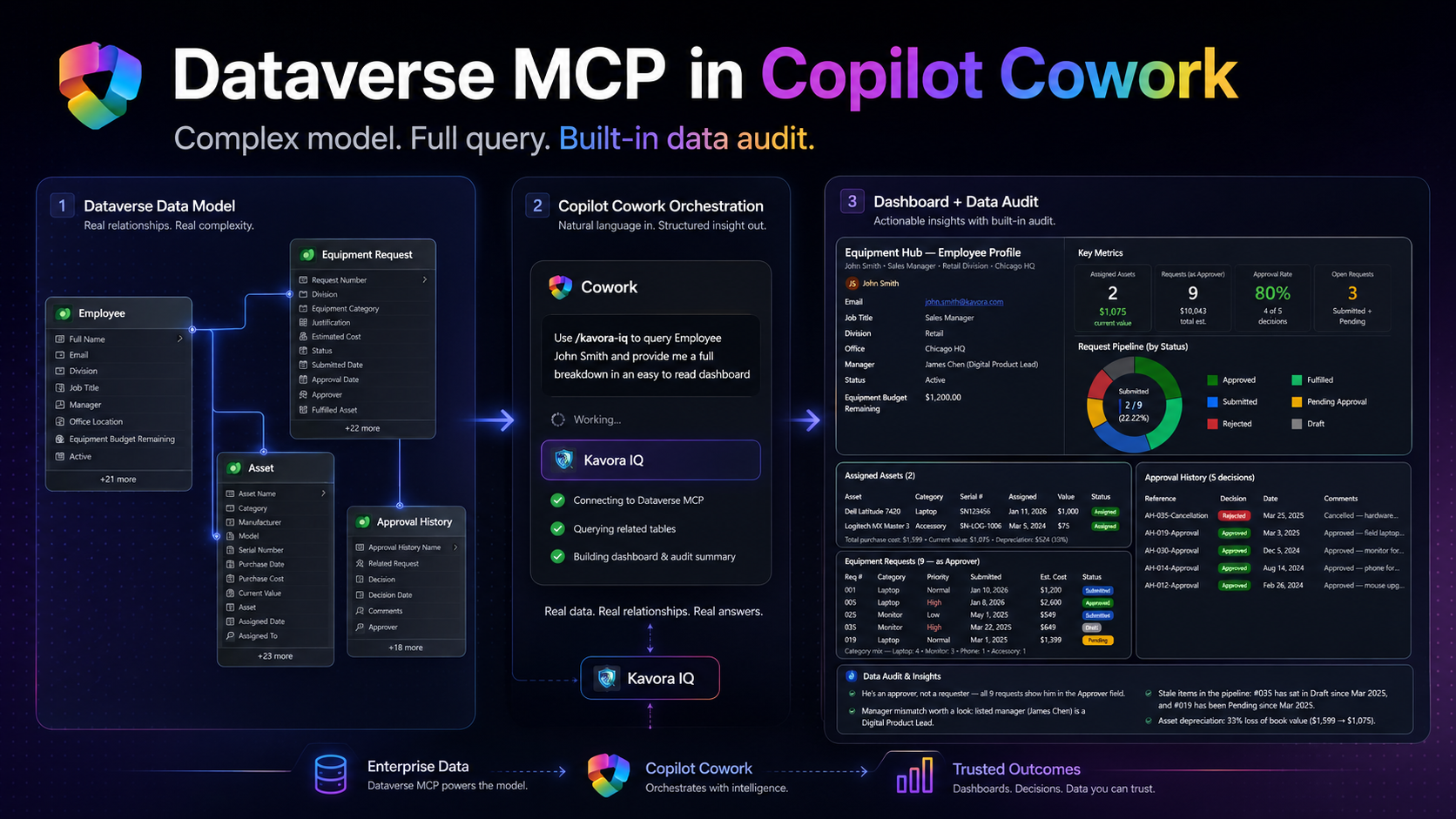
We can use this skill to create a personal skill to query certain tables, etc.
In the example, I ask Copilot Cowork what tables are used in a certain Model-Driven App. Prompt:
What tables are apart of Kavora Equipment Hub
/dataverse-schema-
Copilot Cowork responds with a tables and logical names. Next I ask for all the logical columns for those tables. (NOTE: This will help Copilot Cowork query your data quicker)
My follow-up prompt:
Yes pull all logical columns.
I want to build a skill around these tables and data.
Name the Skill Kavora Equipment IQ
Then Copilot Cowork drafted the skill for me. I reviewed it and said “Looks good”
Copilot Cowork built the skill
Step 7: Test with a real scenario
Now run an actual test.
Do not only ask Cowork to connect.
Ask it to use the Dataverse model.
A good test should include:
One known record
At least one related table
At least one lookup relationship
Some output Cowork needs to organize
A data-quality check or business rule
Example prompts:
List records
use /<skill you just built>
List all the <table>
Add records
use /<skill you just built>
can you add 3 more <assets>
1. Blue Yeti mic, Regional Office, value (you look this up in USD)
2. Red dragon Keyboard (RGB), lookup value, put in the HQ
3. Surface Arc Mouse, lookup price, put in HQ
Details on a record
use /<skill you just built>
list all the <table> who <condition>
Build Dashboard
use /<skill you just built>
give me a full dashboard of <record>.
Surface all details relating to <record>
Create report
use /<skill you just built>
now create a report with each <Employee>
on what they have left VS what they have used for budget
Send Email with context
use /<skill you just built>
Email <James chen> asking about the <assets>
Create PPT with context + Brand
(NOTE: the branding is a separate skill not included in the plugin)
use /<skill you just built>
Now put this information inside a PPT
using </branding-skill> for Kavora branding.
This PPT is for Kavora Executives.
Make it look polished with graphs and charts and pop.
This is where the setup starts paying off.
Cowork can query the data, follow relationships, and return a useful answer instead of forcing you to manually pull everything together.
Common mistakes
Mistake 1: Mixing up the IDs
There are two important IDs:
Entra Application / Client ID: used in Power Platform as the allowed MCP client
OAuth Registration ID: used in the plugin manifest as the referenceId
If you paste the wrong one in the wrong place, the setup will fail.
NOTE: When you have tested and validated you can connect to Dataverse. You will want to add the Teams App ID from the Agent Plugin we deployed and add it to the Teams Developer OAuth Registration.
Go to Teams Admin center > Teams apps > Manage apps
Find your Plugin you deployed > Copy the App ID
Go back to Teams Developer Portal and open the OAuth registration tool that was created
Paste the App ID into the “Restrict usage by Teams app” field as an Existing Teams app
This setup is still early, and there are rough edges.
But once it works, the direction is obvious.
Dataverse already has the business model.
Copilot Cowork gives users a work surface.
The MCP connector connects the two.
Add a schema-aware skill, and Cowork can start working through real Dataverse data in a way that feels practical for actual business scenarios.
That is the part worth paying attention to.
Let me know what other Plugins you want to see in Copilot Cowork.
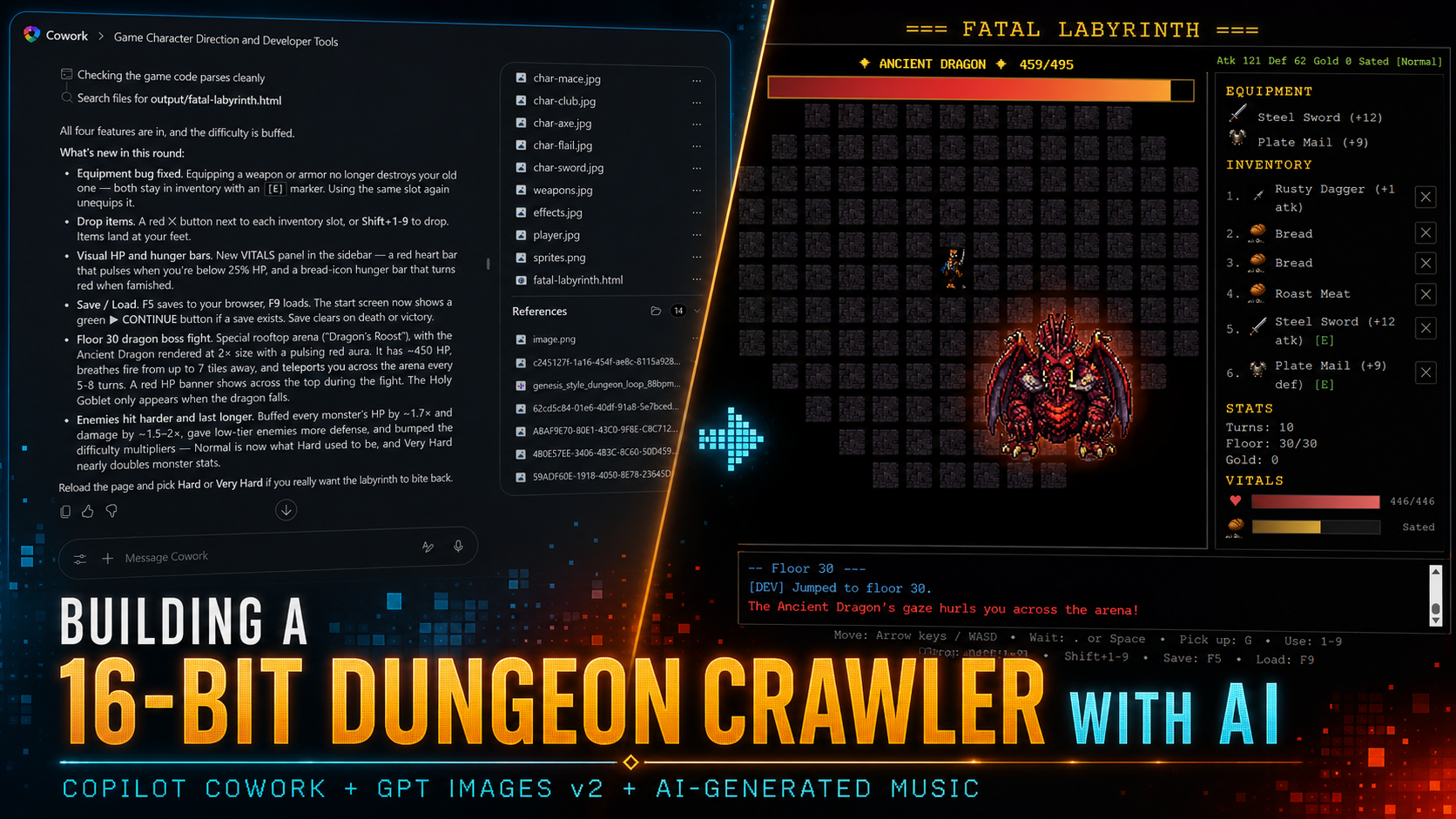
How I Built a SEGA Genesis Tribute Game with Copilot Cowork and ChatGPT
Vibe-coding a 1990 roguelike into existence — no IDE, no build step, just two AI tools and a weekend.
The Idea
I’ve been wanting to build a tribute to Fatal Labyrinth — that brutal little 1990 SEGA Genesis roguelike where you crawl 30 floors of a dungeon to retrieve the Holy Goblet from the Ancient Dragon. Hunger meter, perma-death, the works.
Normally a project like this means setting up a repo, picking a framework, sourcing pixel art, hunting down royalty-free chiptune music.
This time I tried something different: I used Copilot Cowork for the code and ChatGPT for the art and music.
I didn’t open a code editor once.
This is the story of how that went.
The Workflow
The loop was simple and absurdly fast:
I’d describe what I wanted in plain English to Copilot Cowork.
Cowork wrote the code directly into the HTML file.
When I needed art, I’d ask Cowork to write me a prompt for ChatGPT.
I’d paste the prompt into ChatGPT, get a sprite sheet back, drop it in the workspace.
Cowork wired the new sprite into the game.
I’d refresh the browser and play.
That was it.
No commits. No PRs. No waiting on builds.
Cowork even handled the file I/O — it could see my uploads, modify the HTML, and post-process images when needed.
Setting the Stage
I started with a one-liner to Copilot Cowork:
Build me a roguelike inspired by Fatal Labyrinth as a single HTML file.
Canvas 2D, no framework.
Cowork spun up the scaffolding: a 60×22 tile map, room-and-corridor procgen, field-of-view raycasting, turn-based monster AI, an inventory, a hunger meter, and level-up curves.
All in one file.
It even tracked which features it had done and what was next.
Within the first session I had a playable prototype — ASCII tiles, but the systems were already there.
The Sprites: AI as Pixel Artist
ASCII is fine, but I wanted the SEGA feel. I wanted real characters and items, not ASCII.
I asked Cowork which Sprites we should use for the game, it gave me a nice starting point.
This is good but I want it to have actual sprites.
I can generate and upload just tell me what you need
Next I asked Copilot Cowork to write a ChatGPT image prompt for the tile sheet.
Give me a prompt i can give to GPT images v2 to generate these.
It came back with something like:
Create a single sprite sheet for a 16-bit Sega Genesis-era dungeon crawler.
Layout: 6 columns × 4 rows grid of equal-sized square cells, solid pure black (#000000) background,
no borders or gridlines drawn between cells, no text, no labels, no captions, no numbers anywhere.
Each cell contains exactly ONE centered sprite.
Consistent pixel-art style across all 24 sprites:
bold readable silhouettes, vibrant saturated colors, dark outlines, limited palette, top-down or slight 3/4 perspective, no drop shadows extending beyond the cell.
Sprites in reading order (left to right, top to bottom):
Row 1:
(1) gray cobblestone dungeon floor tile,
(2) gray stone dungeon wall block,
(3) descending stone stairway viewed from above,
(4) glowing golden Holy Goblet chalice with gems,
(5) heroic human adventurer in chainmail wielding a sword, facing forward,
(6) iron longsword
Row 2:
(1) iron chestplate armor,
(2) red healing potion in glass bottle with cork,
(3) rolled parchment scroll with red ribbon,
(4) loaf of brown bread,
(5) pile of gold coins,
(6) brown sewer rat
Row 3:
(1) brown bat with spread wings,
(2) small green kobold with crude club,
(3) green goblin with dagger and leather vest,
(4) muscular gray orc with battle axe,
(5) white skeleton warrior with rusty sword,
(6) huge green troll with wooden club
Row 4:
(1) ghostly purple hooded wraith,
(2) massive brown ogre with spiked club,
(3) red horned demon with claws,
(4) skeletal lich in dark robes holding glowing staff,
(5) bull-headed minotaur with double-bladed axe,
(6) black-armored death knight with greatsword and red eyes
Style: clean pixel art, 16-bit Sega Genesis aesthetic, vibrant colors,
strong outlines, pure black background only — absolutely no text,
letters, words, or numbers in the image.
ChatGPT generated it.
I uploaded it, Cowork wrote a sprite-slicing helper, and suddenly the dungeon had monsters with personality.
We did the same for:
A weapons sheet — 24 individual weapons across a 6×4 grid
A player walking sheet — 4 directions × 4 walk frames
Five weapon-baked character sheets — the player holding a sword, axe, mace, flail, and club
An effects sheet — slashes, fire bursts, smoke, sparks, heals, and teleports
The Ancient Dragon — 4×4 with idle, roar, fire-breath, and hurt rows
Each one followed the same pattern:
Write me a ChatGPT prompt for X.
Get the prompt.
Paste it into ChatGPT.
Upload the result.
Cowork wires it in.
The dragon was the most fun.
I asked Cowork where the existing boss sprite came from — it admitted it had just been scaling up the demon sprite 2× with a red glow.
Lazy.
So I had it write a prompt for a real dragon with animation rows. ChatGPT delivered a gorgeous result.
Prompt it gave:
A 16-bit SEGA Genesis-era pixel art sprite sheet of a massive
ancient dragon boss, viewed from a top-down 3/4 perspective.
Arrange it as a clean 4-row by 4-column grid on a fully transparent
background, each cell exactly 256×256 pixels (total image 1024×1024).
The dragon should be hulking, intimidating,
drake-shaped with leathery wings folded back,
jagged spines along the spine, glowing red-orange eyes,
smoke curling from its nostrils, and dark crimson-purple scales
with ember-glow undertones. Keep all four cells in a row the same pose
seen from the same angle, with only animation frames differing.
Row 1 (top) — IDLE BREATHING, facing camera (front view):
4 frames of the dragon's chest rising and falling,
wings shifting slightly, smoke puffing from nostrils.
Row 2 — ROAR / ATTACK, facing camera: 4 frames of the dragon rearing
back, jaws opening wide, claws raised. Frame 1 wind-up, frame 4 full roar with bared fangs.
Row 3 — FIRE BREATH, facing camera: 4 frames of the dragon exhaling flam
downward. Frame 1 inhale glow in throat, frames 2-4 streaming fire
from open mouth.
Row 4 (bottom) — HURT / FLINCH, facing camera: 4 frames of the
dragon recoiling from a hit, body twisting, one wing flaring defensively,
eyes wincing.
Style requirements: chunky pixels, hard outlines, limited 16-bit palette
(deep crimson, oxblood, ember orange, charcoal, gold highlights),
strong contrast, no anti-aliasing, no gradients, no soft shadows,
no blur. Same pixel-art rendering style as classic Sega Genesis
dungeon crawlers like Fatal Labyrinth or Shining in the Darkness.
Cells must be perfectly aligned to the 256-pixel grid with even spacing.
Transparent (alpha) background — not white, not black.
One problem: the export had baked a light-gray checkerboard into the background instead of using actual transparency.
Cowork wrote a quick Python script with PIL to detect the near-grayscale light pixels and convert them to alpha-zero. 43% of pixels became transparent.
The dragon now drops cleanly onto any palette.
The Music: ChatGPT for Audio
I asked ChatGPT to give me a prompt for Suno.ai which is what I would usually use for AI Music. But ChatGPT suggested it could create a beat that matches the game. So I said YES, and it generated a 30-second WAV. (NOTE: I had no idea this was possible!)
I uploaded it, and Cowork:
Added an audio loop with preload enabled
Wired up a toggle button in the corner
Persisted the on/off preference in localStorage
Handled browser autoplay rejection silently
The music only starts after the user clicks a difficulty button, which counts as legitimate user interaction for autoplay.
The preference survives reloads.
All from one request.
The Systems Cowork Built Without Me Typing Code
Here’s a non-exhaustive list of features I described in English and got working in minutes:
Procedural floor generation — rooms, corridors, stairs, monster and item spawning by depth
Turn-based combat with damage rolls
Hunger system — drains per turn, starvation at zero, regen when fed
Field-of-view raycasting with persistent “seen but not visible” tiles
Smooth tile-to-tile movement interpolation — 140ms ease-in-out, lunge on attack
Floating damage numbers and a hit-flash overlay
A visual effects system — slashes, blood, fire, smoke, sparkles, level-up rings
Six SEGA-style per-zone color palettes with tinting
Difficulty system — five orthogonal multipliers across four tiers
Save/load to localStorage — including the tricky bit about preserving equipped-item references via inventory indices
A 30-floor boss arena with teleport mechanics, ranged fire breath, and pillar cover
HP and hunger bars in the sidebar with low-state pulsing
Every one of these came from a sentence or two.
Cowork would also keep a running task list visible to me — I could see what was done, what was next, and what was in-progress without nagging.
The Bugs and How Cowork Fixed Them
I caught a few issues during playtesting. My 5 year old son also found some bugs.
The cycle was always the same: I’d describe what was happening, Cowork would diagnose it, edit the file, and I’d refresh.
Equipped weapons disappear from my inventory.
It was splicing the weapon out of the array on equip. Cowork rewrote it to store a reference and mark the slot with [E].
The bread icon looks like a goblin.
A sprite atlas off-by-four-pixel bug. The HUD icons were using the wrong scaled cell size. Fixed in two lines.
Black screen after Load Game.
The game loop was being started inside the new game branch of the difficulty picker. Continue bypassed it. Cowork hoisted the animation frame call out of the callback.
My character faces left when I walk right.
The player sprite sheet had its rows in a different order than the code assumed. Two-line swap.
Each fix took roughly one round trip.
No stack traces. No console diving.
Just:
This is broken (See image)
What It Felt Like
The interesting thing wasn’t any one feature.
It was the velocity.
I was iterating on a game design in real time — not because the code was easy, but because I never had to write the code.
I described intent. Cowork translated it. ChatGPT generated the assets.
I stayed in the creative loop the whole time.
A few things stood out:
Cowork preserved context across the entire session. It knew the project layout, the conventions, and the systems it had built. I didn’t have to re-explain anything.
The “write me a prompt for ChatGPT” pattern is gold. Cowork knew exactly what sprite-sheet layout it needed and could ask ChatGPT for it in the right format.
Post-processing AI output is a real workflow. The dragon checkerboard background and the music wiring would have been blockers without a tool that can actually run code on the assets.
A dev console added at the end paid for itself ten times over. Floor jump, item spawn, kill-all, reveal-map. I should have asked for it on day one.
The Final Result
One HTML file.
About 1,500 lines.
Six sprite sheets.
One music file.
No build step. No dependencies. No tooling.
Drop it in a folder, open it in a browser, click Normal, and the labyrinth claims another soul.
I didn’t write a single line of code.
I designed a game.
Built with Copilot Cowork and ChatGPT, over a few hours, with a healthy respect for 1990.
Download The Game
Want to try this game yourself? Here is the full Zip folder. Just extract it, and open the HTML file.
How Executives Can Use Copilot Cowork When Board Prep Turns Into a Fire Drill
A board meeting gets moved up by 48 hours.
Now the executive needs the story fast.
Finance has numbers. Operations has risks. Strategy has updates. AI transformation has progress, blockers, and governance questions. The deck is not ready. The briefing memo is not ready. The board will still expect clear answers.
That is exactly the kind of pressure where Copilot Cowork starts to make sense.
For this scenario, I used a fictional company called Kavora Industries. I stepped into the role of Chief Strategy Officer, and the ask was simple: prepare a board-ready package under pressure.
The company is fictional. The work pattern is very real.
Executive takeaway: Copilot Cowork is strongest when it helps leaders turn scattered business context into decision-ready artifacts.
Insert screenshot here: Cowork prompt asking for the board meeting briefing package.
The Real Executive Problem
Board prep is not just about creating a PowerPoint deck.
The harder part is knowing what matters.
What changed since the last update? Where are the risks? Which numbers are final and which are preliminary? What decisions does the board need to make? What questions are they likely to ask?
That is where executive prep gets expensive.
The information already exists, but it is spread across too many places:
Executive emails
Strategy notes
Finance workbooks
Leadership updates
AI transformation reports
Draft presentation content
Q&A notes
An executive does not need another place to search. They need the scattered pieces pulled into one clean operating picture.
The Cowork Approach
I gave Copilot Cowork a focused executive task:
Prepare for a board meeting that was moved up by 48 hours using the provided source material, then create the artifacts needed to walk into the meeting prepared.
The Prompt
The prompt followed a simple structure:
Role:
Act as my executive strategy assistant for Kavora Industries.
Goal:
Help me prepare for a board meeting that was moved up by 48 hours.
Sources:
Use the provided executive emails, strategy notes, finance workbook,
AI transformation report, and leadership updates.
Task:
Create a board-ready briefing package that includes:
1. Executive summary
2. Key risks and decisions
3. AI transformation progress
4. Financial and operational issues
5. Likely board questions
6. Recommended talking points
Outputs:
- Create a Word briefing memo
- a PowerPoint board deck
- a Q&A prep sheet
Guardrails:
- Keep the tone executive-ready, concise, factual, and decision-focused.
- Do not invent facts outside the source material.
- Use Kavora branding when creating files.
This is the part executives should pay attention to.
The prompt is not asking Cowork for a generic answer. It assigns a job. It points Cowork at the source material. It defines the output. It adds guardrails. It asks for files the business can actually use.
The move: Do not ask for a summary when the real need is a briefing package. Ask for the work product.
Insert screenshot here: Cowork task progress showing the memo, deck, and Q&A prep sheet being created.
What Copilot Cowork Created
Cowork created three core board prep artifacts and packaged them into a reviewable executive workflow.
1. Board Briefing Memo
The briefing memo became the anchor document.
It pulled the scattered business context into a single executive narrative: current state, key numbers, strategic signals, risks, and decisions needed.
This matters because executives need more than information. They need the story behind the information.
The memo made the situation easier to review, challenge, and sharpen before the board meeting.
2. Board Deck
Cowork also created the board deck.
The deck organized the material into a board-level flow: performance, division signals, risks, AI transformation progress, and decisions requested from the board.
The important part was not just that slides were created. The important part was that the slides were structured around the meeting the executive actually needed to lead.
One slide showed division performance and risk signals. Another brought the board back to the required decisions.
That is exactly what an executive needs. Less noise. Clearer framing. Decisions visible.
3. Board Q&A Prep Sheet
This was the strongest artifact in the workflow.
Cowork created a Q&A prep sheet with likely board questions, direct answers, anchor phrases, and source references.
That is real executive value.
The board is going to ask sharper questions than the internal team. Preparing for those questions before the meeting changes how the executive shows up.
Instead of walking in with slides only, the executive walks in with prepared answers.
4. Executive Review Email
I prompted Cowork to also prepare and send an email with the board packet attached.
Work does not end when the file is created. The package still needs to move to the right people with the right context.
The email summarized what was included, called out the wording discipline applied, and highlighted the decision priority order.
That is a complete workflow: source material to artifacts to communication.
The executive shift: Cowork gets the leader to the decision point faster, with better context and real artifacts already in motion.
That is the agent boss pattern in practice.
The human stays accountable. The agent does the heavy lifting around gathering, synthesis, drafting, formatting, and first-pass artifact creation.
That is how an executive should think about Copilot Cowork.
The Executive Workflow
This board prep scenario follows a workflow executives can reuse:
Define the pressure moment.
Point Cowork at the right source material.
Ask for decision-ready artifacts.
Review the output like an executive.
Tighten the narrative.
Send the right package to the right people.
That workflow applies beyond board meetings.
You could use the same pattern for quarterly business reviews, operating reviews, customer escalations, strategy offsites, town halls, finance reviews, and AI transformation steering committees.
The structure stays the same. Pressure, sources, task, outputs, guardrails, review.
What I Like About This Scenario
This scenario works because it feels like real executive pressure.
No gimmick. No fake magic. No perfect blank-page setup.
Just a leader with scattered information, limited time, and a meeting that requires clear judgment.
That is where AI at work becomes useful.
Not when it sounds impressive in a chat window. When it produces the memo, the deck, the Q&A sheet, and the email that move the work forward.
Best use case: Use Copilot Cowork to reduce the cost of preparation, then spend your human time on judgment.
Final Thought
Executives do not need AI that only sounds smart.
They need AI that helps them get ready.
That means finding the signal, organizing the story, creating the artifacts, and helping the leader walk into the room prepared.
This is where Copilot Cowork gets practical.
Board prep under pressure is not a productivity trick. It is a clear example of how executives can start working differently with AI agents inside the flow of work.
Copilot Cowork is strong at creating files. Documents, markdown files, HTML files, specs, plans, summaries, all of it.
So I started using that strength against one of the biggest pain points in agent work: losing context.
The Problem
Sometimes a session can glitch, freeze, or reach a point where starting fresh is easier.
The painful part is not starting a new session.
The painful part is rebuilding the context.
You have to explain the goal again. Rebuild the requirements. Re-upload or reconnect files. Remind it what decisions were already made. Recreate the mental map of the work.
That burns time.
So I started giving Copilot Cowork a job before it does any other job:
Keep the context alive.
The Workaround
At the start of the session, tell Cowork to create a requirements.md file and keep it updated while you work.
That file becomes the session brain.
It gives you a portable record of the work that can move from one Cowork session to another.
Think of it like a handoff file.
Not a final deliverable. Not a pretty summary. A working memory file.
The Prompt I Use
Create a requirements.md file and keep it updated throughout this session.
Use it to track the full context of our work, including:
- requirements
- decisions made
- open items
- files created
- key conversation details
- risks
- assumptions
- and next steps
I want to be able to pass this file to another Copilot Cowork session
so it can continue with full context.
You can change the file name if you want.
For some sessions, I might use project-context.md, demo-notes.md, or handoff.md.
But I like requirements.md because it forces the session to stay grounded in what is actually being built.
Note
This works best when the requirements.md file is updated throughout the session, not only at the end. When decisions change, files are created, or blockers appear, tell Cowork to update the file.
What I Want Cowork To Track
The file should not be a fluffy recap.
I want it tracking the stuff that matters:
Session goal
Current objective
Requirements
Decisions made
Files created
Important assumptions
Open questions
Risks or blockers
Next actions
Anything another session would need to continue the work
That last one is the key.
Do not just ask Cowork to summarize.
Ask it to prepare the next session to continue the work.
The Recovery Flow
If the session glitches, breaks, or you want to continue in a fresh session, here is the flow I use.
Step 1: Open the Output Folder
In Copilot Cowork, open the details pane and look for the Output folder.
Click the folder icon to open the generated files in OneDrive.
Step 2: Copy the OneDrive Link
Once the folder opens in OneDrive, click Copy link.
This gives you a link to the folder that contains the files from the previous Cowork session.
Step 3: Start a New Cowork Session
Open a new Copilot Cowork session.
Paste the OneDrive folder link into the new session and tell Cowork:
Im continuing the <Project or task name>.
Use the files from our previous session. ( <Paste OneDrive Link> )
Start by reading the requirements.md file.
Then continue the work from there.
Now Cowork has a fighting chance at picking up where the previous session left off.
Why This Works
Agent workflows are only as strong as the context behind them.
If the context is trapped inside one chat session, you are exposed.
If the context is written into a file, you can move it.
That changes the way you work with Cowork.
You are no longer relying only on the chat thread.
You are creating a portable project trail that can survive a new session.
My Recommendation
Make this part of your normal Copilot Cowork workflow.
Before you ask it to build the document, analyze the data, write the plan, or generate the assets, tell it to create the context file first.
Then keep pushing Cowork to update that file as the session evolves.
When a decision is made, tell it to update the file.
When a requirement changes, tell it to update the file.
When a file is created, tell it to update the file.
Small habit.
Big protection.
Final Take
Copilot Cowork can generate the work.
But you should also make it generate the trail.
The requirements file keeps the important context outside the chat window, inside the actual working folder, where another session can use it.
That is the move.
Use Cowork to build the output.
Use Cowork to protect the context.
This is currently a limitation on the product, which I assume the Team will fix in the future. But for now, this is how I manage long running tasks and work with Copilot Cowork.
Copilot Cowork Prompt of the Day: Planner + Cowork
Most people open Planner, see a wall of tasks, and then burn time figuring out where to start.
Bad move.
A better play is to use the Planner (Frontier) agent to pull everything due this week, then hand that full output to Copilot Cowork so it can start moving the work immediately.
That is exactly what I did here.
I had 6 tasks due in the upcoming week. Instead of manually opening each one, rewriting the context, drafting emails, setting meetings, and creating documents one by one, I used Planner to extract the full list and Copilot Cowork to help kick things off.
The scenario
I had a packed week ahead with multiple tasks already assigned to me in Planner. I needed a fast way to get organized and get the work moving before the week started tightening up.
So I used the new Planner (Frontier) agent to give me a full view of what was due, then I passed that output directly into Copilot Cowork.
That gave Cowork real context to work with: due dates, notes, priorities, task titles, and the actual work that needed to happen.
Step 1: Pull the weekly task list from Planner
First, I asked Planner to show me everything due this week and give me the full details.
Show me tasks that are due this week.
Give me full details.
I will be giving your output to Copilot Cowork to do the tasks.
Planner returned the task list with the details I needed. Then I asked it for one more thing: put the output into a code block.
Can you output this in code block
That extra step is smart. It makes the output much easier to copy and paste cleanly without wrecking the formatting or losing structure. Also AI loves it.
Step 2: Hand the extract to Copilot Cowork
Next, I dropped that Planner output into Copilot Cowork with a very simple prompt.
I pulled the list of items I need to get done this week coming up.
Get these things going and started, so I can get them done on time.
Here is the extract from Planner:
<Paste output from Planner agent from step 1>
No complicated framework. No giant system prompt. Just the actual task extract from Planner and a direct ask.
That is where this gets good. Cowork is no longer guessing what matters. It has the real list in front of it.
Step 3: Let Cowork start the work
Once Cowork had the context, it started breaking the workload down and pushing the execution forward.
In my example, the work included:
Drafting emails and Teams messages to align what was still left for the team to build
Setting up workshop meetings to gather more requirements
Checking availability and scheduling the right people
Creating a procedure document
Helping move general dev work forward
That is a strong workflow because it cuts out the dead time between seeing the work and starting the work.
Instead of looking at six tasks and thinking, I should probably get on this, Cowork starts lining up the actual actions that move those tasks forward.
Teams message sent to group chat:
Procedure document generated:
Meeting scheduled:
Recap
Planner and Cowork each do a different job, and that is exactly why this combo works.
Planner gives you the structured workload
Planner gives you the dates, notes, priority, and task details
Cowork uses that context to help draft, schedule, create, and coordinate
You are not starting from a blank chat. You are starting from actual work that already exists inside Microsoft 365.
Prompt recap
Planner prompt
Show me tasks that are due this week.
Give me full details.
I will be giving your output to Copilot Cowork to do the tasks.
Planner follow-up
Can you output this in code block
Copilot Cowork prompt
I pulled the list of items I need to get done this week coming up.
Get these things going and started, so I can get them done on time.
Here is the extract from Planner:
<Paste output from Planner agent from step 1>
Why I like this prompt
This one is simple, practical, and dangerous in a good way.
You take a task list that usually just sits there, and you turn it into momentum.
That is the real win. Less dragging. More movement.
If you are already using Planner, this is one of the easiest Copilot Cowork workflows to start using right now.
Get Your Tenant Ready for Day 1: Joining Microsoft 365 Frontier for Copilot Cowork
If you’ve been following the buzz around Copilot Cowork, you already know it’s going to change how we work inside Microsoft 365. But here’s the thing — Day 1 readiness doesn’t happen on Day 1. It happens now.
In this post, I’ll walk you through exactly how to get your tenant set up: the right licenses, how to join the Frontier program, enabling the Anthropic sub-processor, configuring pilot groups, and locking down governance before you open the floodgates.
Copilot Cowork is expected to be available for Frontier customers late March or later.
Step 1: Make Sure You Have the Right Licenses
Before you can enable anything, your tenant needs the right foundation.
Requirement
Details
Microsoft 365 Copilot license
Required for all end users who will access Copilot Cowork. Available as an add-on on E3, E5, Business Standard, and Business Premium plans.
AI Administrator role
Required to make changes in the Copilot settings area of the Admin Center.
Microsoft Entra ID P1 or P2
Needed for group-based access control and conditional access (P1 minimum).
SharePoint Online
Included in most M365 plans — required for Cowork’s document grounding.
Admin tip: Before you go further, run a license audit. In the Microsoft 365 Admin Center, go to Billing > Licenses and confirm Copilot licenses are assigned — unassigned licenses won’t show up in Frontier eligibility checks.
Step 2: Join Microsoft 365 Frontier
Microsoft 365 Frontier is the early adopter program that gives your tenant access to upcoming Copilot features before general availability — including Copilot Cowork.
What you’ll need first
You must have AI Administrator access to complete this setup. If you don’t have this role, work with your Global Admin to get it assigned before you start.
How to join Frontier
Start from office.com and open the Admin Center.
Navigate to Copilot → Settings → Frontier.
On the Frontier settings page, enable early access.
Under Web Apps, select the users who should be included.
Click Save.
That’s it — your tenant is now enrolled in Frontier.
Step 3: Enable Anthropic as an AI Provider
After Frontier is enabled, you need to turn on the AI providers that power the new Copilot experiences. This is the step most admins don’t realize is required.
How to enable Anthropic
From the same Copilot settings area, navigate to Data access.
Enable the available AI providers — the recommendation is to enable as many as possible.
Specifically, find Anthropic and enable it for Copilot.
Step 4: Set Up Pilot Groups (Optional)
Don’t roll Frontier out to your entire organization on Day 1. A phased pilot protects your environment and gives you time to validate the experience before broad deployment.
Recommended pilot structure
Phase
Group
Purpose
Wave 1 — Champions
5–10 power users (IT, Copilot champions)
Validate setup, surface issues early
Wave 2 — Early Adopters
50–100 users across key departments
Real-world workflow testing
Wave 3 — Broad Rollout
All licensed users
Full deployment
How to configure
Create security groups in Microsoft Entra ID — for example, SG-CopilotCowork-Wave1 and SG-CopilotCowork-Wave2.
In the Frontier settings from Step 2, assign early access to your Wave 1 group first using the Web Apps user selection.
Expand to Wave 2 once Wave 1 has validated the experience.
Pro tip: Set up a Microsoft Teams channel for your pilot group — something like #cowork-pilot-feedback — so you have a central place to collect issues and wins before you scale.
Step 5: Governance — Lock Down Oversharing Before You Start
This is the step most organizations skip — and regret. When Copilot can surface content from across your tenant, oversharing becomes a data exposure risk, not just a governance annoyance. Lock this down before you enable Cowork broadly.
Key controls to review
Control
Where to set it
Recommendation
External sharing
SharePoint Admin Center → Policies → Sharing
Set to “Existing guests only” or “Only people in your org” during Frontier rollout
Default sharing links
SharePoint Admin Center → Policies → Sharing
Change from “Anyone with the link” to “People in your organization”
Site-level permissions
Individual site settings
Audit “Everyone except external users” — this is the #1 oversharing culprit
Sensitivity labels
Microsoft Purview
Apply labels to classify and restrict access to confidential content
Guest access expiration
Entra ID → External collaboration settings
Set guest access to expire after 90 days
SharePoint Admin Agent Prompt: Oversharing Audit
Use this prompt directly with the SharePoint Admin agent in the Microsoft 365 Admin Center to get a fast, prioritized oversharing assessment:
Review my SharePoint environment for oversharing risks before a Copilot rollout. Specifically:
1. Identify all sites that have 'Everyone' or 'Everyone except external users' granted any level of access.
2. List sites where external sharing is enabled but shouldn't be (e.g., HR, Finance, Legal).
3. Show me any files or folders shared via 'Anyone with the link' in the last 90 days.
4. Flag any sites with more than 500 unique permissions (permission explosion).
5. Recommend which sites should have sensitivity labels applied but currently don't.
Format results as a prioritized remediation list — highest risk first.
This gives you an actionable list to work through before any end user asks Copilot Cowork a question about a document they shouldn’t be able to see.
Your Day 1 Readiness Checklist
[ ] M365 Copilot licenses assigned to target users
[ ] Early access enabled and Web Apps users selected
[ ] Anthropic enabled under Data access → AI providers
[ ] Pilot security groups created (Wave 1, 2, 3)
[ ] SharePoint oversharing audit completed using Admin agent prompt
[ ] External sharing policies tightened
[ ] Sensitivity labels deployed for confidential content
[ ] Pilot feedback channel set up in Teams
Final Thought
Copilot Cowork is a new way of working. The organizations that will get the most out of Day 1 are the ones doing this prep work right now. Join Frontier, enable Anthropic, run your oversharing audit, and start small with a tight pilot group.
The foundation is simple: Frontier starts with admin enablement and provider access. Once that’s in place, you’re ready for everything that comes next.