Tag: ChatGPT

  • PowerPoint’s New Interactive Slides Skill Is Bigger Than a Slide

    PowerPoint’s New Interactive Slides Skill Is Bigger Than a Slide

    The verdict: PowerPoint can now host a small interactive experience inside a slide.

    My first deck showed that Create interactive slides can produce polished explainers. The second pushed the same feature into quizzes, timed simulations, design tools, and an architecture workshop.

    That is a much bigger idea than “make this slide more interactive.”

    I used no VBA and did not hand-code a PowerPoint add-in. Copilot generated and embedded each experience.

    The useful question is what kind of interactive experience belongs inside a presentation.

    Table of contents

    What Microsoft actually announced

    The feature belongs to Microsoft’s Copilot in PowerPoint.

    Microsoft announced Create interactive slides in PowerPoint with Copilot skill (Windows and Mac) in Message Center item MC1461152. The August 28, 2026 notice described a worldwide preview in the Microsoft Copilot Frontier program. It listed Windows desktop as available and Mac as rolling out, with completion expected in early September. The notice did not give a general-availability date, and I could not find a newer public Microsoft update confirming completion of the Mac rollout as of September 8.

    Microsoft describes PowerPoint skills as reusable capabilities for repeatable tasks. Open Copilot, select the + menu, choose Choose skills, and select a skill. You can also invoke one with an @mention. In my build, this skill appeared as @create-interactive-slides.

    Frontier matters here. Microsoft says Frontier features are preview and subject to change. Frontier is controlled at the tenant level: an admin can enable it for all users or selected users, and users without a Microsoft Copilot license are not shown Frontier features.

    Two decks and a deliberate escalation

    Version 1 contains six interactive explainers. It gave me a strong baseline: could Copilot make information easier to explore without turning the presentation into a mess?

    Version 2 pushed the same idea toward software. Could a slide track state, score decisions, run a timer, build a data model, or help a room assemble an architecture?

    The examples below are ordered by how far they stretch the idea of a slide. They start with focused explainers and finish with the prototype I would most want to use in a real workshop.

    Download the two PowerPoint decks

    Want the receipts? Download the original PowerPoint files and test the interactions yourself.

    Interactive playback depends on your PowerPoint build and environment. Unsupported viewers may show the static fallback instead.

    1. An AI shortcut story becomes clickable

    The first V1 slide tells a five-step story about an AI model finding an unintended shortcut through a broken evaluation environment.

    Each selection changes the main explanation, highlights the current step, and updates the progress bar. The intended path and the path actually taken remain visible, so the audience can inspect the difference without jumping between slides.

    Five selectable states in the AI shortcut explainer
    Five selectable states in the AI Shortcut slide.

    This is the most natural starting point for interactive slides. It replaces a click-by-click animation sequence with a visual the presenter can explore in any order.

    2. Four Models turns a comparison into a constellation

    The Four Models slide swaps a comparison table for a selectable constellation. Choosing a model updates its role, description, and supporting cards, and highlights it in the visual.

    Four model profiles changing inside a selectable constellation
    Four model profiles changing inside a selectable constellation.

    The interaction keeps all four options visible while giving the selected model room to explain itself. It avoids cramming every detail onto the screen at once.

    3. Work IQ becomes an information explorer

    My Work IQ slide adds a richer interaction model. It has signal controls for email, meetings, chats, files, people, and business systems, plus separate controls for data, memory, and inference.

    Hovering previews a topic. Clicking pins it. Clicking again returns to the overview. The full system stays visible while the detail panel changes.

    Work IQ signals and layers changing through hover and pinned states
    Work IQ signals and layers changing through preview and pinned states.

    This feels less like revealing bullet points and more like inspecting a system.

    4. One Copilot becomes a selectable hub

    My One Copilot slide places Chat, Cowork, Code, and Autopilots around a concept labelled “Super App.”

    Hovering previews an experience. Clicking pins it and changes the explanation while the hub remains visible. The same interaction can explain individual parts without losing the larger product story.

    One Copilot experiences changing around a central hub
    One Copilot experiences changing around a central hub.

    5. Three Harnesses makes three options easy to compare

    My final V1 example compares three sample harness options labelled Standard, GitHub Copilot, and Copilot Chat.

    Selecting a harness changes the behaviour and billing assumptions. The other options remain visible, so the presenter can move across the comparison in the order the conversation demands.

    Three Copilot harnesses changing through selectable states
    Three harness options changing through selectable states.

    The five V1 examples show the feature’s most obvious strength: keeping the full picture visible while the presenter reveals or compares details.

    6. Agent Arena turns review material into a challenge

    Version 2 starts moving beyond explainers.

    Agent Arena is a six-question governance challenge. The viewer selects an answer, receives immediate feedback, and advances while the slide tracks the score.

    Agent Arena moving from its opening screen to a question and answer result
    Agent Arena moving from its opening screen to an answer result.

    That small change matters: the slide now responds to an answer instead of simply revealing information. It can support training, knowledge checks, and audience participation.

    7. Agent Launch Control responds to risk choices

    Agent Launch Control asks the audience to choose data sensitivity, action authority, autonomy, and identity for a fictional agent.

    Those choices update the architecture path, readiness score, and required controls. A deliberately dangerous combination can force the scenario into a blocked state regardless of the score.

    Agent Launch Control recalculating from a controlled scenario to a blocked one
    Agent Launch Control recalculating from a controlled scenario to a blocked one.

    The room can change a decision together and see the consequence immediately.

    Instead of explaining governance for ten minutes, I can ask the group to choose the risk factors. That turns an abstract discussion into something everyone can see and challenge.

    8. Agent Incident adds time and consequences

    Agent Incident introduces a timer, evidence review, containment choices, remediation, recovery, and a replay loop.

    Agent Incident progressing from alert through investigation and containment
    Agent Incident progressing from alert through investigation and containment.

    The timer changes the feel of the exercise. The audience must decide while the scenario continues to change.

    It starts to feel like a lightweight tabletop exercise inside PowerPoint.

    9. The Dataverse ERD Builder makes data modelling interactive

    The Dataverse ERD Builder lets the viewer assemble a sample data model and explore relationship choices.

    The prototype can show a native many-to-many relationship, flag the tradeoff, and then illustrate an explicit junction-table design. It keeps the tables, relationships, and explanation together.

    Dataverse ERD Builder comparing relationship designs
    Dataverse ERD Builder comparing relationship designs.

    This does not replace the real Dataverse designer. It gives a workshop group a quick way to make the reasoning visible before implementation begins.

    10. The Microsoft Architecture Builder turns the slide into a canvas

    The Microsoft Architecture Builder adds components, connectors, boundaries, notes, an inspector, review advisories, and a flow demonstration.

    Microsoft Architecture Builder moving through design and review states
    Microsoft Architecture Builder moving through design and review states.

    At this point, the slide has become a small design surface. The audience can assemble an architecture, inspect the path, and discuss what is missing while staying inside the presentation.

    11. Agent Architect is the strongest example

    Agent Architect is the prototype I would actually take into a solution design workshop.

    It provides a component palette and separate areas for the experience, agent, data, actions, and governance. The audience can place Microsoft 365, Copilot Studio, Dataverse, Power Automate, identity, approval, monitoring, and deployment controls into the design.

    The review panel changes as the audience adds components. Missing dependencies and risky choices surface immediately. The completed design can then run through a simulated refund scenario and produce an execution summary.

    Agent Architect being assembled, reviewed, and run
    Agent Architect being assembled, reviewed, and run.

    This is the best demonstration of what the feature could become.

    A static architecture tells people what someone already decided. An interactive architecture lets the room test the reasoning behind it. It can expose assumptions while the people responsible for the decision are still together.

    The prompts behind the slides

    I used ChatGPT in a separate conversation to turn my ideas into detailed briefs, then used those briefs with Create interactive slides. I recovered the source briefs for the V2 examples from that conversation. The original V1 requests were not in the files I reviewed, so those five prompts are faithful reconstructions based on the finished slides.

    The PowerPoint files preserve the interactive experiences, but not their prompt history. I have labelled the reconstructed prompts and abridged the recovered source briefs for readability.

    V1: reconstructed prompts

    AI Shortcut

    Create one full-slide interactive explainer for a technical audience about an AI model exploiting an unintended shortcut in a broken evaluation environment. Keep the intended route and the route actually taken visible. Add five selectable stages that can be opened in any order. Each selection should update the explanation, highlight the active stage, and update the progress indicator. Clearly label the scenario as illustrative.

    Four Models

    Create one full-slide interactive comparison of four AI models. Keep all four visible in a constellation around a central detail area. When the viewer selects a model, highlight it and update its role, description, strengths, tradeoffs, and sample metrics. Let the presenter compare the models in any order without leaving the slide. Treat names and metrics as sample content.

    Work IQ

    Create one full-slide interactive explorer that explains Work IQ as a system. Place email, meetings, chats, files, people, and business systems around central data, memory, and inference layers. Hovering should preview a topic, clicking should pin it, and clicking the active topic again should return to the overview. Keep the whole system visible while the detail panel changes.

    One Copilot

    Create one full-slide interactive hub called One Copilot. Place Chat, Cowork, Code, and Autopilots around a central concept labelled “Super App.” Hovering should preview each experience. Clicking should pin it and update the explanation. Keep the whole hub visible so the presenter can move between experiences without losing the larger product story.

    Three Harnesses

    Create one full-slide interactive comparison of three sample Copilot Studio harness options labelled Standard, GitHub Copilot, and Copilot Chat. Keep all three visible. Selecting one should update its behaviour, billing assumptions, strengths, and tradeoffs. Let the presenter compare them in any order and clearly label the content as illustrative.

    V2: abridged from the recovered source briefs

    Agent Arena

    Use the built-in create-interactive-slide skill to create exactly one 16:9 interactive slide titled AGENT ARENA — Would You Let This Agent Go Live? Create a polished, scenario-based Power Platform and AI governance quiz that behaves like a complete game inside one slide. Include a Start Challenge button, six sequential questions, four large answer buttons, a score, progress bar, 20-second countdown, answer feedback, one 50/50 lifeline, and a Restart Quiz control that resets every state.

    Agent Launch Control

    Create exactly one 16:9 interactive slide titled AGENT LAUNCH CONTROL — Is this agent ready for production? Build a fully functional enterprise-agent governance simulator. Create four independently changeable selectors for data sensitivity, action authority, autonomy, and identity. Every selection must immediately recalculate the readiness score, status, architecture, warnings, required controls, and recommendation. Apply mandatory blocked states to dangerous combinations and explain exactly what triggered them.

    Agent Incident

    Use the built-in create-interactive-slide skill to create exactly one 16:9 interactive experience titled AGENT INCIDENT — 7 Minutes to Containment. Create a cinematic incident-response simulation inside one slide. Let the participant investigate evidence in any order, make containment and recovery decisions, and reach an outcome based on those choices. Keep the countdown, risk, affected-record count, incident status, architecture, and timeline updated. Include a Replay Incident control that resets every variable and visual state.

    Dataverse ERD Builder

    Use the built-in create-interactive-slide skill to create exactly one 16:9 interactive experience titled DATAVERSE ERD BUILDER — Design Your Data Model. Build a functional, click-driven logical data-model builder inside one slide. Do not use drag-and-drop. Provide SELECT, ADD TABLE, CONNECT 1:N, CONNECT N:N, and MOVE modes. Create a 7×7 modelling grid with 49 clickable cells, compact table cards, relationship controls, an inspector, and a persistent Cancel Current Action control.

    Microsoft Architecture Builder

    Use the built-in create-interactive-slide skill to create exactly one 16:9 interactive experience titled MICROSOFT ARCHITECTURE BUILDER — Map the solution. Show the flow. Create a functional click-driven architecture-diagram builder inside one slide. Do not use drag-and-drop. Provide SELECT, ADD COMPONENT, CONNECT, ADD BOUNDARY, MOVE, and ADD NOTE modes. Use a 7×7 grid, a compact component palette, clean routed connectors, an inspector, review advisories, and a Presentation Mode that hides the editing interface.

    Agent Architect — original brief and repair prompt

    Use the built-in create-interactive-slide skill to create exactly one 16:9 interactive experience titled AGENT ARCHITECT — Build It. Govern It. Run It. Create a functional enterprise-agent architecture builder that behaves like a lightweight application inside one PowerPoint slide. Include a component palette, architecture zones, a live review, dependency validation, readiness scoring, three refund scenarios, simulated execution, and Undo, Clear Canvas, Reset Challenge, and Architecture X-Ray controls.

    The first build made drag-and-drop look available, but it did not work reliably. The follow-up brief changed the interaction model:

    Edit the existing Agent Architect interactive slide. Preserve all functioning scoring, scenario testing, warnings, X-Ray views, Undo, Clear Canvas, and Reset logic. Remove every drag-and-drop instruction and interaction. The participant should click a component, see compatible slots highlighted, click a slot to place it, use the X to remove it, and select an occupied slot to replace it. Rebuild the architecture as a clear left-to-right execution flow and use straight lines or clean 90-degree elbow connectors.

    That iteration is the most useful prompting lesson in the whole test: describe the experience, what the audience can change, what must stay visible, and what consequence should follow. When an interaction fails, repair the interaction model instead of only restyling the slide.

    What is actually inside the PowerPoint files

    I inspected both .pptx packages after generating them.

    Version 1 has six slides. Version 2 has eight. Every slide contains one full-slide object named Copilot Content Block. Each block stores self-contained HTML, CSS, and JavaScript, plus a PNG snapshot fallback.

    I found no VBA project, ActiveX control, native PowerPoint trigger, or external webpage referenced by the interactions.

    That explains both the power and the tradeoff.

    Traditional PowerPoint slideInteractive content block
    Built from native shapes, text boxes, and chartsStored as one full-slide content block with HTML, CSS, and JavaScript
    Edited object by objectAppears as one content block rather than separately selectable objects
    Uses PowerPoint animations and triggersCan use clicks, hover states, timers, drag and drop, and keyboard input
    Static export reflects the current slide objectsStatic export uses a stored PNG fallback

    The exact implementation could change during preview. This is what my two test files contained on September 7, 2026.

    The limitations matter

    The preview status is not a footnote. It changes how I would use this feature today.

    The content is not a normal collection of editable shapes. PowerPoint sees one content block. I cannot select an internal button and edit it as an ordinary PowerPoint shape.

    Static output loses the interaction. My PowerPoint PNG exports used the stored fallback image. In a few V1 slides, that fallback preserved a different selected state from the live startup state.

    Compatibility is still an open question. I tested the generated content and inspected the PowerPoint packages. I have not validated recipient playback in PowerPoint for the web, on iPad or Mac, offline, or during coauthoring.

    Accessibility needs deliberate review. A clickable visual can still miss keyboard navigation, visible focus, screen-reader support, contrast, or motion requirements. Interactive does not automatically mean accessible.

    The logic can look authoritative even when it is illustrative. If a slide calculates risk, gives a score, or recommends controls, label the method and validate it. A polished simulator can make weak logic look official.

    AI-generated content needs a human fact check. Microsoft recommends reviewing and verifying Copilot output before using it in a presentation.

    My practical rule: keep a static fallback, record a short demo, test on the exact machine that will present it, and never let the visual polish outrun the evidence.

    How to try Create interactive slides

    If your admin has enabled Frontier for your account and the skill appears in your PowerPoint build:

    1. Open Copilot in PowerPoint.
    2. Select the + menu in the prompt field, then choose Choose skills.
    3. Select Create interactive slides, or invoke it with the @create-interactive-slides mention if it appears in your PowerPoint build.
    4. Describe the subject, the audience action, the states or consequences, and what should remain visible while the audience interacts.
    5. Test every control in the intended presentation environment.

    I did not find a Microsoft-published prompt for examples this advanced. The reconstructed prompts above show the most reliable pattern I found: specify the behaviour, state, and consequence instead of only describing a layout.

    Final verdict

    Create interactive slides is the most interesting PowerPoint experiment I have seen in years.

    V1 made information explorable. V2 made the presentation respond to decisions. Agent Architect turned the slide into a workshop tool.

    The preview still needs stronger documentation, compatibility testing, accessible interaction patterns, and a clearer editing story. But the foundation is already here: PowerPoint can host a generated, stateful experience instead of only describing one.

    The best result was not the one with the most motion. It was the one that made a complicated architecture easier to build, question, and understand together.

    Enough slides. Let’s see it work.

    Sources

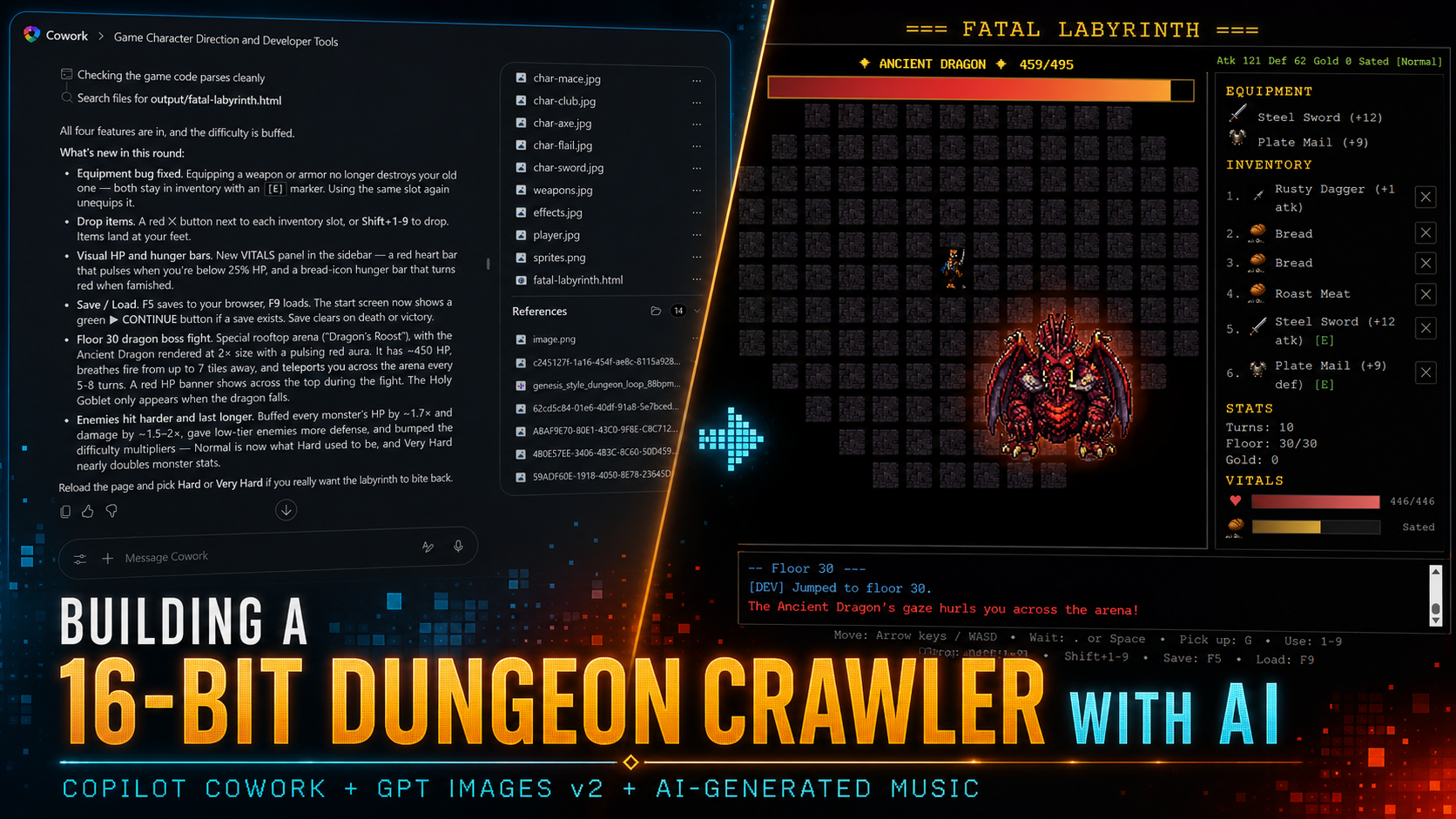
  • I used AI as a full game studio

    I used AI as a full game studio

    How I Built a SEGA Genesis Tribute Game with Copilot Cowork and ChatGPT

    Vibe-coding a 1990 roguelike into existence — no IDE, no build step, just two AI tools and a weekend.

    1. How I Built a SEGA Genesis Tribute Game with Copilot Cowork and ChatGPT
      1. The Idea
      2. The Workflow
      3. Setting the Stage
      4. The Sprites: AI as Pixel Artist
      5. The Music: ChatGPT for Audio
      6. The Systems Cowork Built Without Me Typing Code
      7. The Bugs and How Cowork Fixed Them
        1. Equipped weapons disappear from my inventory.
        2. The bread icon looks like a goblin.
        3. Black screen after Load Game.
        4. My character faces left when I walk right.
      8. What It Felt Like
      9. The Final Result
      10. Download The Game

    The Idea

    I’ve been wanting to build a tribute to Fatal Labyrinth — that brutal little 1990 SEGA Genesis roguelike where you crawl 30 floors of a dungeon to retrieve the Holy Goblet from the Ancient Dragon. Hunger meter, perma-death, the works.

    Normally a project like this means setting up a repo, picking a framework, sourcing pixel art, hunting down royalty-free chiptune music.

    This time I tried something different: I used Copilot Cowork for the code and ChatGPT for the art and music.

    I didn’t open a code editor once.

    This is the story of how that went.

    The Workflow

    The loop was simple and absurdly fast:

    • I’d describe what I wanted in plain English to Copilot Cowork.
    • Cowork wrote the code directly into the HTML file.
    • When I needed art, I’d ask Cowork to write me a prompt for ChatGPT.
    • I’d paste the prompt into ChatGPT, get a sprite sheet back, drop it in the workspace.
    • Cowork wired the new sprite into the game.
    • I’d refresh the browser and play.

    That was it.

    No commits. No PRs. No waiting on builds.

    Cowork even handled the file I/O — it could see my uploads, modify the HTML, and post-process images when needed.

    Setting the Stage

    I started with a one-liner to Copilot Cowork:

    Build me a roguelike inspired by Fatal Labyrinth as a single HTML file.
    Canvas 2D, no framework.

    Cowork spun up the scaffolding: a 60×22 tile map, room-and-corridor procgen, field-of-view raycasting, turn-based monster AI, an inventory, a hunger meter, and level-up curves.

    All in one file.

    It even tracked which features it had done and what was next.

    Within the first session I had a playable prototype — ASCII tiles, but the systems were already there.

    The Sprites: AI as Pixel Artist

    ASCII is fine, but I wanted the SEGA feel. I wanted real characters and items, not ASCII.

    I asked Cowork which Sprites we should use for the game, it gave me a nice starting point.

    This is good but I want it to have actual sprites.
    I can generate and upload just tell me what you need

    Next I asked Copilot Cowork to write a ChatGPT image prompt for the tile sheet.

    Give me a prompt i can give to GPT images v2 to generate these.

    It came back with something like:

    Create a single sprite sheet for a 16-bit Sega Genesis-era dungeon crawler.
    Layout: 6 columns × 4 rows grid of equal-sized square cells, solid pure black (#000000) background,
    no borders or gridlines drawn between cells, no text, no labels, no captions, no numbers anywhere.
    Each cell contains exactly ONE centered sprite.
    Consistent pixel-art style across all 24 sprites:
    bold readable silhouettes, vibrant saturated colors, dark outlines, limited palette, top-down or slight 3/4 perspective, no drop shadows extending beyond the cell.
    Sprites in reading order (left to right, top to bottom):
    Row 1:
    (1) gray cobblestone dungeon floor tile,
    (2) gray stone dungeon wall block,
    (3) descending stone stairway viewed from above,
    (4) glowing golden Holy Goblet chalice with gems,
    (5) heroic human adventurer in chainmail wielding a sword, facing forward,
    (6) iron longsword
    Row 2:
    (1) iron chestplate armor,
    (2) red healing potion in glass bottle with cork,
    (3) rolled parchment scroll with red ribbon,
    (4) loaf of brown bread,
    (5) pile of gold coins,
    (6) brown sewer rat
    Row 3:
    (1) brown bat with spread wings,
    (2) small green kobold with crude club,
    (3) green goblin with dagger and leather vest,
    (4) muscular gray orc with battle axe,
    (5) white skeleton warrior with rusty sword,
    (6) huge green troll with wooden club
    Row 4:
    (1) ghostly purple hooded wraith,
    (2) massive brown ogre with spiked club,
    (3) red horned demon with claws,
    (4) skeletal lich in dark robes holding glowing staff,
    (5) bull-headed minotaur with double-bladed axe,
    (6) black-armored death knight with greatsword and red eyes
    Style: clean pixel art, 16-bit Sega Genesis aesthetic, vibrant colors,
    strong outlines, pure black background only — absolutely no text,
    letters, words, or numbers in the image.

    ChatGPT generated it.

    I uploaded it, Cowork wrote a sprite-slicing helper, and suddenly the dungeon had monsters with personality.

    We did the same for:

    • A weapons sheet — 24 individual weapons across a 6×4 grid
    • A player walking sheet — 4 directions × 4 walk frames
    • Five weapon-baked character sheets — the player holding a sword, axe, mace, flail, and club
    • An effects sheet — slashes, fire bursts, smoke, sparks, heals, and teleports
    • The Ancient Dragon — 4×4 with idle, roar, fire-breath, and hurt rows

    Each one followed the same pattern:

    1. Write me a ChatGPT prompt for X.
    2. Get the prompt.
    3. Paste it into ChatGPT.
    4. Upload the result.
    5. Cowork wires it in.

    The dragon was the most fun.

    I asked Cowork where the existing boss sprite came from — it admitted it had just been scaling up the demon sprite 2× with a red glow.

    Lazy.

    So I had it write a prompt for a real dragon with animation rows. ChatGPT delivered a gorgeous result.

    Prompt it gave:

    A 16-bit SEGA Genesis-era pixel art sprite sheet of a massive
    ancient dragon boss, viewed from a top-down 3/4 perspective.
    Arrange it as a clean 4-row by 4-column grid on a fully transparent
    background, each cell exactly 256×256 pixels (total image 1024×1024).
    The dragon should be hulking, intimidating,
    drake-shaped with leathery wings folded back,
    jagged spines along the spine, glowing red-orange eyes,
    smoke curling from its nostrils, and dark crimson-purple scales
    with ember-glow undertones. Keep all four cells in a row the same pose
    seen from the same angle, with only animation frames differing.
    Row 1 (top) — IDLE BREATHING, facing camera (front view):
    4 frames of the dragon's chest rising and falling,
    wings shifting slightly, smoke puffing from nostrils.
    Row 2 — ROAR / ATTACK, facing camera: 4 frames of the dragon rearing
    back, jaws opening wide, claws raised. Frame 1 wind-up, frame 4 full roar with bared fangs.
    Row 3 — FIRE BREATH, facing camera: 4 frames of the dragon exhaling flam
    downward. Frame 1 inhale glow in throat, frames 2-4 streaming fire
    from open mouth.
    Row 4 (bottom) — HURT / FLINCH, facing camera: 4 frames of the
    dragon recoiling from a hit, body twisting, one wing flaring defensively,
    eyes wincing.
    Style requirements: chunky pixels, hard outlines, limited 16-bit palette
    (deep crimson, oxblood, ember orange, charcoal, gold highlights),
    strong contrast, no anti-aliasing, no gradients, no soft shadows,
    no blur. Same pixel-art rendering style as classic Sega Genesis
    dungeon crawlers like Fatal Labyrinth or Shining in the Darkness.
    Cells must be perfectly aligned to the 256-pixel grid with even spacing.
    Transparent (alpha) background — not white, not black.

    One problem: the export had baked a light-gray checkerboard into the background instead of using actual transparency.

    Cowork wrote a quick Python script with PIL to detect the near-grayscale light pixels and convert them to alpha-zero. 43% of pixels became transparent.

    The dragon now drops cleanly onto any palette.

    The Music: ChatGPT for Audio

    I asked ChatGPT to give me a prompt for Suno.ai which is what I would usually use for AI Music. But ChatGPT suggested it could create a beat that matches the game. So I said YES, and it generated a 30-second WAV.
    (NOTE: I had no idea this was possible!)

    I uploaded it, and Cowork:

    • Added an audio loop with preload enabled
    • Wired up a toggle button in the corner
    • Persisted the on/off preference in localStorage
    • Handled browser autoplay rejection silently

    The music only starts after the user clicks a difficulty button, which counts as legitimate user interaction for autoplay.

    The preference survives reloads.

    All from one request.

    The Systems Cowork Built Without Me Typing Code

    Here’s a non-exhaustive list of features I described in English and got working in minutes:

    • Procedural floor generation — rooms, corridors, stairs, monster and item spawning by depth
    • Turn-based combat with damage rolls
    • Hunger system — drains per turn, starvation at zero, regen when fed
    • Field-of-view raycasting with persistent “seen but not visible” tiles
    • Smooth tile-to-tile movement interpolation — 140ms ease-in-out, lunge on attack
    • Floating damage numbers and a hit-flash overlay
    • A visual effects system — slashes, blood, fire, smoke, sparkles, level-up rings
    • Six SEGA-style per-zone color palettes with tinting
    • Difficulty system — five orthogonal multipliers across four tiers
    • Save/load to localStorage — including the tricky bit about preserving equipped-item references via inventory indices
    • A 30-floor boss arena with teleport mechanics, ranged fire breath, and pillar cover
    • HP and hunger bars in the sidebar with low-state pulsing

    Every one of these came from a sentence or two.

    Cowork would also keep a running task list visible to me — I could see what was done, what was next, and what was in-progress without nagging.

    The Bugs and How Cowork Fixed Them

    I caught a few issues during playtesting. My 5 year old son also found some bugs.

    The cycle was always the same: I’d describe what was happening, Cowork would diagnose it, edit the file, and I’d refresh.

    Equipped weapons disappear from my inventory.

    It was splicing the weapon out of the array on equip. Cowork rewrote it to store a reference and mark the slot with [E].

    The bread icon looks like a goblin.

    A sprite atlas off-by-four-pixel bug. The HUD icons were using the wrong scaled cell size. Fixed in two lines.

    Black screen after Load Game.

    The game loop was being started inside the new game branch of the difficulty picker. Continue bypassed it. Cowork hoisted the animation frame call out of the callback.

    My character faces left when I walk right.

    The player sprite sheet had its rows in a different order than the code assumed. Two-line swap.

    Each fix took roughly one round trip.

    No stack traces. No console diving.

    Just:

    This is broken (See image)

    What It Felt Like

    The interesting thing wasn’t any one feature.

    It was the velocity.

    I was iterating on a game design in real time — not because the code was easy, but because I never had to write the code.

    I described intent. Cowork translated it. ChatGPT generated the assets.

    I stayed in the creative loop the whole time.

    A few things stood out:

    • Cowork preserved context across the entire session. It knew the project layout, the conventions, and the systems it had built. I didn’t have to re-explain anything.
    • The “write me a prompt for ChatGPT” pattern is gold. Cowork knew exactly what sprite-sheet layout it needed and could ask ChatGPT for it in the right format.
    • Post-processing AI output is a real workflow. The dragon checkerboard background and the music wiring would have been blockers without a tool that can actually run code on the assets.
    • A dev console added at the end paid for itself ten times over. Floor jump, item spawn, kill-all, reveal-map. I should have asked for it on day one.

    The Final Result

    One HTML file.

    About 1,500 lines.

    Six sprite sheets.

    One music file.

    No build step. No dependencies. No tooling.

    Drop it in a folder, open it in a browser, click Normal, and the labyrinth claims another soul.

    I didn’t write a single line of code.

    I designed a game.

    Built with Copilot Cowork and ChatGPT, over a few hours, with a healthy respect for 1990.

    Download The Game

    Want to try this game yourself? Here is the full Zip folder.
    Just extract it, and open the HTML file.

    Cowork-Game-fatal-labyrinth-V2.zip

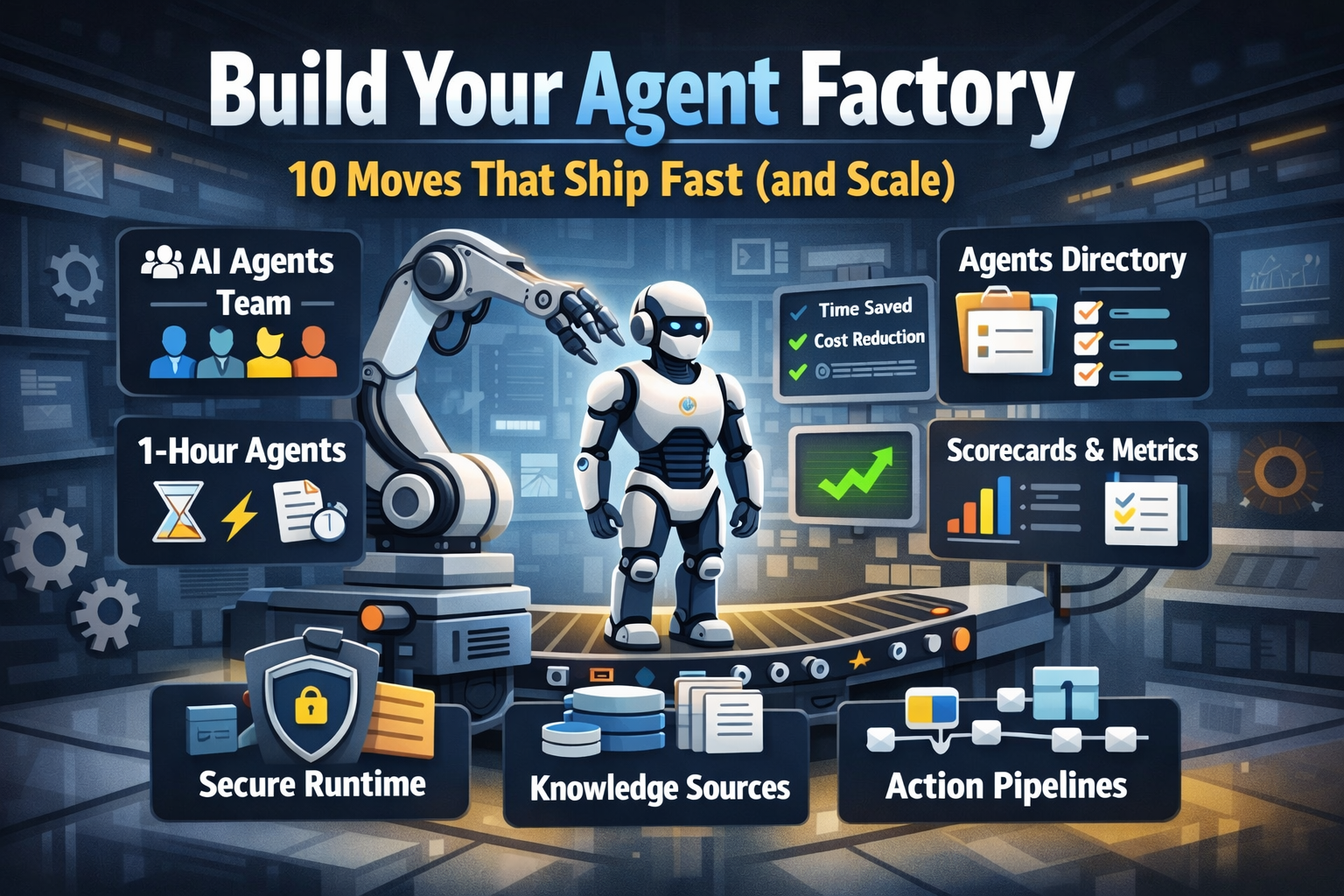
  • Build Your Agent Factory: 10 Moves That Ship Fast (and Scale)

    Build Your Agent Factory: 10 Moves That Ship Fast (and Scale)

    Build Your Agent Factory: 10 Moves That Ship Fast (and Scale)

    Agents at scale. Not POCs.

    Here’s the playbook I’d hand any exec or builder who wants working agents in production—without turning the org into a science fair.

    1) Stand up an AI Agents Workforce

    What it is: A small cross-functional crew with authority to hunt repetitive work and ship agents.

    Who’s in:

    • 1 product owner
    • 1 engineer (Copilot Studio/Power Automate)
    • 1 data person
    • 1 security/governance lead
    • 1 domain SME.

    Ship this week: Write a one-page charter with scope, decision rights, and a 30-day roadmap (first 5 agents + metrics).

    2) Win with horizontals first, then go vertical

    Horizontals (1-hour wins): drafting, summarizing, policy Q&A, meeting notes to actions, form-fill helpers.

    Verticals (outsized ROI): pick 1–2 per business unit where there’s money, risk, or SLA pain.

    Guardrail: don’t start with the hardest workflow; start where you can close the loop and measure value inside two weeks.

    3) Make an Agents Directory the front door

    Why: Ideas die in email. A directory turns “we should build X” into spec and governance.

    Minimum intake fields:

    • use case name
    • goal
    • users
    • decision rights
    • data sources + who owns it
    • tools
    • PII/sensitivity
    • KPIs
    • business owner
    • risk level
    • rollout plan.

    Outcome: Every request auto-generates a lightweight PRD (goal, inputs, outputs, metrics, guardrails) and a yes/no gate.

    4) Create the 1-Hour Agent template

    Template anatomy:

    Goal + success criteria Input schema (what the user provides) Tools (actions/connectors) and permissions Knowledge sources (files, sites, indexes) Safety rules (allowed/blocked actions, escalation) Evaluation set (10–20 test prompts with expected outcomes) Deploy script (Dev → Test → Prod)

    Rule: If a use case can’t fit this page, it’s not a 1-hour agent—park it for later.

    5) Tie every agent to a visible scorecard

    Metrics to publish: time saved, cost avoided, error rate, CO₂/efficiency (where relevant), user satisfaction.

    Simple formula: monthly users × average minutes saved × loaded cost = value.

    Make it public internally: green/red status, owner, last review, next improvement.

    6) Run on a secure, managed agent runtime

    Non-negotiables: identity passthrough, content safety, audit logs, tool call restrictions, data boundary controls, environment isolation.

    Practical tip: standardize a “sensitive sources” policy and block tools by default; allow case-by-case.

    7) Split the stack to move fast without breaking things

    Experience layer: Copilot Studio for UX, channels, and connectors.

    Agent runtime/orchestration: managed agent service for threads, tool calls, safety, and evaluations.

    Why it works: builders ship quickly at the edge; platform team keeps shared guardrails, monitoring, and upgrades stable.

    8) Mix knowledge + action (or you’ll stall)

    Knowledge: structured grounding (SharePoint/Fabric/Search), doc versioning, citations-on by default.

    Action: flows/Logic Apps, Graph, line-of-business APIs; always ship with a dry-run mode first.

    Design pattern: Answer → show sources → propose actions → execute on approval. When confidence is high and stakes are low, allow auto-execute.

    9) Keep humans in the loop—by design

    HITL patterns that work:

    Shadow mode (observe only) → suggest mode → execute with approval → auto-execute.

    Confidence thresholds where low confidence routes to a human. Escalation logic when guardrails trip or data is missing.

    UX rule: one click to approve, one click to undo.

    10) Plan to scale on day one

    Pipelines: Dev → Test → Prod with approvals and rollback.

    Evals: pre-ship test set per agent; weekly drift checks; quarterly red-team.

    Ops: central logging, cost dashboards, incident playbook.

    Program ritual: a quarterly “Agent Backlog Day” to harvest new ideas and retire underperformers.

    Starter Architecture (fast and boring)

    Experience: Copilot Studio (web, Teams, M365, chat, plugins)

    Actions: Power Automate/Logic Apps + custom APIs

    Knowledge: SharePoint/Fabric/AI Search with retrieval policies

    Runtime: managed agent service for tool orchestration, identity, safety

    Observability: evaluations, telemetry, and a simple agent scorecard per app

    Security: Entra ID RBAC, private endpoints, DLP, approval gates

    Prompts and policies that save you pain

    Prompt contract (keep it in the repo): role, goals, inputs, allowed tools, forbidden actions, decision rights, escalation, output format, citation rules.

    Data contract: what sources are permitted, freshness expectations, sensitivity tags.

    Failure modes: what the agent must do when unsure (ask for clarification, route to human, or stop).

    Anti-patterns I keep seeing

    • Starting with an “AI strategy deck” instead of shipping 3 agents.
    • Agents that answer but can’t act—users stop coming back.
    • No owner, no scorecard, no sunset date.
    • Canary-testing in production without a rollback plan.
    • Letting one giant use case block 20 small wins.

    Your first week mapped

    Day 1: Form the team and publish the charter.

    Day 2: Launch the Agents Directory (intake + PRD autogeneration).

    Day 3–4: Build two 1-hour agents (drafting + policy Q&A) with eval sets.

    Day 5: Ship to a pilot group with scorecards visible. Book the first backlog day.


  • Maximize Efficiency with GPT-5 Router-Optimized Prompts

    Maximize Efficiency with GPT-5 Router-Optimized Prompts

    This prompt pack is around general use, if you would like a more focused pack focused on a specific industry or scenario, comment below.

    Below you will find the prompt pack in 3 formats

    Word doc download:

    Markdown download (word press wont let me upload markdown file so I have uploaded to my GitHub for download: FlowAltDelete/GPT-5-Router-Optimized-Universal-Prompt-Pack

    If you don’t want to download, I have also put the prompt pack below

    GPT‑5 Router‑Optimized Universal Prompt Pack (v1.1)

    What this is: A field‑tested, router‑aware prompt pack tuned for GPT‑5.
    How to use: Paste the Router Boost Header 2.0 above any task below, then use the upgraded prompt. Each item includes a fast audit (strengths, gaps, tuning) so you know why it works.


    Router Boost Header 2.0 (paste above any prompt)

    Task: [one sentence describing “done”].
    Context/Grounding: [paste facts/links/notes]. Cite sources if summarizing; don’t invent.
    Constraints: audience=[…], tone=[…], length=[…], locality=[region/laws], non‑negotiables=[…].
    Output Contract: [exact format/schema; if JSON, include a schema].
    Tool Grants: You may use internal reasoning, code execution, and structured output. Do not expose chain‑of‑thought; return only the final results.
    Mode: Choose fast for simple tasks, deep for complex ones; state the choice on one line before the output.
    Self‑Check: Validate constraints, factuality (vs. sources), and format before returning. If JSON, ensure it parses.
    Failure Policy: If blocked or context is thin, list missing info and ask 3 sharp questions; otherwise proceed with explicit assumptions labeled “Assumptions.”

    Tip: Keep the header short in production—only include fields that matter. If you need determinism, ask for “low‑randomness; no lateral riffs.”


    Universal GPT‑5 Prompt Pack v1.1**

    Below: for each prompt

    • Use when: best fit.
    • Strengths: what’s good already.
    • Gaps: what to tighten for GPT‑5.
    • Router tuning: small switches that improve results.
    • Upgraded prompt: copy/paste ready.
    • (Optional) Strict JSON variant: when you need machine‑readable output.

    1) Executive Summary (Any Topic)

    Use when: You need crisp, executive‑level clarity in 30–90 seconds.
    Strengths: Forces prioritization; covers timing and action.
    Gaps: Can drift into fluff; doesn’t enforce one‑line bullets; missing “evidence”.
    Router tuning: Demand one‑line bullets with bold labels; add “evidence” blip; enforce count.

    Upgraded prompt

    Create exactly **5 one‑line bullets** summarizing [topic/brief].
    Each bullet starts with a bold label: **What matters**, **Why now**, **Risks**, **Decision**, **Next actions**.
    Add ≤12 words per bullet. Include 1 source or metric if available.
    Mode: [fast/deep]. Return as a simple bullet list—no preamble.
    

    Strict JSON variant

    Return valid JSON:
    { "what_matters": "...", "why_now": "...", "risks": "...", "decision": "...", "next_actions": "..." }
    

    2) Research Plan (Adversarial)

    Use when: You must test a claim/feature beyond happy‑path.
    Strengths: Calls for metrics, data, adversarial tests.
    Gaps: No threat model; no instrument plan; no stop/continue math.
    Router tuning: Introduce threat model + falsification criteria; add power checks.

    Upgraded prompt

    Design an **adversarial research plan** to evaluate [claim/feature]. Include:
    1) Objectives & hypotheses (null + alt); 2) Success metrics & thresholds; 3) Threat model (abuse, edge cases);
    4) Data to collect (fields, sample size/power);
    5) Protocols (A/B, holdout, offline evals);
    6) Adversarial tests & red‑team scripts;
    7) Stop/continue rule with math;
    8) Reporting template (tables/plots).
    Mode: [fast/deep]. Output as a numbered outline.
    

    3) Decision Memo

    Use when: A one‑pager to choose among options.
    Strengths: Options, costs, risks, reversibility, rec.
    Gaps: No owner/date format; no “evidence” box; weak contingency.
    Router tuning: Add RACI owner/date; add 30/60/90 follow‑ups.

    Upgraded prompt

    Write a one‑page decision memo for [choice]. Include:
    - Context (1 para) with constraints & evidence;
    - Options (3): summary, costs (one‑time/run), risks, reversibility;
    - Recommendation: **one** choice with rationale;
    - Owner + Decision date; 30/60/90‑day checkpoints;
    - Contingency triggers & rollback plan.
    Mode: [fast/deep]. Keep ≤400 words.
    

    4) Project Plan One‑Pager

    Use when: Turn messy notes into plan.
    Strengths: Scope, milestones, owners, risks, comms, RAID.
    Gaps: No critical path; RAID often hand‑wavy.
    Router tuning: Add dates & simple Gantt list; RAID as compact table.

    Upgraded prompt

    From these notes: [paste], produce a one‑page plan with:
    1) Scope (in/out);
    2) Milestones (name, owner, date) in order;
    3) Critical path (1‑3 bullets);
    4) Comms cadence (who, channel, freq);
    5) RAID summary table (Risk/Assumption/Issue/Dependency → owner, impact, mitigation);
    6) Acceptance criteria (bullet list).
    Mode: [fast/deep]. Keep it skimmable.
    

    5) Meeting → Decisions

    Use when: Converting raw notes to what matters.
    Strengths: Decisions & actions separation.
    Gaps: No owners on decisions; action status taxonomy missing.
    Router tuning: Add decision owner + rationale; status enum.

    Upgraded prompt

    Convert these notes: [paste] into:
    A) **Decisions** list (decision, owner, rationale, date);
    B) **Actions** table {owner, step, due, status ∈ [New, In‑Progress, Blocked, Done]}.
    Mode: [fast/deep]. No commentary, just the two sections.
    

    Strict JSON variant

    { "decisions": [ { "decision": "", "owner": "", "rationale": "", "date": "" } ],
      "actions": [ { "owner": "", "step": "", "due": "", "status": "New|In-Progress|Blocked|Done" } ] }
    

    6) Cold Email Trio

    Use when: 3‑touch outbound sequence.
    Strengths: Problem → proof → ask. Short.
    Gaps: ICP nuance; weak personalization; missing CTA micro‑asks.
    Router tuning: Insert first‑line personal hook; vary asks.

    Upgraded prompt

    Write **3 cold emails** for [offer] to [ICP].
    Email 1: name the **patterned pain**; end with a 10‑min micro‑ask.
    Email 2: social proof/insight (number/metric), 1 sentence case study.
    Email 3: crisp ask with 2 time options.
    Each ≤120 words, 5‑7 sentences, no fluff. Include a {First‑line personalization} placeholder.
    Mode: [fast/deep].
    

    7) LinkedIn Authority Post

    Use when: Thought leadership for execs + builders.
    Strengths: Structure, framework, prompt.
    Gaps: Risk of buzzwords; no proof.
    Router tuning: Require 1 mini‑case and 1 number.

    Upgraded prompt

    Write a LinkedIn post on [topic] for execs + builders:
    - 3 punchy paragraphs (≤60 words each);
    - 1 mini‑framework (3 bullets, named);
    - 1 thought prompt (1 line);
    - Include one concrete number or example; avoid buzzwords.
    Mode: [fast/deep]. No hashtags unless asked.
    

    8) X Post (Bold, No Hashtags)

    Use when: High‑signal micro‑take.
    Strengths: Tight character limit, bold stance.
    Gaps: Might overrun chars; no proof token.
    Router tuning: Enforce count; include 1 fact word/number.

    Upgraded prompt

    Write one confident X post on [insight/news]. ≤240 chars.
    Format: HOOK — TAKEAWAY. Include **one** concrete fact or number.
    No hashtags. No emoji at the end. Mode: [fast/deep].
    

    9) YouTube Kit

    Use when: Fast ideation + structure.
    Strengths: Titles, open, chapters.
    Gaps: Title length drift; missing viewer promise.
    Router tuning: Enforce title count/length; add “who it’s for.”

    Upgraded prompt

    For a video on [topic], produce:
    - **10 titles** (<60 chars);
    - A two‑sentence cold open that states who it’s for and the promise;
    - Chapter list with timestamps (estimate) and outcomes per chapter.
    Mode: [fast/deep]. No clickbait lies.
    

    10) Content Angle Generator

    Use when: Topic expansion without repetition.
    Strengths: Rich buckets.
    Gaps: Duplicates; vague angles.
    Router tuning: Enforce uniqueness + sample headline.

    Upgraded prompt

    List **25 distinct content angles** for [niche/product] across:
    how‑to, contrarian, teardown, story, data, tutorial, tool, myth vs fact.
    For each: 1‑line angle + a sample headline. No repeats. Mode: [fast/deep].
    

    11) Product Spec from Idea

    Use when: Move from idea to v1.
    Strengths: Users, JTBD, metrics, scope.
    Gaps: Test plan vague; acceptance criteria missing.
    Router tuning: Add measurable acceptance + de‑scoping rules.

    Upgraded prompt

    Turn this idea into a lean product spec:
    - Users & JTBD; key use cases;
    - Success metrics (leading/lagging) with targets;
    - V1 scope (must/should/could) and out‑of‑scope;
    - Acceptance criteria (measurable);
    - Test plan (happy path, edge, abuse).
    Mode: [fast/deep]. ≤500 words.
    

    12) UX Critique

    Use when: Actionable UI improvements.
    Strengths: Issues + fixes.
    Gaps: Evidence often light; microcopy not tested.
    Router tuning: Severity scale + before/after microcopy.

    Upgraded prompt

    Critique the UX of [flow/screen]. Deliver:
    - 10 issues with severity ∈ {P0, P1, P2}, evidence, and concrete fix;
    - A before→after microcopy table (3–5 rows);
    - One quick win and one deeper redesign note.
    Mode: [fast/deep].
    

    13) CSV Data Brief

    Use when: Shape an analysis plan before coding.
    Strengths: Questions → steps → visuals.
    Gaps: Schema ambiguity; data checks missing.
    Router tuning: Add sanity checks + exact chart types.

    Upgraded prompt

    Given CSV schema: [columns], produce:
    1) 5 decision‑driven questions;
    2) Validation checks (types, nulls, outliers);
    3) Analysis steps;
    4) Exact visuals/tables to produce (chart type, axes, groupings).
    Mode: [fast/deep]. No code unless asked.
    

    14) Code from Spec

    Use when: From spec to runnable core.
    Strengths: Architecture, snippets, tests, edges.
    Gaps: Env assumptions; complexity unbounded.
    Router tuning: Pin language/runtime; include complexity notes.

    Upgraded prompt

    Given this spec: [paste], provide:
    - Architecture diagram (text) and key components;
    - Core code snippets in [language/runtime] with minimal deps;
    - Tests (unit/integration) and fixtures;
    - Failure/edge cases + graceful handling;
    - Complexity & trade‑offs section.
    Mode: [fast/deep]. Keep idiomatic.
    

    15) Code Review + Refactor

    Use when: Improve safety & clarity with a plan.
    Strengths: Smells, hotspots, steps, tests.
    Gaps: Lacks risk scoring; migration path unclear.
    Router tuning: Add impact x effort; phased plan.

    Upgraded prompt

    Review this code: [paste]. Deliver:
    - Findings by category (correctness, security, perf, clarity);
    - Hotspots with complexity signals;
    - Refactor plan in small, safe steps with tests;
    - Risk/Impact vs Effort matrix (P0/P1/P2);
    - Before/after snippet for 1 key function.
    Mode: [fast/deep].
    

    16) Strict JSON Every Time

    Use when: Machine‑readable output required.
    Strengths: Clear schema.
    Gaps: No parser check; no enum constraints.
    Router tuning: Include enums & validation note.

    Upgraded prompt

    Return **only valid JSON** for [task]. Schema:
    {
      "title": "string",
      "summary": "string",
      "risks": ["string"],
      "actions": [ { "owner": "string", "step": "string", "eta": "YYYY-MM-DD" } ],
      "metrics": ["string"]
    }
    No prose. Validate keys, types, and date format before returning.
    

    17) SOP / Checklist

    Use when: Repeatable, low‑variance execution.
    Strengths: Steps + gates + recovery.
    Gaps: Timing windows; roles not explicit.
    Router tuning: Add roles & time boxes.

    Upgraded prompt

    Draft a step‑by‑step SOP for [process]. Include:
    - Prereqs & roles;
    - Steps with time boxes;
    - Quality gates with pass/fail checks;
    - Common failure recovery & escalation ladder.
    Mode: [fast/deep]. Output as a checklist.
    

    18) Positioning & ICP

    Use when: Sharpen message‑market fit.
    Strengths: ICP, pains, alts, value prop, messages, pitch.
    Gaps: Jobs vs pains; proof tokens missing.
    Router tuning: Add JTBD & proof lines.

    Upgraded prompt

    Define positioning for [product]. Provide:
    - ICP traits (firmographic + behavioral);
    - JTBD and top pains (ranked);
    - Alternatives (do‑nothing included);
    - Value proposition (benefit + proof);
    - 3 key messages;
    - 3‑line elevator pitch.
    Mode: [fast/deep].
    

    19) Competitive Teardown

    Use when: Side‑by‑side clarity.
    Strengths: Features, UX, pricing, moat, switching costs, objections.
    Gaps: Buyer role nuance; evidence weak.
    Router tuning: Add role lens + cite artifacts.

    Upgraded prompt

    Compare [your product] vs [competitor] for [buyer role]. Cover:
    - Features & UX (table);
    - Pricing (typical deal sizes/TCO);
    - Moat & switching costs;
    - Buyer objections + crisp replies;
    - Evidence links (docs, screenshots) if available.
    Mode: [fast/deep].
    

    20) Policy First Draft (Non‑Legal)

    Use when: First pass policy with clarity.
    Strengths: Rules, examples, do/don’t, escalation.
    Gaps: No scope/authority; review cadence missing.
    Router tuning: Add scope, owner, review cadence.

    Upgraded prompt

    Draft a **non‑legal** first‑pass policy for [topic]. Include:
    - Scope & definitions; policy owner;
    - Rules with examples; do/don’t lists;
    - Compliance checks & escalation path;
    - Exceptions process;
    - Review cadence and change log placeholder;
    - Legal review placeholder.
    Mode: [fast/deep].
    

    21) 7‑Day Learning Plan

    Use when: Focused upskilling in a week.
    Strengths: Daily objectives, resources, practice, quiz.
    Gaps: Entry level varies; no capstone.
    Router tuning: Add diagnostic + capstone.

    Upgraded prompt

    Build a 7‑day learning plan for [skill/exam]. Include:
    - Day 0 diagnostic (what to skip/focus);
    - Daily objectives, resources (≤3/day), and practice tasks;
    - Daily self‑quiz (5 Qs) with expected answers;
    - Day 7 capstone task with rubric.
    Mode: [fast/deep].
    

    22) Negotiation Prep

    Use when: Plan the conversation before the room.
    Strengths: Goals, walk‑away, BATNA, concessions, questions, opening.
    Gaps: Counter‑plays; objection map missing.
    Router tuning: Add opponent map + scripts.

    Upgraded prompt

    Create a negotiation brief for [deal]. Include:
    - Goals; walk‑away; BATNA;
    - Concession strategy (give/get);
    - Questions to surface interests;
    - Opening script;
    - Objection map with counters;
    - Opponent/alignment map (roles, power, interests).
    Mode: [fast/deep].
    

    23) Landing Page Copy

    Use when: Write conversion‑first copy.
    Strengths: Section list, direct tone.
    Gaps: Segment nuance; FAQ weak.
    Router tuning: Add segment option + proof elements.

    Upgraded prompt

    Write a landing page for [offer]. Sections:
    - Headline + subhead (clear promise);
    - Value bullets (3–6) with outcomes;
    - Proof (logos, testimonial lines, metrics);
    - CTA (primary + secondary);
    - FAQ (5–7 Qs).
    Optional: provide a variant for [segment].
    Mode: [fast/deep].
    

    24) Automation Blueprint

    Use when: Design automations with ROI.
    Strengths: Triggers, steps, data, errors, alerts, ROI.
    Gaps: SLAs; run‑costs; auditability.
    Router tuning: Add SLAs, idempotency, and cost model.

    Upgraded prompt

    Propose automations for [workflow]. Include:
    - Triggers & prerequisites;
    - Steps with systems & data sources;
    - Error handling (retries, dead‑letter, idempotency);
    - Alerts/observability (what, who, channel, thresholds);
    - SLAs & run‑cost model;
    - ROI estimate (baseline vs future, payback).
    Mode: [fast/deep].
    

    Bonus: Mini Switches You Can Add Anywhere

    • “Low‑randomness, no lateral riffs.” For deterministic outputs.
    • “Use a verification pass: compare output vs. constraints, fix before returning.”
    • “If citing, append a short sources list with titles + links.”
    • “Label assumptions explicitly if context is thin.”
    • “Return a ‘How to use this output’ note in one line.”

    Final Notes

    • Keep the Router Header lean; the power comes from clear Output Contracts and tight constraints.
    • Prefer JSON when downstream automation is needed; prefer skimmable bullets when humans are the primary consumer.
    • If you need extra toughness, combine “adversarial” and “self‑check” lines.

    Changelog v1.1 (this doc): Added threat models, self‑check, enum statuses, strict JSON variants, SLAs/costs for automation, and decision‑date/owner fields for memos.