Tag: Cowork

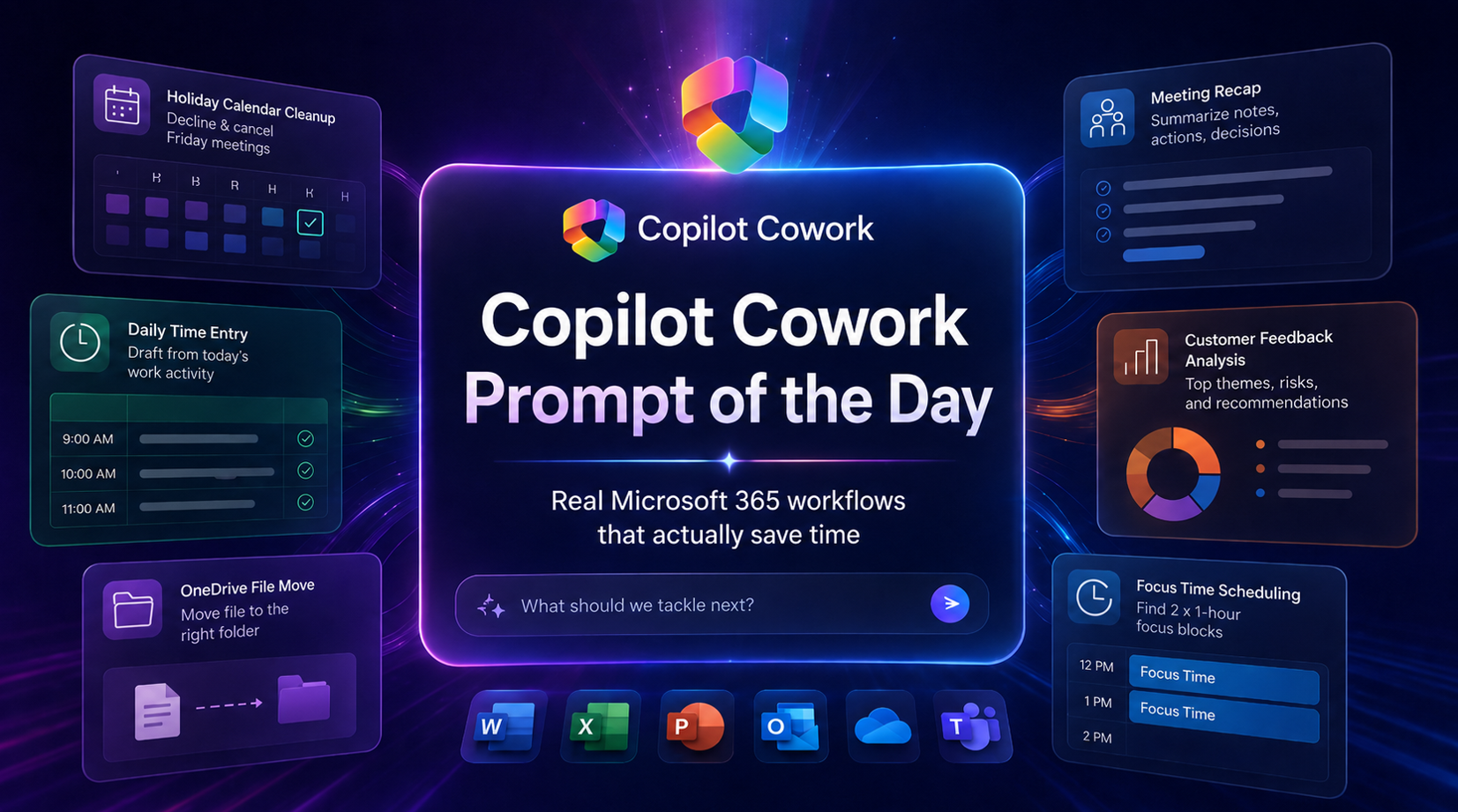
  • Copilot Cowork Prompt of the Day: Real Microsoft 365 Workflows That Actually Save Time

    Copilot Cowork Prompt of the Day: Real Microsoft 365 Workflows That Actually Save Time

    Copilot Cowork Prompt of the Day: Real Microsoft 365 Workflows That Actually Save Time

    I have been testing Copilot Cowork across real work patterns inside Microsoft 365: meetings, calendar cleanup, files, time entries, customer feedback, follow-ups, and workspace history.

    The pattern is becoming clear.

    The strongest Copilot Cowork prompts do not just ask for an answer. They assign a business outcome. They define the source of truth. They set guardrails. They tell Cowork what finished work should look like.

    That is where this gets serious.

    Below is a practical prompt library based on my Copilot Cowork Prompt of the Day posts across X and LinkedIn. I grouped them by scenario so the examples are easier to scan, reuse, and adapt.

    Note: Some examples use demo companies, files, customers, and project names. Replace those with your own Microsoft 365 content, folders, meetings, and business context.

    Table of Contents

    Calendar and Focus Management

    Calendar work looks simple until it eats your day. Declining meetings, cancelling organizer-owned events, protecting focus time, and finding clean openings are perfect examples of work that should be delegated.

    These prompts show Cowork acting like a real calendar operator, not a passive chatbot.

    Decline and Cancel Holiday Meetings

    The situation

    Friday is a holiday. Your calendar still has meetings. Some meetings were created by other people. Some meetings may be yours. You need everything cleaned up properly.

    The important part is the distinction between declining and cancelling. If you are only an attendee, Cowork should decline the meeting. If you are the organizer, Cowork should cancel it and send a note so attendees know why it disappeared.

    Copilot Cowork using calendar management to decline meetings and cancel organizer-owned meetings for a holiday.

    The prompt

    [Day] is a holiday. Check [Date].
    - Decline every meeting.
    - If I’m the organizer, cancel it and send a note.
    Use /calendar-management

    What Cowork should do

    • Check the target date.
    • Find every meeting on that day.
    • Decline meetings where you are an attendee.
    • Cancel meetings where you are the organizer.
    • Send a professional cancellation note where needed.
    • Summarize what changed.

    This is the kind of task that burns attention. The value is not only the minutes saved. The real value is that Cowork understands the difference between attendee action and organizer responsibility.

    Cancelling a meeting you own sends a different signal than declining a meeting someone else owns.

    How I would tighten the prompt

    For a production-style version, I would add the wording for the cancellation note directly into the prompt.

    Friday is a company holiday. Check April 3rd in my calendar.
    For every meeting that day:
    - If I am only an attendee, decline the meeting.
    - If I am the organizer, cancel the meeting.
    - For cancelled meetings, send this note:
    “April 3rd is a holiday, so I’m cancelling this meeting.
    Please reschedule for the following week if still needed.”
    After you finish, send me a summary grouped by declined meetings
    and cancelled meetings.
    Use /calendar-management

    Create Focus Time from Your Phone

    The situation

    This one is simple. That is why it matters.

    I used the iOS app from bed and told Cowork to find two separate one-hour focus blocks for Monday morning. Cowork checked my calendar, found the openings, and created both events.

    No desktop. No calendar hunting. No dragging blocks around half asleep.

    The prompt

    Set some focus time for me up for Monday morning.
    Find 2 separate 1 hour blocks so I can focus on:
    1) <Task>
    2) <Task>

    What Cowork should do

    • Review your Monday morning calendar.
    • Find two separate one-hour openings.
    • Create calendar events for each focus block.
    • Name each block clearly based on the task.
    • Add useful context where available.

    Focus time only helps if it actually lands on the calendar. A lot of people know what they need to work on, then lose the day to meetings, messages, and context switching.

    This turns focus protection into a command.

    That is the kind of small task agents should crush first. Scheduling. Calendar juggling. Protecting time. Removing the coordination mess.

    How I would tighten the prompt

    I would add preferred working hours, meeting buffer rules, and event details.

    Set up 2 separate 1-hour focus blocks for Monday morning.
    Focus areas:
    1) <Task 1>
    2) <Task 2>
    Rules:
    - Only schedule between 8:00 AM and 12:00 PM.
    - Do not overlap existing meetings.
    - Leave at least 15 minutes between meetings and focus blocks where possible.
    - Use clear calendar titles: “Focus: <Task>”.
    - Add a short note to each event with the goal for that focus block.
    After scheduling, tell me the times you picked.

    ↑ Back to top


    Time Entry and Work Reporting

    Time entry is one of the best Cowork use cases because the evidence already exists across Microsoft 365. Meetings, chats, emails, files, edits, and shared work all tell the story of the day.

    The hard part is turning that messy activity trail into believable time-entry comments that a human can review.

    Build a Daily Time Entry Summary from Microsoft 365 Activity

    The situation

    This prompt asks Cowork to review the day’s Microsoft 365 activity and produce a structured time-entry draft. The goal is not perfect accounting. The goal is a practical, honest draft that can be reviewed and corrected quickly.

    The real power is that Cowork is not only looking at meetings. It is asked to look across calendar activity, Teams chats, email, files, transcripts, meeting notes, and other signals.

    Daily time entry draft created from Microsoft 365 work activity.

    The prompt

    Review ALL of MY Microsoft 365 work activity from TODAY in
    [your timezone] and build a realistic, structured daily time entry
    summary.
    Then send it as a [direct Teams message / Email].
    Use every available signal from today:
    - calendar meetings
    - transcripts and recaps
    - meeting chats
    - Teams chats and channel messages
    - emails
    - files opened, edited, or shared
    - any other work activity signals
    Rules:
    1. Only use today in my local timezone.
    2. Look across all evidence, not just meetings.
    3. Infer the best-fit project, client, internal initiative, or business
    development category.
    4. Map work to a project whenever possible.
    5. If unclear, use: Business Development, Internal Operations,
    Practice Development, Admin, or Learning / Enablement.
    6. Consolidate fragmented activity into meaningful work blocks.
    7. Target a full day close to 8.0 hours.
    8. Acceptable total range: 6.0-8.0 hours.
    9. Accuracy first, then use reasonable consolidation to close gaps.
    10. Do not invent fake meetings, deliverables, or project names.
    11. If evidence is weak, make the best possible mapping, but keep
    descriptions honest.
    12. Avoid over-fragmenting. Prefer fewer, stronger entries.
    13. Write descriptions like real time-entry comments, not AI summaries.
    14. Keep descriptions concise but useful.
    15. Group short related activities under the same project.
    16. If there is clear prep or follow-up around meetings, emails,
    chats, or docs, include that under the relevant project when evidence
    supports it.
    17. Capture business development work where relevant:
    sales support, proposal work, internal planning, networking,
    demos, enablement, certifications, or content creation.
    Format the Teams message as HTML:
    - Bold heading: Daily Time Entry Draft – [YYYY-MM-DD]
    - Bold "Summary:" plus a 1-2 line plain-text summary
    - HTML table: # | Project Name | Description | Duration | Date
    - One row per entry, ordered largest to smallest
    - Duration in decimal hours, e.g. 3.0 hrs or 0.5 hrs
    - Bold "Total: X.X hours" at the bottom
    Quality bar: practical, believable, timesheet-ready.
    Use real work patterns. Balance to 6-8 hours.
    If today has limited evidence, still produce the best possible draft.

    What Cowork should do

    • Build a workday view from Microsoft 365 evidence.
    • Classify activity into projects, clients, or internal categories.
    • Consolidate short fragments into stronger time-entry rows.
    • Keep the wording practical and timesheet-ready.
    • Send the finished draft as a Teams message.

    This is a serious consulting and professional services scenario.

    Timesheets fail when people are forced to reconstruct their day from memory. Cowork can inspect the activity trail and give you a draft while the day is still fresh.

    You still review it. You still own it. Cowork reduces the blank-page problem.

    Important guardrails

    The guardrails are the real prompt design lesson here.

    • Do not invent fake meetings, deliverables, or project names.
    • Keep weak evidence honest.
    • Prefer fewer, stronger entries.
    • Write like a real time-entry comment.

    That is how you keep this useful without letting the agent drift into fantasy work logs.

    ↑ Back to top


    Meeting Intelligence and Follow-Up

    Meetings create a lot of residue: transcripts, AI notes, chats, files, agendas, decisions, action items, and follow-up messages.

    The problem is that the value disappears when nobody turns that residue into something clean.

    Create a Meeting Recap and Send It to Attendees

    The situation

    This prompt gives Cowork one target meeting and asks it to pull all available meeting content. The output is a structured recap and a concise email to attendees.

    The prompt also changes the recap style based on the meeting type. A requirements session should not be summarized the same way as a standup or UAT meeting.

    Meeting recap generated from meeting content, notes, transcript, chat, and related files.

    The prompt

    Use the meeting provided in context: <Meeting>.
    Meeting type: [Requirements | Standup | Training | UAT | Other]
    Treat this as the only target meeting. Pull all available meeting content
    including AI notes, transcript, meeting chat, shared files, agenda,
    description, and attached notes.
    Create a recap with:
    - purpose
    - key discussion points
    - decisions
    - action items
    - owners
    - due dates
    - follow-ups
    Adapt the recap based on the meeting type:
    - Requirements: needs, requested features, pain points, constraints,
    open requirements
    - Standup: progress, blockers, next steps
    - Training: what was taught, guidance shared, takeaways, resources
    - UAT: what was tested, issues found, defects, next steps for fixes or
    retesting
    - Other: use the most appropriate structure
    If anything is unclear or missing, state that clearly instead of guessing.
    Then draft and send a concise, professional recap email to all attendees.

    What Cowork should do

    • Use only the meeting provided in context.
    • Pull available transcript, recap, chat, files, agenda, and notes.
    • Build a recap that matches the meeting type.
    • Call out missing or unclear details.
    • Send a concise recap email to attendees.

    The most useful meeting recap is not a generic summary. It captures the operating details that move work forward: decisions, owners, due dates, and follow-ups.

    This prompt also handles one of the biggest issues with AI meeting summaries: context control. It tells Cowork to treat the provided meeting as the only target meeting.

    How I would tighten the prompt

    For client-facing work, I would add a review step before sending.

    Use the meeting provided in context: <Meeting>.
    Meeting type: [Requirements | Standup | Training | UAT | Other]
    Treat this as the only target meeting. Pull all available meeting conten
    including AI notes, transcript, meeting chat, shared files, agenda,
    description, and attached notes.
    Create a recap with:
    - Purpose
    - Key discussion points
    - Decisions
    - Action items
    - Owners
    - Due dates
    - Follow-ups
    Adapt the recap based on the meeting type.
    If anything is unclear or missing, state that clearly instead of guessing.
    Draft a concise, professional recap email to all attendees,
    but do not send it until I review and approve it.

    ↑ Back to top


    Customer Feedback and Leadership Deliverables

    This is the most advanced scenario in the set.

    The assignment is not just “summarize feedback.” The assignment is to turn scattered customer signals into a leadership-ready action package.

    That means Cowork has to analyze, prioritize, create deliverables, flag weak evidence, and prepare different outputs for different audiences.

    Turn Customer Feedback into a Product Action Plan

    The situation

    Kavora’s marketing department has customer feedback scattered across interviews, surveys, comments, web signals, and meeting notes.

    Leadership needs the real story:

    • What customers are saying.
    • What matters most.
    • What needs action.
    • What needs human judgment before the team moves.

    For the demo, the input files were:

    • Customer interview notes
    • Product feedback survey and web signal export
    • Source customer comments
    • Marketing leadership request and context email

    The Cowork assignment was to review the feedback, find the strongest themes, rank them by impact and urgency, flag gaps or contradictions, then build the deliverables a marketing team would actually need.

    Copilot Cowork turning scattered customer feedback into a brief, deck, emails, Teams update, and decision tracker.

    The expected outputs

    • Executive feedback brief
    • Stakeholder-ready presentation deck
    • Customer follow-up email pack
    • Launch squad Teams update
    • Leadership decision tracker

    The prompt

    Act as my marketing operations lead.
    Goal:
    I’m working on turning messy customer product feedback into a clear
    action plan for product, marketing, and leadership teams.
    Sources:
    Use the attached files and project folder as the source of truth.
    These may include customer interview notes, survey results,
    web/funnel data, Teams meeting summaries, support themes,
    website feedback, campaign comments, and leadership request emails.
    Task:
    1. Review the materials and identify the strongest customer feedback
    themes.
    2. Prioritize the themes by customer impact, urgency, revenue risk, and
    brand risk.
    3. Pull proof points from the source material, including customer
    quotes, survey signals, and web/funnel trends.
    4. Identify gaps, contradictions, sampling bias, or anything that needs
    validation before decisions are made.
    5. Recommend the next best actions for product, marketing,
    customer success, and leadership.
    Produce:
    • A polished executive feedback brief
    • A stakeholder-ready presentation deck
    • A customer follow-up email pack
    • A Teams update for the launch squad
    • A leadership decision tracker with priorities, owners, and dates
    Guardrails:
    • Separate facts from recommendations
    • Do not invent evidence
    • Call out assumptions clearly
    • Flag anything that needs human review
    • Make the outputs ready for me to review, edit, and share

    What Cowork should do

    • Review all supplied source material.
    • Find repeated customer themes.
    • Rank themes by impact, urgency, revenue risk, and brand risk.
    • Pull quotes and proof points from the evidence.
    • Flag contradictions, bias, gaps, and validation needs.
    • Create separate deliverables for leadership, product, launch teams, and customer follow-up.

    The best part of this prompt is the deliverable design. It does not stop at analysis. It asks for the assets the business actually needs:

    • A brief for executives.
    • A deck for stakeholders.
    • Email drafts for customers.
    • A Teams update for the launch squad.
    • A decision tracker for leadership.

    That is the difference between “tell me what the files say” and “help me move the business forward.”

    The human review layer

    This prompt gets the review model right. It tells Cowork to separate facts from recommendations and flag assumptions.

    That matters because customer feedback can be messy. You can have contradictory signals, loud power users, small samples, weak survey patterns, or feedback that sounds urgent but needs validation.

    The agent can organize the evidence. The human still owns the judgment.

    How I would tighten the prompt

    I would add a scoring model so the ranking is easier to audit.

    When ranking feedback themes, score each theme from 1-5 across:
    - Customer impact
    - Urgency
    - Revenue risk
    - Brand risk
    - Evidence strength
    Then calculate a priority recommendation of P0, P1, or P2.
    For every theme, include:
    - Evidence used
    - Customer quote or signal
    - Recommended owner
    - Recommended next action
    - What needs human validation before action

    ↑ Back to top


    File and Workspace Operations

    Some of the best agent use cases are boring. That is the point.

    Moving files, finding folders, reviewing previous sessions, and organizing workspace context are small tasks by themselves. Across a week, they become attention tax.

    Move a File in OneDrive

    The situation

    I downloaded a zip file on my phone, uploaded it to OneDrive, and told Cowork to move it into the right demo folder.

    No laptop. No desk. No clicking through folders.

    Cowork found the file, found the destination folder, and moved it.

    Copilot Cowork finding a recently uploaded zip file and moving it to the right OneDrive folder.

    The prompt

    I just uploaded a <file or folder> to OneDrive.
    Can you move it to the Copilot Cowork Demos folder

    What Cowork should do

    • Search OneDrive for the uploaded file or folder.
    • Search OneDrive for the destination folder.
    • Move the item.
    • Confirm the exact file or folder that was moved.

    This is the kind of work nobody wants to do. It is small enough to feel annoying and common enough to keep stealing attention.

    Agents should handle the annoying little tasks first.

    Find the file. Find the folder. Move it. Confirm it.


    Review Past Cowork Sessions

    The situation

    This is a fun one for understanding the workspace Cowork builds around your work.

    The prompt asks Cowork to look across previous sessions and tell you what you have built together, then pick its favorite session.

    Your Cowork sessions are stored in:

    Documents > Coworker > sessions
    Copilot Cowork reviewing previous sessions and summarizing what has been built.

    The prompt

    based on all our sessions, can you tell me the things we have built
    together, and your most favorite session?

    What Cowork should do

    • Enumerate previous session folders.
    • Identify deliverables created in each session.
    • Summarize patterns across the work.
    • Pick a favorite session and explain why.

    This shows Cowork as more than a one-off task runner. It can review the body of work created across sessions and help you understand what has been built.

    That becomes useful when you are building demos, content, project assets, templates, or repeatable internal workflows.

    How I would tighten the prompt

    I would ask for the output in a reusable inventory format.

    Review all our Cowork sessions stored in
    Documents > Coworker > sessions.
    Create a structured inventory with:
    - Session name
    - Date if available
    - Business scenario
    - Deliverables created
    - Files produced
    - Skills or tools used
    - Reusable assets I should keep
    - Your favorite session and why
    Group the results by scenario type.

    ↑ Back to top


    The Prompt Design Pattern

    After testing these scenarios, the pattern is obvious.

    A strong Copilot Cowork prompt usually needs these parts:

    1. Assign the role

    Example

    Act as my marketing operations lead.

    This gives Cowork a working frame. A calendar assistant, marketing operations lead, project coordinator, meeting analyst, or time-entry assistant will make different choices.

    2. Define the business goal

    Example

    I’m working on turning messy customer product feedback into a clear
    action plan for product, marketing, and leadership teams.

    The goal keeps Cowork focused on the outcome instead of wandering through the source material.

    3. Name the source of truth

    Example

    Use the attached files and project folder as the source of truth.

    This matters because Cowork may have access to a lot of context. You need to tell it what evidence matters.

    4. Add rules and guardrails

    Example

    Do not invent evidence.
    Call out assumptions clearly.
    Flag anything that needs human review.

    Guardrails keep the work usable. They also make the output safer to review, edit, and share.

    5. Specify the finished output

    Example

    Produce:
    - A polished executive feedback brief
    - A stakeholder-ready presentation deck
    - A customer follow-up email pack
    - A Teams update for the launch squad
    - A leadership decision tracker with priorities, owners, and dates

    Do not make Cowork guess what “done” means. Define the deliverables.

    6. Keep human review in the loop

    Example

    Make the outputs ready for me to review, edit, and share.

    This is the right operating model. Cowork can create the draft, organize the work, and prepare the package. You still make the judgment call.

    ↑ Back to top

    Final Thought

    Copilot Cowork gets interesting when you stop treating it like a chat box and start treating it like a worker with an assignment.

    The best prompts are direct. They give Cowork the goal, the evidence, the rules, and the expected output.

    That is how you move from “write me a summary” to:

    • Clean up my calendar.
    • Protect my focus time.
    • Draft my time entries.
    • Summarize the meeting and follow up.
    • Turn customer feedback into an action plan.
    • Move the file where it belongs.
    • Review the work we have already built.

    Small tasks. Big tasks. Same lesson.

    Give the agent clear work. Keep the guardrails tight. Review the output like a professional.

    That is where Copilot Cowork starts to feel like real capacity.

    ↑ Back to top

  • Copilot Cowork Dataverse Plugin Setup

    Copilot Cowork Dataverse Plugin Setup

    I finally got Dataverse MCP working inside Copilot Cowork as a custom plugin.

    This guide walks through the setup in a way I wish I had when I started.

    The goal is simple:

    • Register an app in Entra
    • Enable Dataverse MCP for your Power Platform environment
    • Create the OAuth registration in Teams Developer Portal
    • Build a Copilot Cowork plugin that points to your Dataverse MCP endpoint
    • Deploy it
    • Give Cowork enough schema context to understand your Dataverse tables

    If you are a low-code builder, the confusing part is not Dataverse.

    The confusing part is the setup across multiple portals.

    You will touch Entra, Power Platform admin center, Teams Developer Portal, the plugin manifest, and Copilot Cowork.

    That sounds worse than it is. You just need to know which value goes where.

    I have a video going over the same steps as the blog:

    1. What we are building
    2. Before you start
    3. The setup order
    4. Step 1: Create the App Registration
      1. Add the Dataverse MCP permission
      2. Add the redirect URI
    5. Step 2: Configure the Power Platform environment
      1. Add the allowed MCP client
      2. Capture the Dataverse URL
    6. Step 3: Create the OAuth registration in Teams Developer Portal
      1. Base URL
      2. Authorization endpoint
      3. Token endpoint
      4. Scope
      5. Client ID and secret
    7. Step 4: Build the plugin
      1. Import Plugin Builder skill
      2. Build Dataverse Plugin with Template
    8. Step 5: Deploy the plugin
      1. Connect Plugin
    9. Step 6: Create a schema-aware skill
    10. Step 7: Test with a real scenario
    11. Example prompts:
      1. List records
      2. Add records
      3. Details on a record
      4. Build Dashboard
      5. Create report
      6. Send Email with context
      7. Create PPT with context + Brand
    12. Common mistakes
      1. Mistake 1: Mixing up the IDs
      2. Mistake 2: Wrong MCP URL
      3. Mistake 3: Wrong OAuth scope
      4. Mistake 4: Testing with a user that cannot access the data
      5. Mistake 5: Re-uploading the same version
    13. Download the checklist
    14. Official docs
    15. Final take

    What we are building

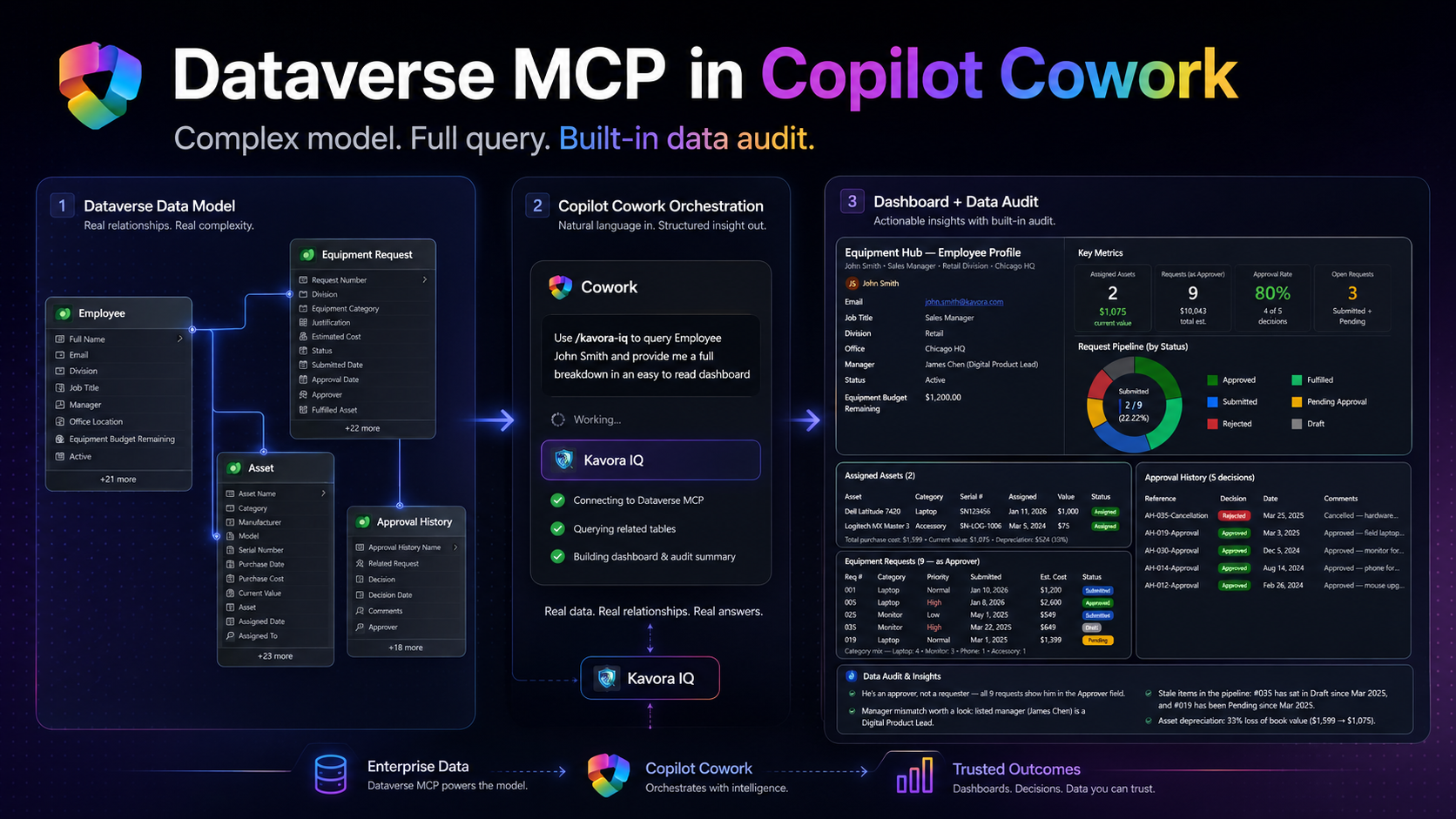
    We are building a Copilot Cowork plugin that connects to the Dataverse MCP endpoint.

    Once installed, Cowork can use that plugin to query Dataverse through MCP.

    The basic flow looks like this:

    1. User asks Copilot Cowork a question
    2. Cowork uses the custom plugin
    3. The plugin points to the Dataverse MCP endpoint
    4. Dataverse returns the data
    5. Cowork uses schema guidance to make sense of the tables
    6. Cowork returns a useful answer, summary, dashboard, or audit notes

    I recommend keeping this setup in two parts:

    • The plugin: gives Cowork access to the Dataverse MCP connector
    • The schema skill: tells Cowork which Dataverse tables, columns, relationships, and rules matter

    That split makes the setup easier to maintain.

    If your schema changes, you can update the schema skill without rebuilding and redeploying the entire plugin package.

    Before you start

    You will need:

    I created a checklist for this because the setup has a few values that are easy to mix up.

    The setup order

    This is the order I recommend:

    1. Create the App Registration
    2. Configure the Power Platform environment
    3. Create the OAuth registration in Developer Portal
    4. Build the plugin
    5. Deploy the plugin
    6. Create the schema skill
    7. Test everything in Copilot Cowork

    Do not start with the plugin manifest.

    Get the identity, environment, and OAuth pieces ready first. The manifest is much easier once you already have the right values.

    Step 1: Create the App Registration

    Start in Microsoft Entra.
    https://entra.microsoft.com/

    Create an app registration that will be used for the Dataverse MCP connection.

    Capture these values:

    • Tenant ID
    • Application / Client ID
    • Client secret
    • Secret expiry date

    You will use the Client ID more than once, so copy it somewhere safe.

    Add the Dataverse MCP permission

    In the app registration, add the required API permission for Dataverse MCP.

    1. Open the app registration
    2. Go to API permissions
    3. Select Add a permission
    4. Select Microsoft APIs
    5. Select Dynamics CRM
    6. Add the permission:
    mcp.tools

    Grant admin consent if your tenant requires it.

    Add the redirect URI

    1. For the OAuth flow, add this redirect URI if your setup requires it:
    https://teams.microsoft.com/api/platform/v1.0/oAuthRedirect

    Important: the Application / Client ID is not the same as the OAuth registration ID you will create later.

    Keep those two values separate.

    Step 2: Configure the Power Platform environment

    Next, configure the Power Platform environment that contains your Dataverse data.

    You need the Dataverse environment to allow MCP clients.

    Open Power Platform admin center and go to the target environment.

    1. Open Power Platform admin center
    2. Go to Manage
    3. Select Environments
    4. Open your target environment
    5. Open Settings
    6. Go to Product
    7. Open Features
    8. Find the Dataverse MCP setting
    9. Allow MCP clients to interact with Dataverse MCP server
    10. Only check the GA version of the MCP server > Click Save

    The exact wording may change because this area is still moving, but the goal is the same: allow MCP clients for that environment

    Add the allowed MCP client

    Now add your Entra Application / Client ID as an allowed MCP client for the environment.

    1. Click “Go to Advanced Settings” link under Step 2
    2. Click +New > fill in the details like this:
      – Name: Cowork Dataverse MCP – <env name>
      – Unique Name: new_CoworkDataverseMCP<envName>
      – Application Id: Paste your application Id from the App Registration you created in section 1
      – Is Enabled: Yes
    3. Click Save & Close

    That part matters.

    The value you add here is the Entra Application / Client ID.

    Also make sure the allowed MCP client is enabled.

    If this step is wrong, the plugin can look fine but still fail when Cowork tries to use Dataverse.

    Before leaving the admin center, grab the Environment URL.

    Capture the Dataverse URL

    You need your Dataverse Org URL

    It looks like this:

    https://yourorg.crm.dynamics.com

    The MCP server URL is the same URL with /api/mcp added to the end.

    https://yourorg.crm.dynamics.com/api/mcp

    Step 3: Create the OAuth registration in Teams Developer Portal

    Now open Teams Developer Portal.
    ( https://dev.teams.microsoft.com/ )

    Create an OAuth client registration for the plugin.

    This registration stores the OAuth configuration and gives you the OAuth registration ID that your plugin manifest will reference.

    In the OAuth registration, you will enter values from the Entra app and your Dataverse environment.

    1. Click Tools > OAuth client registration
    2. + New OAuth client registration

    Base URL

    Use your Power Platform Environment URL

    https://<yourorg>.crm.dynamics.com

    Restrict usage by Teams app: select Any Teams app (for now, since we don’t have a Teams app ID yet)

    Authorization endpoint

    Use your Tenant ID in this format:

    https://login.microsoftonline.com/{tenantId}/oauth2/v2.0/authorize

    Token endpoint

    Use your Tenant ID in this format:

    https://login.microsoftonline.com/{tenantId}/oauth2/v2.0/token

    Scope

    The scope should use your Dataverse Org URL.

    Use this format:

    https://yourorg.crm.dynamics.com/.default offline_access

    Example:

    https://kavoracrm.crm.dynamics.com/.default offline_access

    Client ID and secret

    Use the Client ID and secret from the Entra app registration you created earlier.

    After saving the OAuth registration, copy the OAuth registration ID.

    You will use that value in the plugin manifest as the connector referenceId.

    Important: the OAuth registration ID goes into the plugin manifest.

    Step 4: Build the plugin

    For this approach, the plugin should stay focused on the Dataverse MCP connector.

    To make this even easier, I created a Cowork-Plugin skill to assist in building the Plugin with a template.

    Import Plugin Builder skill

    1. Download my /cowork-plugin-builder skill
    2. In Copilot Cowork > attach the skill and prompt: Add this skill
    3. After import refresh your browser

    Build Dataverse Plugin with Template

    We will use the skill you just imported to help build the plugin.

    1. Inside Copilot Cowork craft a prompt and add the cowork-plugin-builder skill
    2. Add these details or Copilot Cowork will ask you for these values
      (NOTE: If your using the Checklist app I created to track progress, click the Copy setup summary. Paste this into the prompt as well)

    Prompt to use:

    /cowork-plugin-builder to build a Dataverse plugin using this template:‌
    Organization name:
    Connector display name:
    description:
    Tenant ID:
    Client ID:
    Org URL:
    MCP URL:
    OAuth registration ID:
    OAuth scope:
    Connector referenceId:

    Fill in everything you can.

    I created a Dataverse-style icon with a Cowork badge so the plugin is easy to recognize when it appears in Cowork.
    (Included in the template)

    When Copilot Cowork is done, you should receive a zip file.

    Download the zip file.

    Step 5: Deploy the plugin

    After the package is ready, deploy it to a test user or test group first.

    1. M365 Admin Center > Agents > All agents > Upload custom app > pick dataverse-<pluginname>.zip
    2. Publish to users: add yourself first
    3. Install (optional): add yourself so it auto-appears
    4. Accept permissions > Review & finish
    • Apply Template (default should be fine)
    • Review Permissions (should be none, since permissions are done through the App registration)
    • Publish

    Keep the first deployment small.

    Connect Plugin

    1. Open a fresh Copilot Cowork session
    2. Click + > Manage Plugins
    3. Click … Browse Plugins
    4. Find the Plugin > Click Add
    5. Scroll down and click Connect

    Start with a simple prompt like this:

    Use the <Plugin name> to confirm you can access the Dataverse MCP server.

    Important: when you change the plugin package, update the version before uploading again.

    Also start a fresh Cowork session after deployment changes.

    Otherwise, you can end up testing against a stale session and thinking the plugin is broken.

    Step 6: Create a schema-aware skill

    This is the step that makes the plugin more useful.

    The plugin gives Cowork access to Dataverse.

    The schema skill helps Cowork understand what to do with that access.

    In the schema skill, give Cowork the details it needs to query your model properly.

    • Table logical names
    • Table purpose
    • Primary columns
    • Lookup columns
    • Relationships between tables
    • Status fields
    • Rules for what matters
    • Data-quality checks
    • Example prompts

    We can use this skill to create a personal skill to query certain tables, etc.

    In the example, I ask Copilot Cowork what tables are used in a certain Model-Driven App.
    Prompt:

    What tables are apart of Kavora Equipment Hub
    /dataverse-schema-

    Copilot Cowork responds with a tables and logical names.
    Next I ask for all the logical columns for those tables.
    (NOTE: This will help Copilot Cowork query your data quicker)

    My follow-up prompt:

    Yes pull all logical columns.
    I want to build a skill around these tables and data.
    Name the Skill Kavora Equipment IQ

    Then Copilot Cowork drafted the skill for me.
    I reviewed it and said “Looks good”

    Copilot Cowork built the skill

    Step 7: Test with a real scenario

    Now run an actual test.

    Do not only ask Cowork to connect.

    Ask it to use the Dataverse model.

    A good test should include:

    • One known record
    • At least one related table
    • At least one lookup relationship
    • Some output Cowork needs to organize
    • A data-quality check or business rule

    Example prompts:

    List records

    use /<skill you just built>
    List all the <table>

    Add records

    use /<skill you just built>
    can you add 3 more <assets>
    1. Blue Yeti mic, Regional Office, value (you look this up in USD)‌
    2. Red dragon Keyboard (RGB), lookup value, put in the HQ
    3. Surface Arc Mouse, lookup price, put in HQ

    Details on a record

    use /<skill you just built>
    list all the <table> who <condition>

    Build Dashboard

    use /<skill you just built>
    give me a full dashboard of <record>.
    Surface all details relating to <record>

    Create report

    use /<skill you just built>
    now create a report with each <Employee>
    on what they have left VS what they have used for budget

    Send Email with context

    use /<skill you just built>
    Email <James chen> asking about the <assets>

    Create PPT with context + Brand

    (NOTE: the branding is a separate skill not included in the plugin)

    use /<skill you just built>
    Now put this information inside a PPT
    using </branding-skill> for Kavora branding.
    This PPT is for Kavora Executives.
    Make it look polished with graphs and charts and pop.

    This is where the setup starts paying off.

    Cowork can query the data, follow relationships, and return a useful answer instead of forcing you to manually pull everything together.

    Common mistakes

    Mistake 1: Mixing up the IDs

    There are two important IDs:

    • Entra Application / Client ID: used in Power Platform as the allowed MCP client
    • OAuth Registration ID: used in the plugin manifest as the referenceId

    If you paste the wrong one in the wrong place, the setup will fail.

    Mistake 2: Wrong MCP URL

    The MCP URL should look like this:

    https://yourorg.crm.dynamics.com/api/mcp

    Watch for missing /api/mcp.

    Mistake 3: Wrong OAuth scope

    The scope should use your Dataverse Org URL:

    https://yourorg.crm.dynamics.com/.default offline_access

    Mistake 4: Testing with a user that cannot access the data

    Make sure the user testing the plugin has access to the Dataverse tables you are querying.

    Mistake 5: Re-uploading the same version

    If you change the package, update the version number before uploading again.

    Download the checklist

    I built a simple HTML checklist for this setup.

    It lets you track the values, check off steps, auto-fill the scope from your Dataverse URL, and generate the connector snippet.

    Download the Dataverse MCP Connector for Copilot Cowork setup checklist

    Official docs

    Final take

    NOTE: When you have tested and validated you can connect to Dataverse. You will want to add the Teams App ID from the Agent Plugin we deployed and add it to the Teams Developer OAuth Registration.

    1. Go to Teams Admin center > Teams apps > Manage apps
    2. Find your Plugin you deployed > Copy the App ID
    3. Go back to Teams Developer Portal and open the OAuth registration tool that was created
    4. Paste the App ID into the “Restrict usage by Teams app” field as an Existing Teams app

    This setup is still early, and there are rough edges.

    But once it works, the direction is obvious.

    Dataverse already has the business model.

    Copilot Cowork gives users a work surface.

    The MCP connector connects the two.

    Add a schema-aware skill, and Cowork can start working through real Dataverse data in a way that feels practical for actual business scenarios.

    That is the part worth paying attention to.

    Let me know what other Plugins you want to see in Copilot Cowork.