Blog

  • Copilot Cowork Is Coming: Here’s How to Get Your Tenant Ready on Day 1

    Copilot Cowork Is Coming: Here’s How to Get Your Tenant Ready on Day 1

    Get Your Tenant Ready for Day 1: Joining Microsoft 365 Frontier for Copilot Cowork

    If you’ve been following the buzz around Copilot Cowork, you already know it’s going to change how we work inside Microsoft 365. But here’s the thing — Day 1 readiness doesn’t happen on Day 1. It happens now.

    In this post, I’ll walk you through exactly how to get your tenant set up: the right licenses, how to join the Frontier program, enabling the Anthropic sub-processor, configuring pilot groups, and locking down governance before you open the floodgates.

    Copilot Cowork is expected to be available for Frontier customers late March or later.


    Step 1: Make Sure You Have the Right Licenses

    Before you can enable anything, your tenant needs the right foundation.

    RequirementDetails
    Microsoft 365 Copilot licenseRequired for all end users who will access Copilot Cowork. Available as an add-on on E3, E5, Business Standard, and Business Premium plans.
    AI Administrator roleRequired to make changes in the Copilot settings area of the Admin Center.
    Microsoft Entra ID P1 or P2Needed for group-based access control and conditional access (P1 minimum).
    SharePoint OnlineIncluded in most M365 plans — required for Cowork’s document grounding.

    Admin tip: Before you go further, run a license audit. In the Microsoft 365 Admin Center, go to Billing > Licenses and confirm Copilot licenses are assigned — unassigned licenses won’t show up in Frontier eligibility checks.


    Step 2: Join Microsoft 365 Frontier

    Microsoft 365 Frontier is the early adopter program that gives your tenant access to upcoming Copilot features before general availability — including Copilot Cowork.

    What you’ll need first

    You must have AI Administrator access to complete this setup. If you don’t have this role, work with your Global Admin to get it assigned before you start.

    How to join Frontier

    1. Start from office.com and open the Admin Center.
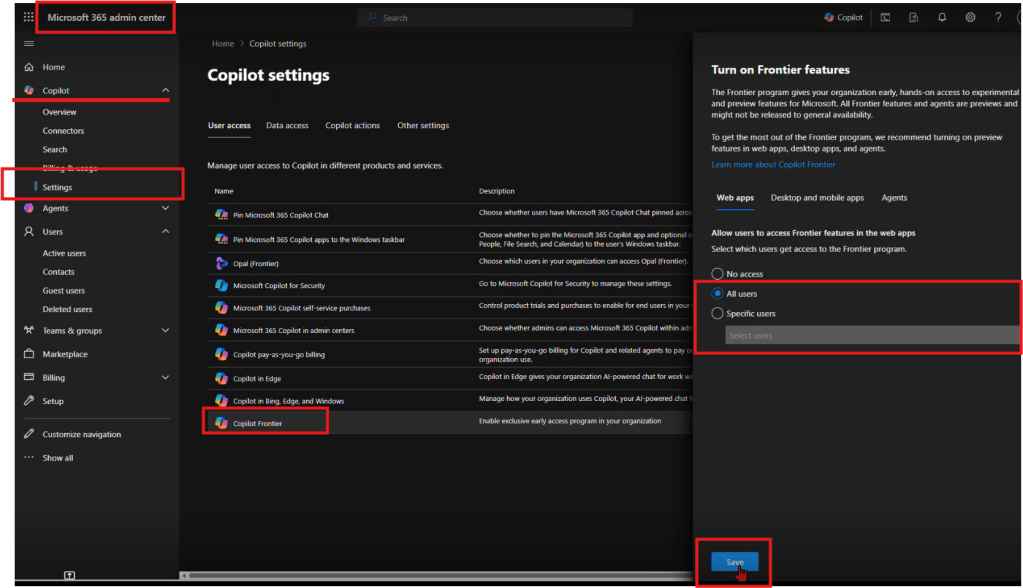
    2. Navigate to Copilot → Settings → Frontier.
    3. On the Frontier settings page, enable early access.
    4. Under Web Apps, select the users who should be included.
    5. Click Save.

    That’s it — your tenant is now enrolled in Frontier.


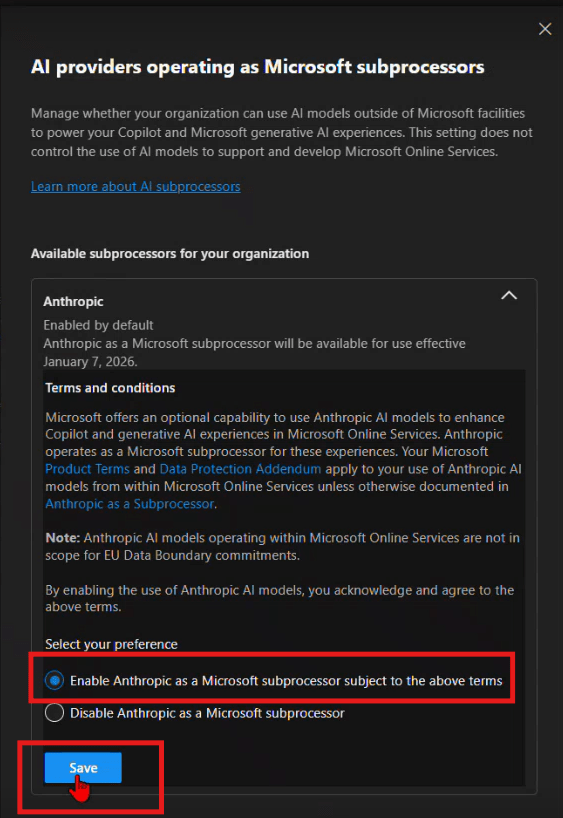
    Step 3: Enable Anthropic as an AI Provider

    After Frontier is enabled, you need to turn on the AI providers that power the new Copilot experiences. This is the step most admins don’t realize is required.

    How to enable Anthropic

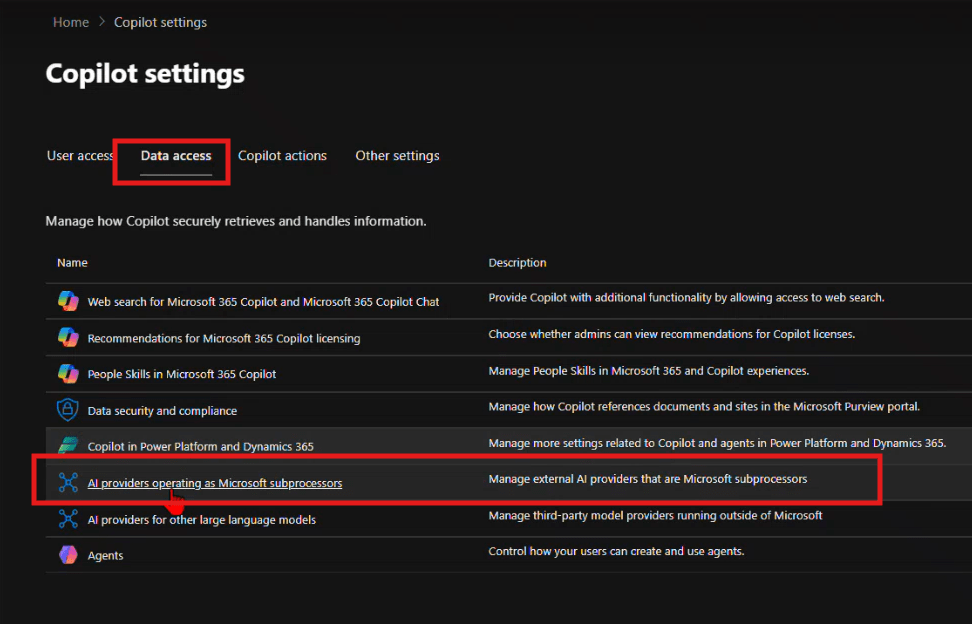
    1. From the same Copilot settings area, navigate to Data access.
    2. Enable the available AI providers — the recommendation is to enable as many as possible.
    3. Specifically, find Anthropic and enable it for Copilot.


    Step 4: Set Up Pilot Groups (Optional)

    Don’t roll Frontier out to your entire organization on Day 1. A phased pilot protects your environment and gives you time to validate the experience before broad deployment.

    Recommended pilot structure

    PhaseGroupPurpose
    Wave 1 — Champions5–10 power users (IT, Copilot champions)Validate setup, surface issues early
    Wave 2 — Early Adopters50–100 users across key departmentsReal-world workflow testing
    Wave 3 — Broad RolloutAll licensed usersFull deployment

    How to configure

    1. Create security groups in Microsoft Entra ID — for example, SG-CopilotCowork-Wave1 and SG-CopilotCowork-Wave2.
    2. In the Frontier settings from Step 2, assign early access to your Wave 1 group first using the Web Apps user selection.
    3. Expand to Wave 2 once Wave 1 has validated the experience.

    Pro tip: Set up a Microsoft Teams channel for your pilot group — something like #cowork-pilot-feedback — so you have a central place to collect issues and wins before you scale.


    Step 5: Governance — Lock Down Oversharing Before You Start

    This is the step most organizations skip — and regret. When Copilot can surface content from across your tenant, oversharing becomes a data exposure risk, not just a governance annoyance. Lock this down before you enable Cowork broadly.

    Key controls to review

    ControlWhere to set itRecommendation
    External sharingSharePoint Admin Center → Policies → SharingSet to “Existing guests only” or “Only people in your org” during Frontier rollout
    Default sharing linksSharePoint Admin Center → Policies → SharingChange from “Anyone with the link” to “People in your organization”
    Site-level permissionsIndividual site settingsAudit “Everyone except external users” — this is the #1 oversharing culprit
    Sensitivity labelsMicrosoft PurviewApply labels to classify and restrict access to confidential content
    Guest access expirationEntra ID → External collaboration settingsSet guest access to expire after 90 days

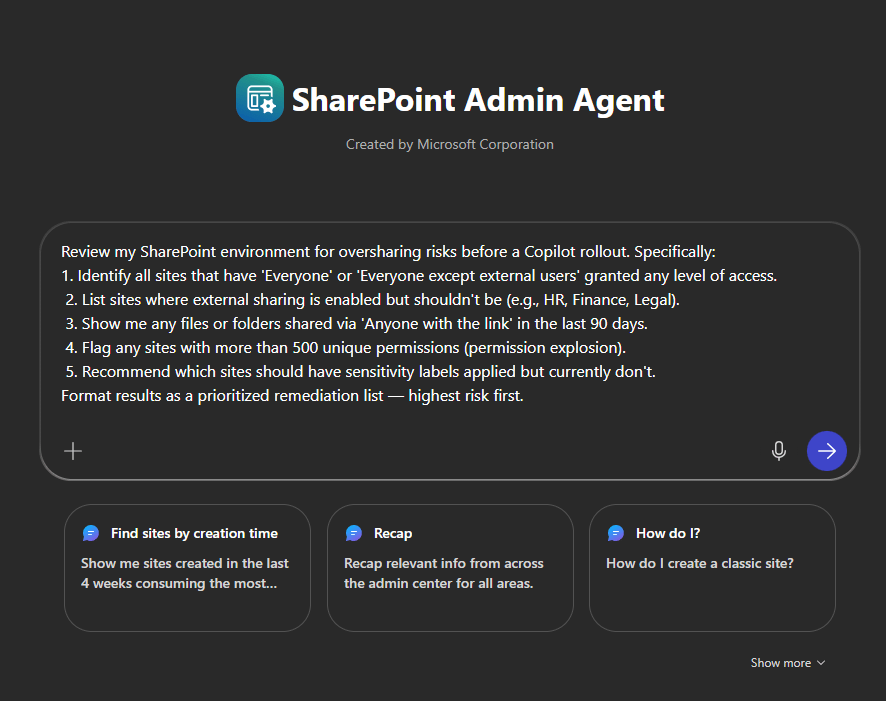
    SharePoint Admin Agent Prompt: Oversharing Audit

    Use this prompt directly with the SharePoint Admin agent in the Microsoft 365 Admin Center to get a fast, prioritized oversharing assessment:

    Review my SharePoint environment for oversharing risks before a Copilot rollout. Specifically:
    1. Identify all sites that have 'Everyone' or 'Everyone except external users' granted any level of access.
     2. List sites where external sharing is enabled but shouldn't be (e.g., HR, Finance, Legal).
     3. Show me any files or folders shared via 'Anyone with the link' in the last 90 days.
     4. Flag any sites with more than 500 unique permissions (permission explosion).
     5. Recommend which sites should have sensitivity labels applied but currently don't.
    Format results as a prioritized remediation list — highest risk first.
    

    This gives you an actionable list to work through before any end user asks Copilot Cowork a question about a document they shouldn’t be able to see.


    Your Day 1 Readiness Checklist

    • [ ] M365 Copilot licenses assigned to target users
    • [ ] AI Administrator role confirmed
    • [ ] Tenant enrolled in Frontier (Copilot → Settings → Frontier)
    • [ ] Early access enabled and Web Apps users selected
    • [ ] Anthropic enabled under Data access → AI providers
    • [ ] Pilot security groups created (Wave 1, 2, 3)
    • [ ] SharePoint oversharing audit completed using Admin agent prompt
    • [ ] External sharing policies tightened
    • [ ] Sensitivity labels deployed for confidential content
    • [ ] Pilot feedback channel set up in Teams

    Final Thought

    Copilot Cowork is a new way of working. The organizations that will get the most out of Day 1 are the ones doing this prep work right now. Join Frontier, enable Anthropic, run your oversharing audit, and start small with a tight pilot group.

    The foundation is simple: Frontier starts with admin enablement and provider access. Once that’s in place, you’re ready for everything that comes next.

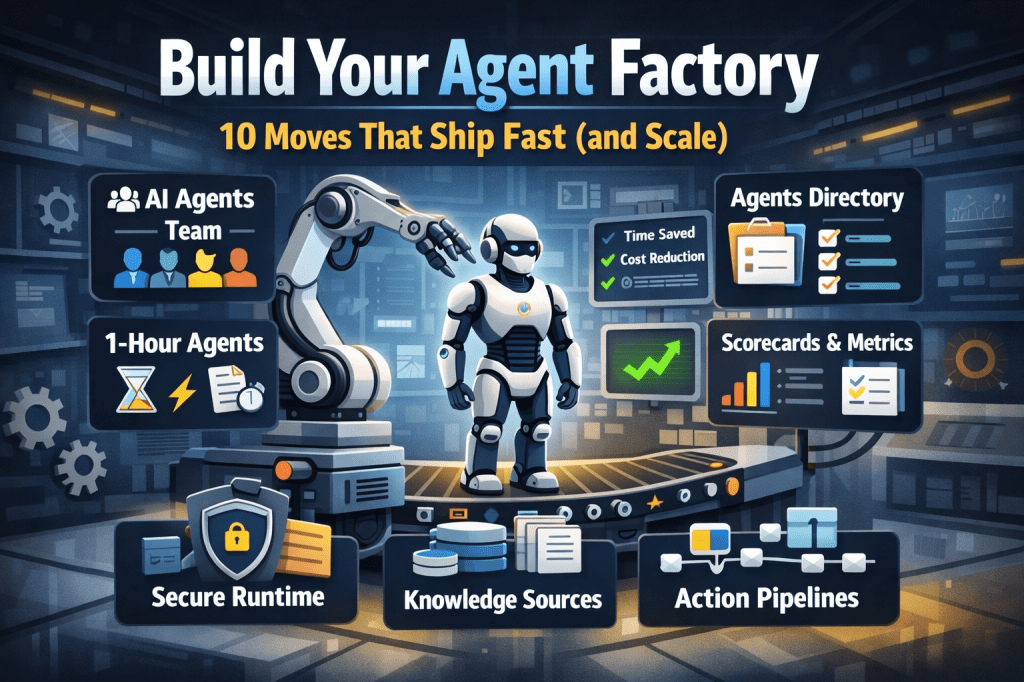
  • Build Your Agent Factory: 10 Moves That Ship Fast (and Scale)

    Build Your Agent Factory: 10 Moves That Ship Fast (and Scale)

    Build Your Agent Factory: 10 Moves That Ship Fast (and Scale)

    Agents at scale. Not POCs.

    Here’s the playbook I’d hand any exec or builder who wants working agents in production—without turning the org into a science fair.

    1) Stand up an AI Agents Workforce

    What it is: A small cross-functional crew with authority to hunt repetitive work and ship agents.

    Who’s in:

    • 1 product owner
    • 1 engineer (Copilot Studio/Power Automate)
    • 1 data person
    • 1 security/governance lead
    • 1 domain SME.

    Ship this week: Write a one-page charter with scope, decision rights, and a 30-day roadmap (first 5 agents + metrics).

    2) Win with horizontals first, then go vertical

    Horizontals (1-hour wins): drafting, summarizing, policy Q&A, meeting notes to actions, form-fill helpers.

    Verticals (outsized ROI): pick 1–2 per business unit where there’s money, risk, or SLA pain.

    Guardrail: don’t start with the hardest workflow; start where you can close the loop and measure value inside two weeks.

    3) Make an Agents Directory the front door

    Why: Ideas die in email. A directory turns “we should build X” into spec and governance.

    Minimum intake fields:

    • use case name
    • goal
    • users
    • decision rights
    • data sources + who owns it
    • tools
    • PII/sensitivity
    • KPIs
    • business owner
    • risk level
    • rollout plan.

    Outcome: Every request auto-generates a lightweight PRD (goal, inputs, outputs, metrics, guardrails) and a yes/no gate.

    4) Create the 1-Hour Agent template

    Template anatomy:

    Goal + success criteria Input schema (what the user provides) Tools (actions/connectors) and permissions Knowledge sources (files, sites, indexes) Safety rules (allowed/blocked actions, escalation) Evaluation set (10–20 test prompts with expected outcomes) Deploy script (Dev → Test → Prod)

    Rule: If a use case can’t fit this page, it’s not a 1-hour agent—park it for later.

    5) Tie every agent to a visible scorecard

    Metrics to publish: time saved, cost avoided, error rate, CO₂/efficiency (where relevant), user satisfaction.

    Simple formula: monthly users × average minutes saved × loaded cost = value.

    Make it public internally: green/red status, owner, last review, next improvement.

    6) Run on a secure, managed agent runtime

    Non-negotiables: identity passthrough, content safety, audit logs, tool call restrictions, data boundary controls, environment isolation.

    Practical tip: standardize a “sensitive sources” policy and block tools by default; allow case-by-case.

    7) Split the stack to move fast without breaking things

    Experience layer: Copilot Studio for UX, channels, and connectors.

    Agent runtime/orchestration: managed agent service for threads, tool calls, safety, and evaluations.

    Why it works: builders ship quickly at the edge; platform team keeps shared guardrails, monitoring, and upgrades stable.

    8) Mix knowledge + action (or you’ll stall)

    Knowledge: structured grounding (SharePoint/Fabric/Search), doc versioning, citations-on by default.

    Action: flows/Logic Apps, Graph, line-of-business APIs; always ship with a dry-run mode first.

    Design pattern: Answer → show sources → propose actions → execute on approval. When confidence is high and stakes are low, allow auto-execute.

    9) Keep humans in the loop—by design

    HITL patterns that work:

    Shadow mode (observe only) → suggest mode → execute with approval → auto-execute.

    Confidence thresholds where low confidence routes to a human. Escalation logic when guardrails trip or data is missing.

    UX rule: one click to approve, one click to undo.

    10) Plan to scale on day one

    Pipelines: Dev → Test → Prod with approvals and rollback.

    Evals: pre-ship test set per agent; weekly drift checks; quarterly red-team.

    Ops: central logging, cost dashboards, incident playbook.

    Program ritual: a quarterly “Agent Backlog Day” to harvest new ideas and retire underperformers.

    Starter Architecture (fast and boring)

    Experience: Copilot Studio (web, Teams, M365, chat, plugins)

    Actions: Power Automate/Logic Apps + custom APIs

    Knowledge: SharePoint/Fabric/AI Search with retrieval policies

    Runtime: managed agent service for tool orchestration, identity, safety

    Observability: evaluations, telemetry, and a simple agent scorecard per app

    Security: Entra ID RBAC, private endpoints, DLP, approval gates

    Prompts and policies that save you pain

    Prompt contract (keep it in the repo): role, goals, inputs, allowed tools, forbidden actions, decision rights, escalation, output format, citation rules.

    Data contract: what sources are permitted, freshness expectations, sensitivity tags.

    Failure modes: what the agent must do when unsure (ask for clarification, route to human, or stop).

    Anti-patterns I keep seeing

    • Starting with an “AI strategy deck” instead of shipping 3 agents.
    • Agents that answer but can’t act—users stop coming back.
    • No owner, no scorecard, no sunset date.
    • Canary-testing in production without a rollback plan.
    • Letting one giant use case block 20 small wins.

    Your first week mapped

    Day 1: Form the team and publish the charter.

    Day 2: Launch the Agents Directory (intake + PRD autogeneration).

    Day 3–4: Build two 1-hour agents (drafting + policy Q&A) with eval sets.

    Day 5: Ship to a pilot group with scorecards visible. Book the first backlog day.


  • Maximize Efficiency with GPT-5 Router-Optimized Prompts

    Maximize Efficiency with GPT-5 Router-Optimized Prompts

    This prompt pack is around general use, if you would like a more focused pack focused on a specific industry or scenario, comment below.

    Below you will find the prompt pack in 3 formats

    Word doc download:

    Markdown download (word press wont let me upload markdown file so I have uploaded to my GitHub for download: FlowAltDelete/GPT-5-Router-Optimized-Universal-Prompt-Pack

    If you don’t want to download, I have also put the prompt pack below

    GPT‑5 Router‑Optimized Universal Prompt Pack (v1.1)

    What this is: A field‑tested, router‑aware prompt pack tuned for GPT‑5.
    How to use: Paste the Router Boost Header 2.0 above any task below, then use the upgraded prompt. Each item includes a fast audit (strengths, gaps, tuning) so you know why it works.


    Router Boost Header 2.0 (paste above any prompt)

    Task: [one sentence describing “done”].
    Context/Grounding: [paste facts/links/notes]. Cite sources if summarizing; don’t invent.
    Constraints: audience=[…], tone=[…], length=[…], locality=[region/laws], non‑negotiables=[…].
    Output Contract: [exact format/schema; if JSON, include a schema].
    Tool Grants: You may use internal reasoning, code execution, and structured output. Do not expose chain‑of‑thought; return only the final results.
    Mode: Choose fast for simple tasks, deep for complex ones; state the choice on one line before the output.
    Self‑Check: Validate constraints, factuality (vs. sources), and format before returning. If JSON, ensure it parses.
    Failure Policy: If blocked or context is thin, list missing info and ask 3 sharp questions; otherwise proceed with explicit assumptions labeled “Assumptions.”

    Tip: Keep the header short in production—only include fields that matter. If you need determinism, ask for “low‑randomness; no lateral riffs.”


    Universal GPT‑5 Prompt Pack v1.1**

    Below: for each prompt

    • Use when: best fit.
    • Strengths: what’s good already.
    • Gaps: what to tighten for GPT‑5.
    • Router tuning: small switches that improve results.
    • Upgraded prompt: copy/paste ready.
    • (Optional) Strict JSON variant: when you need machine‑readable output.

    1) Executive Summary (Any Topic)

    Use when: You need crisp, executive‑level clarity in 30–90 seconds.
    Strengths: Forces prioritization; covers timing and action.
    Gaps: Can drift into fluff; doesn’t enforce one‑line bullets; missing “evidence”.
    Router tuning: Demand one‑line bullets with bold labels; add “evidence” blip; enforce count.

    Upgraded prompt

    Create exactly **5 one‑line bullets** summarizing [topic/brief].
    Each bullet starts with a bold label: **What matters**, **Why now**, **Risks**, **Decision**, **Next actions**.
    Add ≤12 words per bullet. Include 1 source or metric if available.
    Mode: [fast/deep]. Return as a simple bullet list—no preamble.
    

    Strict JSON variant

    Return valid JSON:
    { "what_matters": "...", "why_now": "...", "risks": "...", "decision": "...", "next_actions": "..." }
    

    2) Research Plan (Adversarial)

    Use when: You must test a claim/feature beyond happy‑path.
    Strengths: Calls for metrics, data, adversarial tests.
    Gaps: No threat model; no instrument plan; no stop/continue math.
    Router tuning: Introduce threat model + falsification criteria; add power checks.

    Upgraded prompt

    Design an **adversarial research plan** to evaluate [claim/feature]. Include:
    1) Objectives & hypotheses (null + alt); 2) Success metrics & thresholds; 3) Threat model (abuse, edge cases);
    4) Data to collect (fields, sample size/power);
    5) Protocols (A/B, holdout, offline evals);
    6) Adversarial tests & red‑team scripts;
    7) Stop/continue rule with math;
    8) Reporting template (tables/plots).
    Mode: [fast/deep]. Output as a numbered outline.
    

    3) Decision Memo

    Use when: A one‑pager to choose among options.
    Strengths: Options, costs, risks, reversibility, rec.
    Gaps: No owner/date format; no “evidence” box; weak contingency.
    Router tuning: Add RACI owner/date; add 30/60/90 follow‑ups.

    Upgraded prompt

    Write a one‑page decision memo for [choice]. Include:
    - Context (1 para) with constraints & evidence;
    - Options (3): summary, costs (one‑time/run), risks, reversibility;
    - Recommendation: **one** choice with rationale;
    - Owner + Decision date; 30/60/90‑day checkpoints;
    - Contingency triggers & rollback plan.
    Mode: [fast/deep]. Keep ≤400 words.
    

    4) Project Plan One‑Pager

    Use when: Turn messy notes into plan.
    Strengths: Scope, milestones, owners, risks, comms, RAID.
    Gaps: No critical path; RAID often hand‑wavy.
    Router tuning: Add dates & simple Gantt list; RAID as compact table.

    Upgraded prompt

    From these notes: [paste], produce a one‑page plan with:
    1) Scope (in/out);
    2) Milestones (name, owner, date) in order;
    3) Critical path (1‑3 bullets);
    4) Comms cadence (who, channel, freq);
    5) RAID summary table (Risk/Assumption/Issue/Dependency → owner, impact, mitigation);
    6) Acceptance criteria (bullet list).
    Mode: [fast/deep]. Keep it skimmable.
    

    5) Meeting → Decisions

    Use when: Converting raw notes to what matters.
    Strengths: Decisions & actions separation.
    Gaps: No owners on decisions; action status taxonomy missing.
    Router tuning: Add decision owner + rationale; status enum.

    Upgraded prompt

    Convert these notes: [paste] into:
    A) **Decisions** list (decision, owner, rationale, date);
    B) **Actions** table {owner, step, due, status ∈ [New, In‑Progress, Blocked, Done]}.
    Mode: [fast/deep]. No commentary, just the two sections.
    

    Strict JSON variant

    { "decisions": [ { "decision": "", "owner": "", "rationale": "", "date": "" } ],
      "actions": [ { "owner": "", "step": "", "due": "", "status": "New|In-Progress|Blocked|Done" } ] }
    

    6) Cold Email Trio

    Use when: 3‑touch outbound sequence.
    Strengths: Problem → proof → ask. Short.
    Gaps: ICP nuance; weak personalization; missing CTA micro‑asks.
    Router tuning: Insert first‑line personal hook; vary asks.

    Upgraded prompt

    Write **3 cold emails** for [offer] to [ICP].
    Email 1: name the **patterned pain**; end with a 10‑min micro‑ask.
    Email 2: social proof/insight (number/metric), 1 sentence case study.
    Email 3: crisp ask with 2 time options.
    Each ≤120 words, 5‑7 sentences, no fluff. Include a {First‑line personalization} placeholder.
    Mode: [fast/deep].
    

    7) LinkedIn Authority Post

    Use when: Thought leadership for execs + builders.
    Strengths: Structure, framework, prompt.
    Gaps: Risk of buzzwords; no proof.
    Router tuning: Require 1 mini‑case and 1 number.

    Upgraded prompt

    Write a LinkedIn post on [topic] for execs + builders:
    - 3 punchy paragraphs (≤60 words each);
    - 1 mini‑framework (3 bullets, named);
    - 1 thought prompt (1 line);
    - Include one concrete number or example; avoid buzzwords.
    Mode: [fast/deep]. No hashtags unless asked.
    

    8) X Post (Bold, No Hashtags)

    Use when: High‑signal micro‑take.
    Strengths: Tight character limit, bold stance.
    Gaps: Might overrun chars; no proof token.
    Router tuning: Enforce count; include 1 fact word/number.

    Upgraded prompt

    Write one confident X post on [insight/news]. ≤240 chars.
    Format: HOOK — TAKEAWAY. Include **one** concrete fact or number.
    No hashtags. No emoji at the end. Mode: [fast/deep].
    

    9) YouTube Kit

    Use when: Fast ideation + structure.
    Strengths: Titles, open, chapters.
    Gaps: Title length drift; missing viewer promise.
    Router tuning: Enforce title count/length; add “who it’s for.”

    Upgraded prompt

    For a video on [topic], produce:
    - **10 titles** (<60 chars);
    - A two‑sentence cold open that states who it’s for and the promise;
    - Chapter list with timestamps (estimate) and outcomes per chapter.
    Mode: [fast/deep]. No clickbait lies.
    

    10) Content Angle Generator

    Use when: Topic expansion without repetition.
    Strengths: Rich buckets.
    Gaps: Duplicates; vague angles.
    Router tuning: Enforce uniqueness + sample headline.

    Upgraded prompt

    List **25 distinct content angles** for [niche/product] across:
    how‑to, contrarian, teardown, story, data, tutorial, tool, myth vs fact.
    For each: 1‑line angle + a sample headline. No repeats. Mode: [fast/deep].
    

    11) Product Spec from Idea

    Use when: Move from idea to v1.
    Strengths: Users, JTBD, metrics, scope.
    Gaps: Test plan vague; acceptance criteria missing.
    Router tuning: Add measurable acceptance + de‑scoping rules.

    Upgraded prompt

    Turn this idea into a lean product spec:
    - Users & JTBD; key use cases;
    - Success metrics (leading/lagging) with targets;
    - V1 scope (must/should/could) and out‑of‑scope;
    - Acceptance criteria (measurable);
    - Test plan (happy path, edge, abuse).
    Mode: [fast/deep]. ≤500 words.
    

    12) UX Critique

    Use when: Actionable UI improvements.
    Strengths: Issues + fixes.
    Gaps: Evidence often light; microcopy not tested.
    Router tuning: Severity scale + before/after microcopy.

    Upgraded prompt

    Critique the UX of [flow/screen]. Deliver:
    - 10 issues with severity ∈ {P0, P1, P2}, evidence, and concrete fix;
    - A before→after microcopy table (3–5 rows);
    - One quick win and one deeper redesign note.
    Mode: [fast/deep].
    

    13) CSV Data Brief

    Use when: Shape an analysis plan before coding.
    Strengths: Questions → steps → visuals.
    Gaps: Schema ambiguity; data checks missing.
    Router tuning: Add sanity checks + exact chart types.

    Upgraded prompt

    Given CSV schema: [columns], produce:
    1) 5 decision‑driven questions;
    2) Validation checks (types, nulls, outliers);
    3) Analysis steps;
    4) Exact visuals/tables to produce (chart type, axes, groupings).
    Mode: [fast/deep]. No code unless asked.
    

    14) Code from Spec

    Use when: From spec to runnable core.
    Strengths: Architecture, snippets, tests, edges.
    Gaps: Env assumptions; complexity unbounded.
    Router tuning: Pin language/runtime; include complexity notes.

    Upgraded prompt

    Given this spec: [paste], provide:
    - Architecture diagram (text) and key components;
    - Core code snippets in [language/runtime] with minimal deps;
    - Tests (unit/integration) and fixtures;
    - Failure/edge cases + graceful handling;
    - Complexity & trade‑offs section.
    Mode: [fast/deep]. Keep idiomatic.
    

    15) Code Review + Refactor

    Use when: Improve safety & clarity with a plan.
    Strengths: Smells, hotspots, steps, tests.
    Gaps: Lacks risk scoring; migration path unclear.
    Router tuning: Add impact x effort; phased plan.

    Upgraded prompt

    Review this code: [paste]. Deliver:
    - Findings by category (correctness, security, perf, clarity);
    - Hotspots with complexity signals;
    - Refactor plan in small, safe steps with tests;
    - Risk/Impact vs Effort matrix (P0/P1/P2);
    - Before/after snippet for 1 key function.
    Mode: [fast/deep].
    

    16) Strict JSON Every Time

    Use when: Machine‑readable output required.
    Strengths: Clear schema.
    Gaps: No parser check; no enum constraints.
    Router tuning: Include enums & validation note.

    Upgraded prompt

    Return **only valid JSON** for [task]. Schema:
    {
      "title": "string",
      "summary": "string",
      "risks": ["string"],
      "actions": [ { "owner": "string", "step": "string", "eta": "YYYY-MM-DD" } ],
      "metrics": ["string"]
    }
    No prose. Validate keys, types, and date format before returning.
    

    17) SOP / Checklist

    Use when: Repeatable, low‑variance execution.
    Strengths: Steps + gates + recovery.
    Gaps: Timing windows; roles not explicit.
    Router tuning: Add roles & time boxes.

    Upgraded prompt

    Draft a step‑by‑step SOP for [process]. Include:
    - Prereqs & roles;
    - Steps with time boxes;
    - Quality gates with pass/fail checks;
    - Common failure recovery & escalation ladder.
    Mode: [fast/deep]. Output as a checklist.
    

    18) Positioning & ICP

    Use when: Sharpen message‑market fit.
    Strengths: ICP, pains, alts, value prop, messages, pitch.
    Gaps: Jobs vs pains; proof tokens missing.
    Router tuning: Add JTBD & proof lines.

    Upgraded prompt

    Define positioning for [product]. Provide:
    - ICP traits (firmographic + behavioral);
    - JTBD and top pains (ranked);
    - Alternatives (do‑nothing included);
    - Value proposition (benefit + proof);
    - 3 key messages;
    - 3‑line elevator pitch.
    Mode: [fast/deep].
    

    19) Competitive Teardown

    Use when: Side‑by‑side clarity.
    Strengths: Features, UX, pricing, moat, switching costs, objections.
    Gaps: Buyer role nuance; evidence weak.
    Router tuning: Add role lens + cite artifacts.

    Upgraded prompt

    Compare [your product] vs [competitor] for [buyer role]. Cover:
    - Features & UX (table);
    - Pricing (typical deal sizes/TCO);
    - Moat & switching costs;
    - Buyer objections + crisp replies;
    - Evidence links (docs, screenshots) if available.
    Mode: [fast/deep].
    

    20) Policy First Draft (Non‑Legal)

    Use when: First pass policy with clarity.
    Strengths: Rules, examples, do/don’t, escalation.
    Gaps: No scope/authority; review cadence missing.
    Router tuning: Add scope, owner, review cadence.

    Upgraded prompt

    Draft a **non‑legal** first‑pass policy for [topic]. Include:
    - Scope & definitions; policy owner;
    - Rules with examples; do/don’t lists;
    - Compliance checks & escalation path;
    - Exceptions process;
    - Review cadence and change log placeholder;
    - Legal review placeholder.
    Mode: [fast/deep].
    

    21) 7‑Day Learning Plan

    Use when: Focused upskilling in a week.
    Strengths: Daily objectives, resources, practice, quiz.
    Gaps: Entry level varies; no capstone.
    Router tuning: Add diagnostic + capstone.

    Upgraded prompt

    Build a 7‑day learning plan for [skill/exam]. Include:
    - Day 0 diagnostic (what to skip/focus);
    - Daily objectives, resources (≤3/day), and practice tasks;
    - Daily self‑quiz (5 Qs) with expected answers;
    - Day 7 capstone task with rubric.
    Mode: [fast/deep].
    

    22) Negotiation Prep

    Use when: Plan the conversation before the room.
    Strengths: Goals, walk‑away, BATNA, concessions, questions, opening.
    Gaps: Counter‑plays; objection map missing.
    Router tuning: Add opponent map + scripts.

    Upgraded prompt

    Create a negotiation brief for [deal]. Include:
    - Goals; walk‑away; BATNA;
    - Concession strategy (give/get);
    - Questions to surface interests;
    - Opening script;
    - Objection map with counters;
    - Opponent/alignment map (roles, power, interests).
    Mode: [fast/deep].
    

    23) Landing Page Copy

    Use when: Write conversion‑first copy.
    Strengths: Section list, direct tone.
    Gaps: Segment nuance; FAQ weak.
    Router tuning: Add segment option + proof elements.

    Upgraded prompt

    Write a landing page for [offer]. Sections:
    - Headline + subhead (clear promise);
    - Value bullets (3–6) with outcomes;
    - Proof (logos, testimonial lines, metrics);
    - CTA (primary + secondary);
    - FAQ (5–7 Qs).
    Optional: provide a variant for [segment].
    Mode: [fast/deep].
    

    24) Automation Blueprint

    Use when: Design automations with ROI.
    Strengths: Triggers, steps, data, errors, alerts, ROI.
    Gaps: SLAs; run‑costs; auditability.
    Router tuning: Add SLAs, idempotency, and cost model.

    Upgraded prompt

    Propose automations for [workflow]. Include:
    - Triggers & prerequisites;
    - Steps with systems & data sources;
    - Error handling (retries, dead‑letter, idempotency);
    - Alerts/observability (what, who, channel, thresholds);
    - SLAs & run‑cost model;
    - ROI estimate (baseline vs future, payback).
    Mode: [fast/deep].
    

    Bonus: Mini Switches You Can Add Anywhere

    • “Low‑randomness, no lateral riffs.” For deterministic outputs.
    • “Use a verification pass: compare output vs. constraints, fix before returning.”
    • “If citing, append a short sources list with titles + links.”
    • “Label assumptions explicitly if context is thin.”
    • “Return a ‘How to use this output’ note in one line.”

    Final Notes

    • Keep the Router Header lean; the power comes from clear Output Contracts and tight constraints.
    • Prefer JSON when downstream automation is needed; prefer skimmable bullets when humans are the primary consumer.
    • If you need extra toughness, combine “adversarial” and “self‑check” lines.

    Changelog v1.1 (this doc): Added threat models, self‑check, enum statuses, strict JSON variants, SLAs/costs for automation, and decision‑date/owner fields for memos.
  • Part 2 – Build & Ship a “Docs Agent” to Microsoft Teams

    Part 2 – Build & Ship a “Docs Agent” to Microsoft Teams

    (Companion guide to “Spin-Up the Microsoft Learn MCP Server”)

    Make sure you have read and setup the Docs MCP custom connector from part 1

    1. What you’ll build
    2. Prerequisites
      1. Icons to Download (optional)
    3. 1 – Create the Agent in Copilot Studio
      1. Add Suggested Prompts
      2. Agent Settings
      3. Turn Off Pointless Topics
    4. Publish & Package for Teams
      1. Submit Agent for Approval
    5. Approve Agent App (As a Teams Admin)
    6. How to Use the Agent
      1. Adding Agent to a Meeting or Chat
      2. Troubleshooting

    What you’ll build

    A Copilot Studio agent that queries the Microsoft Learn MCP server for live docs, then answers teammates inside a Teams chat or Meeting.

    Prerequisites

    NeedNotes
    Docs MCP custom connector from Part 1Already in your environment.
    (https://flowaltdelete.ca/2025/06/26/how-to-spin-up-the-microsoft-learn-mcp-server-in-copilot-studio/)
    Copilot Studio (preview) tenantGenerative orchestration enabled. (Early Features)
    Teams admin rights (or approval from your Teams Admin)To upload a custom app or publish to the org.
    Copilot Studio LicenseMessage packs or sessions
    prereq table

    Icons to Download (optional)

    Below are icons you can use for the Agent and the MCP custom connector.

    1 – Create the Agent in Copilot Studio

    In this example I am going to use the existing agent I created from Part 1.

    1. Modify or create the agent with a meaningful name, description, and icon.
      (You can use the one I provided from above or use your own)
    2. Name: MS Docs Agent
    3. Description: MS Docs Agent is your on-demand mentor for Microsoft technologies—built with Copilot Studio and powered by the Microsoft Learn MCP server. Every answer comes from the live, authoritative docs that Microsoft publishes each day, so you never rely on stale model memories or web-scraped content.
    4. Orchestration = Enabled

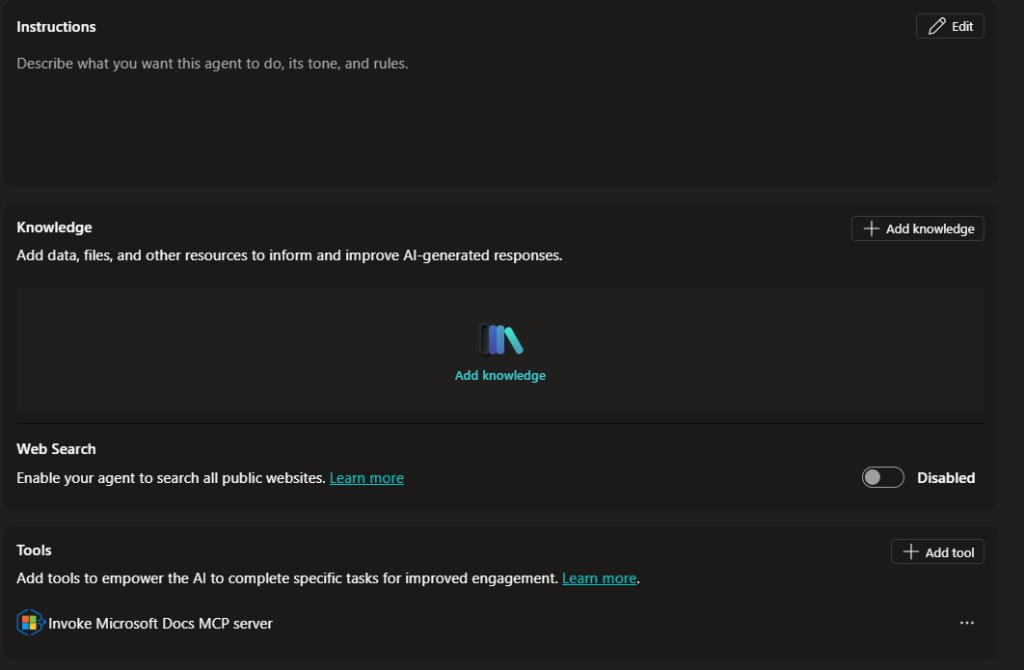
    5. For your Instructions for the agent, we don’t want to add too much. After much testing I found that in its current state the Docs MCP server handles the instructions well and having too much instructions causes the response to fail. So its better to leave instructions blank for now.
    6. Web Search – This should be Disabled. We only want the agent to query the docs which it does through the MCP server.
    7. Knowledge should be empty, the only thing we want this agent to do is query the Docs MCP server, so this should be the only Tool that the agent has access to.
    8. To recap, the only Tools and Knowledge this agent should have is the MCP Server (custom connector) that we created in the first blog post. If you need help setting this up refer to Part 1.

    Add Suggested Prompts

    When users interact with the agent in M365 chat (Copilot) we can show suggested prompts to help guide the user in what is possible with this agent. Here are a bunch of samples you can give your agent:

    TitlePrompt
    Dev Env for Power AppsSet up a developer environment for Power Apps—step-by-step.
    Rollup vs FormulaRollup fields vs Formula columns in Dataverse—when to use each?
    Flow 502 FixPower Automate flow fails with 502 Bad Gateway—how do I resolve it?
    Cert Path FinderFastest certification path for a Dynamics 365 functional consultant.
    PL-200 Module ListList every Microsoft Learn module covered by the PL-200 exam.
    Managed Env EnableTurn on managed environments and approval gates in Power Platform.
    Finance DLP PolicyBest-practice DLP setup for finance data in Power Platform.
    Power Fx Date FilterSample Power Fx to filter a gallery to today’s records.
    OpenAI Flow SampleMinimal example: call Azure OpenAI from Power Automate.
    Secure Env VarsSecure environment variables with Azure Key Vault in flows.
    Pipeline ChecklistChecklist to deploy a solution through Power Platform pipelines.
    PCF Chart ControlBuild a PCF control that renders a chart on a model-driven form.
    New PA FeaturesSummarize new Power Apps features announced this month.
    Preview ConnectorsList preview connectors added to Power Automate in the last 30 days.
    Explain to a ChildExplain Dataverse to a five-year-old.

    You can only add 6 Suggested Prompts. So choose carefully.

    Agent Settings

    Next we want to configure some settings on the agent.

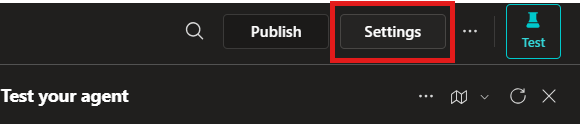
    1. Click the Settings button on the top right.

    2. (Optional) If you want the agent to have reasoning capabilities > Under Generative AI turn on: Deep reasoning
      **Note that this is a premium feature**

    3. Scroll down to Knowledge, make sure Use general knowledge and Use information from the Web are both OFF

    4. Make sure to click Save once done.

    Turn Off Pointless Topics

    Next we will turn off the topics we don’t want the agent to use.

    1. Click on Topics tab > Under Custom > Only leave Start Over topic On.

    2. Under System > Turn Off:
      – End of Conversation
      – Escalate
      – Fallback
      – Multiple Topics Matched

    3. Next, lets modify the Conversation Start to make it sound better.
      Click Conversation Start topic > Modify the Message node:

    4. Click Save.

    Now we are ready to Publish and Package for Teams!

    Publish & Package for Teams

    Next we need to Publish our agent.

    1. Click on the Channels tab > Click Publish

    2. Once your agent is published > Click on the Teams and Microsoft 365 Copilot channel.

    3. A sidebar opens > Check the Make agent available in Microsoft 365 Copilot > Click Add channel.

    4. After the channel has been added > Click Edit details.

    5. This is where we configure the agent in Teams. We will modify the icon, give a short description, long description and allow for the agent to be added to a team and meeting chats.
      Under Teams settings > Check both:
      Users can add this agent to a team
      Use this agent for group and meeting chats

    6. Click Save

    Submit Agent for Approval

    Now because we want our organization to easily find and use this agent. We will submit the agent to the Agent Store. To do this follow these steps:

    1. First Publish your agent, to make sure you have the newest version you are pushing to Teams admin for approval.
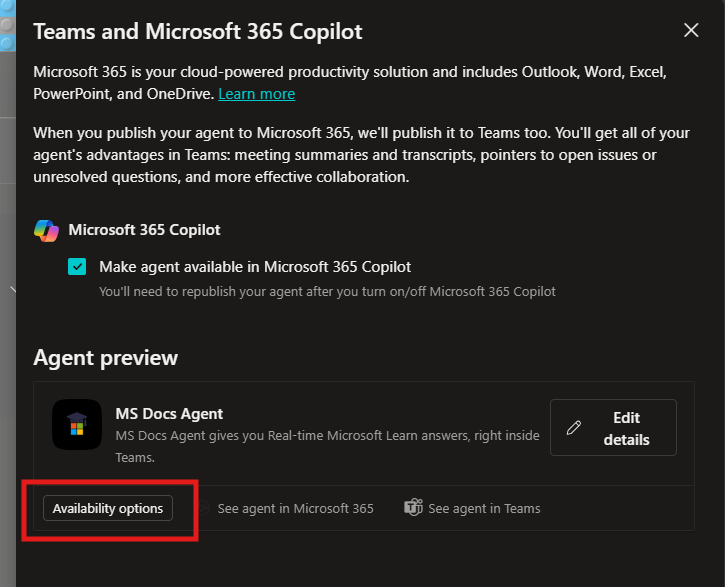
    2. Next click on the Channels tab > Select the Teams and Microsoft 365 Copilot channel.
    3. Now click Availability options.

    4. Now we will configure the Show to everyone in my org.

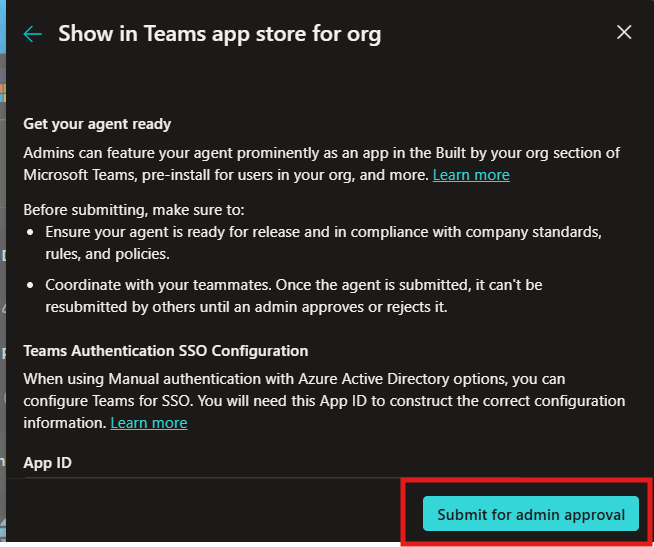
    5. Than click Submit for admin approval.

      Now we will look at what a Teams Admin has to do.

    Approve Agent App (As a Teams Admin)

    A Microsoft Teams Admin will have to approve the Agent app before your org can use it. As a Teams Admin follow these steps:

    1. Navigate to https://admin.teams.microsoft.com/policies/manage-apps
      (Click on Manage apps under Teams apps)
    2. Search for your agent name in the search bar

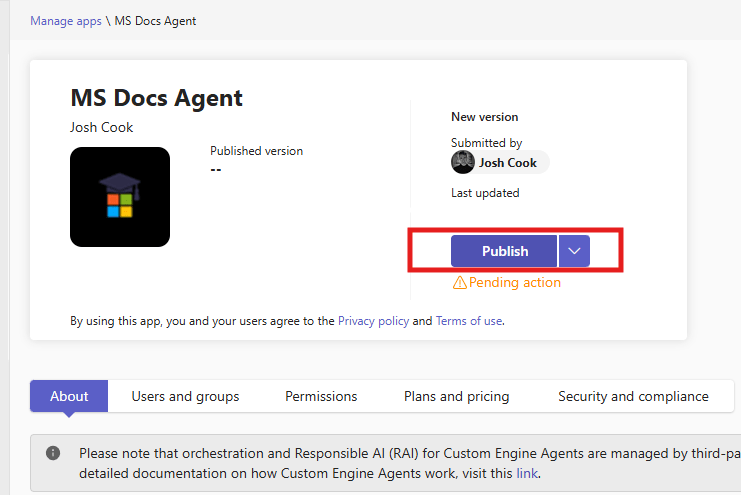
    3. Click the agent > Publish.

    4. Note:: You will need Admin Approval each time you want to publish an update to the agent.

    How to Use the Agent

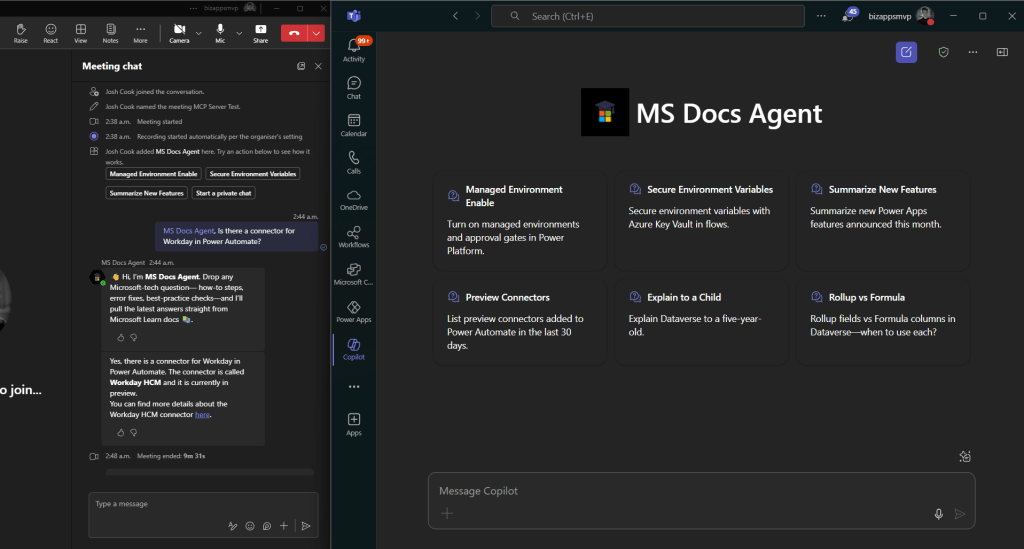
    Once your agent is approved by an Admin. You can easily find it in the Agent Store. Another easy way to get to your agent is to open it from Copilot Studio:

    1. Click Channels tab > Select Teams and Microsoft 365 Copilot channel > Click See agent in Teams.

    You will be brought to Teams with the agent open. You can now add it:

    Adding Agent to a Meeting or Chat

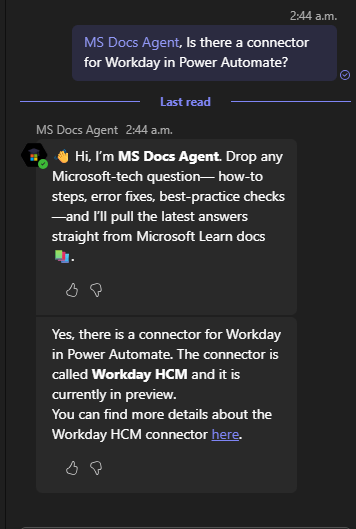
    There are a few ways to add the agent to a meeting. One easy way is to @mention the agent in the chat.

    **Note to start typing the name of the agent, and it should show up**

    Troubleshooting

    There are a few things to note that I ran into:
    1) If your getting an error on the MCP Server, remove all custom instructions

    2) Sometimes your agents details can be cached and showing old metadata. In this case you can resubmit the app approval.

    3) Always test the Agent inside Copilot Studio Test Pane with tracking topics and Activity Map turned On.

  • Add the Microsoft Learn Docs MCP Server in Copilot Studio

    Add the Microsoft Learn Docs MCP Server in Copilot Studio

    UPDATE—August 8, 2025: You no longer need to create a custom connector for the Microsoft Learn Docs MCP server. Copilot Studio now includes a native Microsoft Learn Docs MCP Server under Add tool → Model Context Protocol.
    This guide has been updated to show the first-party path. If your tenant doesn’t yet show the native tile, use the Legacy approach at the bottom.

    What changed

    • No YAML or custom connector required
    • Fewer steps, faster setup

    Model Context Protocol (MCP) is the universal “USB-C” port for AI agents. It standardizes how a model discovers tools, streams data, and fires off actions—no bespoke SDKs, no brittle scraping. Add an MCP server and your agent instantly inherits whatever resources, tools, and prompts that server exposes, auto-updating as the backend evolves.

    1. Why you should care
    2. What the Microsoft Learn Docs MCP Server delivers
    3. Prerequisites
    4. Step 1 – Add the native Microsoft Learn Docs MCP Server
    5. Step 2 – Validate
    6. Legacy approach (if the native tile isn’t available)

    Why you should care

    • Zero-integration overhead – connect in a click inside Copilot Studio or VS Code; the protocol handles tool discovery and auth.
    • Future-proof – the spec just hit GA and already ships in Microsoft, GitHub, and open-source stacks.
    • Hallucination killer – answers are grounded in authoritative servers rather than fuzzy internet guesses.

    What the Microsoft Learn Docs MCP Server delivers

    • Tools: microsoft_docs_search – fire a plain-English query and stream back markdown-ready excerpts, links, and code snippets from official docs.
    • Always current – pulls live content from Learn, so your agent cites the newest releases and preview APIs automatically.
    • First-party & fast — add it in seconds from the Model Context Protocol gallery; no OpenAPI import needed.

    Bottom line: MCP turns documentation (or any backend) into a first-class superpower for your agents—and the Learn Docs server is the showcase. Connect once, answer everything.

    Prerequisites

    • Copilot Studio environment with Generative Orchestration (might need early features on)
    • Environment-maker rights
    • Outbound HTTPS to learn.microsoft.com/api/mcp

    Step 1 – Add the native Microsoft Learn Docs MCP Server

    1. Go to Copilot Studio: https://copilotstudio.microsoft.com/
    2. Go to Tools → Add tool.
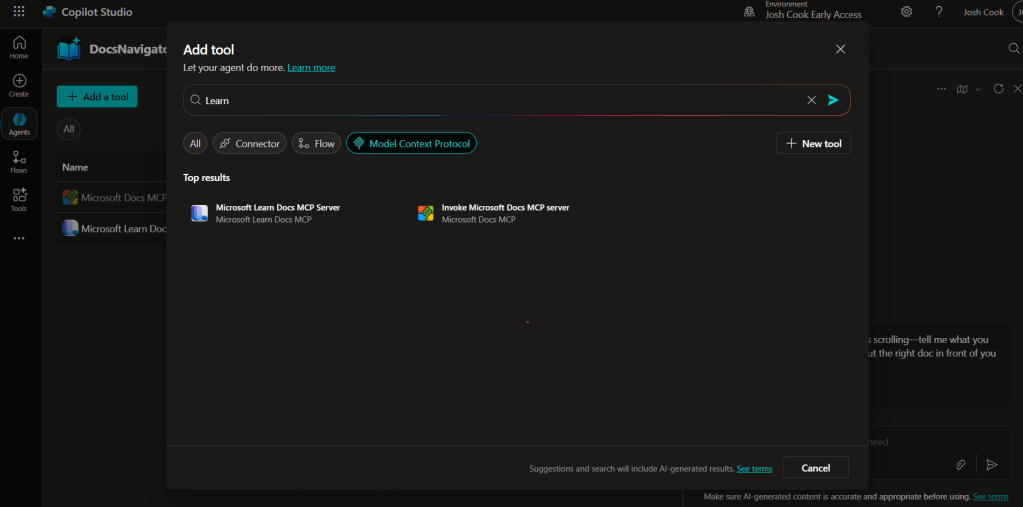
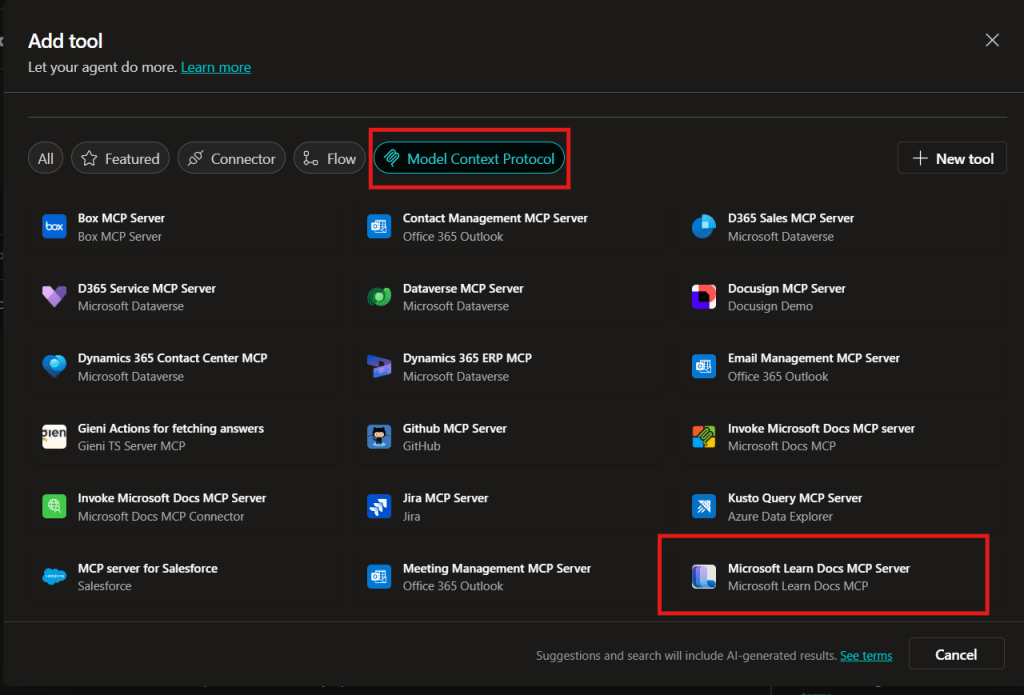
    3. Select the Model Context Protocol pill.
    4. Click Microsoft Learn Docs MCP Server.
    5. Choose the connection (usually automatic) and click Add to agent.
    6. Confirm the connection status is Connected.
    Copilot Studio Add tool panel showing Model Context Protocol category and Microsoft Learn Docs MCP Server tile highlighted.
    1. The MCP server should now show up in Tools.
    1. Click the Server to verify the tool(s) and to make sure:
      – ✅ Allow agent to decide dynamically when to use this tool
      – Ask the end user before running = No
      – Credentials to use = End user credentials

    Step 2 – Validate

    1. In the Test your agent pane. Turn on Activity map by clicking the wavy map icon:

    2. Now try a prompt like:
      What MS certs should I look at for Power Platform?
      How can I extend the Power Platform CoE Starter Kit?
      What modern controls in Power Apps are GA and which are still in preview? Format as a table

    Use-Case Ideas

    • Internal help-desk bot that cites docs.
    • Learning-path recommender (your pipeline example).
    • Governance bot that checks best-practice-links.

    Troubleshooting Cheat-Sheet

    • Note that currently the Learn Docs MCP server does NOT require authentication. This will most likely change in the future.
    • If Model Context Protocol is not shown in your Tools for Copilot Studio. You may need to create an environment with Early Features turned on.
    • Do NOT reference the MCP server in the agents instructions, you will get a tool error.
    • Check Activity tab for monitoring

    Legacy approach (if the native tile isn’t available)

    Grab the Minimal YAML

    1. Open your favorite code editor or notepad. Copy and paste this YAML to a new file.
    swagger: '2.0'
    info:
      title: Microsoft Docs MCP
      description: Streams Microsoft official documentation to AI agents via Model Context Protocol
      version: 1.0.0
    host: learn.microsoft.com
    basePath: /api
    schemes:
      - https
    paths:
      /mcp:
        post:
          summary: Invoke Microsoft Docs MCP server
          x-ms-agentic-protocol: mcp-streamable-1.0
          operationId: InvokeDocsMcp
          consumes:
            - application/json
          produces:
            - application/json
          responses:
            '200':
              description: Success
    
    1. Save the file with .yaml extension.

    Import a Custom Connector

    Next we need to create a custom connector for the MCP server to connect to. We will do this by importing our yaml file we created in Step 1.

    1. Go to make.powerapps.com > Custom connectors > + New custom connector > Import OpenAPI.

    2. Upload your yaml file eg: ms-docs‑mcp.yaml, using the Import an OpenAPI file option.

    3. General tab: Confirm Host and Base URL.
      Host: learn.microsoft.com
      Base URL: /api
    4. Security tab > No authentication (the Docs MCP server is anonymously readable today).
    5. Definition tab > verify one action named InvokeDocsMcp is present.
      Also add a description.

    6. Click Create connector. Once the connector is created, click the Test tab, and click +New Connection.

      (Note, you may see more than 1 Operation after creating the connector. Don’t worry and continue on)
    7. When you create a connection, you will be navigated away from your custom connector. Verify your Connection is in Connected Status.

      Next we will wire this up to our Agent in Copilot Studio.
  • Protected: Agent in a Day

    This content is password-protected. To view it, please enter the password below.

  • Get the difference between two dates (Updated 2025)

    Get the difference between two dates (Updated 2025)

    Many Power Automate users encounter issues with the dateDifference() function when calculating the difference between two dates. The problem arises when the output format varies depending on the duration, causing errors in extracting Days, Hours, Minutes, and Seconds.

    This blog provides a robust and easy-to-implement solution that works seamlessly in all scenarios, including durations less than a day. Learn how to use a single expression with conditional logic to avoid these common pitfalls and ensure your date calculations are accurate every time. This is your ultimate fix for handling dateDifference() errors!

    1. The Flow
      1. dateDifference expression
        1. How it works
      2. Steps to Access Each Value
    2. Download my Flow
      1. Classic designer
      2. New designer
    3. Conclusion

    The Flow

    1. Compose action: named StartDate = 2024-12-10T15:58:28
    2. Compose action: named EndDate = 2024-12-10T19:22:20
    3. Compose action: uses dateDifference() expression. see below

    Below is the expression used in the ‘Date Difference’ compose action. It dynamically handles all scenarios—when days are included and when they are not (same with hours and minutes).

    dateDifference expression

    Create a compose action for StartDate and EndDate

    if(
       contains(
         dateDifference(outputs('StartDate'), outputs('EndDate')), 
         '.'
       ),
       json(
         concat(
           '{"Days":', string(int(split(dateDifference(outputs('StartDate'), outputs('EndDate')), '.')[0])),
           ',"Hours":', string(int(split(split(dateDifference(outputs('StartDate'), outputs('EndDate')), '.')[1], ':')[0])),
           ',"Minutes":', string(int(split(split(dateDifference(outputs('StartDate'), outputs('EndDate')), '.')[1], ':')[1])),
           ',"Seconds":', string(int(split(split(dateDifference(outputs('StartDate'), outputs('EndDate')), '.')[1], ':')[2])),
           '}'
         )
       ),
       json(
         concat(
           '{"Days":0',
           ',"Hours":', string(int(split(dateDifference(outputs('StartDate'), outputs('EndDate')), ':')[0])),
           ',"Minutes":', string(int(split(dateDifference(outputs('StartDate'), outputs('EndDate')), ':')[1])),
           ',"Seconds":', string(int(split(dateDifference(outputs('StartDate'), outputs('EndDate')), ':')[2])),
           '}'
         )
       )
    )

    How it works

    • The if() function checks if the dateDifference() result contains a . (dot).
    • If it does, it means the result has a days component (e.g., 1268.04:15:30), so we parse out Days, Hours, Minutes, and Seconds accordingly.
    • If it does not, it means the result is less than a day (e.g., 12:57:47.2544602), so we treat Days as 0 and parse Hours, Minutes, and Seconds directly from the string.

    Result:

    This will produce a JSON object like:
    {
    "Days": 1268,
    "Hours": 4,
    "Minutes": 15,
    "Seconds": 30
    }

    Or
    {
    "Days": 0,
    "Hours": 12,
    "Minutes": 57,
    "Seconds": 47
    }

    Steps to Access Each Value

    If you use the fixed expression directly in a Compose action (e.g., named Date_Difference), you can reference the fields like this:

    • Days: outputs('Date_Difference')?['Days']
    • Hours: outputs('Date_Difference')?['Hours']
    • Minutes: outputs('Date_Difference')?['Minutes']
    • Seconds: outputs('Date_Difference')?['Seconds']

    Use these expressions in subsequent actions (like another Compose, a Condition, or Apply to Each) to reference the specific values.

    Download my Flow

    You can easily copy and paste actions in Power Automate. Allowing you to copy and paste my example.

    1. Classic designer
    2. New designer

    Classic designer

    Step 1: Copy the code snippet

    {"id":"b6b531e2-b7b5-4a9e-86bd-7e2a069529a0","brandColor":"#8C3900","connectionReferences":{},"connectorDisplayName":"Control","icon":"data:image/svg+xml;base64,PHN2ZyB3aWR0aD0iMzIiIGhlaWdodD0iMzIiIHZlcnNpb249IjEuMSIgdmlld0JveD0iMCAwIDMyIDMyIiB4bWxucz0iaHR0cDovL3d3dy53My5vcmcvMjAwMC9zdmciPg0KIDxwYXRoIGQ9Im0wIDBoMzJ2MzJoLTMyeiIgZmlsbD0iIzhDMzkwMCIvPg0KIDxwYXRoIGQ9Im04IDEwaDE2djEyaC0xNnptMTUgMTF2LTEwaC0xNHYxMHptLTItOHY2aC0xMHYtNnptLTEgNXYtNGgtOHY0eiIgZmlsbD0iI2ZmZiIvPg0KPC9zdmc+DQo=","isTrigger":false,"operationName":"Get_date_difference_object","operationDefinition":{"type":"Scope","actions":{"StartDate":{"type":"Compose","inputs":"2024-12-10T15:58:28","runAfter":{}},"EndDate":{"type":"Compose","inputs":"2024-12-10T19:22:20","runAfter":{"StartDate":["Succeeded"]}},"Date_Difference":{"type":"Compose","inputs":"@if(\r\n   contains(\r\n     dateDifference(outputs('StartDate'), outputs('EndDate')), \r\n     '.'\r\n   ),\r\n   json(\r\n     concat(\r\n       '{\"Days\":', string(int(split(dateDifference(outputs('StartDate'), outputs('EndDate')), '.')[0])),\r\n       ',\"Hours\":', string(int(split(split(dateDifference(outputs('StartDate'), outputs('EndDate')), '.')[1], ':')[0])),\r\n       ',\"Minutes\":', string(int(split(split(dateDifference(outputs('StartDate'), outputs('EndDate')), '.')[1], ':')[1])),\r\n       ',\"Seconds\":', string(int(split(split(dateDifference(outputs('StartDate'), outputs('EndDate')), '.')[1], ':')[2])),\r\n       '}'\r\n     )\r\n   ),\r\n   json(\r\n     concat(\r\n       '{\"Days\":0',\r\n       ',\"Hours\":', string(int(split(dateDifference(outputs('StartDate'), outputs('EndDate')), ':')[0])),\r\n       ',\"Minutes\":', string(int(split(dateDifference(outputs('StartDate'), outputs('EndDate')), ':')[1])),\r\n       ',\"Seconds\":', string(int(split(dateDifference(outputs('StartDate'), outputs('EndDate')), ':')[2])),\r\n       '}'\r\n     )\r\n   )\r\n)","runAfter":{"EndDate":["Succeeded"]},"metadata":{"operationMetadataId":"03c8d578-576a-41a3-8d63-609a15ce594b"}}},"runAfter":{"Add_to_time":["Succeeded"]}}}

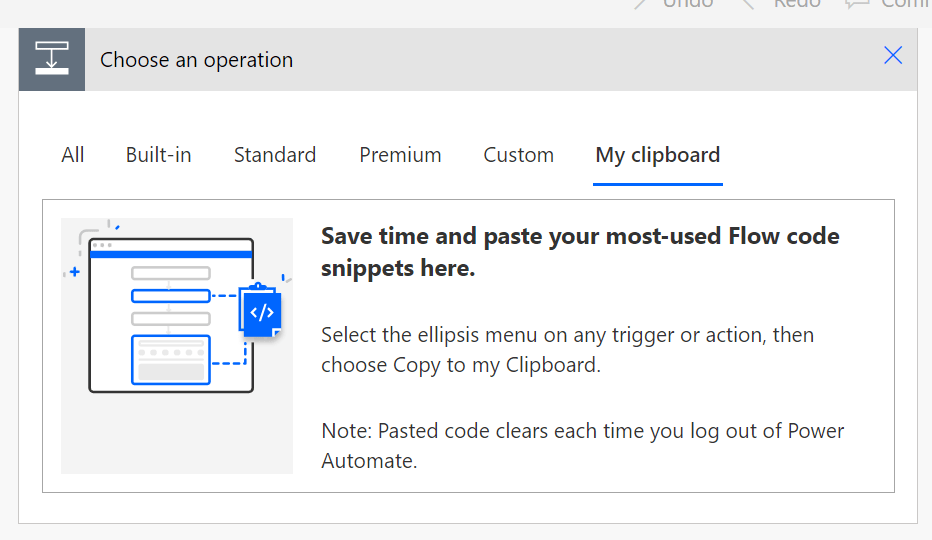
    Step 2: In Power Automate when adding a new action click My clipboard .

    Step 3: Ctrl + V


    New designer

    Step 1: Copy the code snippet

    {"nodeId":"Get_date_difference_object-copy","serializedOperation":{"type":"Scope","actions":{"StartDate":{"type":"Compose","inputs":"2024-12-10T15:58:28"},"EndDate":{"type":"Compose","inputs":"2024-12-10T19:22:20","runAfter":{"StartDate":["Succeeded"]}},"Date_Difference":{"type":"Compose","inputs":"@if(\r\n   contains(\r\n     dateDifference(outputs('StartDate'), outputs('EndDate')), \r\n     '.'\r\n   ),\r\n   json(\r\n     concat(\r\n       '{\"Days\":', string(int(split(dateDifference(outputs('StartDate'), outputs('EndDate')), '.')[0])),\r\n       ',\"Hours\":', string(int(split(split(dateDifference(outputs('StartDate'), outputs('EndDate')), '.')[1], ':')[0])),\r\n       ',\"Minutes\":', string(int(split(split(dateDifference(outputs('StartDate'), outputs('EndDate')), '.')[1], ':')[1])),\r\n       ',\"Seconds\":', string(int(split(split(dateDifference(outputs('StartDate'), outputs('EndDate')), '.')[1], ':')[2])),\r\n       '}'\r\n     )\r\n   ),\r\n   json(\r\n     concat(\r\n       '{\"Days\":0',\r\n       ',\"Hours\":', string(int(split(dateDifference(outputs('StartDate'), outputs('EndDate')), ':')[0])),\r\n       ',\"Minutes\":', string(int(split(dateDifference(outputs('StartDate'), outputs('EndDate')), ':')[1])),\r\n       ',\"Seconds\":', string(int(split(dateDifference(outputs('StartDate'), outputs('EndDate')), ':')[2])),\r\n       '}'\r\n     )\r\n   )\r\n)","runAfter":{"EndDate":["Succeeded"]},"metadata":{"operationMetadataId":"03c8d578-576a-41a3-8d63-609a15ce594b"}}},"runAfter":{"Add_to_time":["Succeeded"]}},"allConnectionData":{},"staticResults":{},"isScopeNode":true,"mslaNode":true}

    Step 2: In Power Automate click the + to add an action. Click Paste an action

    Conclusion

    That’s it! pretty easy right? if you encounter any issues, comment below!

  • Creating Navigation Buttons for Different Views in Model-Driven Apps

    Creating Navigation Buttons for Different Views in Model-Driven Apps

    When building model-driven apps, one common frustration is the limitation of adding a single table with only a default view. For example, if you have a Contacts table with a Choice field, and you’ve created a view for each choice, users have to select Contacts first, then navigate to the desired view manually.

    But what if you could streamline this process by adding separate navigation buttons for each view directly in the app’s left-hand navigation bar? This blog post will walk you through how to achieve that using URL-based navigation—no extra coding required.

    1. The Scenario
    2. Setup
      1. Step 1: Create views
      2. Step 2: Get the entitylist ID and view ID
      3. Step 3: Edit model-driven app to add URL

    The Scenario

    This is a small example, but the functionality I am about to show you is very powerful, and can help streamline UX.

    Imagine you have:

    • A Contacts table in Dataverse.
    • A Choice field in the Contacts table called Contact Type with options like Client, Vendor, and Partner.
    • Custom views for each Contact Type, such as Client Contacts, Vendor Contacts, and Partner Contacts.

    By default, when adding the Contacts table to your app, only one button appears on the navigation bar, leading to the default view. Users must manually switch to the other views. This approach isn’t user-friendly for frequent switching between views. Especially when some users only care about certain contact types.

    Setup

    Step 1: Create views

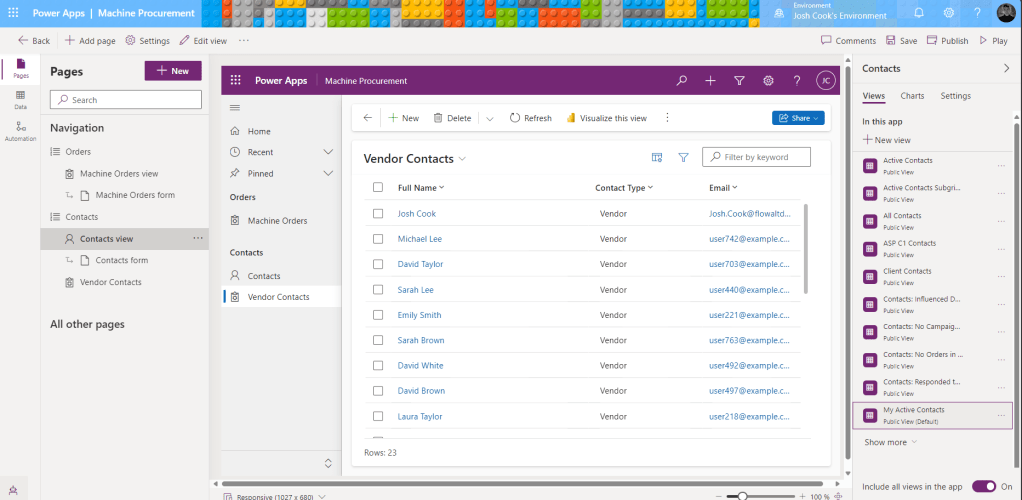
    First you will want to create a view for each button on the navigation. In my case I created a view for Vendor Contacts, and Client Contacts. Each view I added a simple filter to show only that Contact Type

    Example:


    Step 2: Get the entitylist ID and view ID

    Play your model driven app, select the Table and choose the view.
    Now look at the URL, and copy everything after entitylist&etn=

    So in my example the Vendor Contacts view URL is:
    contact&viewid=ee7b9134-7cb2-ef11-a72f-000d3af40ac9&viewType=1039

    Next add this to the beginning of the URL you just copied:
    /main.aspx?pagetype=entitylist&etn=

    So my final URL will be:
    /main.aspx?pagetype=entitylist&etn=contact&viewid=ee7b9134-7cb2-ef11-a72f-000d3af40ac9&viewType=1039

    This will be the URL we use as our navigation link.


    Step 3: Edit model-driven app to add URL

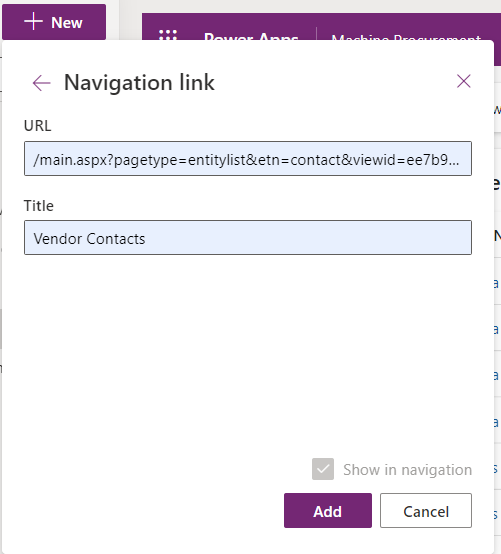
    Edit your model driven app, click +New, and select Navigation link

    Add the URL we built in Step 2, and give it a name, click Add

    NOTE: If you get an error, it means your URL is wrong. Follow Step 2.

    By leveraging this simple yet effective approach, you can elevate the user experience in your model-driven apps, making navigation more intuitive and streamlined for your team.

    Special thanks to Kevin Nguyen for showing me how to do this.

    Let me know how this works for your app or if you have other creative solutions to share!

  • Get the difference between two dates EASY

    Get the difference between two dates EASY

    We have all been there, we need to check the difference between 2 dates, and if you ever had to implement this you would need to use some crazy mathematical equations using the ticks() expression. But now..

    I’m not sure when this expression got added, but we can now use dateDifference() expression instead of using ticks().

    The dateDifference() expression is a powerful tool in Power Automate and Logic Apps for calculating the difference between two dates.

    Allowing to easily determine the number of days, months, or years between two dates, which can be useful in a variety of scenarios.

    1. Syntax and Parameters
    2. How to Use
    3. Extracting the Result
      1. Extracting Days
      2. Extracting Hours
      3. Extracting Minutes
      4. Extracting Seconds
    4. Things to Know
    5. Links

    Syntax and Parameters

    The syntax is easy with only 2 parameters:

    dateDifference('<startDate>', '<endDate>')

    How to Use

    Below is a simple example of how to use this expression:

    dateDifference('2015-02-08T10:30:00', '2018-07-30T14:45:30')

    This returns

    "1268.04:15:30"

    The result is in the format of:
    Days.Hours:Minutes:Seconds

    Note:: If the dates passed in have no time interval, the result shows zeros for the hours, minutes, and seconds. We can extract the different parts of the return by using some expressions inside a Compose action, which we will do next.

    Extracting the Result

    If you need to extract certain parts of the result into the hours, minutes, or even seconds, you can use the split() expression.
    Below you will find the explanation on the extraction, as well as the exact expressions to use.

    • The split() function splits the output of dateDifference() at the period (‘.’) into an array with two elements: days and the rest (hours:minutes:seconds).
    • The [0] indexer retrieves the first element of the array, which represents the number of days.
    • The int() function converts the days from a string to an integer.
    • Replace the date time values with your dates/time

    Extracting Days

    To extract the days from the result we can use

    int(split(dateDifference('2015-02-08T10:30:00', '2018-07-30T14:45:30'), '.')[0])

    This returns:

    1268

    Extracting Hours

    To extract the hours interval from the result we can use

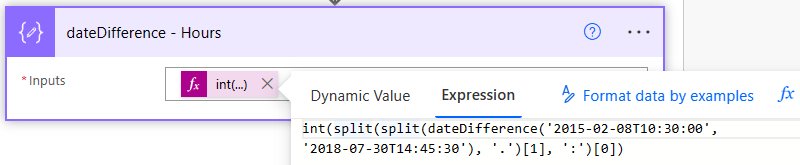
    int(split(split(dateDifference('2015-02-08T10:30:00', '2018-07-30T14:45:30'), '.')[1], ':')[0])
    

    This returns:

    4

    Extracting Minutes

    To extract the minutes interval from the result we can use

    int(split(split(dateDifference('2015-02-08T10:30:00', '2018-07-30T14:45:30'), '.')[1], ':')[1])

    This returns:

    15

    Extracting Seconds

    To extract the seconds interval from the result we can use

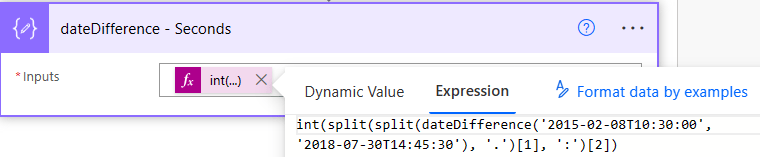
    int(split(split(dateDifference('2015-02-08T10:30:00', '2018-07-30T14:45:30'), '.')[1], ':')[2])
    

    This returns:

    30

    Things to Know

    There are a few things to be aware of:

    • Be aware of time zones, Power Automate uses UTC as a baseline for all time formats.
    • If pulling dates from SharePoint be aware of what time zone your site is in.
    • You can convert the time zones by using expressions or by using actions. Read more about converting time zones here.

    date Difference – Reference guide for expression functions – Azure Logic Apps | Microsoft Learn

  • Dataverse Record Level Security

    Dataverse Record Level Security

    The scenario here is to enable row level security within the concepts of Dataverse inside a Model-Driven App. Important to note, this can be applied to Canvas or Model-driven apps.

    For example:
    I have a Sale Commission table which is connected to a Model-Driven App. One of the columns is a choice called Store.

    The concept is; we only want users to see records from their own respective stores. This concept seems straight forward and easy.. After some digging and reading documentation and asking some friends in understanding this model. I found a way to do this. So here it is!

    Video Tutorial

    Prerequisites

    The feature that will help us in this concept is called Matrix data access structure (Modernized Business Units). Click the link to read more into it. But I will articulate what we need to do.

    Enable record ownership across business units (preview)

    First we need to enable this feature on an environment. Follow the steps below to enable this feature.

    1. Sign in to the Power Platform admin center, as an admin (Dynamics 365 admin, Global admin, or Microsoft Power Platform admin).
    2. Select the Environments tab, and then choose the environment that you want to enable this feature for.
    3. Select Settings > Product > Features.
    4. Turn On the Record ownership across business units toggle.
    5. Click Save.
    Record ownership across business units (Preview)

    Setup steps

    This guide is assuming you have your Dataverse tables built.
    We need to setup a few things to get this functionality to work:

    1. Create Business Units
    2. Create security role
    3. Assign security role
    4. Create Business rule

    Create Business Units

    We are creating a Business unit for each “Store” in this example.
    Creating business units in the Power Platform Admin center:

    1. In the Admin center, select your environment.
    2. Select the Settings cog in the top.
    3. Under Users + permissions.
    4. Select Business units.
    Showing step 4. Clicking Business units
    1. Click New, and create as many business units as you need.
    2. In this example, I am creating 3. One for each store.
    Showing all business units that have been created

    Create security role

    We want to create a security role. This is a role to give access to the custom tables we have for Dataverse, as well as privileges for Business unit. This will allow users to append different Business units to new records.

    While still in the Admin center;

    1. Click See all under Security roles.
    Admin center showing the security role option
    1. Click, New role or edit an existing role.
    2. When editing the role click the Custom Entities tab.
    3. Find your table that users will be interacting with. In this example, its Sale Commission table.
    4. Set this table to:
      Read = Business unit
      Create = Parent child business unit
    Showing the Sale commission permission
    1. Next, click the Business Management tab.
    2. Set the Business Unit table to:
      Read = Parent child business unit
      Write = Parent child business unit
      Append To = Parent child business unit
    Showing the Business Unit permissions
    1. Click Save and Close.

    Assign security role

    Now we need to assign the security role to users based on the Business unit. To do that follow the steps:

    While in the Admin center;

    1. Click See all under Users.
    2. Select a user to assign the Business unit role to.
    3. Click Manage roles.

    Notice that we can change the Business unit the Security role can be assigned under.

    Showing the new option to select Security roles under each Business unit

    In this example, I am assigning the role under each Business unit to give permissions.

    1. Select the Business unit and assign the role.
    UserRoles assigned + Business unit
    AdeleSales Contributor in MainStore-BU
    AlexSales Contributor in NorthStore-BU
    Sales Contributor in DowntownStore-BU
    Showing a table of permissions

    Based on the table above.

    • Adele can see all records part of the Main store
    • Alex can see all records in North Store and Downtown Stores
    1. Click Save.

    Create Business rule

    Now that the feature has been enabled and configured, we still need to change the Owning Business Unit field based on the selected store. There are many ways to do this, but for this example, I will be using a Business rule.

    To configure a Business rule;

    1. Navigate to your solution, or where the table (Sale Commission) is in Power Apps.
    2. Select the table, and click Forms.
    3. Select the form that users will be using when creating records.
    4. Once the form is opened, add the Owning Business Unit field, and select it
    5. Once selected, click Business rules on the right pane.
    6. Click New business rule.
    7. Give the rule a meaningful name.
    8. In the default condition, in the properties tab mine looks like this:
    Business rule condition 1

    For the rule, I am going to add a Condition to the “is false” and continue to do this for each Business unit / Store I want to check.
    Here is what mine looks like after adding all the conditions:

    All conditions added to Rule

    Next we need to Set the values of the business unit based on the store.

    1. In the components tab, add a Set Field Value action to all the “Is true” paths.
    2. With the Set Field Value selected, click on the Properties tab.
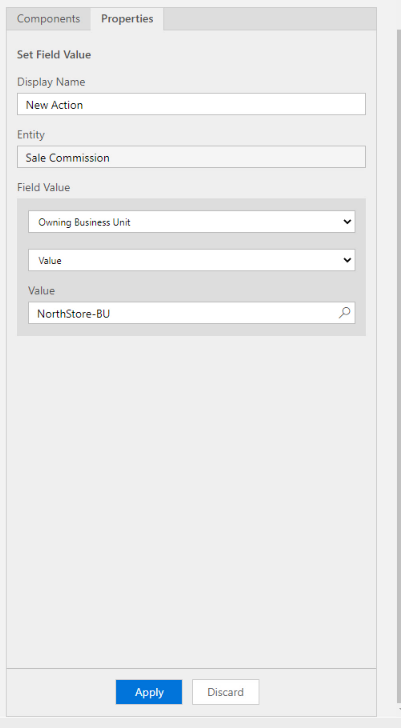
    3. Select Owning Business Unit for Field and the right Value. Example for the NorthStore:
    Set Field Value properties for North Store
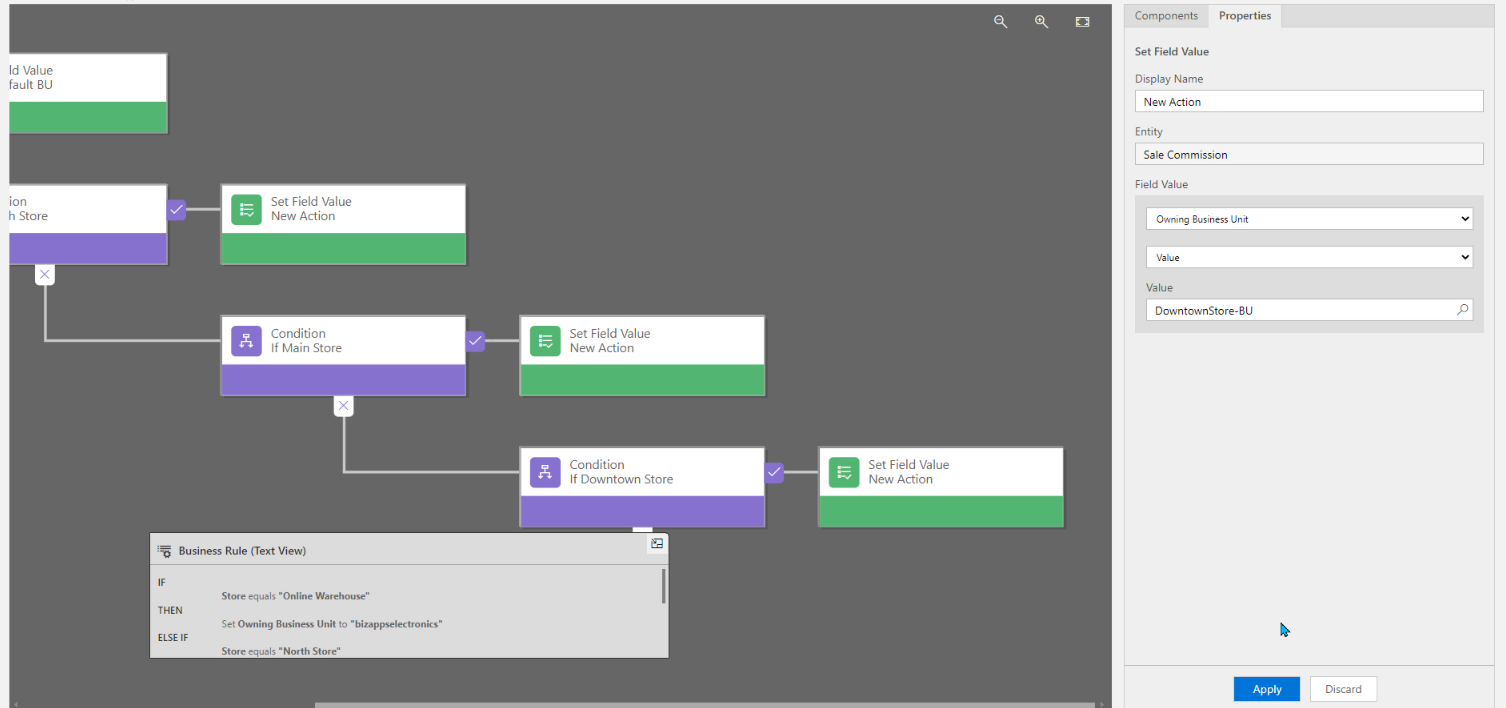
    1. Do this for all the Conditions. Mine looks like this:
    Completed Business Rule
    1. After you’re done, click Validate.
    2. If validation is good, click Save.
    3. After saved, click Activate.

    That’s it. Done!!
    Now when a user selects the Store, it will automatically change the Owning Business Unit.

    Form view of Owning Business Unit changing based on Store selected.