
Summary
Power Automate’s Convert time zone action can convert a timestamp and format the result in one step. Check the timestamp’s source time zone before choosing the action’s inputs: different connectors and services can return different formats or time zones. This example starts with the Current time action in UTC. See Microsoft’s time-zone conversion guidance for the action and expression options.
The Flow
In this example, we will want to get the current time (this will be in UTC since we will be using Power Automate) and converting the time to local time with a specific format.
First we want to get the current time, we can use the expression utcNow() but I will be showing how to use the Date Time actions instead.
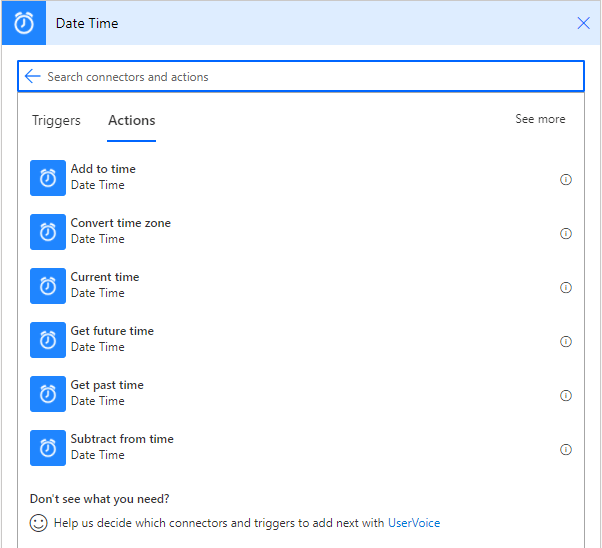
The actions are under Date Time:
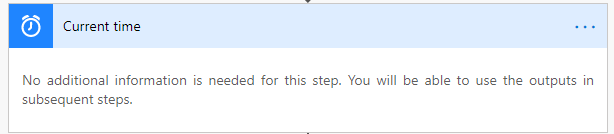
Add a Current time action, this action is the same as using utcNow() expression
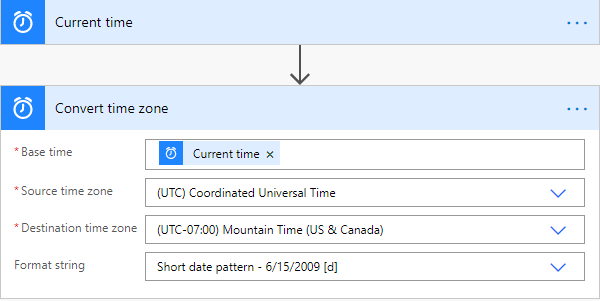
Next add Convert time zone action, this action is very useful as it has pre loaded time zones and formats to choose from.
The inputs for this action are:
Base time: Use the output from the Current time action
Source time zone: Make sure to select Coordinated Universal Time
Destination time zone: Select your local time zone or the time zone you want
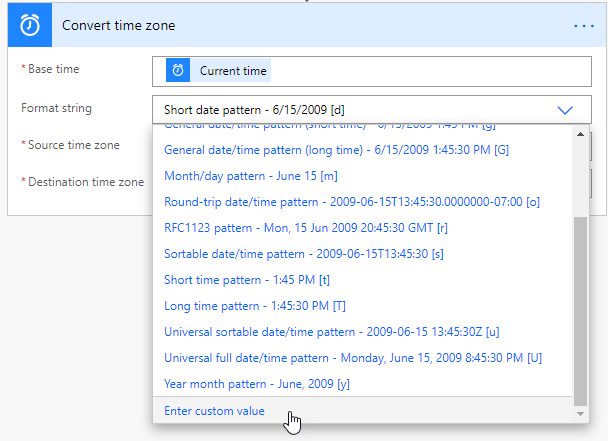
Format string: This dropdown has many ISO formats to choose from. If you want to have a custom format, simply click the drop down and select Enter custom value. See below for examples
Format Examples
If the output format you want is not in the dropdown, choose Enter custom value and use a supported date/time format string. The output pattern is separate from the input timestamp; a custom display format does not have to look like an ISO 8601 timestamp. See Microsoft’s standard and custom date/time formatting guidance.
Some tips when creating a format for the date ‘2020-10-13‘ (October 13 2020)
yy = 20
yyyy = 2020
MM = 10
MMM = Oct
MMMM = October
dd = 13
ddd = Tue
dddd = Tuesday
Examples:
yyyy-MMM-ddd = 2020-Oct-Tue
yy/MMMM/dddd = 20/October/Tuesday
dddd, MMMM, yyyy = Tuesday, October, 2020
MMMM dd, yyyy = October 13, 2020
yyyy-MM-dd = 2020-10-13 (used for comparing dates)
To add time to your format use the following in your format:
(It is best practice to add the letter ‘T’ before using time formats)
h = hours (12 hour time)
hh = hours (12 hour time)
HH = hours (24 hour time)
mm = minutes
ss = seconds
tt = Appends either AM or PM to time
Some examples are:
MMMM dd, yyyyThh:mm = October 13, 2020T12:51
MMMM/dd/yyyyTHH:mm:ss = October/13/2020T13:02:41
hh:mm:ss tt = 01:06:41 PM
h:mm:ss tt = 12:06:41 PM
Need the elapsed time between two timestamps? Continue with Power Automate dateDifference and its returned time span. Check the input time zones before comparing the values.
Conclusion
Knowing these formats and the what each letter code does, the possibilities are endless. You can create any type of custom date time format easily.
As always if you have any questions, don’t hesitate to reach out.
Thank you for reading!


Leave a Reply