
Many Power Automate users encounter issues with the dateDifference() function when calculating the difference between two dates. The problem arises when the output format varies depending on the duration, causing errors in extracting Days, Hours, Minutes, and Seconds.
This example builds a Days, Hours, Minutes, and Seconds object from a dateDifference() result. If you need the basics first, see dateDifference syntax and its time-span result. Check the input assumptions below before reusing the expression.
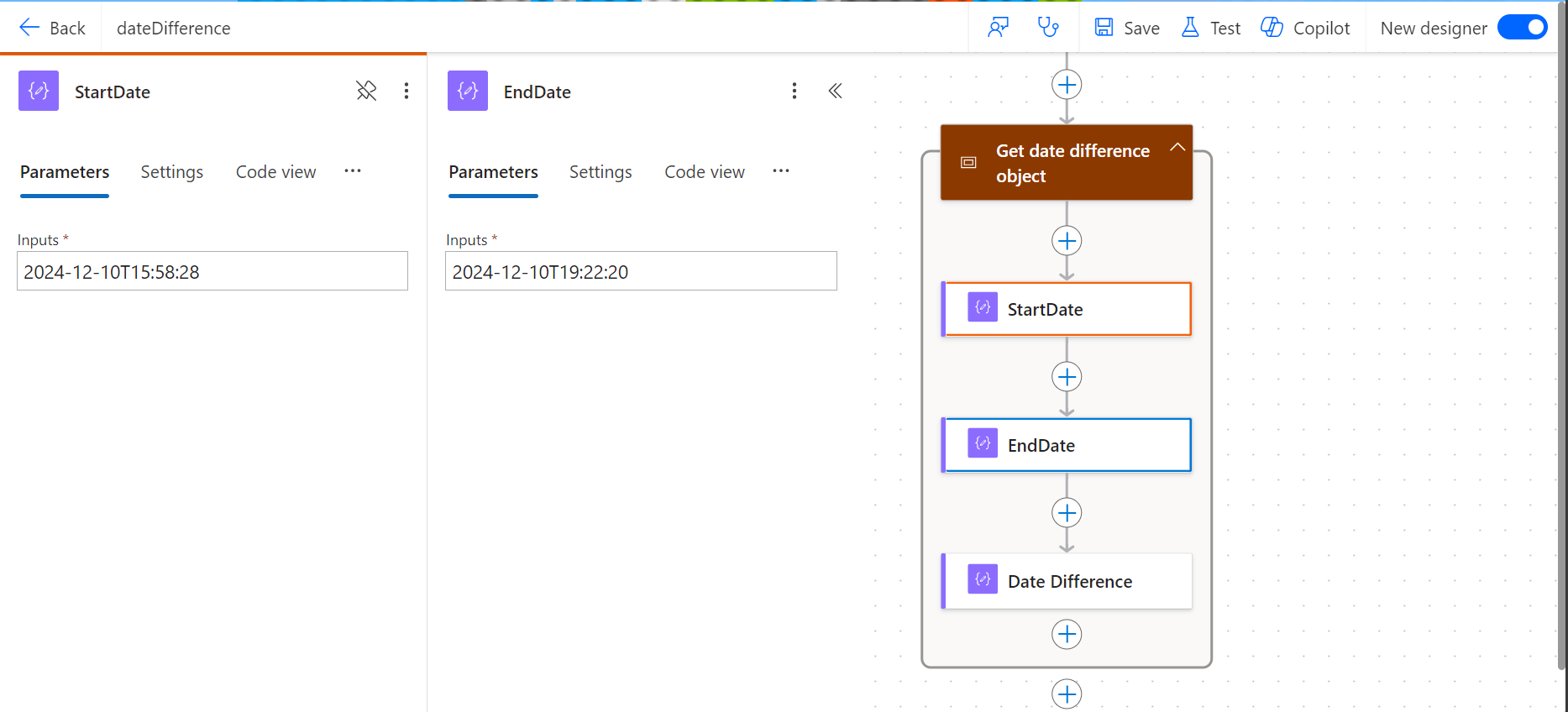
The Flow
- Compose action: named StartDate =
2024-12-10T15:58:28 - Compose action: named EndDate =
2024-12-10T19:22:20 - Compose action: uses dateDifference() expression. see below
Below is the expression used in the Date Difference Compose action. It distinguishes formats by checking for a period, so do not treat it as a parser for every possible result. Fractional-second and negative-duration inputs need separate validation before this example is used for them.
Use dates with an understood time zone and decide how your workflow should handle an end time earlier than its start time. Microsoft’s function reference documents a negative result in that case. This timezone walkthrough explains the related conversion task.
dateDifference expression
Create a compose action for StartDate and EndDate
if( contains( dateDifference(outputs('StartDate'), outputs('EndDate')), '.' ), json( concat( '{"Days":', string(int(split(dateDifference(outputs('StartDate'), outputs('EndDate')), '.')[0])), ',"Hours":', string(int(split(split(dateDifference(outputs('StartDate'), outputs('EndDate')), '.')[1], ':')[0])), ',"Minutes":', string(int(split(split(dateDifference(outputs('StartDate'), outputs('EndDate')), '.')[1], ':')[1])), ',"Seconds":', string(int(split(split(dateDifference(outputs('StartDate'), outputs('EndDate')), '.')[1], ':')[2])), '}' ) ), json( concat( '{"Days":0', ',"Hours":', string(int(split(dateDifference(outputs('StartDate'), outputs('EndDate')), ':')[0])), ',"Minutes":', string(int(split(dateDifference(outputs('StartDate'), outputs('EndDate')), ':')[1])), ',"Seconds":', string(int(split(dateDifference(outputs('StartDate'), outputs('EndDate')), ':')[2])), '}' ) ))
How it works
- The
if()function checks if thedateDifference()result contains a.(dot). - If it does, it means the result has a days component (e.g.,
1268.04:15:30), so we parse out Days, Hours, Minutes, and Seconds accordingly. - The no-period branch is intended for a result such as 12:57:47. A result containing fractional seconds, such as
12:57:47.2544602, does contain a period and will enter the other branch. The current example must not be described as handling that input correctly without further changes and testing.
Result:
This will produce a JSON object like:{
"Days": 1268,
"Hours": 4,
"Minutes": 15,
"Seconds": 30
}
Or{
"Days": 0,
"Hours": 12,
"Minutes": 57,
"Seconds": 47
}
Steps to Access Each Value
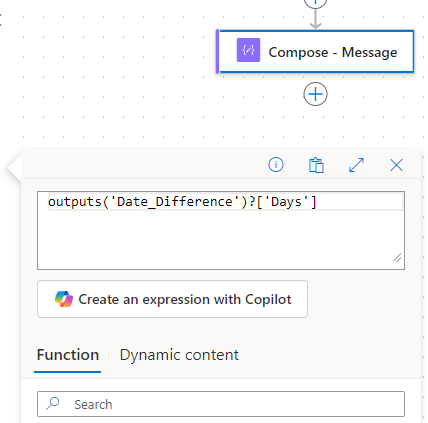
If you use the fixed expression directly in a Compose action (e.g., named Date_Difference), you can reference the fields like this:
- Days:
outputs('Date_Difference')?['Days'] - Hours:
outputs('Date_Difference')?['Hours'] - Minutes:
outputs('Date_Difference')?['Minutes'] - Seconds:
outputs('Date_Difference')?['Seconds']
Use these expressions in subsequent actions (like another Compose, a Condition, or Apply to Each) to reference the specific values.
Download my Flow
You can easily copy and paste actions in Power Automate. Allowing you to copy and paste my example.
Classic designer
Step 1: Copy the code snippet
{"id":"b6b531e2-b7b5-4a9e-86bd-7e2a069529a0","brandColor":"#8C3900","connectionReferences":{},"connectorDisplayName":"Control","icon":"data:image/svg+xml;base64,PHN2ZyB3aWR0aD0iMzIiIGhlaWdodD0iMzIiIHZlcnNpb249IjEuMSIgdmlld0JveD0iMCAwIDMyIDMyIiB4bWxucz0iaHR0cDovL3d3dy53My5vcmcvMjAwMC9zdmciPg0KIDxwYXRoIGQ9Im0wIDBoMzJ2MzJoLTMyeiIgZmlsbD0iIzhDMzkwMCIvPg0KIDxwYXRoIGQ9Im04IDEwaDE2djEyaC0xNnptMTUgMTF2LTEwaC0xNHYxMHptLTItOHY2aC0xMHYtNnptLTEgNXYtNGgtOHY0eiIgZmlsbD0iI2ZmZiIvPg0KPC9zdmc+DQo=","isTrigger":false,"operationName":"Get_date_difference_object","operationDefinition":{"type":"Scope","actions":{"StartDate":{"type":"Compose","inputs":"2024-12-10T15:58:28","runAfter":{}},"EndDate":{"type":"Compose","inputs":"2024-12-10T19:22:20","runAfter":{"StartDate":["Succeeded"]}},"Date_Difference":{"type":"Compose","inputs":"@if(\r\n contains(\r\n dateDifference(outputs('StartDate'), outputs('EndDate')), \r\n '.'\r\n ),\r\n json(\r\n concat(\r\n '{\"Days\":', string(int(split(dateDifference(outputs('StartDate'), outputs('EndDate')), '.')[0])),\r\n ',\"Hours\":', string(int(split(split(dateDifference(outputs('StartDate'), outputs('EndDate')), '.')[1], ':')[0])),\r\n ',\"Minutes\":', string(int(split(split(dateDifference(outputs('StartDate'), outputs('EndDate')), '.')[1], ':')[1])),\r\n ',\"Seconds\":', string(int(split(split(dateDifference(outputs('StartDate'), outputs('EndDate')), '.')[1], ':')[2])),\r\n '}'\r\n )\r\n ),\r\n json(\r\n concat(\r\n '{\"Days\":0',\r\n ',\"Hours\":', string(int(split(dateDifference(outputs('StartDate'), outputs('EndDate')), ':')[0])),\r\n ',\"Minutes\":', string(int(split(dateDifference(outputs('StartDate'), outputs('EndDate')), ':')[1])),\r\n ',\"Seconds\":', string(int(split(dateDifference(outputs('StartDate'), outputs('EndDate')), ':')[2])),\r\n '}'\r\n )\r\n )\r\n)","runAfter":{"EndDate":["Succeeded"]},"metadata":{"operationMetadataId":"03c8d578-576a-41a3-8d63-609a15ce594b"}}},"runAfter":{"Add_to_time":["Succeeded"]}}}
Step 2: In Power Automate when adding a new action click My clipboard .

Step 3: Ctrl + V

New designer
Step 1: Copy the code snippet
{"nodeId":"Get_date_difference_object-copy","serializedOperation":{"type":"Scope","actions":{"StartDate":{"type":"Compose","inputs":"2024-12-10T15:58:28"},"EndDate":{"type":"Compose","inputs":"2024-12-10T19:22:20","runAfter":{"StartDate":["Succeeded"]}},"Date_Difference":{"type":"Compose","inputs":"@if(\r\n contains(\r\n dateDifference(outputs('StartDate'), outputs('EndDate')), \r\n '.'\r\n ),\r\n json(\r\n concat(\r\n '{\"Days\":', string(int(split(dateDifference(outputs('StartDate'), outputs('EndDate')), '.')[0])),\r\n ',\"Hours\":', string(int(split(split(dateDifference(outputs('StartDate'), outputs('EndDate')), '.')[1], ':')[0])),\r\n ',\"Minutes\":', string(int(split(split(dateDifference(outputs('StartDate'), outputs('EndDate')), '.')[1], ':')[1])),\r\n ',\"Seconds\":', string(int(split(split(dateDifference(outputs('StartDate'), outputs('EndDate')), '.')[1], ':')[2])),\r\n '}'\r\n )\r\n ),\r\n json(\r\n concat(\r\n '{\"Days\":0',\r\n ',\"Hours\":', string(int(split(dateDifference(outputs('StartDate'), outputs('EndDate')), ':')[0])),\r\n ',\"Minutes\":', string(int(split(dateDifference(outputs('StartDate'), outputs('EndDate')), ':')[1])),\r\n ',\"Seconds\":', string(int(split(dateDifference(outputs('StartDate'), outputs('EndDate')), ':')[2])),\r\n '}'\r\n )\r\n )\r\n)","runAfter":{"EndDate":["Succeeded"]},"metadata":{"operationMetadataId":"03c8d578-576a-41a3-8d63-609a15ce594b"}}},"runAfter":{"Add_to_time":["Succeeded"]}},"allConnectionData":{},"staticResults":{},"isScopeNode":true,"mslaNode":true}
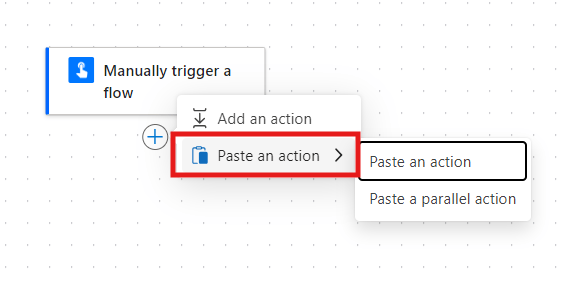
Step 2: In Power Automate click the + to add an action. Click Paste an action
Conclusion
That’s it! pretty easy right? if you encounter any issues, comment below!

Leave a Reply