Tag: Cost Management

  • Copilot Cowork Billing Setup: Turn On GA Without Opening the Credit Floodgates

    Copilot Cowork Billing Setup: Turn On GA Without Opening the Credit Floodgates

    Copilot Cowork is generally available.

    That is the headline.

    But before you run into the tenant, turn everything on, and let users start throwing goals and long-running tasks at it, you need to understand the billing side.

    Copilot Cowork runs on Copilot Credits. That means the admin work is not just, “Can the user access it?” It is also, “Who can spend credits, how much can they spend, which billing method gets charged, and who gets warned before usage goes sideways?”

    Turning Copilot Cowork on is easy. Turning it on responsibly is where the real admin work starts.

    In this walkthrough, I am setting up Copilot Cowork billing from the Microsoft 365 admin center and showing the choices I would pay attention to before giving users access.

    What changed with Copilot Cowork GA

    Microsoft announced Copilot Cowork general availability on June 16, 2026. Cowork requires a Microsoft 365 Copilot user subscription license, and Cowork usage is billed separately on a usage basis using Copilot Credits.

    That matters because Copilot Cowork is not just another chat surface. It is designed for complex, long-running, multi-tool work. It can retrieve context, call tools, use models, create artifacts, and keep working through a task. All of that value has a meter behind it.

    Microsoft’s current Cost Management experience for usage-based billing applies to Copilot Cowork and Work IQ API right now, with more agents and services expected to come into that experience over time.

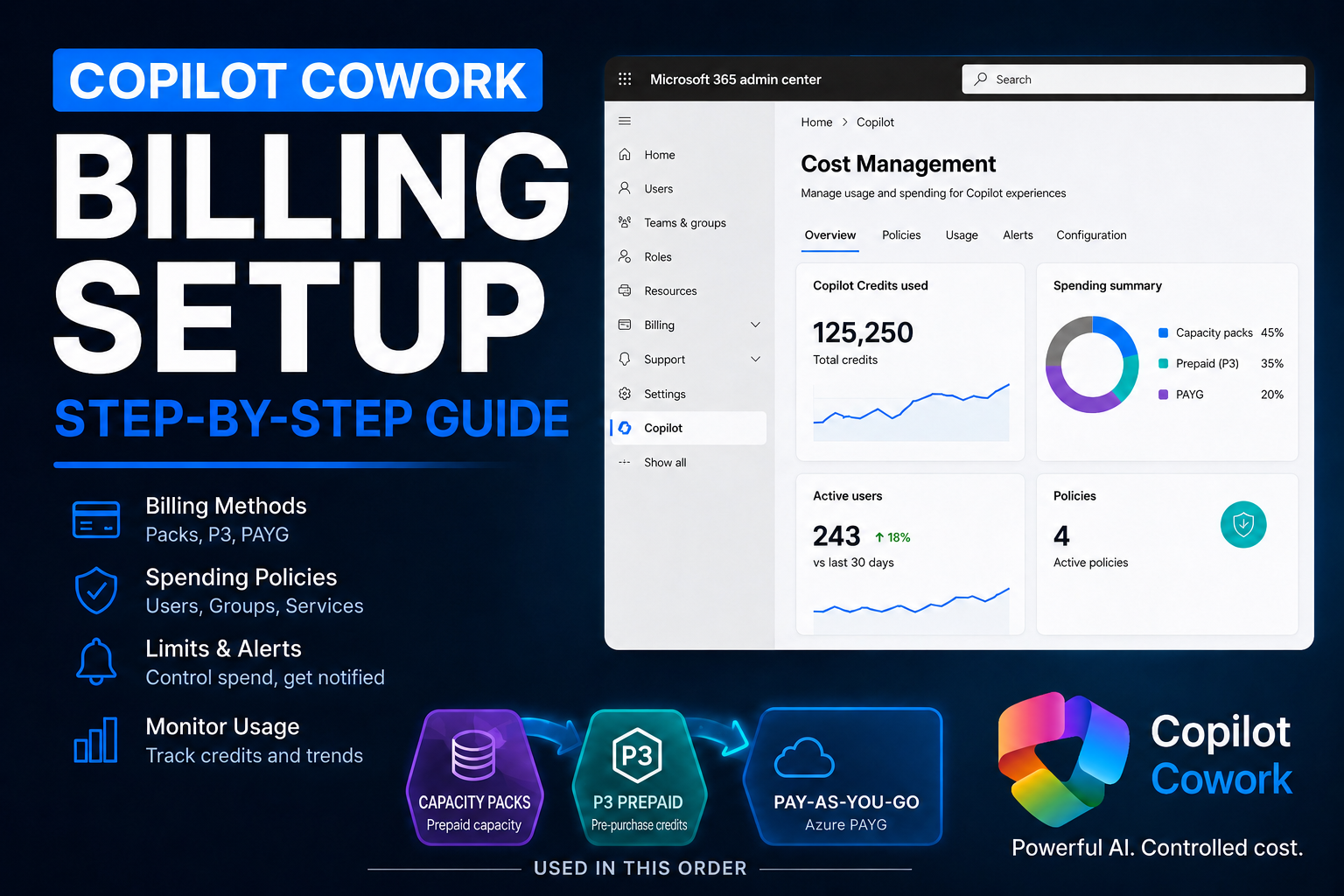
    Microsoft 365 admin center Cost management page showing Copilot Cowork and Work IQ API usage-based billing
    Cost Management in the Microsoft 365 admin center is where Copilot Cowork and Work IQ API usage-based billing is configured.

    Start with the right mental model

    Access and consumption are two different things.

    Access lets a user get into the experience. Consumption happens when the experience starts doing work. If Cowork runs a goal, uses a model, retrieves context, calls tools, or performs longer-running work, that activity can consume Copilot Credits.

    That is why billing policies matter. Without them, you are basically handing out an AI gas card and hoping the bill looks reasonable at the end of the month.

    That is not a strategy.

    The better approach is billing plus governance. Set the billing method, define the spending policy, decide who is in scope, add limits, configure alerts, and then expand once you understand real usage.

    Check your admin roles before you start

    If you do not see the option in the admin center, check your role first.

    Billing setup and policy governance may not be handled by the same person in a real organization. Your Microsoft 365 admin, AI admin, Power Platform admin, billing admin, and finance owner might all be different people.

    That matters because the person configuring the billing method needs the right permissions, and the person managing policy limits and alerts also needs the right permissions. Do not discover that halfway through the rollout call. Get the right people in the room before you begin.

    Choose the billing method intentionally

    In the setup flow, you may see more than one billing method. In my tenant example, I had Capacity Packs available and also had the option to use a pay-as-you-go subscription.

    Capacity Packs let you bill against prepaid Copilot Credit capacity. Pay-as-you-go can keep services running once capacity pack credits run out, but it also means the meter can keep running against the connected subscription.

    Neither option is automatically good or bad. The point is to make the choice on purpose.

    Billing method options for Copilot Credits showing Capacity Packs and pay-as-you-go subscription
    Select the billing method intentionally. Capacity Packs and pay-as-you-go behave differently when credits run out.

    For a personal tenant or a controlled pilot, I would usually start with the most bounded option. For a production rollout where interruption would be a problem, you may choose to include pay-as-you-go, but that decision should involve the billing owner.

    What if you have no Copilot Credits?

    If your tenant does not already have Copilot Credits available, do not let that push you into an unlimited rollout. Start with pay-as-you-go, but treat it like a metered pilot, not an open tab.

    Microsoft lists PayGo for Copilot Cowork at $0.01 per Copilot Credit. That means 25,000 credits would be about $250 if you let usage land entirely on pay-as-you-go.

    That is the point where the economics should make you stop and re-check the licensing path. Microsoft lists Copilot Studio credit packs at 25,000 Copilot Credits for $200 per pack per month. So if you expect usage to get anywhere near 25,000 credits in a month, PAYG is no longer just a convenient starter option. It may be more expensive than buying a capacity pack.

    The practical setup I would use is this: enable PAYG to get started, set the monthly policy limit at 25,000 credits, turn alerts on well before that point, and review usage before the policy hits the cap.

    • At 10,000 credits, check whether the pilot group is using Cowork the way you expected.
    • At 20,000 credits, start the capacity pack conversation because the $200 pack economics are already close.
    • At 25,000 credits, do not just increase the PAYG limit without a decision. Buy a P3 or Copilot Credit capacity pack if monthly usage is becoming predictable.

    PAYG is still useful. It is the fastest way to start when you have no credits, and it is a good safety net for overages. But once usage becomes steady, capacity packs are the cleaner budgeting conversation.

    Do not assume the visible credit pool is unused

    This is the part admins need to slow down on.

    In my example, the Cost Management setup showed 50,000 credits available. But in the Power Platform admin center, 10,000 of those Copilot Studio messages were already allocated to a specific environment.

    Power Platform admin center Capacity add-ons page showing Microsoft Copilot Studio messages allocated from a 50,000 credit pool
    Before assigning a Cowork policy, check whether Copilot Credits are already supporting other Power Platform or Copilot Studio workloads.

    The lesson is simple: do not treat the number in one setup panel as the whole story.

    Copilot Credits can support more than one AI workload. If your organization is already using Copilot Studio, Dynamics 365, Power Platform, or other metered AI capabilities, make sure you understand what that credit pool is already expected to cover.

    The last thing you want is for a Cowork pilot to burn through credits that another production agent was relying on.

    Do not start unlimited

    The setup flow gives you the choice to limit monthly spending or leave monthly spending unlimited.

    My recommendation for most organizations starting with Copilot Cowork is simple: do not start unlimited.

    Launch it like a controlled pilot. Give it a monthly policy budget, watch usage, learn what normal looks like, then increase the limit later if the usage is healthy.

    In my example, I set the policy budget to 40,000 credits because I wanted to keep 10,000 credits available for other Copilot Studio usage in the tenant. Your number will be different. The principle is the same.

    Set a per-user monthly limit

    The per-user monthly spending limit is optional, but I would seriously consider enabling it.

    Without a user limit, one person can potentially consume a large chunk of the available credits. They may not be doing anything malicious. They might just be experimenting, running long tasks, testing browser automation, asking for big research outputs, or sending Cowork work that should have stayed in regular Copilot Chat.

    That kind of experimentation is a sign adoption is happening. But adoption without guardrails becomes waste.

    Set a policy-level monthly budget, consider a per-user monthly limit, and configure alerts before activating the policy.

    In the demo tenant, I used a 40,000 credit policy limit and a 20,000 credit per-user limit because the pilot only had two users. That is an example, not a universal recommendation.

    The right number depends on how many users are in scope, what tasks they will run, how much existing Copilot Credit capacity is already committed, and how much risk you are willing to tolerate during the first rollout.

    Turn alerts on before usage surprises you

    Do not wait until the end of the month to learn usage went sideways.

    Cost Management lets you define alerts so the right people get notified when usage reaches a threshold. That could be the Microsoft 365 admin, billing owner, finance stakeholder, platform owner, or whoever is accountable for the pilot.

    In my example, with a 40,000 credit monthly policy limit, I used a 30,000 credit alert threshold. That gives the owner time to investigate before the policy hits the cap.

    This is how you move from reactive admin to proactive admin.

    Do not activate for everyone by default

    This is the part of the setup that is easy to rush.

    If you activate broadly, you may be enabling access across the whole organization depending on how the policy is configured. For some organizations, that might be fine. For most first rollouts, I would not start there.

    Customize the setup configuration and scope the policy to a security group.

    Microsoft 365 admin center security group creation screen with the name Copilot Cowork Access
    Create a clear security group for the pilot, such as Copilot Cowork Access, instead of starting with the entire tenant.

    Use a clear name like Copilot Cowork Access or Copilot Cowork Pilot Users. Add a small group of trusted users first: admins, builders, business champions, finance, operations, or the people who will give you useful feedback.

    Think of this like a pilot program. You want people who will use it seriously, report what worked, report what wasted credits, and help you understand whether the budget is realistic.

    Cost Management access group configuration scoped to specific security groups
    Scope the policy to specific groups so you know exactly who can consume Copilot Credits through Cowork.

    Review the policy before you activate it

    Before clicking activate, review the setup like a change request:

    • Which services are enabled by the policy?
    • Which billing method will be charged?
    • Is the monthly spending limit set?
    • Is the per-user limit set?
    • Who receives alerts?
    • What threshold triggers those alerts?
    • Which users or groups are in scope?
    • Are other workloads already using the same credit pool?

    In my setup, the final shape was:

    • Billing method: Capacity Packs
    • Policy monthly limit: 40,000 credits
    • Per-user monthly limit: 20,000 credits
    • Alert threshold: 30,000 credits
    • Access scope: a specific security group for Copilot Cowork access

    Again, those are demo values. Do not copy them blindly. Copy the pattern: limit, alert, scope, observe, then scale.

    The rollout pattern I would use

    If I were rolling out Copilot Cowork in a tenant, I would not start with the whole organization. I would use this pattern:

    1. Confirm the admin roles needed for billing and policy management.
    2. Review existing Copilot Credit usage in Microsoft 365 and Power Platform.
    3. Choose the billing method with the billing owner involved.
    4. Create a bounded monthly spending policy.
    5. Add a per-user limit for the pilot group.
    6. Set alerts before the policy limit is reached.
    7. Create a security group for pilot access.
    8. Add a small number of serious users.
    9. Monitor usage and identify what tasks burn credits.
    10. Increase limits or expand access only after you understand normal usage.

    This gives you control. You know who has access, what they can consume, which budget they are under, and when someone needs to pay attention.

    That is how you test Copilot Cowork without turning the tenant into a free-for-all.

    Final thought

    Copilot Cowork is powerful because it can take on real work. But the more real the work gets, the more important the admin controls become.

    Cost Management is not the boring part of Copilot Cowork. It is the part that lets you adopt it without surprising finance, burning shared credits, or giving every user an unlimited meter on day one.

    Start controlled. Learn the usage. Then scale with confidence.

    Sources