Tag: Expressions

  • Get the difference between two dates (Updated 2025)

    Get the difference between two dates (Updated 2025)

    Many Power Automate users encounter issues with the dateDifference() function when calculating the difference between two dates. The problem arises when the output format varies depending on the duration, causing errors in extracting Days, Hours, Minutes, and Seconds.

    This blog provides a robust and easy-to-implement solution that works seamlessly in all scenarios, including durations less than a day. Learn how to use a single expression with conditional logic to avoid these common pitfalls and ensure your date calculations are accurate every time. This is your ultimate fix for handling dateDifference() errors!

    1. The Flow
      1. dateDifference expression
        1. How it works
      2. Steps to Access Each Value
    2. Download my Flow
      1. Classic designer
      2. New designer
    3. Conclusion

    The Flow

    1. Compose action: named StartDate = 2024-12-10T15:58:28
    2. Compose action: named EndDate = 2024-12-10T19:22:20
    3. Compose action: uses dateDifference() expression. see below

    Below is the expression used in the ‘Date Difference’ compose action. It dynamically handles all scenarios—when days are included and when they are not (same with hours and minutes).

    dateDifference expression

    Create a compose action for StartDate and EndDate

    if(
       contains(
         dateDifference(outputs('StartDate'), outputs('EndDate')), 
         '.'
       ),
       json(
         concat(
           '{"Days":', string(int(split(dateDifference(outputs('StartDate'), outputs('EndDate')), '.')[0])),
           ',"Hours":', string(int(split(split(dateDifference(outputs('StartDate'), outputs('EndDate')), '.')[1], ':')[0])),
           ',"Minutes":', string(int(split(split(dateDifference(outputs('StartDate'), outputs('EndDate')), '.')[1], ':')[1])),
           ',"Seconds":', string(int(split(split(dateDifference(outputs('StartDate'), outputs('EndDate')), '.')[1], ':')[2])),
           '}'
         )
       ),
       json(
         concat(
           '{"Days":0',
           ',"Hours":', string(int(split(dateDifference(outputs('StartDate'), outputs('EndDate')), ':')[0])),
           ',"Minutes":', string(int(split(dateDifference(outputs('StartDate'), outputs('EndDate')), ':')[1])),
           ',"Seconds":', string(int(split(dateDifference(outputs('StartDate'), outputs('EndDate')), ':')[2])),
           '}'
         )
       )
    )

    How it works

    • The if() function checks if the dateDifference() result contains a . (dot).
    • If it does, it means the result has a days component (e.g., 1268.04:15:30), so we parse out Days, Hours, Minutes, and Seconds accordingly.
    • If it does not, it means the result is less than a day (e.g., 12:57:47.2544602), so we treat Days as 0 and parse Hours, Minutes, and Seconds directly from the string.

    Result:

    This will produce a JSON object like:
    {
    "Days": 1268,
    "Hours": 4,
    "Minutes": 15,
    "Seconds": 30
    }

    Or
    {
    "Days": 0,
    "Hours": 12,
    "Minutes": 57,
    "Seconds": 47
    }

    Steps to Access Each Value

    If you use the fixed expression directly in a Compose action (e.g., named Date_Difference), you can reference the fields like this:

    • Days: outputs('Date_Difference')?['Days']
    • Hours: outputs('Date_Difference')?['Hours']
    • Minutes: outputs('Date_Difference')?['Minutes']
    • Seconds: outputs('Date_Difference')?['Seconds']

    Use these expressions in subsequent actions (like another Compose, a Condition, or Apply to Each) to reference the specific values.

    Download my Flow

    You can easily copy and paste actions in Power Automate. Allowing you to copy and paste my example.

    1. Classic designer
    2. New designer

    Classic designer

    Step 1: Copy the code snippet

    {"id":"b6b531e2-b7b5-4a9e-86bd-7e2a069529a0","brandColor":"#8C3900","connectionReferences":{},"connectorDisplayName":"Control","icon":"data:image/svg+xml;base64,PHN2ZyB3aWR0aD0iMzIiIGhlaWdodD0iMzIiIHZlcnNpb249IjEuMSIgdmlld0JveD0iMCAwIDMyIDMyIiB4bWxucz0iaHR0cDovL3d3dy53My5vcmcvMjAwMC9zdmciPg0KIDxwYXRoIGQ9Im0wIDBoMzJ2MzJoLTMyeiIgZmlsbD0iIzhDMzkwMCIvPg0KIDxwYXRoIGQ9Im04IDEwaDE2djEyaC0xNnptMTUgMTF2LTEwaC0xNHYxMHptLTItOHY2aC0xMHYtNnptLTEgNXYtNGgtOHY0eiIgZmlsbD0iI2ZmZiIvPg0KPC9zdmc+DQo=","isTrigger":false,"operationName":"Get_date_difference_object","operationDefinition":{"type":"Scope","actions":{"StartDate":{"type":"Compose","inputs":"2024-12-10T15:58:28","runAfter":{}},"EndDate":{"type":"Compose","inputs":"2024-12-10T19:22:20","runAfter":{"StartDate":["Succeeded"]}},"Date_Difference":{"type":"Compose","inputs":"@if(\r\n   contains(\r\n     dateDifference(outputs('StartDate'), outputs('EndDate')), \r\n     '.'\r\n   ),\r\n   json(\r\n     concat(\r\n       '{\"Days\":', string(int(split(dateDifference(outputs('StartDate'), outputs('EndDate')), '.')[0])),\r\n       ',\"Hours\":', string(int(split(split(dateDifference(outputs('StartDate'), outputs('EndDate')), '.')[1], ':')[0])),\r\n       ',\"Minutes\":', string(int(split(split(dateDifference(outputs('StartDate'), outputs('EndDate')), '.')[1], ':')[1])),\r\n       ',\"Seconds\":', string(int(split(split(dateDifference(outputs('StartDate'), outputs('EndDate')), '.')[1], ':')[2])),\r\n       '}'\r\n     )\r\n   ),\r\n   json(\r\n     concat(\r\n       '{\"Days\":0',\r\n       ',\"Hours\":', string(int(split(dateDifference(outputs('StartDate'), outputs('EndDate')), ':')[0])),\r\n       ',\"Minutes\":', string(int(split(dateDifference(outputs('StartDate'), outputs('EndDate')), ':')[1])),\r\n       ',\"Seconds\":', string(int(split(dateDifference(outputs('StartDate'), outputs('EndDate')), ':')[2])),\r\n       '}'\r\n     )\r\n   )\r\n)","runAfter":{"EndDate":["Succeeded"]},"metadata":{"operationMetadataId":"03c8d578-576a-41a3-8d63-609a15ce594b"}}},"runAfter":{"Add_to_time":["Succeeded"]}}}

    Step 2: In Power Automate when adding a new action click My clipboard .
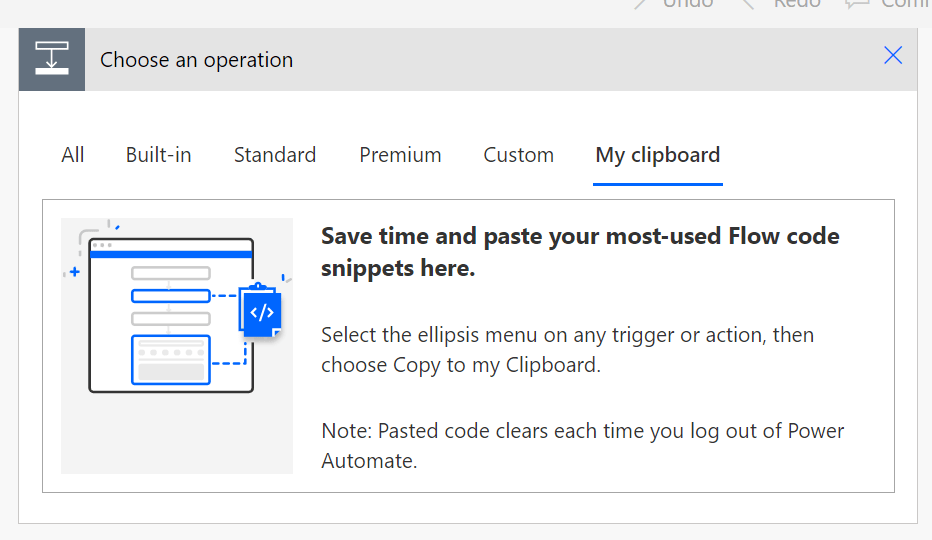
    Step 3: Ctrl + V


    New designer

    Step 1: Copy the code snippet

    {"nodeId":"Get_date_difference_object-copy","serializedOperation":{"type":"Scope","actions":{"StartDate":{"type":"Compose","inputs":"2024-12-10T15:58:28"},"EndDate":{"type":"Compose","inputs":"2024-12-10T19:22:20","runAfter":{"StartDate":["Succeeded"]}},"Date_Difference":{"type":"Compose","inputs":"@if(\r\n   contains(\r\n     dateDifference(outputs('StartDate'), outputs('EndDate')), \r\n     '.'\r\n   ),\r\n   json(\r\n     concat(\r\n       '{\"Days\":', string(int(split(dateDifference(outputs('StartDate'), outputs('EndDate')), '.')[0])),\r\n       ',\"Hours\":', string(int(split(split(dateDifference(outputs('StartDate'), outputs('EndDate')), '.')[1], ':')[0])),\r\n       ',\"Minutes\":', string(int(split(split(dateDifference(outputs('StartDate'), outputs('EndDate')), '.')[1], ':')[1])),\r\n       ',\"Seconds\":', string(int(split(split(dateDifference(outputs('StartDate'), outputs('EndDate')), '.')[1], ':')[2])),\r\n       '}'\r\n     )\r\n   ),\r\n   json(\r\n     concat(\r\n       '{\"Days\":0',\r\n       ',\"Hours\":', string(int(split(dateDifference(outputs('StartDate'), outputs('EndDate')), ':')[0])),\r\n       ',\"Minutes\":', string(int(split(dateDifference(outputs('StartDate'), outputs('EndDate')), ':')[1])),\r\n       ',\"Seconds\":', string(int(split(dateDifference(outputs('StartDate'), outputs('EndDate')), ':')[2])),\r\n       '}'\r\n     )\r\n   )\r\n)","runAfter":{"EndDate":["Succeeded"]},"metadata":{"operationMetadataId":"03c8d578-576a-41a3-8d63-609a15ce594b"}}},"runAfter":{"Add_to_time":["Succeeded"]}},"allConnectionData":{},"staticResults":{},"isScopeNode":true,"mslaNode":true}

    Step 2: In Power Automate click the + to add an action. Click Paste an action

    Conclusion

    That’s it! pretty easy right? if you encounter any issues, comment below!

  • Get the difference between two dates EASY

    Get the difference between two dates EASY

    We have all been there, we need to check the difference between 2 dates, and if you ever had to implement this you would need to use some crazy mathematical equations using the ticks() expression. But now..

    I’m not sure when this expression got added, but we can now use dateDifference() expression instead of using ticks().

    The dateDifference() expression is a powerful tool in Power Automate and Logic Apps for calculating the difference between two dates.

    Allowing to easily determine the number of days, months, or years between two dates, which can be useful in a variety of scenarios.

    1. Syntax and Parameters
    2. How to Use
    3. Extracting the Result
      1. Extracting Days
      2. Extracting Hours
      3. Extracting Minutes
      4. Extracting Seconds
    4. Things to Know
    5. Links

    Syntax and Parameters

    The syntax is easy with only 2 parameters:

    dateDifference('<startDate>', '<endDate>')

    How to Use

    Below is a simple example of how to use this expression:

    dateDifference('2015-02-08T10:30:00', '2018-07-30T14:45:30')

    This returns

    "1268.04:15:30"

    The result is in the format of:
    Days.Hours:Minutes:Seconds

    Note:: If the dates passed in have no time interval, the result shows zeros for the hours, minutes, and seconds. We can extract the different parts of the return by using some expressions inside a Compose action, which we will do next.

    Extracting the Result

    If you need to extract certain parts of the result into the hours, minutes, or even seconds, you can use the split() expression.
    Below you will find the explanation on the extraction, as well as the exact expressions to use.

    • The split() function splits the output of dateDifference() at the period (‘.’) into an array with two elements: days and the rest (hours:minutes:seconds).
    • The [0] indexer retrieves the first element of the array, which represents the number of days.
    • The int() function converts the days from a string to an integer.
    • Replace the date time values with your dates/time

    Extracting Days

    To extract the days from the result we can use

    int(split(dateDifference('2015-02-08T10:30:00', '2018-07-30T14:45:30'), '.')[0])

    This returns:

    1268

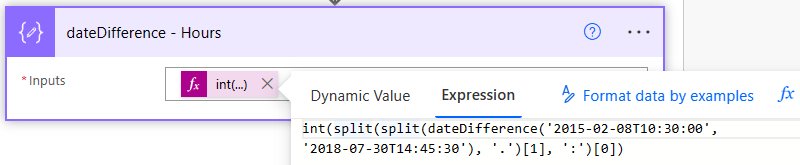
    Extracting Hours

    To extract the hours interval from the result we can use

    int(split(split(dateDifference('2015-02-08T10:30:00', '2018-07-30T14:45:30'), '.')[1], ':')[0])
    

    This returns:

    4

    Extracting Minutes

    To extract the minutes interval from the result we can use

    int(split(split(dateDifference('2015-02-08T10:30:00', '2018-07-30T14:45:30'), '.')[1], ':')[1])

    This returns:

    15

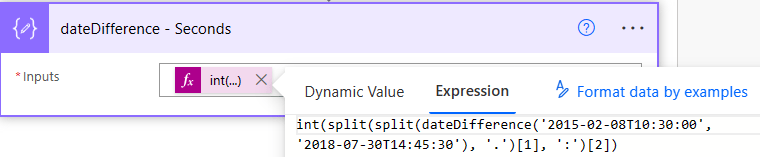
    Extracting Seconds

    To extract the seconds interval from the result we can use

    int(split(split(dateDifference('2015-02-08T10:30:00', '2018-07-30T14:45:30'), '.')[1], ':')[2])
    

    This returns:

    30

    Things to Know

    There are a few things to be aware of:

    • Be aware of time zones, Power Automate uses UTC as a baseline for all time formats.
    • If pulling dates from SharePoint be aware of what time zone your site is in.
    • You can convert the time zones by using expressions or by using actions. Read more about converting time zones here.

    date Difference – Reference guide for expression functions – Azure Logic Apps | Microsoft Learn

  • Checking If HTML Table Is Empty In Power Automate

    Checking If HTML Table Is Empty In Power Automate

    The Problem

    I needed to check if an HTML table had data or not. Usually when I need to check I have two expressions I go to first.

    1. empty()
    2. length()

    I tried using empty() and found that the HTML table even when empty, is not truly empty.
    I then tried length() and found that when the HTML table is empty there is still a length of 30.

    The Scenario

    I have some data that is used to track different devices that can be loaned out. The data has properties like, Type of device, Serial Number, Etc.

    The data comes in, and looks like this:

    [
      {
        "type": "Phone",
        "device": "iPhone 11 Pro",
        "serialNumber": "0007488"
      },
      {
        "type": "Phone",
        "device": "Samsung Galaxy S20",
        "serialNumber": "1166289"
      },
      {
        "type": "Watch",
        "device": "Apple Watch Series 5",
        "serialNumber": "00013701"
      },
      {
        "type": "Laptop/Tablet",
        "device": "Surface Pro X",
        "serialNumber": "AA78442"
      }
    ]

    I want to put this array of data inside a HTML table and send it out on an email. The problem is, my data might be empty, as only available devices will show up in my data.

    I need to check if the HTML table is empty, if it is empty:
    If True:
    Send email with HTML table
    If False:
    Send email without HTML table

    The Flow

    For this Flow, I will be using an Array Variable to simulate my data coming in from another system.
    I will call this Variable ‘Data‘.
    The HTML table action will be added underneath.
    You will need to determine if you want to use ‘Custom columns‘ or ‘Automatic columns‘ This can be done in the advanced options in the HTML action:

    My ‘Data‘ Variable is empty at the moment. This is what we want for our first run, we want to get the length of the HTML table when its empty.

    Next add a ‘Compose‘ action, and use the expression length(), pass in the HTML table as the parameter. For example, my expression looks like:

    length(body('Create_HTML_table'))
    

    Now run the Flow with no Data in the HTML table, and check your Compose action to see what the length is. In my case it is 30

    Now we can add a If Condition to check if the length is greater than 30

    ** TIP **
    I am passing in the Compose action into the condition, this allows me to see what the outputs of the Compose action before it gets evaluated inside the condition. This is extremely useful for troubleshooting

    Conclusion

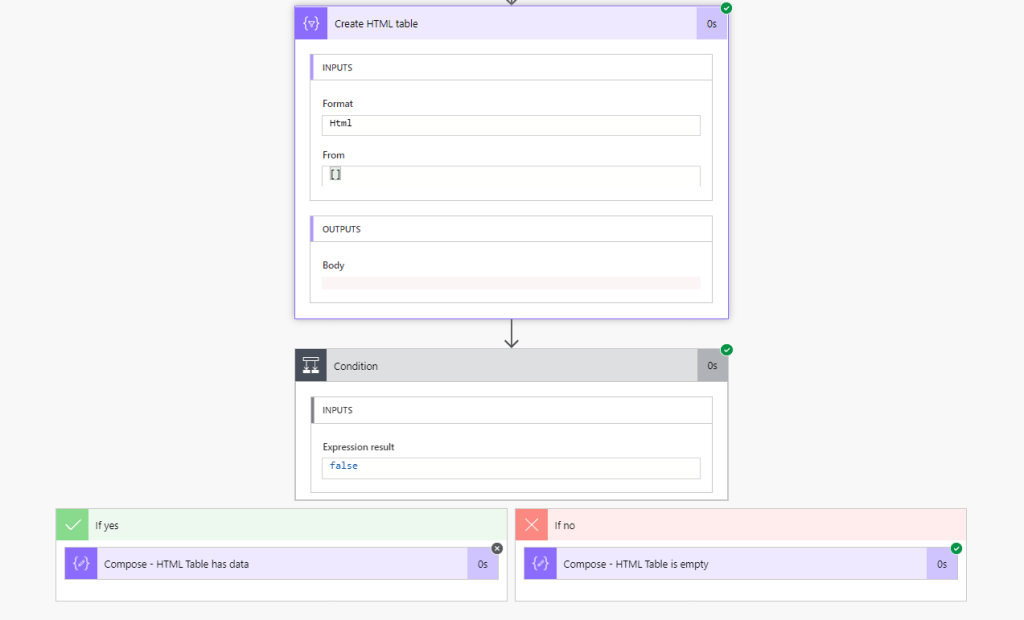
    The Flow will go into the ‘If yes’ block if the HTML table has data

    The Flow will go into the ‘If no’ block if the HTML table is empty

    Of course checking the Data Variable itself for length could work way better. This example is mainly for data that can come in that could have loads of junk. For example:
    An HTTP API could bring in no data, but still have other information attached like, headers, status code, version. In this case we can only do conditional checks on the HTML table, since our Data variable will always have something being passed in.

    I used this method to help someone on the Community Forum, check it out here:
    https://powerusers.microsoft.com/t5/Building-Flows/Create-a-Flow-with-Condition-that-does-not-send-email-when-list/m-p/721076/highlight/false#M98488

  • Converting Time Zones Easily In Power Automate

    Converting Time Zones Easily In Power Automate

    Summary

    Did you know that Power Automate has a Date Time action that can easily convert, and format time zones in one action?
    Why is this important? Power Automate natively uses UTC as its time zone, as well as most SharePoint sites. Using an action can be easier than using expressions.

    The Flow

    In this example, we will want to get the current time (this will be in UTC since we will be using Power Automate) and converting the time to local time with a specific format.

    First we want to get the current time, we can use the expression utcNow() but I will be showing how to use the Date Time actions instead.

    The actions are under Date Time:

    Add a Current time action, this action is the same as using utcNow() expression

    Next add Convert time zone action, this action is very useful as it has pre loaded time zones and formats to choose from.

    The inputs for this action are:
    Base time: Use the output from the Current time action
    Source time zone: Make sure to select Coordinated Universal Time
    Destination time zone: Select your local time zone or the time zone you want
    Format string: This dropdown has many ISO formats to choose from. If you want to have a custom format, simply click the drop down and select Enter custom value. See below for examples

    Format Examples

    If for some reason the format you want is not in the dropdown for formats, you can create a custom format as long as it follows ISO 8601 format. To add a custom format click Enter custom value in the dropdown

    Some tips when creating a format for the date ‘2020-10-13‘ (October 13 2020)
    yy = 20
    yyyy = 2020

    MM = 10
    MMM = Oct
    MMMM = October

    dd = 13
    ddd = Tue
    dddd = Tuesday

    Examples:

    yyyy-MMM-ddd = 2020-Oct-Tue
    yy/MMMM/dddd = 20/October/Tuesday
    dddd, MMMM, yyyy = Tuesday, October, 2020
    MMMM dd, yyyy = October 13, 2020
    yyyy-MM-dd = 2020-10-13 (used for comparing dates)

    To add time to your format use the following in your format:
    (It is best practice to add the letter ‘T’ before using time formats)

    h = hours (12 hour time)
    hh = hours (12 hour time)
    HH = hours (24 hour time)
    mm = minutes
    ss = seconds
    tt = Appends either AM or PM to time

    Some examples are:
    MMMM dd, yyyyThh:mm = October 13, 2020T12:51
    MMMM/dd/yyyyTHH:mm:ss = October/13/2020T13:02:41
    hh:mm:ss tt = 01:06:41 PM
    h:mm:ss tt = 12:06:41 PM

    Conclusion

    Knowing these formats and the what each letter code does, the possibilities are endless. You can create any type of custom date time format easily.

    As always if you have any questions, don’t hesitate to reach out.

    Thank you for reading!