Tag: Usage-Based Billing

  • Copilot Cowork First Month: How Admins Should Check July Consumption

    Copilot Cowork First Month: How Admins Should Check July Consumption

    The first month of Copilot Cowork is a baseline, not a verdict.

    For Microsoft’s qualifying Frontier grace-period cohort—and for the tenant in this guide—July was the first full billed calendar month of Copilot Cowork consumption.

    But opening one dashboard, copying the big number, and calling it “usage” will give you an incomplete story.

    There are really two questions:

    1. What did Cowork consume?
    2. Are people adopting it in a healthy, valuable way?

    Microsoft answers those questions in two different areas of the Microsoft 365 admin center. The Cost Management report shows Copilot Credit consumption. The Cowork Usage report shows adoption, tasks, activity, and retention.

    They use different definitions, date controls, and refresh cycles.

    This guide walks through both, shows what I found in a real first-month tenant, and gives admins a practical checklist for configuring and reviewing month one.

    Important July context: Copilot Cowork became generally available on June 16, 2026. Tenants with at least one user who used Cowork during the Frontier period from March 30 through June 16 received a billing grace period through June 30, with billing beginning July 1. That makes July the first full billed month for that cohort—not automatically for every tenant. Confirm your own activation and billing dates before labeling July “month one.”

    In this guide

    The two dashboards answer different questions

    Admin viewBest forDate behaviorRefresh behavior
    Copilot > Cost ManagementCredits, limits, policies, users, groups, agents/services, prepaid versus PayGoSupports an exact month such as July 2026Overview refreshes every 4 hours; Consumption refreshes every 2 hours
    Copilot > Cowork > UsageActive users, tasks, scheduled versus user-initiated work, retention, adoption trendsRolling 7, 28, 90, or 180 days; default is 28 daysCheck the report’s visible Last updated timestamp

    That distinction matters. The Cowork Usage report I reviewed on August 5 offered a 28-day range of July 5 through August 2. It did not offer a calendar-month July option. I could use it to understand adoption near the end of July, but I could not honestly present it as an exact July report.

    Cost Management Consumption page with summary cards for users, groups, and agents and services
    Cost Management can report the exact July 2026 consumption period.

    How to check July Copilot Cowork consumption

    1. Start in Cost Management, not the generic Copilot credits report

    In the Microsoft 365 admin center, go to:

    Copilot > Cost Management > Consumption

    For Cowork, this is the useful consumption surface. It lets you move between Users, Groups, and Agents and services.

    Do not confuse it with Reports > Usage > Microsoft 365 Copilot > Credits. That report has a different scope and is not the report I would use to isolate Cowork consumption.

    2. Select July 2026

    Open Time period and select July 2026.

    July month selector
    Use the calendar-month selector in Cost Management when you need an exact July baseline.

    Here is the small trap I saw in the August 5 tenant UI: changing between Users, Groups, and Agents and services reset the time period to Month to date. Re-select July on every view and confirm the label before recording a number or exporting data.

    3. Use Agents and services to isolate Cowork

    Start with Agents and services. This is the cleanest way to separate Cowork from Work IQ API or another consumptive service covered by the same policy.

    Cowork service consumption for July
    The Agents and services view is the best starting point for the Cowork total.

    Record at least:

    • Cowork Credits used
    • Active users
    • Sessions
    • The report period
    • The time and date you captured the report

    That last item is not busywork. Microsoft says the Consumption tab refreshes every two hours, while exported reports are point-in-time snapshots. A dashboard and an export taken at different moments can temporarily disagree.

    4. Review users for concentration and limit pressure

    Move to Users, re-select July, then inspect:

    • Credits used
    • Monthly credit limit
    • Percentage of the limit consumed
    • Sessions
    • Last activity date
    • Assigned spending policy
    • Daily credit usage
    User consumption details with spending policy and monthly limit
    The user drawer connects total usage to the assigned policy, service access, and individual limit.
    Daily user credit usage
    Daily usage shows when concentration occurred. Pair it with Cowork task data or Purview audit evidence before deciding why it occurred.

    Do not just chase the largest user. Ask whether the work was intentional, repeatable, and valuable. A heavy user may be delivering the best ROI in the tenant. The useful signal is high consumption without an understood scenario, owner, or outcome.

    5. Review groups, then re-check the period

    The Groups view helps you compare the audiences targeted by spending policies. It is useful for spotting:

    • One group consuming most of the credits
    • A group with low consumption after you compare the Consumption view with its enabled scope under Configuration
    • A pilot team whose limits are too low for its intended workload
    • Overlapping memberships that make policy behavior harder to explain
    July consumption by group
    Group totals help admins compare the audiences governed by different spending policies.

    User and group totals do not always match perfectly. Users can belong to multiple groups and policies, and policy changes during a billing period can affect what appears at user level. Treat these views as different analytical cuts, then reconcile material differences against exports and policy history.

    6. Check the July spending trend separately

    Return to Cost Management > Overview and set the Spending trend card to July.

    July cumulative spending trend
    The Spending trend card has its own period control. Do not assume the page-level cards and chart are showing the same month.

    Look for:

    • Large daily spikes
    • A steady upward ramp after enablement
    • Weekend spikes to compare with scheduled-task history
    • A shift from prepaid capacity into PayGo
    • A sudden drop that coincides with a limit or access change

    In the tenant reviewed for this guide, July was spiky rather than smooth. The largest single day used more than 12,000 credits, while several days were below 1,000. That is a prompt to investigate which scenarios or scheduled tasks ran on the high days—not proof that the spikes were waste.

    What the first full month looked like in this tenant

    The following numbers are an anonymized, point-in-time snapshot captured on August 5, 2026.

    Exact July consumption

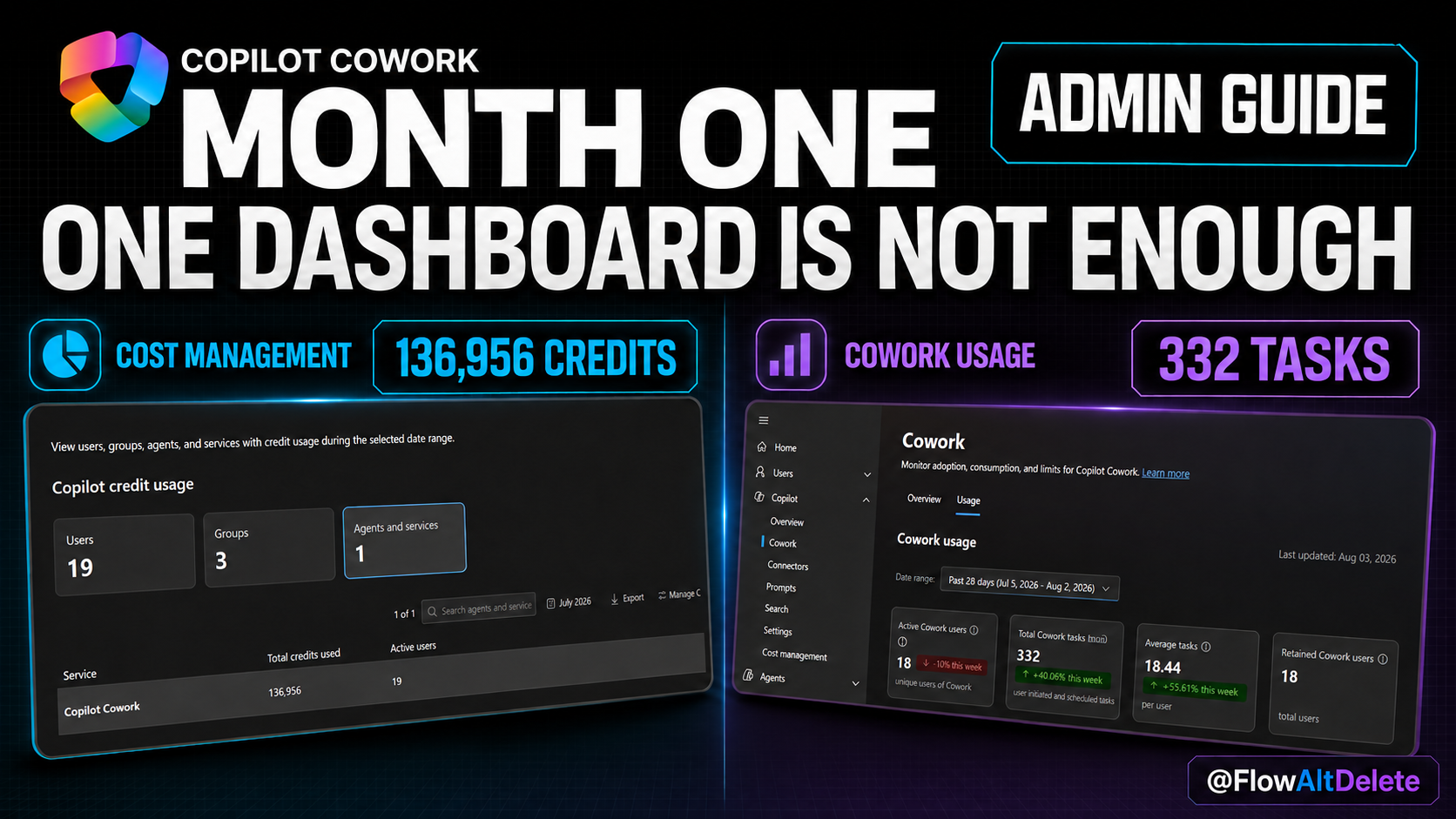
    • 136,956 Cowork Credits in the Agents and services view
    • 19 active Cowork users in that service view
    • 260 sessions across the user rows
    • 18 users with non-zero recorded credits at capture time
    • 6,150 median credits across the 19 user rows
    • 7,208 average credits across the 19 user rows
    • 526.7 credits per session across the user rows
    • The largest user represented 22.0% of user-level credits
    • The top five users represented 59.8% of user-level credits
    • 6 users had consumed at least half of their individual limit
    • 0 users had consumed 80% or more of their individual limit

    The service, group, user, and trend views differed by a few hundred credits at capture time: roughly two-tenths of one percent. That is small enough to be consistent with refresh timing and aggregation differences, but it should still be documented. Use one defined source for the headline number—here, the Cowork row under Agents and services—and preserve exports when you close the month.

    Do not turn credits directly into an invoice unless you know the billing path

    Microsoft lists PayGo at $0.01 USD per Copilot Credit. At pure retail PayGo, 136,956 credits would be a $1,369.56 USD usage equivalent.

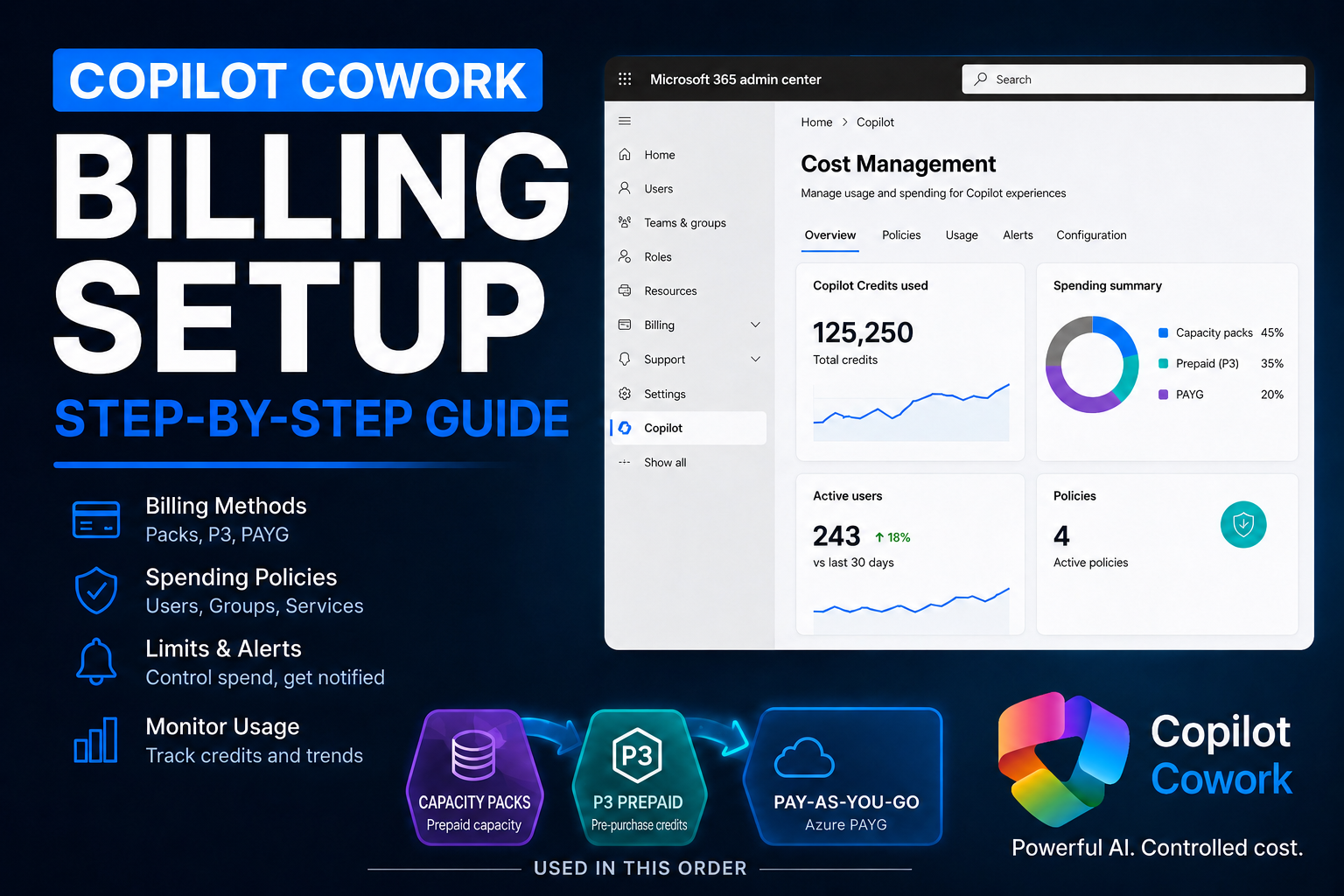
    That is not automatically the tenant’s invoice. This tenant’s policies used prepaid capacity. When capacity packs and a subscription with P3/pay-as-you-go are both selected, Microsoft documents the order as capacity packs first, then P3 prepaid credits, then PayGo. Discounts, prepaid commitments, shared capacity, and billing arrangements can all change the actual cost. Report credits and billing source together.

    Now check adoption—but label the date range honestly

    Go to:

    Copilot > Cowork > Usage

    Cowork Usage rolling date selector
    Cowork Usage uses rolling ranges. The 28-day view here covers July 5 through August 2, not calendar July.

    The report’s four headline metrics are:

    • Active Cowork users
    • Total Cowork tasks
    • Average tasks per active user
    • Retained Cowork users
    Cowork adoption cards
    Always capture the date range and Last updated timestamp with the headline metrics.

    Microsoft defines a task as one Cowork conversation thread, including user-initiated conversations and scheduled task executions. Follow-up questions in the same thread remain part of the same task.

    The same report defines a retained user as someone active in both the previous seven-day period and the most recent seven-day period. It is a useful continuity signal, but it is not a conventional month-over-month cohort retention rate.

    Microsoft's task definition in the report
    A task is not the same thing as a prompt, run, or Cost Management session.

    The report was viewed on August 5 and displayed Last updated: August 3. For the rolling 28 days from July 5 through August 2, this tenant showed:

    • 18 active users
    • 332 total tasks
    • 18.44 average tasks per active user
    • 18 retained users
    • 103 user-initiated tasks
    • 229 scheduled tasks

    That means about 69% of tasks were scheduled. It is a valuable operational signal: Cowork was being used as automation, not only as a conversational tool.

    Daily active users and task mix
    Read daily active users beside the task-type mix to understand how engagement is occurring.
    Scheduled and user-initiated task trend
    The late-July scheduled-task increase deserves a scenario-level review before changing limits.

    But the average hid a highly concentrated pattern: one user accounted for 206 of the 332 tasks, or about 62%. The median active user had only 6 tasks. Fifteen users were active on two days or fewer.

    This does not mean the rollout failed. It means the first-month story is a scheduled-heavy tenant and a highly concentrated user-level pattern, plus a low-frequency long tail. Month two should validate the dominant user’s scenarios while improving repeat, intentional use across the rest of the pilot.

    The first-month admin playbook

    Days 1–3: Prove the plumbing

    • Confirm each intended user has a Microsoft 365 Copilot license.
    • Confirm usage-based billing is enabled and tied to the correct subscription or prepaid capacity.
    • Confirm Cowork is discoverable to the intended audience.
    • Confirm the intended security groups are assigned to an active spending policy.
    • Run a controlled task and verify it appears after each report updates. Use the visible Last updated timestamp for Cowork Usage and allow for Cost Management’s documented refresh window.
    • Capture the initial policy, billing method, and access configuration before changing anything.

    Discoverability and access are separate controls. The discovery setting controls tenant-wide visibility, while Cost Management controls scoped access and spend. Microsoft says usage-based billing setup overrides the discovery setting for users covered by that setup, so validate both the tenant-wide experience and the intended scoped audience.

    Week 1: Establish safe limits and alerts

    Start with group-based policies that match the rollout audiences. A practical pilot configuration should include:

    • A policy-level monthly cap
    • A per-user monthly cap
    • Alerts well before the hard cap
    • Named operational and financial owners for those alerts
    • Explicit agents and services included in the policy
    • A documented billing method

    Also make an explicit decision about Allow new services and agents as they become available. Microsoft’s current policy setup selects that option by default. That can be convenient, but a controlled pilot should not inherit future service access without an owner and review process.

    Spending policies impose access and consumption limits; they do not reserve or allocate a slice of the underlying Copilot Credit capacity to a group. Treat policy limits as guardrails, not as capacity reservations.

    Policy precedence warning and configuration
    When multiple policies apply, Microsoft enforces the most permissive applicable policy; settings are not combined.

    Microsoft’s current precedence order for overlapping policies is:

    1. Highest per-user limit
    2. If tied, highest overall policy limit
    3. If still tied, newest policy

    That is easy to get wrong. Adding a “special” policy can accidentally make someone less restricted than intended.

    Monthly hard-cap behavior
    A hard cap blocks covered services for the rest of the month and resets on the first day of the next month.
    Policy alert threshold
    Set an early threshold so an alert creates time to investigate instead of merely announcing that the budget is gone.
    Per-user monthly cap
    Per-user caps protect a shared policy from one runaway or misunderstood workload.

    When the run rate is unknown, I start the first alert at 50%. Once you understand the run rate, use multiple operational checkpoints outside the platform—such as weekly reviews at 50%, 70%, and 85%—even if the product sends a single configured alert threshold.

    Use least privilege for the operating team. AI Administrators and License Administrators can create spending policies, manage limits and alerts, and view Cost Management. Selecting or overriding the billing method requires a Global Administrator or Billing Administrator. After a spending policy is created, its billing method cannot be changed; Microsoft requires deleting and recreating that policy.

    Week 2: Review adoption, not just activation

    Ask five questions:

    1. How many targeted users became active through a direct prompt or a scheduled execution?
    2. How many came back in the next seven-day period?
    3. Is work primarily user-initiated or scheduled?
    4. Is usage concentrated in one person, team, or scenario?
    5. Which enabled users have no visible activity and need a use case, training, or removal from the pilot?

    The Usage table lists people with Cowork activity dating back to April 1, 2026, while its summary cards respond to the selected rolling period. Do not use the total table row count as your active-user count. Also remember that an active user can be counted because they prompted Cowork or because a scheduled task executed on their behalf. Active-user coverage is not identical to direct human adoption.

    Week 3: Connect consumption to scenarios

    For the top users and largest days, document:

    • Business scenario
    • Owner
    • Frequency
    • User-initiated or scheduled
    • Inputs and data sources
    • Outputs and downstream actions
    • Credits consumed
    • Time saved or risk reduced
    • Whether a lower-cost model or tighter scope can produce an acceptable result

    Consumption alone is not value. A 5,000-credit task that replaces two days of expert work may be excellent. A 500-credit task running every hour with nobody reading the output may not be.

    Week 4: Freeze the baseline and decide month two

    • Re-select the exact July period in every Cost Management view.
    • Export users, groups, and agents/services after the reporting refresh.
    • Record the Cowork Usage rolling range and Last updated timestamp.
    • Preserve policy settings and group membership as of month-end.
    • Explain material differences between views.
    • Review users near limits and compare the configured audience with users showing no repeat activity.
    • Classify scheduled tasks as keep, tune, pause, or investigate.
    • Set month-two targets before raising budgets.

    The metrics I would put on an admin scorecard

    MetricFormulaWhat it tells you
    Active coverageActive users ÷ enabled target usersHow much of the intended audience generated direct or scheduled activity
    Retained-to-active ratioRetained users ÷ active usersA simple continuity signal, not a conventional cohort-retention rate; retained users compare the two most recent seven-day periods while active users cover the selected range
    Scheduled-task shareScheduled tasks ÷ total tasksHow much usage is recurring automation versus direct interaction
    Credits per active userCowork credits ÷ active usersOverall consumption intensity when the periods align
    Credits per sessionCowork credits ÷ Cost Management sessionsRelative session intensity within the consumption report
    Limit utilizationCredits used ÷ applicable policy limitHow close a user or policy is to its cap; the limit does not reserve underlying capacity
    Top-five concentrationCredits from top five users ÷ total user creditsWhether the rollout depends on a few users
    Average-to-median gapAverage usage compared with median usageWhether a small number of heavy users are distorting the average

    Only combine figures whose date ranges and definitions match. A Cowork task is not a Cost Management session. In this review, the adoption report covered July 5 through August 2 while the consumption report covered July 1 through July 31, so I did not calculate credits per task.

    Month-one red flags worth investigating

    • A view silently returned to Month to date after you changed tabs.
    • The Overview headline cards and Spending trend chart are showing different periods.
    • A user or group is above 80% of its cap with time left in the month.
    • Scheduled work dominates consumption but has no named owner or reviewed output.
    • Average usage is high while median usage is low.
    • A service other than Cowork is consuming credits under the same policy.
    • A group has access but almost no activity.
    • A spending policy includes new services automatically without a review process.
    • Several groups overlap, producing a more permissive policy than expected.
    • Finance is treating credits multiplied by retail PayGo as the invoice even though prepaid capacity or P3 applies.
    • Security assumes all Microsoft Purview controls apply identically to Cowork. As of this writing, Microsoft documents DLP for general Cowork AI interactions as unsupported, even though auditing, sensitivity labels, eDiscovery, data lifecycle, communication compliance, and other controls have documented support. Cowork’s local Edge browser tasks are narrower: Microsoft says they inherit existing browser DLP, Conditional Access, and site policies. Review both control paths rather than inheriting assumptions from another Copilot surface.

    What I would change for month two

    For this tenant, I would not start by cutting the heavy user or scheduled workload. I would first confirm whether that automation is producing a real business outcome. If it is, preserve it and establish an owner, expected run rate, and value measure.

    Then I would:

    1. Create a repeat-use goal for the low-activity users.
    2. Review the five largest credit consumers and the largest daily spikes.
    3. Audit scheduled tasks for frequency, duplicate runs, and unused output.
    4. Separate Cowork and Work IQ API policy reporting wherever the rollout design allows it.
    5. Keep alerts early enough to react before a hard cap blocks work.
    6. Raise limits only for a documented scenario with evidence of value.
    7. Review plugins, model availability, browser use, audit coverage, and Purview support as part of the same operating rhythm—not as a one-time launch checklist.

    Final thought

    The goal of month one is not to prove that every user became a power user. It is to leave with a trustworthy baseline: who used Cowork, what they ran, what it consumed, which work repeated, and which controls need to change next.

    That is the admin story July can tell—if you use both dashboards and keep their definitions straight.

    Sources

    Screenshots and live tenant measurements in this draft were captured on August 5, 2026. Microsoft cloud features, reporting definitions, pricing, and compliance coverage can change; verify the linked documentation before publication.

  • Copilot Cowork Billing Setup: Turn On GA Without Opening the Credit Floodgates

    Copilot Cowork Billing Setup: Turn On GA Without Opening the Credit Floodgates

    Copilot Cowork is generally available.

    That is the headline.

    But before you run into the tenant, turn everything on, and let users start throwing goals and long-running tasks at it, you need to understand the billing side.

    Copilot Cowork runs on Copilot Credits. That means the admin work is not just, “Can the user access it?” It is also, “Who can spend credits, how much can they spend, which billing method gets charged, and who gets warned before usage goes sideways?”

    Turning Copilot Cowork on is easy. Turning it on responsibly is where the real admin work starts.

    In this walkthrough, I am setting up Copilot Cowork billing from the Microsoft 365 admin center and showing the choices I would pay attention to before giving users access.

    What changed with Copilot Cowork GA

    Microsoft announced Copilot Cowork general availability on June 16, 2026. Cowork requires a Microsoft 365 Copilot user subscription license, and Cowork usage is billed separately on a usage basis using Copilot Credits.

    That matters because Copilot Cowork is not just another chat surface. It is designed for complex, long-running, multi-tool work. It can retrieve context, call tools, use models, create artifacts, and keep working through a task. All of that value has a meter behind it.

    Microsoft’s current Cost Management experience for usage-based billing applies to Copilot Cowork and Work IQ API right now, with more agents and services expected to come into that experience over time.

    Microsoft 365 admin center Cost management page showing Copilot Cowork and Work IQ API usage-based billing
    Cost Management in the Microsoft 365 admin center is where Copilot Cowork and Work IQ API usage-based billing is configured.

    Start with the right mental model

    Access and consumption are two different things.

    Access lets a user get into the experience. Consumption happens when the experience starts doing work. If Cowork runs a goal, uses a model, retrieves context, calls tools, or performs longer-running work, that activity can consume Copilot Credits.

    That is why billing policies matter. Without them, you are basically handing out an AI gas card and hoping the bill looks reasonable at the end of the month.

    That is not a strategy.

    The better approach is billing plus governance. Set the billing method, define the spending policy, decide who is in scope, add limits, configure alerts, and then expand once you understand real usage.

    Check your admin roles before you start

    If you do not see the option in the admin center, check your role first.

    Billing setup and policy governance may not be handled by the same person in a real organization. Your Microsoft 365 admin, AI admin, Power Platform admin, billing admin, and finance owner might all be different people.

    That matters because the person configuring the billing method needs the right permissions, and the person managing policy limits and alerts also needs the right permissions. Do not discover that halfway through the rollout call. Get the right people in the room before you begin.

    Choose the billing method intentionally

    In the setup flow, you may see more than one billing method. In my tenant example, I had Capacity Packs available and also had the option to use a pay-as-you-go subscription.

    Capacity Packs let you bill against prepaid Copilot Credit capacity. Pay-as-you-go can keep services running once capacity pack credits run out, but it also means the meter can keep running against the connected subscription.

    Neither option is automatically good or bad. The point is to make the choice on purpose.

    Billing method options for Copilot Credits showing Capacity Packs and pay-as-you-go subscription
    Select the billing method intentionally. Capacity Packs and pay-as-you-go behave differently when credits run out.

    For a personal tenant or a controlled pilot, I would usually start with the most bounded option. For a production rollout where interruption would be a problem, you may choose to include pay-as-you-go, but that decision should involve the billing owner.

    What if you have no Copilot Credits?

    If your tenant does not already have Copilot Credits available, do not let that push you into an unlimited rollout. Start with pay-as-you-go, but treat it like a metered pilot, not an open tab.

    Microsoft lists PayGo for Copilot Cowork at $0.01 per Copilot Credit. That means 25,000 credits would be about $250 if you let usage land entirely on pay-as-you-go.

    That is the point where the economics should make you stop and re-check the licensing path. Microsoft lists Copilot Studio credit packs at 25,000 Copilot Credits for $200 per pack per month. So if you expect usage to get anywhere near 25,000 credits in a month, PAYG is no longer just a convenient starter option. It may be more expensive than buying a capacity pack.

    The practical setup I would use is this: enable PAYG to get started, set the monthly policy limit at 25,000 credits, turn alerts on well before that point, and review usage before the policy hits the cap.

    • At 10,000 credits, check whether the pilot group is using Cowork the way you expected.
    • At 20,000 credits, start the capacity pack conversation because the $200 pack economics are already close.
    • At 25,000 credits, do not just increase the PAYG limit without a decision. Buy a P3 or Copilot Credit capacity pack if monthly usage is becoming predictable.

    PAYG is still useful. It is the fastest way to start when you have no credits, and it is a good safety net for overages. But once usage becomes steady, capacity packs are the cleaner budgeting conversation.

    Do not assume the visible credit pool is unused

    This is the part admins need to slow down on.

    In my example, the Cost Management setup showed 50,000 credits available. But in the Power Platform admin center, 10,000 of those Copilot Studio messages were already allocated to a specific environment.

    Power Platform admin center Capacity add-ons page showing Microsoft Copilot Studio messages allocated from a 50,000 credit pool
    Before assigning a Cowork policy, check whether Copilot Credits are already supporting other Power Platform or Copilot Studio workloads.

    The lesson is simple: do not treat the number in one setup panel as the whole story.

    Copilot Credits can support more than one AI workload. If your organization is already using Copilot Studio, Dynamics 365, Power Platform, or other metered AI capabilities, make sure you understand what that credit pool is already expected to cover.

    The last thing you want is for a Cowork pilot to burn through credits that another production agent was relying on.

    Do not start unlimited

    The setup flow gives you the choice to limit monthly spending or leave monthly spending unlimited.

    My recommendation for most organizations starting with Copilot Cowork is simple: do not start unlimited.

    Launch it like a controlled pilot. Give it a monthly policy budget, watch usage, learn what normal looks like, then increase the limit later if the usage is healthy.

    In my example, I set the policy budget to 40,000 credits because I wanted to keep 10,000 credits available for other Copilot Studio usage in the tenant. Your number will be different. The principle is the same.

    Set a per-user monthly limit

    The per-user monthly spending limit is optional, but I would seriously consider enabling it.

    Without a user limit, one person can potentially consume a large chunk of the available credits. They may not be doing anything malicious. They might just be experimenting, running long tasks, testing browser automation, asking for big research outputs, or sending Cowork work that should have stayed in regular Copilot Chat.

    That kind of experimentation is a sign adoption is happening. But adoption without guardrails becomes waste.

    Set a policy-level monthly budget, consider a per-user monthly limit, and configure alerts before activating the policy.

    In the demo tenant, I used a 40,000 credit policy limit and a 20,000 credit per-user limit because the pilot only had two users. That is an example, not a universal recommendation.

    The right number depends on how many users are in scope, what tasks they will run, how much existing Copilot Credit capacity is already committed, and how much risk you are willing to tolerate during the first rollout.

    Turn alerts on before usage surprises you

    Do not wait until the end of the month to learn usage went sideways.

    Cost Management lets you define alerts so the right people get notified when usage reaches a threshold. That could be the Microsoft 365 admin, billing owner, finance stakeholder, platform owner, or whoever is accountable for the pilot.

    In my example, with a 40,000 credit monthly policy limit, I used a 30,000 credit alert threshold. That gives the owner time to investigate before the policy hits the cap.

    This is how you move from reactive admin to proactive admin.

    Do not activate for everyone by default

    This is the part of the setup that is easy to rush.

    If you activate broadly, you may be enabling access across the whole organization depending on how the policy is configured. For some organizations, that might be fine. For most first rollouts, I would not start there.

    Customize the setup configuration and scope the policy to a security group.

    Microsoft 365 admin center security group creation screen with the name Copilot Cowork Access
    Create a clear security group for the pilot, such as Copilot Cowork Access, instead of starting with the entire tenant.

    Use a clear name like Copilot Cowork Access or Copilot Cowork Pilot Users. Add a small group of trusted users first: admins, builders, business champions, finance, operations, or the people who will give you useful feedback.

    Think of this like a pilot program. You want people who will use it seriously, report what worked, report what wasted credits, and help you understand whether the budget is realistic.

    Cost Management access group configuration scoped to specific security groups
    Scope the policy to specific groups so you know exactly who can consume Copilot Credits through Cowork.

    Review the policy before you activate it

    Before clicking activate, review the setup like a change request:

    • Which services are enabled by the policy?
    • Which billing method will be charged?
    • Is the monthly spending limit set?
    • Is the per-user limit set?
    • Who receives alerts?
    • What threshold triggers those alerts?
    • Which users or groups are in scope?
    • Are other workloads already using the same credit pool?

    In my setup, the final shape was:

    • Billing method: Capacity Packs
    • Policy monthly limit: 40,000 credits
    • Per-user monthly limit: 20,000 credits
    • Alert threshold: 30,000 credits
    • Access scope: a specific security group for Copilot Cowork access

    Again, those are demo values. Do not copy them blindly. Copy the pattern: limit, alert, scope, observe, then scale.

    The rollout pattern I would use

    If I were rolling out Copilot Cowork in a tenant, I would not start with the whole organization. I would use this pattern:

    1. Confirm the admin roles needed for billing and policy management.
    2. Review existing Copilot Credit usage in Microsoft 365 and Power Platform.
    3. Choose the billing method with the billing owner involved.
    4. Create a bounded monthly spending policy.
    5. Add a per-user limit for the pilot group.
    6. Set alerts before the policy limit is reached.
    7. Create a security group for pilot access.
    8. Add a small number of serious users.
    9. Monitor usage and identify what tasks burn credits.
    10. Increase limits or expand access only after you understand normal usage.

    This gives you control. You know who has access, what they can consume, which budget they are under, and when someone needs to pay attention.

    That is how you test Copilot Cowork without turning the tenant into a free-for-all.

    Final thought

    Copilot Cowork is powerful because it can take on real work. But the more real the work gets, the more important the admin controls become.

    Cost Management is not the boring part of Copilot Cowork. It is the part that lets you adopt it without surprising finance, burning shared credits, or giving every user an unlimited meter on day one.

    Start controlled. Learn the usage. Then scale with confidence.

    Sources