Category: Format

  • Get the difference between two dates (Updated 2025)

    Get the difference between two dates (Updated 2025)

    Many Power Automate users encounter issues with the dateDifference() function when calculating the difference between two dates. The problem arises when the output format varies depending on the duration, causing errors in extracting Days, Hours, Minutes, and Seconds.

    This blog provides a robust and easy-to-implement solution that works seamlessly in all scenarios, including durations less than a day. Learn how to use a single expression with conditional logic to avoid these common pitfalls and ensure your date calculations are accurate every time. This is your ultimate fix for handling dateDifference() errors!

    1. The Flow
      1. dateDifference expression
        1. How it works
      2. Steps to Access Each Value
    2. Download my Flow
      1. Classic designer
      2. New designer
    3. Conclusion

    The Flow

    1. Compose action: named StartDate = 2024-12-10T15:58:28
    2. Compose action: named EndDate = 2024-12-10T19:22:20
    3. Compose action: uses dateDifference() expression. see below

    Below is the expression used in the ‘Date Difference’ compose action. It dynamically handles all scenarios—when days are included and when they are not (same with hours and minutes).

    dateDifference expression

    Create a compose action for StartDate and EndDate

    if(
       contains(
         dateDifference(outputs('StartDate'), outputs('EndDate')), 
         '.'
       ),
       json(
         concat(
           '{"Days":', string(int(split(dateDifference(outputs('StartDate'), outputs('EndDate')), '.')[0])),
           ',"Hours":', string(int(split(split(dateDifference(outputs('StartDate'), outputs('EndDate')), '.')[1], ':')[0])),
           ',"Minutes":', string(int(split(split(dateDifference(outputs('StartDate'), outputs('EndDate')), '.')[1], ':')[1])),
           ',"Seconds":', string(int(split(split(dateDifference(outputs('StartDate'), outputs('EndDate')), '.')[1], ':')[2])),
           '}'
         )
       ),
       json(
         concat(
           '{"Days":0',
           ',"Hours":', string(int(split(dateDifference(outputs('StartDate'), outputs('EndDate')), ':')[0])),
           ',"Minutes":', string(int(split(dateDifference(outputs('StartDate'), outputs('EndDate')), ':')[1])),
           ',"Seconds":', string(int(split(dateDifference(outputs('StartDate'), outputs('EndDate')), ':')[2])),
           '}'
         )
       )
    )

    How it works

    • The if() function checks if the dateDifference() result contains a . (dot).
    • If it does, it means the result has a days component (e.g., 1268.04:15:30), so we parse out Days, Hours, Minutes, and Seconds accordingly.
    • If it does not, it means the result is less than a day (e.g., 12:57:47.2544602), so we treat Days as 0 and parse Hours, Minutes, and Seconds directly from the string.

    Result:

    This will produce a JSON object like:
    {
    "Days": 1268,
    "Hours": 4,
    "Minutes": 15,
    "Seconds": 30
    }

    Or
    {
    "Days": 0,
    "Hours": 12,
    "Minutes": 57,
    "Seconds": 47
    }

    Steps to Access Each Value

    If you use the fixed expression directly in a Compose action (e.g., named Date_Difference), you can reference the fields like this:

    • Days: outputs('Date_Difference')?['Days']
    • Hours: outputs('Date_Difference')?['Hours']
    • Minutes: outputs('Date_Difference')?['Minutes']
    • Seconds: outputs('Date_Difference')?['Seconds']

    Use these expressions in subsequent actions (like another Compose, a Condition, or Apply to Each) to reference the specific values.

    Download my Flow

    You can easily copy and paste actions in Power Automate. Allowing you to copy and paste my example.

    1. Classic designer
    2. New designer

    Classic designer

    Step 1: Copy the code snippet

    {"id":"b6b531e2-b7b5-4a9e-86bd-7e2a069529a0","brandColor":"#8C3900","connectionReferences":{},"connectorDisplayName":"Control","icon":"data:image/svg+xml;base64,PHN2ZyB3aWR0aD0iMzIiIGhlaWdodD0iMzIiIHZlcnNpb249IjEuMSIgdmlld0JveD0iMCAwIDMyIDMyIiB4bWxucz0iaHR0cDovL3d3dy53My5vcmcvMjAwMC9zdmciPg0KIDxwYXRoIGQ9Im0wIDBoMzJ2MzJoLTMyeiIgZmlsbD0iIzhDMzkwMCIvPg0KIDxwYXRoIGQ9Im04IDEwaDE2djEyaC0xNnptMTUgMTF2LTEwaC0xNHYxMHptLTItOHY2aC0xMHYtNnptLTEgNXYtNGgtOHY0eiIgZmlsbD0iI2ZmZiIvPg0KPC9zdmc+DQo=","isTrigger":false,"operationName":"Get_date_difference_object","operationDefinition":{"type":"Scope","actions":{"StartDate":{"type":"Compose","inputs":"2024-12-10T15:58:28","runAfter":{}},"EndDate":{"type":"Compose","inputs":"2024-12-10T19:22:20","runAfter":{"StartDate":["Succeeded"]}},"Date_Difference":{"type":"Compose","inputs":"@if(\r\n   contains(\r\n     dateDifference(outputs('StartDate'), outputs('EndDate')), \r\n     '.'\r\n   ),\r\n   json(\r\n     concat(\r\n       '{\"Days\":', string(int(split(dateDifference(outputs('StartDate'), outputs('EndDate')), '.')[0])),\r\n       ',\"Hours\":', string(int(split(split(dateDifference(outputs('StartDate'), outputs('EndDate')), '.')[1], ':')[0])),\r\n       ',\"Minutes\":', string(int(split(split(dateDifference(outputs('StartDate'), outputs('EndDate')), '.')[1], ':')[1])),\r\n       ',\"Seconds\":', string(int(split(split(dateDifference(outputs('StartDate'), outputs('EndDate')), '.')[1], ':')[2])),\r\n       '}'\r\n     )\r\n   ),\r\n   json(\r\n     concat(\r\n       '{\"Days\":0',\r\n       ',\"Hours\":', string(int(split(dateDifference(outputs('StartDate'), outputs('EndDate')), ':')[0])),\r\n       ',\"Minutes\":', string(int(split(dateDifference(outputs('StartDate'), outputs('EndDate')), ':')[1])),\r\n       ',\"Seconds\":', string(int(split(dateDifference(outputs('StartDate'), outputs('EndDate')), ':')[2])),\r\n       '}'\r\n     )\r\n   )\r\n)","runAfter":{"EndDate":["Succeeded"]},"metadata":{"operationMetadataId":"03c8d578-576a-41a3-8d63-609a15ce594b"}}},"runAfter":{"Add_to_time":["Succeeded"]}}}

    Step 2: In Power Automate when adding a new action click My clipboard .
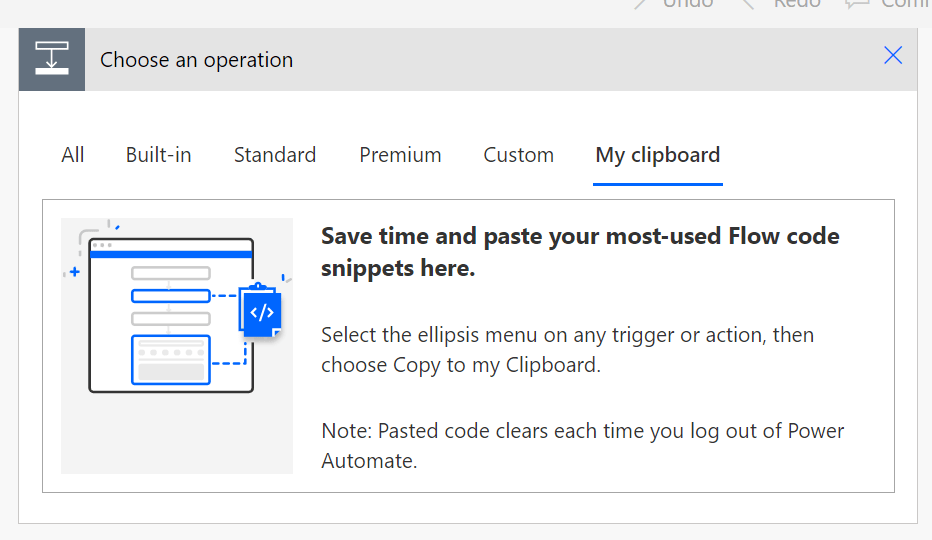
    Step 3: Ctrl + V


    New designer

    Step 1: Copy the code snippet

    {"nodeId":"Get_date_difference_object-copy","serializedOperation":{"type":"Scope","actions":{"StartDate":{"type":"Compose","inputs":"2024-12-10T15:58:28"},"EndDate":{"type":"Compose","inputs":"2024-12-10T19:22:20","runAfter":{"StartDate":["Succeeded"]}},"Date_Difference":{"type":"Compose","inputs":"@if(\r\n   contains(\r\n     dateDifference(outputs('StartDate'), outputs('EndDate')), \r\n     '.'\r\n   ),\r\n   json(\r\n     concat(\r\n       '{\"Days\":', string(int(split(dateDifference(outputs('StartDate'), outputs('EndDate')), '.')[0])),\r\n       ',\"Hours\":', string(int(split(split(dateDifference(outputs('StartDate'), outputs('EndDate')), '.')[1], ':')[0])),\r\n       ',\"Minutes\":', string(int(split(split(dateDifference(outputs('StartDate'), outputs('EndDate')), '.')[1], ':')[1])),\r\n       ',\"Seconds\":', string(int(split(split(dateDifference(outputs('StartDate'), outputs('EndDate')), '.')[1], ':')[2])),\r\n       '}'\r\n     )\r\n   ),\r\n   json(\r\n     concat(\r\n       '{\"Days\":0',\r\n       ',\"Hours\":', string(int(split(dateDifference(outputs('StartDate'), outputs('EndDate')), ':')[0])),\r\n       ',\"Minutes\":', string(int(split(dateDifference(outputs('StartDate'), outputs('EndDate')), ':')[1])),\r\n       ',\"Seconds\":', string(int(split(dateDifference(outputs('StartDate'), outputs('EndDate')), ':')[2])),\r\n       '}'\r\n     )\r\n   )\r\n)","runAfter":{"EndDate":["Succeeded"]},"metadata":{"operationMetadataId":"03c8d578-576a-41a3-8d63-609a15ce594b"}}},"runAfter":{"Add_to_time":["Succeeded"]}},"allConnectionData":{},"staticResults":{},"isScopeNode":true,"mslaNode":true}

    Step 2: In Power Automate click the + to add an action. Click Paste an action

    Conclusion

    That’s it! pretty easy right? if you encounter any issues, comment below!
  • Checking If HTML Table Is Empty In Power Automate

    Checking If HTML Table Is Empty In Power Automate

    The Problem

    I needed to check if an HTML table had data or not. Usually when I need to check I have two expressions I go to first.

    1. empty()
    2. length()

    I tried using empty() and found that the HTML table even when empty, is not truly empty.
    I then tried length() and found that when the HTML table is empty there is still a length of 30.

    The Scenario

    I have some data that is used to track different devices that can be loaned out. The data has properties like, Type of device, Serial Number, Etc.

    The data comes in, and looks like this:

    [
      {
        "type": "Phone",
        "device": "iPhone 11 Pro",
        "serialNumber": "0007488"
      },
      {
        "type": "Phone",
        "device": "Samsung Galaxy S20",
        "serialNumber": "1166289"
      },
      {
        "type": "Watch",
        "device": "Apple Watch Series 5",
        "serialNumber": "00013701"
      },
      {
        "type": "Laptop/Tablet",
        "device": "Surface Pro X",
        "serialNumber": "AA78442"
      }
    ]

    I want to put this array of data inside a HTML table and send it out on an email. The problem is, my data might be empty, as only available devices will show up in my data.

    I need to check if the HTML table is empty, if it is empty:
    If True:
    Send email with HTML table
    If False:
    Send email without HTML table

    The Flow

    For this Flow, I will be using an Array Variable to simulate my data coming in from another system.
    I will call this Variable ‘Data‘.
    The HTML table action will be added underneath.
    You will need to determine if you want to use ‘Custom columns‘ or ‘Automatic columns‘ This can be done in the advanced options in the HTML action:

    My ‘Data‘ Variable is empty at the moment. This is what we want for our first run, we want to get the length of the HTML table when its empty.

    Next add a ‘Compose‘ action, and use the expression length(), pass in the HTML table as the parameter. For example, my expression looks like:

    length(body('Create_HTML_table'))
    

    Now run the Flow with no Data in the HTML table, and check your Compose action to see what the length is. In my case it is 30

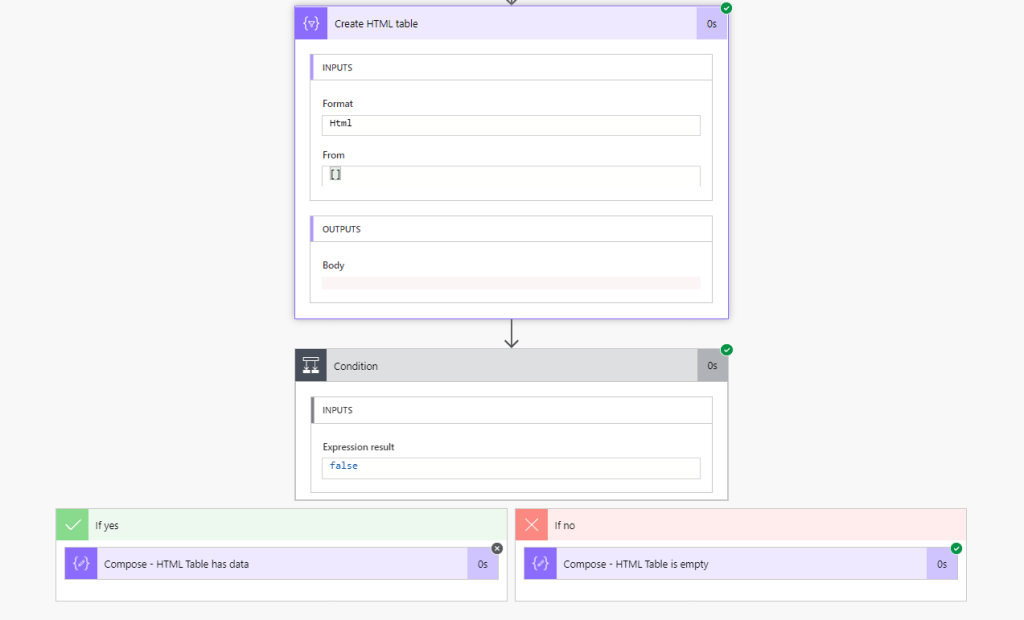
    Now we can add a If Condition to check if the length is greater than 30

    ** TIP **
    I am passing in the Compose action into the condition, this allows me to see what the outputs of the Compose action before it gets evaluated inside the condition. This is extremely useful for troubleshooting

    Conclusion

    The Flow will go into the ‘If yes’ block if the HTML table has data

    The Flow will go into the ‘If no’ block if the HTML table is empty

    Of course checking the Data Variable itself for length could work way better. This example is mainly for data that can come in that could have loads of junk. For example:
    An HTTP API could bring in no data, but still have other information attached like, headers, status code, version. In this case we can only do conditional checks on the HTML table, since our Data variable will always have something being passed in.

    I used this method to help someone on the Community Forum, check it out here:
    https://powerusers.microsoft.com/t5/Building-Flows/Create-a-Flow-with-Condition-that-does-not-send-email-when-list/m-p/721076/highlight/false#M98488

  • Converting Time Zones Easily In Power Automate

    Converting Time Zones Easily In Power Automate

    Summary

    Did you know that Power Automate has a Date Time action that can easily convert, and format time zones in one action?
    Why is this important? Power Automate natively uses UTC as its time zone, as well as most SharePoint sites. Using an action can be easier than using expressions.

    The Flow

    In this example, we will want to get the current time (this will be in UTC since we will be using Power Automate) and converting the time to local time with a specific format.

    First we want to get the current time, we can use the expression utcNow() but I will be showing how to use the Date Time actions instead.

    The actions are under Date Time:

    Add a Current time action, this action is the same as using utcNow() expression

    Next add Convert time zone action, this action is very useful as it has pre loaded time zones and formats to choose from.

    The inputs for this action are:
    Base time: Use the output from the Current time action
    Source time zone: Make sure to select Coordinated Universal Time
    Destination time zone: Select your local time zone or the time zone you want
    Format string: This dropdown has many ISO formats to choose from. If you want to have a custom format, simply click the drop down and select Enter custom value. See below for examples

    Format Examples

    If for some reason the format you want is not in the dropdown for formats, you can create a custom format as long as it follows ISO 8601 format. To add a custom format click Enter custom value in the dropdown

    Some tips when creating a format for the date ‘2020-10-13‘ (October 13 2020)
    yy = 20
    yyyy = 2020

    MM = 10
    MMM = Oct
    MMMM = October

    dd = 13
    ddd = Tue
    dddd = Tuesday

    Examples:

    yyyy-MMM-ddd = 2020-Oct-Tue
    yy/MMMM/dddd = 20/October/Tuesday
    dddd, MMMM, yyyy = Tuesday, October, 2020
    MMMM dd, yyyy = October 13, 2020
    yyyy-MM-dd = 2020-10-13 (used for comparing dates)

    To add time to your format use the following in your format:
    (It is best practice to add the letter ‘T’ before using time formats)

    h = hours (12 hour time)
    hh = hours (12 hour time)
    HH = hours (24 hour time)
    mm = minutes
    ss = seconds
    tt = Appends either AM or PM to time

    Some examples are:
    MMMM dd, yyyyThh:mm = October 13, 2020T12:51
    MMMM/dd/yyyyTHH:mm:ss = October/13/2020T13:02:41
    hh:mm:ss tt = 01:06:41 PM
    h:mm:ss tt = 12:06:41 PM

    Conclusion

    Knowing these formats and the what each letter code does, the possibilities are endless. You can create any type of custom date time format easily.

    As always if you have any questions, don’t hesitate to reach out.

    Thank you for reading!

  • Power Automate – Format Phone Number Easy

    Power Automate – Format Phone Number Easy

    Take a phone number like 4031234567 and turn it to (403)-123-4567 with one simple step!

    Scenario

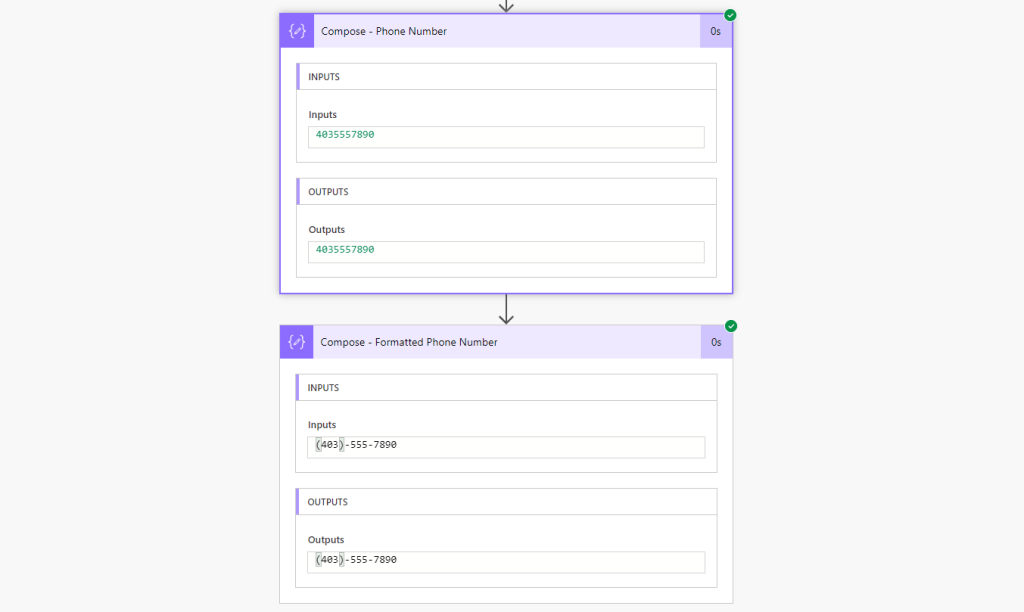
    We have a phone number coming in from a secondary system as a integer number. We than want to add some formatting to this to be easily read and look cleaner. For example, a phone number comes in like this:
    4035557890 And make it look like (403)-555-7890

    Things to Know

    Since we add ‘-‘ and ‘( )’ this turns our data type to become an String. Keep this in mind, since you wont be able to pass this into a field in another system that is looking for a Integer value

    The Flow

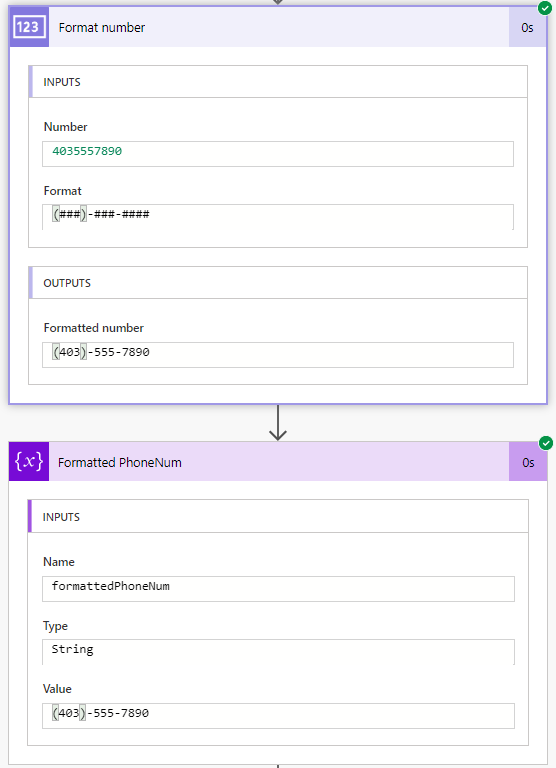
    This Flow is very simple. To achieve the formatted number I am using the action ‘Format number’. This is a fairly new connector that is mainly used to format currency values. But we can utilize the format to define any formatting we want

    Looking at the above picture, we are passing a Integer phone number into the Format number action. Than we specify the format we want to use by selecting the drop down > clicking ‘Enter custom value

    End Result!

    Conclusion

    Since this action is fairly new, I am curious and looking forward to see if the Power Automate team will expand and add more actions like this to make formatting a breeze.

    Thanks for reading!

  • Bypass Apply to each Loop

    Bypass Apply to each Loop

    Have you ever noticed that Power Automate will sneak in that ‘Apply to each loop’ even though you are only expecting a single value.
    For example this can happen whenever you are using a Action that ‘Lists’ items, folders, fields, etc.
    In this example I will be showing how to get a User ID in CDS with the users Full Name.

    The Problem

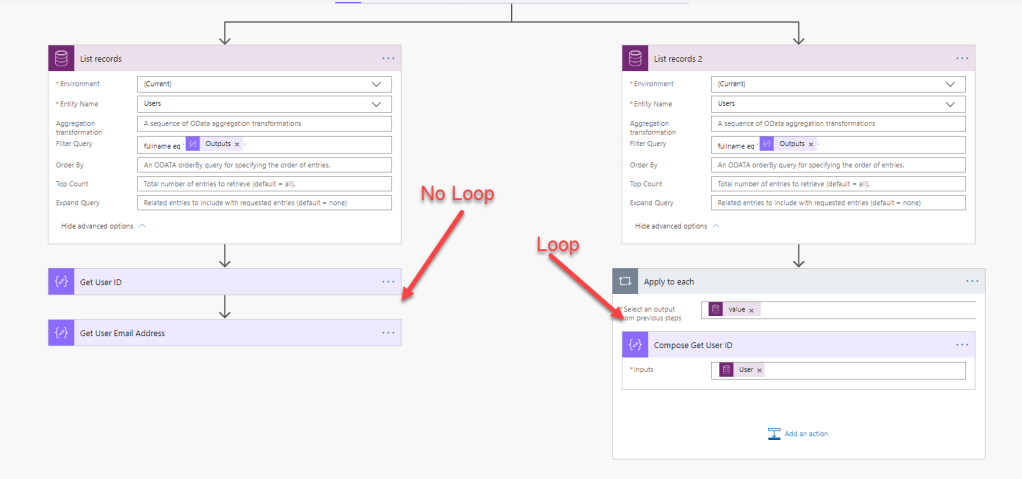
    Power Automate creates a ‘Apply to each’ loop when selecting dynamic content from a action that Lists items, folder, or anything. In most cases this is awesome and creates a nice smooth workflow.

    However, what about when you know exactly what you want to look for and you know its only going to be 1 record, item, whatever is going to be returned. Power Automate will still make you use the ‘Apply to each’ loop.

    This may not be a such a terrible thing, but if you need to do multiple things underneath that action, you will have to put them in the loop as well (if you need any data or reference to that action)

    The Solution

    On to the magic..
    In my example Flow I will be using:

    • ‘Compose’ action to have my Full Name stored.
    • ‘List records’ CDS action to list records from the default Users table entity.
      ** Note – This can be done with any connector. **
    • ODATA filter on the ‘List records’ which I am using to filter ‘fullname’
    • Under the ‘List records’ I use a ‘Compose’ action to store the users ID(Primary Key from CDS) and the users Email Address

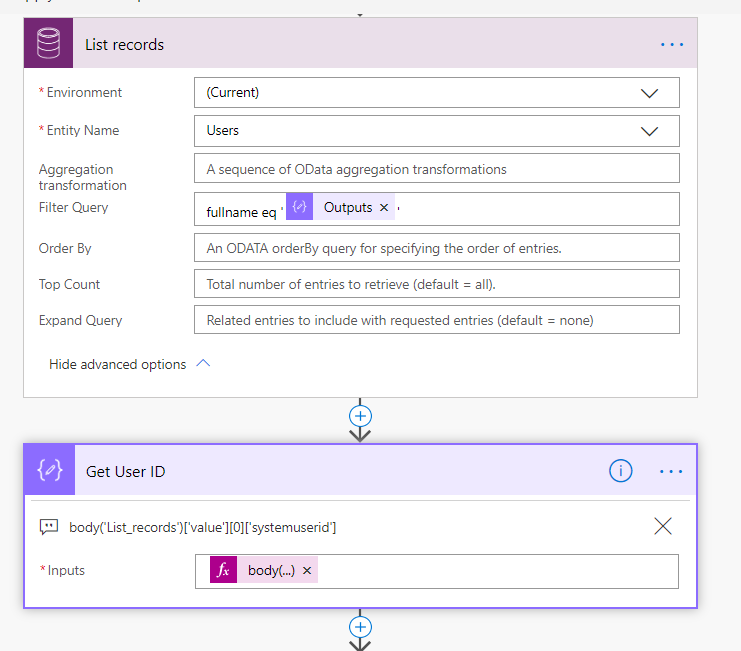
    Step 1 – I am using CDS List records for my example, with a Odata filter

    My List Records with my Odata filter
    My List Records with my Odata filter

    Step 2 – Adding Compose action to use the Expression to bypass the loop

    Add a Compose action below the List action. And select Expression

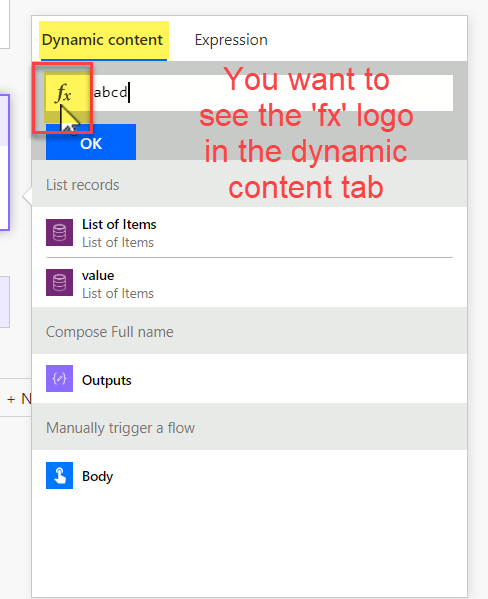
    Type anything, this is to keep us in Expression mode when we switch back to Dynamic Content tab

    If you see the fx Logo in the Dynamic Content Tab, you have done this correctly

    Remove what you had, and Click the Value of the action you want to bypass the loop with

    Remove the ? and add [0] This is saying we want the first record only. Since this returns an array we say 0 as this is the first record in an array

    after the [0] we type what the field name is, in this format: [‘feildname’]

    Click OK.. I usually like to put the Expression in a Comment

    This is the exact expression I used in my Compose action

    body('List_records')['value'][0]['systemuserid']

    DONE!


    Limitations:

    The only thing you have to watch out for is when there is a empty record. This will cause an error if the record is empty.
    This can easily be fixed using a Condition If block before the Compose to check if value is empty using the empty() expression.
    OR
    If you want to avoid the error altogether, you can use the expression first() instead of body()

    I hope anyone finds this useful. This boosts performance greatly when you only need one record since you wont need a Apply to each loop.

    Thank you for reading

  • Excel Filtering on Columns With a Space

    The Problem

    Using the Filter or the Select Query can be limited on the Excel connector. The issues come up when there is a space in the column you are trying to Query, which results in a Bad Request error.

    The Solution

    A relatively easy fix would be to change the column name to have no spaces. Sometimes this is not viable or possible due to many systems talking to each other. Or perhaps a third party is supplying the Excel doc.

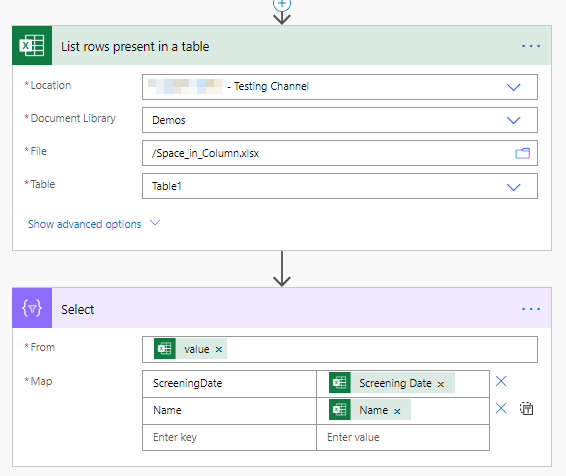
    The fix in my example shows how to use the Select, and Filter array actions in Power Automate.
    Select is used to select certain columns to output.
    Filter Array is used to filter on certain conditions and values.

    Step 1 – Add the Select action under the Excel List rows present in table action

    The Map section is used by naming the column on the left, and selecting the column on the right

    Step 2 – Add Filter array action under the Excel List rows present in table action

    The Filter array action can be used for all types of Odata like filters

    Conclusion

    Some Actions have a limitation on the Odata filter and Select queries. Some examples include:

    • When filtering on Names with special characters
      • James O’ Henry
    • Columns with spaces

    Thank you for reading.