Controlling when your Flow triggers can be crucial. By default Flows run in Parallel, this means multiple runs could be running at the same time, this is great for performance, but could cause troubles in some Flows. For example:
Lets say we have a Flow setup that is triggered on when an item in a SharePoint list is created, which gets sent to other systems for different purposes. For data quality reasons, we only want the Flow to run one at a time, and have other runs be waiting in a queue.
The Flow
The only setting we need to change is in our Trigger.
This can be done on Triggers other than SharePoint
For this demo, I added a Compose action to get the Name of the item being created in SharePoint.
I added a Delay action only to show what happens if multiple runs queue up.
The setting we want to change is in the trigger, click the 3 dots on the trigger and select Settings from the drop down.
Now inside Settings, find and enable Concurrency Control, and set Degree of Parallelism to 1. This setting is how many runs can run in at one time. Click Done
My trigger is When an item is created, so I will create 3 items, one every 15 seconds to show what happens with queued runs. 1st item = Run1 2nd item = Run2 3rd item = Run3
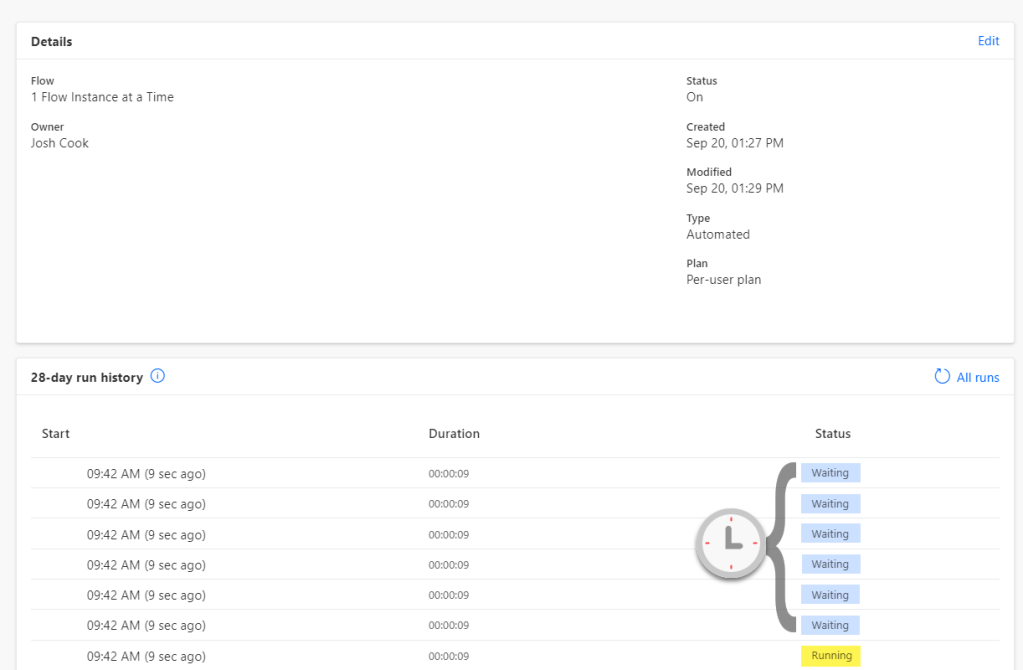
Here are my findings:
As we can see the runs are not in order, of the way I created the items. So we can conclude that if we create the items faster than our trigger time, we can expect that the Flow will not run in a sequential order.
Conclusion
As we can see above, this Trigger setting is very useful when needing to limit the Flow to run one at a time. But the limitation on this is, if the Flow is being triggered multiple times and having the runs queue up, there is a chance that the runs will not run in order.
Deploying Power Automate Flows can be a headache if you have to manually change values inside the Flow for each environment. You also run the risk of missing a value.
This post will go in depth on using Environment variables inside solutions to allow certain values to be used in different environments. I will be using Two(2) environments for this demo: Dev, and Test
This demo will utilize the data type ‘JSON’, this will save loads of time.
Terms / Glossary
Here are some familiar terms that will help in this post: Default Value = The value that you’re expecting after you deploy the Flow. This will be our Test environment values
Current Value = The value that overrides the Default Value. This will be our Dev environment values
Parameters = These are just values. For example 2 + 2. Each 2 is a parameter of the addition expression (+)
** Note: I Have created this guide to be as simple as possible, If you name everything as I do, you will be able to copy and paste all my expressions directly into your Flow **
The Scenario
My Flow posts a message into Microsoft Teams group. When deploying the Flow into different environments, I want to change the Teams content like:
Team Name
Channel ID
Subject
Usually after deploying, we can go in to the Flow and manually change the values. This can cause errors, especially if we forget to change some values after deploying (I may have done this a few times).
Getting Parameter Values
It is important to note that not all Action values can be parameterized. Follow the steps below to see if the values can be parameterized:
Teams Example: My Teams action, I want to parameterize the Team Name, Channel ID, and Subject. For this I add the Action, and select the values as needed.
Now with the information filled in, click the 3 dots ‘. . .’ on the action, and click ‘Peek Code’.
Dev Parameters
In the ‘Peek code’ view, we can see the different parameters and the values that this action uses in the background. Copy these values into notepad or code editor for use later. I have created a simple JSON to be placed in my Environment Variable later on.
I will be using the Env value for my Subject in the teams message
For example: Team = 1861402b-5d49-4850-a54b-5eda568e7e8b Channel = 19:be3759762df64d94a509938aa9962b29@thread.tacv2 Subject = Message From Dev Environment
To test that we can use custom values as parameters, we want to grab these values from above and insert them into the ‘Teams Post a message’ action as custom value, than run the Flow
Mine looks like this now:
Now run the Flow to make sure everything works as expected using the Custom values
Now that we know Custom values work for the inputs/parameters for the action. We now want to get the values for the other environment. Remove the custom values from the inputs and choose the correct value that we want to point to when this Flow is deployed to another environment. For example:
Again we do a ‘Peek code’ to get the parameter IDs that this action uses
Test Parameters
Copy these values into notepad or a code editor for use later. Now we have two sets of values, one for Dev, and one for Test. I have created a simple JSON to be placed in my Environment Variable later on.
I will be using the Env value for my Subject in the teams message
Make sure the Two(2) JSONs have the same structure. We will be using the data to populate the Environment Variables in the following steps
Creating Environment Variables
Environment variables can only be created inside a solution, there are multiple ways you or your organization may want this set up.
In this demo I have created a Publisher in CDS called ‘param’, this will better define the parameters that we create inside the solution. (this is optional) The default CDS publisher could also be used.
Create a solution inside Power Automate. Click Solutions on the left navigation menu, Than click ‘New Solution’ on the top on menu, and fill the information out
Once the solution is created, Click ‘New’ > Environment variable
Now fill in the information like the screenshot below.
Note, I will be using the Data Type as JSON. I use this for simplicity, as I have more than one value I want to add. Also we can use the Parse JSON action in Flow to reference each value separately. You can use any Data Type you like
Now we populate the values we want to use per environment, the way we do this is fill in the Default Value, and the Current Value.
Default Value = The values we want for the other environment, in this case Test Current Value = The values we want to use for this environment, in this case Dev
Once the values are pasted in click ‘Save’
Creating The Flow
I will be creating the Flow inside the solution that the Environment Variable is in from above. Inside the solution click ‘New’ > Flow
For the demo I will use a Manual trigger, than add Two(2) ‘Initialize Variable’ actions
Initialize variable – Schema Name Name: schemaName Type: String Value: Put the Name of the environment variable in the value (This can be found on the main screen of the solution under Name column)
Initialize variable – Parameters Name: parameters Type: String Value: Leave blank for now, this variable will store either the Default Value or Current Value, based on which environment we are in
Next add a ‘Scope’ action to hold all the actions that will get the parameters
I renamed my ‘Scope’ to Load Parameters.
NOTE: You can copy and paste my filter query as long as you kept the same name as I did. When you see the @ in Power Automate, this allows you to call expressions without having to go into the expression tab. If you want to build the expression yourself, I will include the syntax under each picture of the List Records actions and on
Inside the Scope, add Two(2) ‘Common Data Service Current Environment – List Records’ actions.
1) List records – Parameter Definitions Entity name: Environment Variable Definitions Filter Query: schemaname eq ‘@{variables(‘schemaName’)}’
schemaname eq ‘YOUR ENVIRONMENT VARIABLE NAME’
2) List records – Parameter Current Values Entity name: Environment Variable Values Filter Query: environmentvariabledefinitionid_value eq ‘@{first(outputs(‘List_records-_Parameter_Definitions’)?[‘body/value’])?[‘environmentvariabledefinitionid’]}’
Under the ‘If condition‘ add a ‘Parse JSON‘ Name: Parse JSON – Parameters Content: @{variables(‘parameters’)} Schema: To generate your schema, Click the ‘Generate from sample’ button, than paste in the JSON that you used for Default Value
We are done with the parameter scope now..
Using The Parameters
I will be adding a Teams Action ‘Post a message‘ I will use the dynamic content from my ‘Parse JSON‘ action.
Triggering the Flow, I expect the Dev values to be used (Current Value)
Here is the Teams message:
Next we will export and import into a different Environment which will use different parameters (Default Value)
Export And Import – Deployment
Overview of this sections steps: 1. Remove Current Value from Environment variable 2. Publish Solution 3. Export Solution 4. Import Solution 5. Authorize any Connections 6. Enable Flow 7. Trigger / Test
Remove Current Value from Environment variable
Inside the Solution click on the Environment variable, under Current Value click the 3 dots ( . . . ) Select Remove from this solution
This will only remove the values from this solution. The Current Values will still be in CDS and can also be added back into this solution if needed by clicking Add existing under Current Value
Publish Solution
Inside your solution, click ‘Publish all customization’
Export Solution
Once published click ‘Export’
Export as ‘Managed’ or ‘Unmanaged’ Choose either or based on your needs.
Import Solution
Switch to your other Environment, and click Solutions tab. Click ‘Import’
Choose your Zip file from your Export, and follow instructions by clicking ‘Next’
Authorize any Connections
Once the solution is imported successfully, you may need to authorize any connections inside the Flow. This can be done by clicking on the Flow from inside your solution, and clicking ‘Sign in’ on all actions > Click ‘Save’
Enable Flow
Now enable / turn on the Flow
Trigger / Test
Trigger the Flow to confirm the values are coming over as correct (Default Value).
Test Env – Using Default Value as expected
Now in Teams our message has been posted in a different team chat, different channel, and with the ‘Test’ text in the subject line
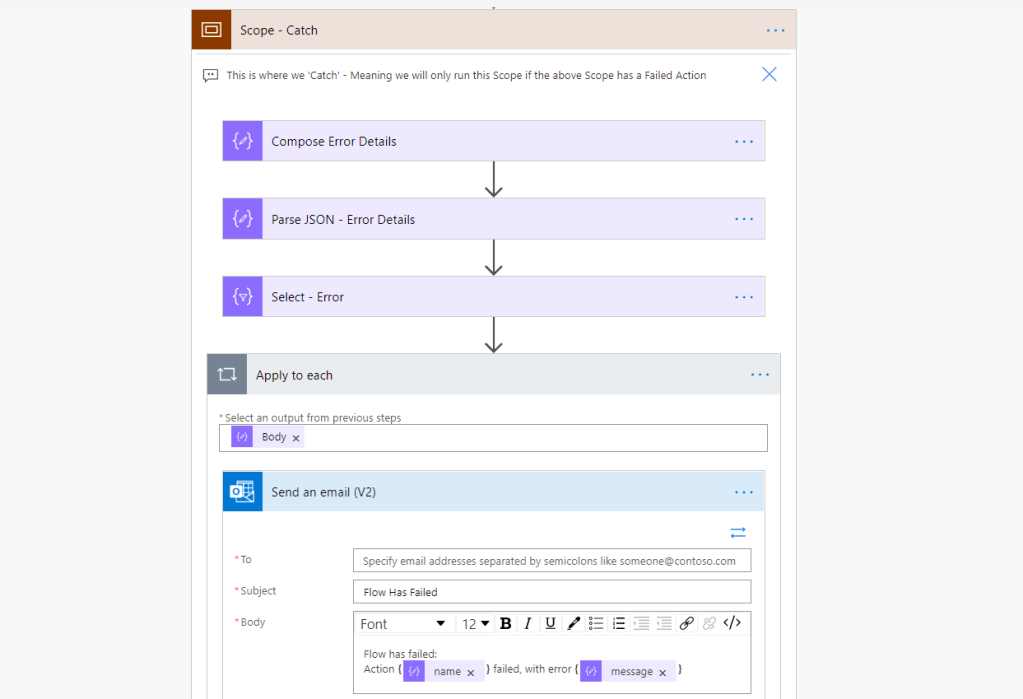
When a Flow fails, sometimes we want to capture and send that message out, to a user, support team, or teams channel. In this demo we will go through the steps to capture any error messages from a failed run.
Virus Total in Power Automate. Now we can scan links or files and generate a report, right in Power Automate. Some examples may include: Links or files from Emails, Teams, Etc.
What is Virus Total
Virus Total is a free and powerful tool to scan Files, and Links. Virus Total uses the Hash of the File/URL and checks some of the most popular antivirus systems to generate a report. https://www.virustotal.com/
Prerequisites
This is a Premium connector Note: These actions of the time of this blog, are in Preview.
Virus total has two types of API Free (Public): – The Public API is limited to 4 requests per minute and 1K requests per day. – The Public API must not be used in commercial products or services. – The Public API must not be used in business workflows that do not contribute new files. Paid (Premium): – The Premium API does not have request rate or daily allowance limitations, limits are governed by your licensed service step. – The Premium API returns more threat data and exposes more endpoints and functionality. – The Premium API is governed by an SLA that guarantees readiness of data.
Keep the above information in mind when using the API
To use the Virus Total connector, you must sign up on their site and get a token. To get the token, follow these steps:
First head over to https://www.virustotal.com/ and sign up for free Next you will have to confirm your email address
Now once you can login to your account, you want to click your person logo in the top right, and select API key
Now copy the API key that you are given. That is it! Now you can use that Key to create a connection with the Virus Total Connector is Power Automate
Connection Setup
First, we make a connection to the Virus Total API. In your Flow, add a new action, search for Virus Total.
Virus Total has a couple Actions here that are very powerful. We will be using ‘Analyse an URL’ action for this demo.
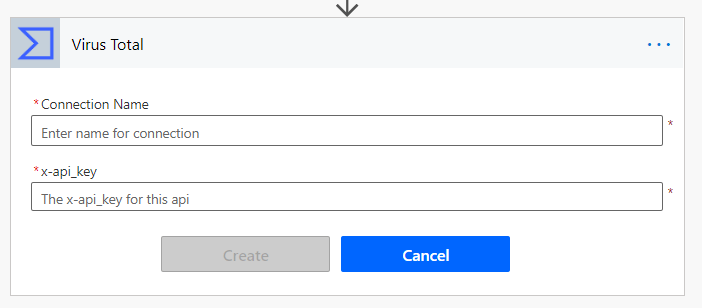
All that is needed to create the connection is your API key from the prerequisites.
Connection name can be anything you want, for this demo I chose VirusTotalDemo
Now that we have the connection established we can build the Logic for analyzing a URL.
Building the Flow
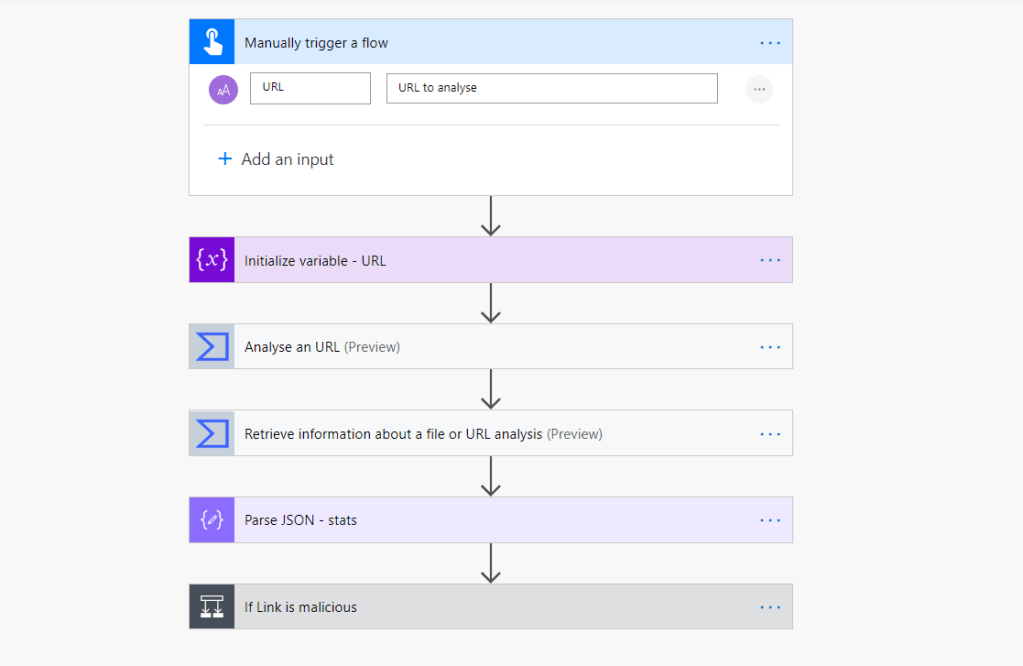
I will be using a Button trigger, and a Variable to store the URL I want to analyze but I will go through some use cases at the end of this blog of how this can be implemented.
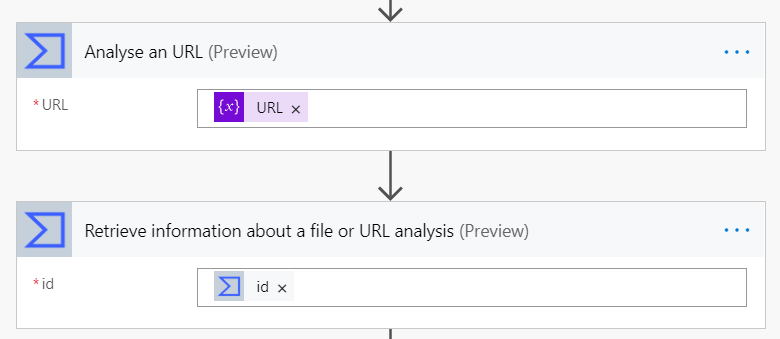
There are two main actions in the Virus Total connector I will be using: – Analyse an URL – Retrieve information about a file or URL analysis
I am using a string variable to store the URL. Now we use the Virus total action called: Analyse an URL. This action only needs one input, the URL we want to analyse. This action outputs the ‘id’ for the analysis. We can use this ‘id’ in our next action.
Now we add the second Virus Total action called: Retrieve information about a file or URL analysis. This action wants the ‘id’ from the first step.
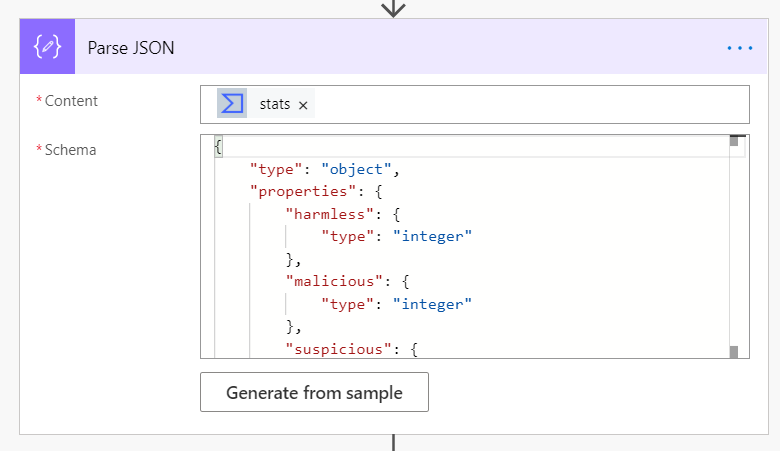
From here we get a bunch of cool dynamic content for the stats of this URL.. But for this demo, I will use the ‘stats’ dynamic content, this is a JSON object so I will add a Parse JSON action. To get the schema, you can either copy my schema, or use {} inside your schema, and run the flow, than copy the outputs to ‘Generate from sample’
From parsing the ‘stats’ object, I am able to check if the URL has any harmless, malicious, suspicious, or undetected reports. This information can be very useful.
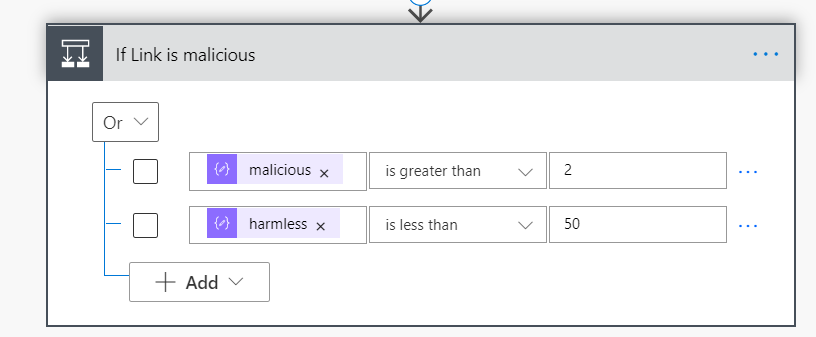
Now I can add a If condition and control what kind of sites I want to classify as harmful or malicious. Here is my condition:
If URL has 3 or more report engines pick up the URL as Malicious, OR if the report has less than 50 harmless reports. That I am classifying this URL as BAD
Use Cases / Conclusion
I have only scratched the surface with Virus Total in this blog. I am sure lots of people can find a great use out of this. A great example of how this can be used: Have users send files or URLS, which can get analyzed, to help with cyber security. Could trigger by: – Flow bot in Teams – Have a flow monitor a certain email, which can parse the body for URLS, and check for attachments
Expressions can be confusing when starting out in Power Automate. Luckily the product team makes things easier each day. I will be showing how to grab an email address Josh.Cook@flowaltdelete.ca and transforming it to Josh Cook
The Scenario
For this demo, we will be formatting an email address and removing everything after the ‘@‘ symbol, to form a first name and last name.
We will be using Substring to achieve this. However we wont be using the expression Substring, we will be using a Action called Substring, this action can be found in the ‘Text Functions‘ connector.
The Flow
In my Flow I will use a Compose action to store an email address, this can be any data source or action that fits your needs.
In this example, we want to remove the At sign and everything after. To do this we could use an expression. But.. The Power Automate team has put together some actions that make Text Functions more easy.
At this time there is Two(2) Text Function action we can utilize. 1. Find text position 2. Substring We will you both in this example
First we will add the ‘Find text position‘ action. This action has Two(2) parameters to fill in: Text – The text we want to use, in this case we use the dynamic content of our Compose with the email Search text – This is the text we want to find the position of
In the string Josh.Cook@flowaltdelete.ca the ‘@’ sign is in position 9. This is because in indexing values we count the first value as index 0
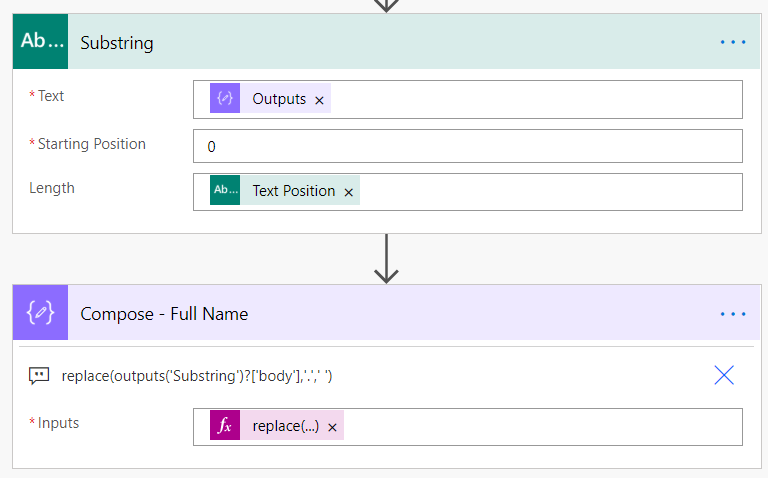
Next we add the ‘Substring‘ action. This action has three(3) parameters. 1. Text – The string of text to extract the substring from 2. Starting position – since we want to extract ‘Josh.Cook‘ our position will be 0 3. Length – This is how long the substring will be, so this is where we use the dynamic value from Text Position action (Which is 9)
Now when we run the Flow, we should take the value: ‘Josh.Cook@flowaltdelete.ca‘ And output ‘Josh.Cook‘
Mhm.. Not bad, now all that is needed is getting rid of the ‘.’ This can easily be done by using the replace() expression. replace(<Dynamic Substring Body>,’.’,’ ‘) The replace expression is replacing the ‘.’ with a white space char
replace(outputs('Substring')?['body'],'.',' ')
Now when we run the flow:
Conclusion
These new Text Function actions in Power Automate makes expressions even easier. I cannot wait to see what the Product group adds to these. Thanks for reading, and as always please reach out to me on Twitter with any questions you may have. Thanks again!
Take a phone number like 4031234567 and turn it to (403)-123-4567 with one simple step!
Scenario
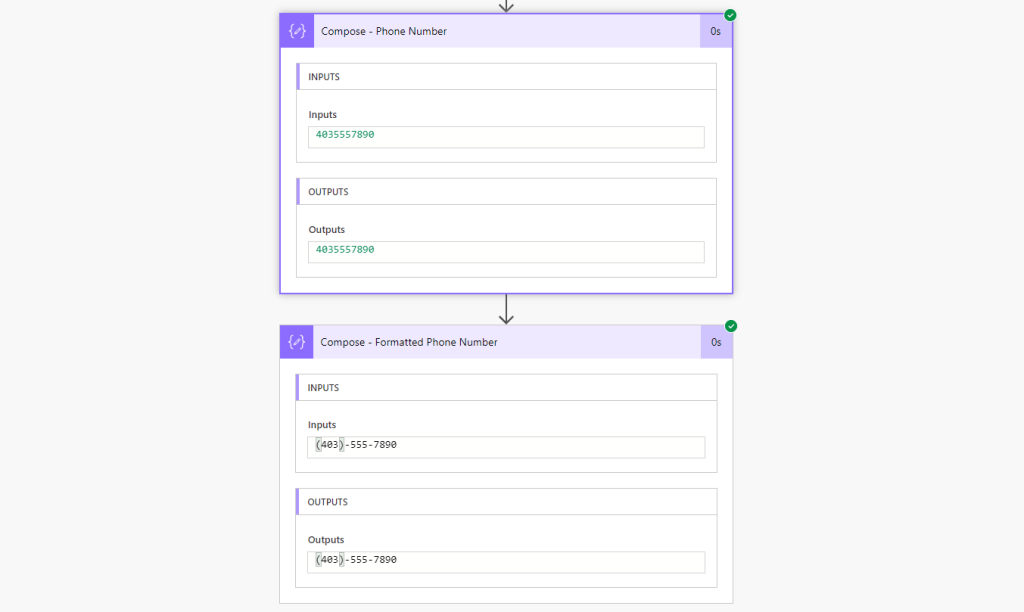
We have a phone number coming in from a secondary system as a integer number. We than want to add some formatting to this to be easily read and look cleaner. For example, a phone number comes in like this: 4035557890 And make it look like (403)-555-7890
Things to Know
Since we add ‘-‘ and ‘( )’ this turns our data type to become an String. Keep this in mind, since you wont be able to pass this into a field in another system that is looking for a Integer value
The Flow
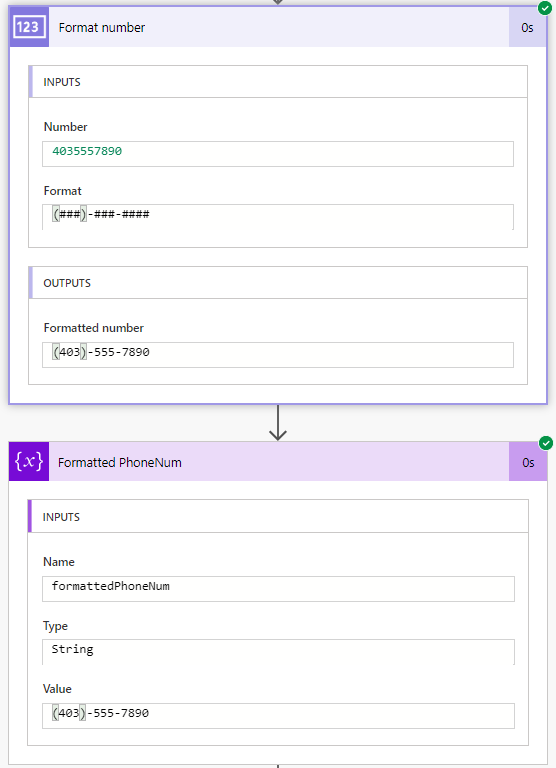
This Flow is very simple. To achieve the formatted number I am using the action ‘Format number’. This is a fairly new connector that is mainly used to format currency values. But we can utilize the format to define any formatting we want
Looking at the above picture, we are passing a Integer phone number into the Format number action. Than we specify the format we want to use by selecting the drop down > clicking ‘Enter custom value‘
End Result!
Conclusion
Since this action is fairly new, I am curious and looking forward to see if the Power Automate team will expand and add more actions like this to make formatting a breeze.
I have learnt this method from John Liu. I have pointed so many people, and community users to John’s blog when they run into this Excel connector limitation. I have found multiple people thinking its too complicated, or confusing, because the method works with Graph API to get the File ID. So this blog will be a very easy guide to follow and hopefully will be able to get your Flow being able to use a dynamic filename. If you have any questions or problems with this guide or other Power Automate related questions, reach out to me on Twitter.
New Update – Easy Way 2021
The following video explains a way easier way to do this, no API, no messy File ID’s. Check it out!
Things to Know
To make this even easier, we will be having the Excel file that be stored into a SharePoint Document Library. We can also use the SharePoint HTTP call action to better build our REST call more easily. * We will still need the Excel file to have a table defined *
Getting Started
First we will create a new SharePoint Document Library for the files, or use an existing document library.
Next, we want to have one Excel file in the Library to start, so we can make sure this is working. Here is what mine looks like:
My example, I have a Document Library called ‘Excel Files’ with a Excel file to start with
Overview of The Flow
For the Flow, I am using the SharePoint action ‘Send an HTTP request to SharePoint‘. This action uses MS Graph in the background, but makes it a lot easier to construct a API call. First we will use a simple call to SharePoint using the ‘Send an HTTP request to SharePoint‘ action to get all the Document Libraries for our site. Than use the output of that action to find the Document Library Drive ID. This is how we navigate through the SharePoint site, we want to do this until we are in the folder of our Excel File.
Lets Build that Flow
First we add ‘Send an HTTP request to SharePoint‘ action
Uses Graph API in the back-end
In the SharePoint HTTP action, use the following: – Site Address: If your SharePoint site does not show up in the drop down, click use ‘Enter custom value’ and type the homepage of your site – Method: GET – Uri: _api/v2.0/drives/ – Headers: accept application/json
Now trigger the Flow to get the Output of the HTTP request.
You can also read and get what you need through the Output Body window
I am using Visual Studio Code to paste the Output into, its free, and easy to use. If you have lots of Document Libraries, you may want to use a Find feature and search for the Document Library name. For this demo I will be searching Excel Files. We need to look for a specific ‘id’ inside the output
Copy this ‘id‘,we can use this value to navigate inside that Document Library in our HTTP request. Our new URI should looks something like: _api/v2.0/drives/b!MJxrwkJ2FUGanaxoijg0eZmnU9iP4aJJsidrZJQNlsBAb-8VLzYJRbD9CKmJa0j8
Now we need to add /root:/ to the end of our URI
We are almost complete! We now need to specify the path to our file. Here are some examples:
If file is directly in the Document Library(No Folders) – Just add the filename with the extension _api/v2.0/drives/b!MJxrwkJ2FUGanaxoijg0eZmnU9iP4aJJsidrZJQNlsBAb-8VLzYJRbD9CKmJa0j8/root:/MyNewExcelFile.xlsx
If file is in a folder – Add the folder name, than the Excel file with the extension * NOTE: If folder name has spaces, than use%20 instead of a space * Folder name = Historical Files _api/v2.0/drives/b!MJxrwkJ2FUGanaxoijg0eZmnU9iP4aJJsidrZJQNlsBAb-8VLzYJRbD9CKmJa0j8/root:/Historical%20Files/MyOldExcelFile.xlsx
Mine is not in a folder so I will be using the first one. Now to make the file dynamic, I will be using a Compose action to store the Filename. So in my HTTP Request I will be using my Compose action with the Filename and extension at the end. My example will look like this:
The Filename, can come from any Dynamic content, I am just using a Compose for the sake of this Demo
Now test the Flow to validate the HTTP request is valid. The output should have some references to the file, like the name of the file, size, created date time, and last modified date time. My output looks like this:
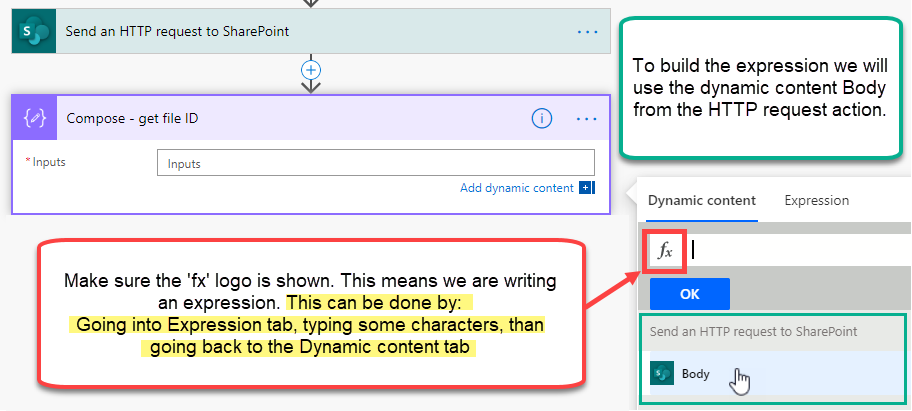
Next, to get the file ID, we use a Compose action with an expression. Add a Compose action, inside the Compose we will use the HTTP request Body dynamic content in a expression:
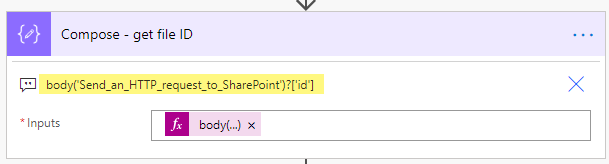
With the fx logo present on the dynamic content tab. Click the Dynamic content Body. Now we use JSON path to grab the file ID. This is done by adding a ?['id'] to the end of the expression. My expression looks like this:
body(‘Send_an_HTTP_request_to_SharePoint’)?[‘id’]
body('Send_an_HTTP_request_to_SharePoint')?['id'] You can copy my expression, just make sure to change the Send_an_HTTP_request_to_SharePoint to your HTTP request action name
Next add an Excel Get tables action. Use the outputs from the Compose – get file ID for the File
Now add an Excel List rows present in table action. File: Use the outputs from Compose – get file ID action (same as we did for Get Tables) Table: Click Enter custom value. Use this expression to get the first table name first(body('Get_tables')?['value'])?['id'] Power Automate has been updated the new expression to get the tables is: first(outputs('Get_tables')?['body/value'])['id'] ** Same as before. Get_tables is my action name **
first(outputs(‘Get_tables’)?[‘body/value’])[‘id’]
Success!!
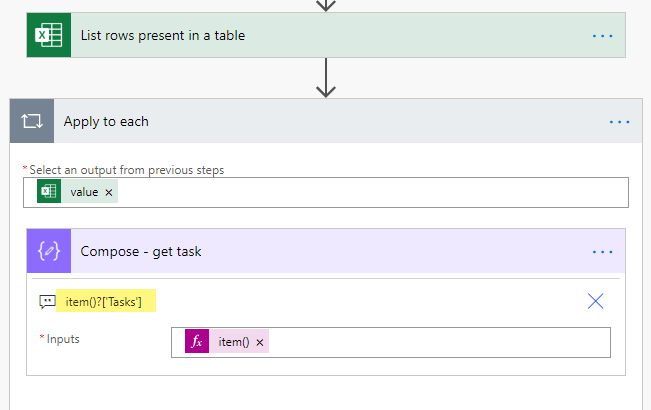
Now, sometimes the Dynamic content of the Excel columns wont be there now. You can easily grab any column you like using the item() expression. For example I have a column named Tasks so my expression will be item()?['Tasks']
item() can only be used inside an Apply to each
Conclusion
Being able to use a Dynamic filename in the Excel connector can be tricky. But I am hoping with this guide, anyone who needs this business requirement can easily follow this, and get it done.
How are you using and storing sensitive usernames and passwords in Flow? We use usernames and passwords for so many different actions in Flow. One main use is in a HTTP action.
In scenarios like this, where do you store these usernames and passwords? This post will show how to use Azure Key Vault action to get a secret, which can be passed to any action securely using Secure Inputs and Outputs.
Prerequisites
Azure Subscription
Azure Key Vault setup
Key Vault Permissions set to Get and List Via Access Policy
Key Vault Secret created
Premium License for Power Automate
Steps
Okay, now that we have the above prerequisites ready, lets get the Flow created
First we want to search for ‘Azure Key Vault‘ when adding a new action in our Flow. We will use the ‘Get Secret‘ action
When creating the connection, you will be asked for the Key Vault name. This is the display name that is in Azure.
Next, we add the name of the Secret we want to get. I also Initialize a variable to store the Secret in for easier reference later in my Flow
Inside the Variable, I select the Dynamic content Value.
Now, I run the Flow…
Oh Uh, that doesn’t look good.. Our Secret is wide open and visible in the run history. We can easily fix this.
On the Get secret action we want to enable Secure Outputs We do this by: Clicking the 3 dots on the Get Secret action, Go into settings, Enable Secure Outputs. Click Done
Now when we run then Flow, the Secret value will be hidden from the run history, in all actions.
Thanks for reading!! If you have any questions, please reach out.
This blog will be looking at an expression called union() This expression can be used to remove duplicates from 2 collections. In this example, I will be using an Excel file to demonstrate this. But this can be done with any data
The Scenario
I will be taking an Excel file that has many Paper Items.
We want to remove all the duplicate items from the Plastic Item column. Why would we want to do this? One reason may be that we get this file from a 3rd party, but we only care about the unique items to import into another system (CRM, CDS/Dynamics, SharePoint, Etc.)
Steps
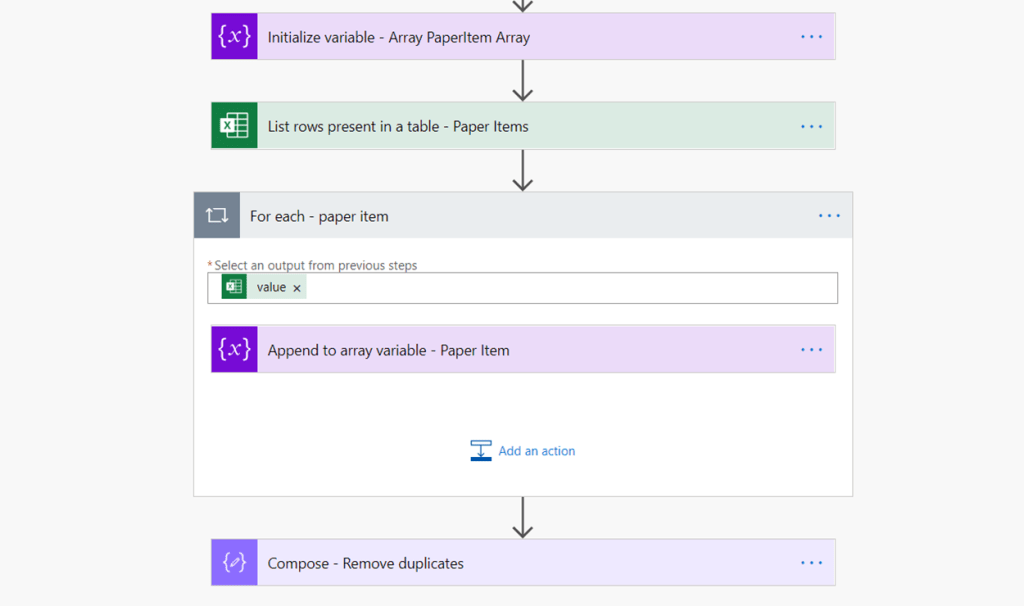
First we want to add an Initialize variable, Type = Array Next, we need to get the data we want to use. In this example I am using List rows present in a table
Now we add a Apply to each loop, and use the dynamic content value from our Excel action Inside the Loop we add a Append to array variable action, and add the column we want to remove duplicates from. In this example Paperitem
We are done inside the loop..
Outside the loop we add a Compose action, this is where we will put the expression union In the Expression tab type union() Select the dynamic content tab and pass the array variable to union twice (Click your variable comma click variable again) Your expression should look something like this:
In this post, I wanted to share some of the tips and tricks that I have learnt and came across. Some of these tips I will cover the basic fundamentals so you can start using them to help you build you Flows with less pain and more fun!
1. Compose
Compose actions, are one of my favorite actions to use. They are so robust and can display pretty much anything. Compose can be found under Data Operation > Compose
1.1
Add a Compose action before a Condition to check what values are being evaluated. In this example, my condition is saying: If length of value is greater than 0 I add a Compose action before the condition, with the same value I am using in the condition. This allows me to check the run and see the value being evaluated Example:
1.2
If Flow is spitting out errors about a wrong data type or you keep getting unexpected values – Since Compose can hold just about any data type. We can add one and check what the value is in run history.
1.3
Compose actions are great for doing expressions – We can add a Compose action and do expressions in the input, instead of writing the expression directly inside another action. This is handy if you need to do multiple expressions, or error checking.
2. Meaningful Names
There is nothing worse than leaving the default names for all your actions. This can be confusing, which can cause errors which could have been avoidable. This tip is going off tip #1.
2.1
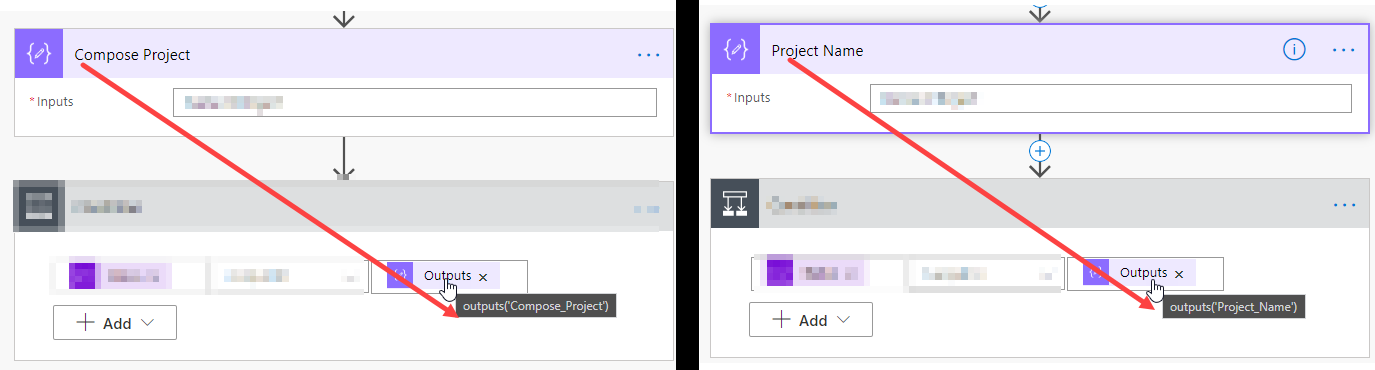
The picture below shows a bunch of Compose actions Left: Default names used – Makes it very hard to know which action is what Right: Custom names used – Changing the names to something meaningful allows actions to be easily found and referenced.
2.2
For awhile now, Power Automate has had a limitation with renaming actions that were being referenced in other places. That has since changed. We can now rename action that are being referenced in other actions! For example: The left picture shows the Compose action named ‘Compose Project’ and is being referenced by the condition below. Changing the Compose action name to ‘Project Name’ also changes the name in the referenced condition, which is shown in the right picture.
—–NOTE —– Limitations still exist.. The reference will not be updated if the action is in a expression OR inside a Loop. And will throw an error of: Template Validation Failed. So it is always best to rename actions right away —————
2.3
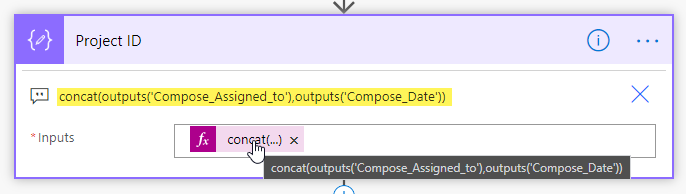
When using Expressions, to better understand and show others what is going on. Comments are great for this. For example, if using a complex expression I like to copy the expression and put into a comment of that action:
3. Scopes
Scopes are handy, they can be used for grouping actions together. In this guide I will show how to use scopes to group actions together. There are many advanced techniques that scopes can be used for, but for this demo I will be showing the very basics. Scopes can be found under Condition > Scope
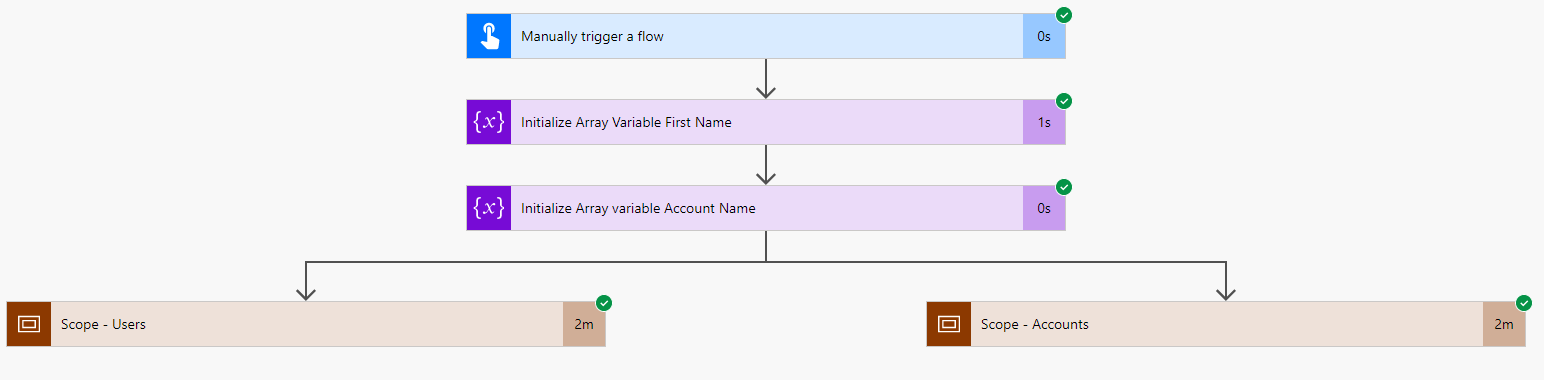
I will add 2 scopes, one for Users, and one for Accounts To add actions in the scope, Click and Drag the action into the scope
Drag the actions in so the order of the actions remain the same. For example, I put the Scope above the List Records action so I could drag the List records in first than the For each loop next
This concept will help us in the following tips
4. Parallel Branches
All Flows run from top to bottom in a single order fashion. If we split the actions to run side by side (parallel) This would drastically improve performance. In this scenario I have Two(2) CDS List records, and Two(2) Apply to each loops
List Records – Users Apply to each – To Append(add) all First names into a single variable List Records – Accounts Apply to each – To Append(add) all Account names to a single variable
Here is what the Flow looks like:
Running the Flow, we can see it takes about 4 minutes
Before we create a parallel branch we first must put the actions inside a Scope, this is to allow us to drag the actions around without getting the
This action cannot be dragged above actions it depends on. Error
Refer to Tip# 3 for details on Scopes
Now lets have these 2 different Scopes run in parallel branches First we want to click the ‘+’ icon where we want to add the branch, next click Add parallel branch
In this example, I am adding a parallel branch above both Scopes
Our screen will look like this:
Next we need to Click and Drag one of the scopes to the new branch
Once the Scope is in the branch we can click the X on the Choose an action tab
Now lets run thew Flow again: As the picture below shows, the Flow now only takes 2 minutes to run, cutting our run time by half, that’s insane!
Imagine our run normally taking 30 minutes, now only taking 15, just from a simple step
Tip# 5 will make our Flow run even faster!!
5. Concurrency
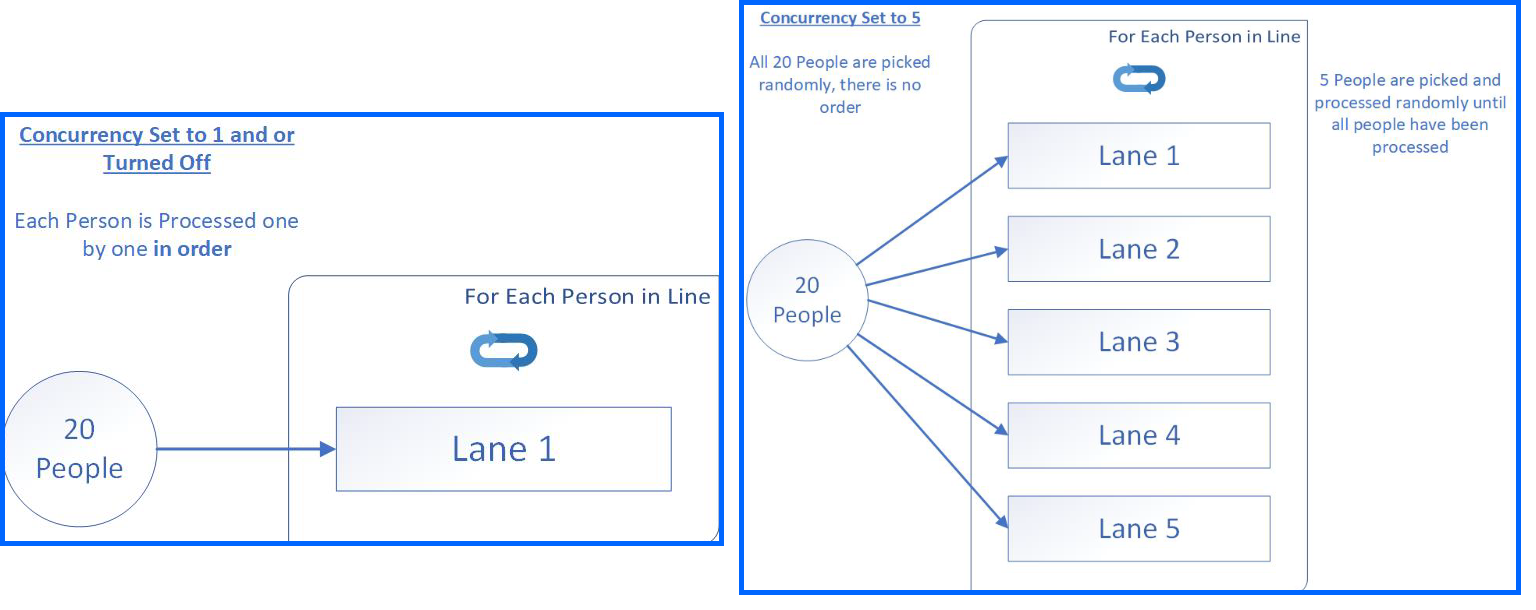
What is it? By default loops run one after another. Concurrency can make loops run in parallel. To better understand this, we can think about a grocery store. In this scenario:
People = Value that is going into Apply to each loop Lanes/Cashier = Concurrency Control Number
There are 20 people waiting in line at the store. There is 1 lane/cashier open. Since the cashier can only take one person at a time, this process can be lengthy. Now with Concurrency turned on, things are a bit different. Lets say we set Concurrency to 5. This means 5 lanes/cashiers will be open. This is great! But there is a catch..
When Concurrency is enabled, there is no more line. All 20 people are processed randomly.
Concurrency can be applied to all Apply to each loops — As well as Triggers!
To enable Concurrency:
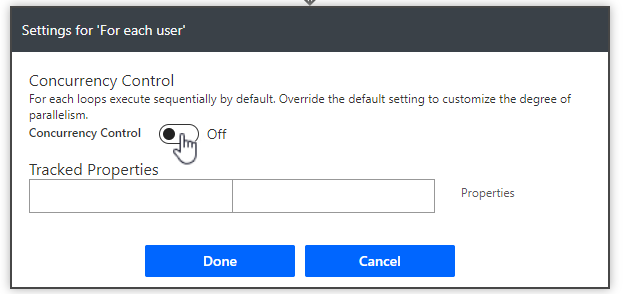
First, click the 3 dots on the Apply to each action Next, click settings
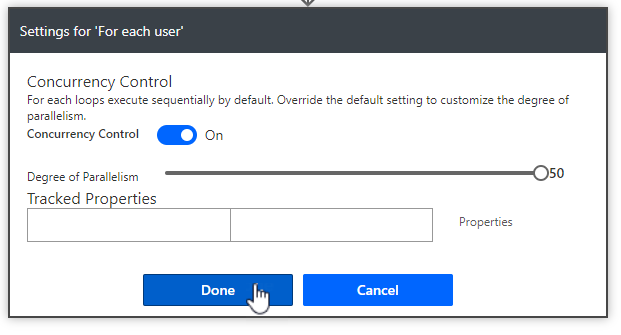
Next, choose the value for Concurrency and click Done
For this Demo, I am setting Concurrency to 50. Please be aware of API limit calls and 429 errors. If you get these errors while flow is running. Decrease the Degree of Parallelism
Now lets see this in action! I set Concurrency to 50 on both my Apply to each loops from the last Tip. As a recap, the last time we ran the Flow, it took 2 minutes to run.
Results: About 5 seconds!
The Run time is about 5 Seconds. Since we used a Parallel branch the total run time is the longest duration of our Parallel branches
This drastically improves performance.
Conclusion / Key Take Notes
Use a Compose action to check values and outputs, that you normally cannot see, Like in a If Condition
Compose actions can store almost any data type. When in doubt.. Use a Compose
When using expressions, try using them in a Compose, this can make troubleshooting much easier
Always use meaningful names for all your actions. Doing this will save loads of time later on, when needing to use dynamic content
Comment, comment, and more comments. All actions allow for comments. This will help support teams troubleshoot your Flow, as well as your future self, if you have to make any updates later on
When using expressions, copy the expression and paste into the actions comments section.
Use Scopes to group actions together.
To speed up performance, use parallel branches to enable actions to run side by side
Enable Concurrency control on Apply to each loops to drastically increase performance
Remember enabling Concurrency control randomizes the order the loop iterations run in. So if you’re expecting a certain order processing to happen, do not enable
These are some of the tips and tricks I wish I knew sooner. I hope at least one of these tips and ticks have helped someone. Thanks for reading!


























 Flow Alt Delete - Josh Cook [Microsoft MVP]