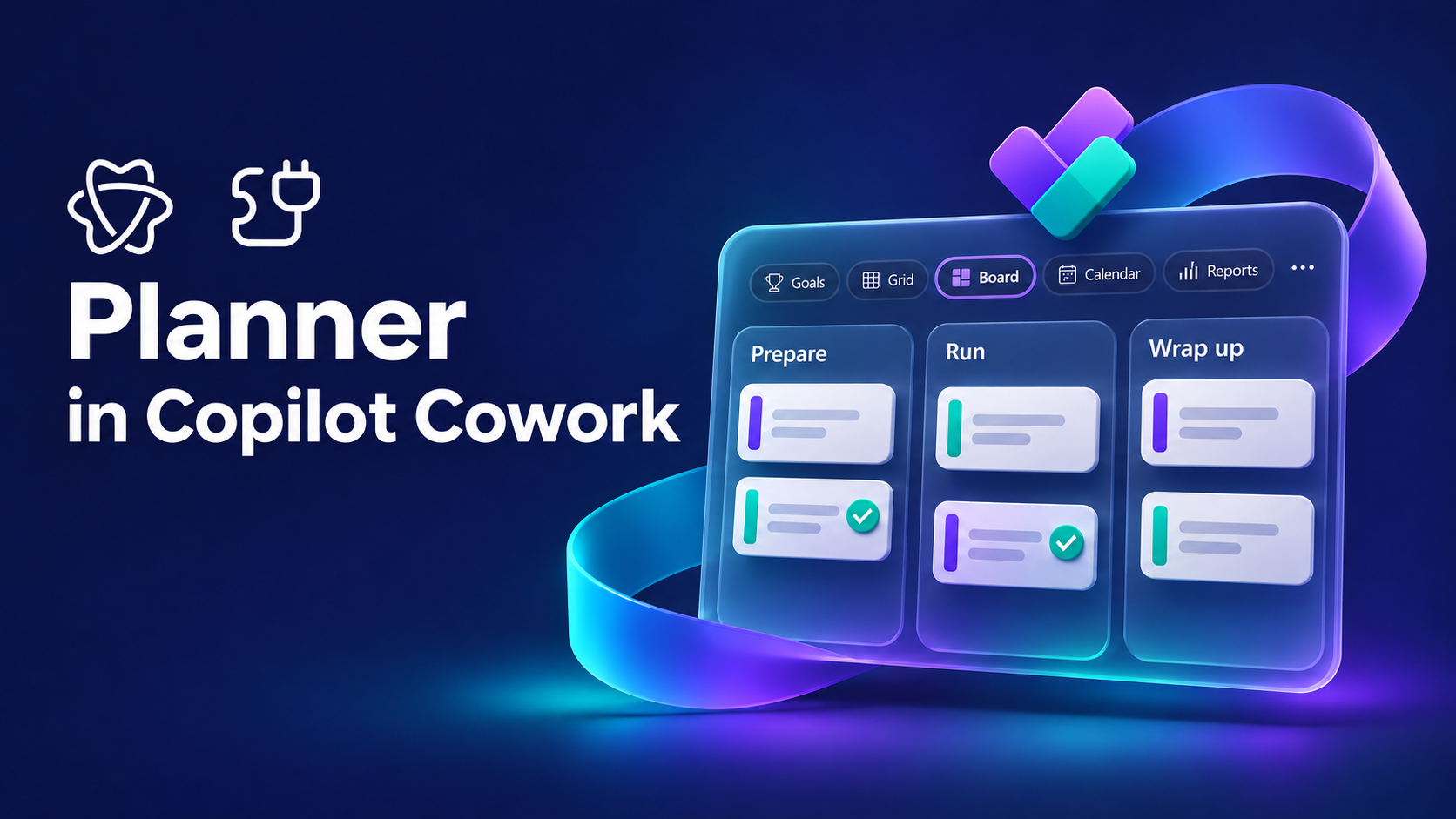
In the November 6 AI Weekly, I said the Planner Plugin was the Cowork update I wanted to try first. In April, I pulled tasks with the Planner agent and pasted the details into Cowork. This time I tested Microsoft Planner in Copilot Cowork to see what happened when Cowork could open the task itself. The earlier workflow is in my April Planner and Cowork walkthrough.
I used a fictional repair workshop. Cowork created the plan and task after approval, then read the saved notes in a fresh session and got all four timings right. I also tested a facilitator handoff in Cowork and an Outlook trigger that checks Planner for duplicates.
Table of contents
1. Turn on the Planner Plugin
In Microsoft Copilot, open Plugins → Cowork and search for Planner. Open Planner Plugin from Microsoft Corporation. I had two other results called Planner Work IQ, so the publisher and plugin name helped me pick the right one.

Mine already showed Connected under Connections. I turned on the toggle. If yours is new, select Install and Connect if prompted. You need Microsoft 365 Copilot, access to Cowork and Planner, and an organization that allows the plugin. Microsoft’s Planner Plugin setup guide · Planner Plugin admin guide.

2. Ask Cowork to create a small test plan
I switched the composer to Cowork and gave it one plan, one bucket and one task. Here’s the prompt I used.
Use the Microsoft Planner Plugin in Cowork to create a new private basic plan called Community Workshop Demo. Add a bucket called Prepare and an unassigned task called Draft the workshop run of show. In the task notes, record the sample workshop details: a 45-minute Saturday repair workshop with a 5-minute welcome, a 10-minute tool safety demo, a 25-minute guided repair, and a 5-minute wrap-up. Show me the Planner actions for approval before saving changes. Use this sample data only.
Cowork showed a PlannerCreate card for the plan name first. The first approved attempt failed. Cowork proposed the action again, and the retry created the plan. The bucket and task came through as separate approvals, so I could check the names, notes and empty assignment list before approving the task.

I opened My plans in Planner. It showed Community Workshop Demo as a Basic plan with Only you access. On the board, the unassigned task was in Prepare, and its notes contained the four timings. I’d check the actual board after an approval, especially if Cowork shows a failed or unknown status.

3. Give Cowork the task name and ask for the work
I started a fresh Cowork conversation. I gave it the exact plan and task names and left the timings out of the prompt, so the second run had to get them from Planner.
Use the Microsoft Planner Plugin to open the plan Community Workshop Demo and read the task Draft the workshop run of show. Use the task notes to list each segment and its duration. Give me the result here in Cowork and leave the Planner task open.
Cowork cited the Planner Plugin and returned all four timings from the task. That gave me a quick way to verify that it had the right task before I asked for the facilitator handoff.
A read-only prompt to start with
If you want to see what Cowork can pull from a task you already own, start with the task details.
In Planner, open [exact plan name] and find [exact task name]. Summarize the notes and checklist, and tell me what’s still open. Leave the task as it is.
Microsoft documents using task notes, checklists and attachments to prepare deliverables. When a file is available, you can review it in Cowork’s Output folder and approve adding its link back to Planner. Marking the task complete is a separate approval. What you can do with Planner in Cowork · Planner Plugin FAQ.
More prompts for Microsoft Planner in Copilot Cowork
I ran these six scenarios in Cowork on November 11, 2026, using fictional workshop data. Replace the bracketed names with your own plan, file, and task details. Where a prompt proposes a Planner change, review the source and the proposed write before approving it.
Build a project health report
Use one named plan for a status update you can check against the board.
Review the Planner plan [Workshop Launch] as of today in [time zone]. Give me completed and total tasks by bucket. List overdue open work, tasks due in the next seven days, and unassigned work, with the owner, due date, and Planner link when available.Use task notes to identify documented blockers. Label any risk you infer and explain what led you to it. Finish with three bullets for a project lead covering progress, the biggest risk, and the next decision.Return the report here in Cowork. Leave the plan as it is.
Cowork found one task in Prepare with zero complete. It reported no overdue or upcoming tasks because the task had no due date. It flagged the missing owner and deadline as an inferred risk. I checked the count, assignment, and due date in Planner.

Turn an Excel tracker into a proposed plan
Attach the workbook and give Cowork the table name. Include a row ID so you can trace the proposed tasks back to the source.
Use the [LaunchActions] table in the attached [Workshop tracker.xlsx] to propose a Planner plan called [Workshop Launch]. Map Workstream to bucket, Action to task title, Owner email to assignee, Due date to due date, and Notes to task notes. Include the source Row ID in each proposed task’s notes.Flag duplicate Row IDs, possible duplicate tasks, dates you cannot interpret confidently, and owners you cannot match. Put those rows in an exceptions table. Show the remaining proposed tasks and counts by bucket.Stop at the preview and wait for my approval before creating the plan or tasks.
From six workbook rows, Cowork proposed two unassigned tasks and held four rows for review. The exceptions were two rows with the same ID, an unmatched owner, and an ambiguous date. The initial report displayed 11/12 as 12. A follow-up read of the original cell recovered the exact text and confirmed it belonged in the exceptions. The run stopped at the preview.

Reconcile meeting actions with an existing plan
Attach the meeting notes. Ask for a comparison before adding tasks so you can spot work that’s already on the board.
Compare the agreed action items in the attached [Workshop planning notes] with tasks in the Planner plan [Workshop Launch]. For each action, show the note it came from and classify it as a clear match, new work, or an uncertain match. Include the existing Planner task link when available.For clear matches, propose an owner or due date change only when the notes record that decision. Show current and proposed values side by side. For clearly new work, propose a task title, bucket, and any owner or date stated in the notes.Return the comparison and the proposed changes for review. Wait for my approval before applying any change.
Cowork matched the run-of-show task and showed its due date going from unset to November 18. It proposed a new projector adapter task and held an ambiguous materials action for clarification. Both proposals stayed in Cowork for review.

Draft a handoff from a task and its attachments
Give Cowork the exact plan and task names. This is a useful next step when the checklist and attachments hold different pieces of the handoff.
Open [Workshop Launch] in Planner and find [Prepare facilitator handoff]. Use the task notes, checklist, and accessible attachments to draft a short handoff here in Cowork.Include the run of show with elapsed times, what’s ready, and what’s still open. Name the owner of each open item if recorded and flag any decision the incoming facilitator needs to make. Identify the Planner note, checklist item, or attachment that supports each key point. Keep the Planner task open and unchanged.
Cowork used the task notes to lay out the 45-minute agenda, pulled the room and equipment details from the linked reference, and flagged Print 12 role cards as still open with no owner. It drafted the handoff right in Cowork, and the Planner task stayed open.

Save the handoff as a Word document. My first attempt stopped because Cowork couldn’t verify the plan’s sensitivity classification. For the retest, I created a fresh Basic plan directly in a private Microsoft 365 group, then gave Cowork the exact task.
Use the Microsoft Planner Plugin to open [Workshop Word Handoff Demo] and find [Draft the repair workshop handoff]. Use the task link if you have it. Read the notes and checklist.Create a one-page Word document called Repair Workshop Facilitator Handoff.docx. Include the timed agenda, room and equipment prep, and decisions or owners still to confirm.Save the .docx in Cowork's Output folder and return the file for preview. Preserve applicable sensitivity protections and leave the Planner task unchanged.
Cowork saved Repair Workshop Facilitator Handoff.docx to the Output folder. I opened it inside Cowork and checked the 45-minute agenda, equipment prep, and the unchecked role-card item. The Planner task stayed open. The demo plan and group had no sensitivity label to carry over. Microsoft’s guide to sensitivity labels in Planner.

Set up a weekly review of your own tasks
Check the proposed schedule and time zone in Cowork’s Automations page before activating it.
Propose a Cowork schedule for every Monday at 8:30 a.m. in [time zone]. Review incomplete Planner tasks assigned to me across plans I can access. Group them into overdue, due in the next seven days, and missing a due date. Include plan name, priority, due date, and task link when available.Suggest three tasks to tackle first and explain the order using priority and deadlines. Put the briefing in Cowork and leave the tasks as they are. Show me the schedule before activation.
The first response was a text proposal. I asked Cowork to create the actual recurring task card, selected Run once now, and got a briefing in Cowork. It included the assigned projector task due November 14 and excluded the unassigned task. I paused the schedule after the test.


Turn a specific Outlook request into a task proposal
First confirm Cowork can read the target Planner bucket. Then set the trigger to run in the same conversation and check the sender, subject filter, and permissions before activating it.
Use the Planner Plugin to open [Workshop Launch], confirm that you can read the [Prepare] bucket, and identify the scope you checked. Leave the plan unchanged.Set up a Cowork Outlook trigger for incoming email from [coordinator email] with a subject containing [WORKSHOP ACTION]. For a test, limit it to one run. Use this conversation so the verified Planner context is available. Show me the setup card and permissions before activation.When a matching email arrives, extract the explicit action and stated due date. Check the current [Prepare] tasks for a matching title or source email. If you find a likely duplicate, show it. Otherwise, propose a task in Cowork with a title, bucket, source email reference, and due date if supplied. If the Planner lookup fails, mark the duplicate check as pending. Wait for separate approval before creating anything in Planner.
I activated a one-run trigger and sent a matching test email to myself. It asked for six spare adapter kits by November 20. Cowork checked the current task titles and source references in Community Workshop Demo → Prepare and found no likely duplicate.
The run proposed Assemble six spare adapter kits with the due date and source message. It waited for approval before creating a Planner task.

Microsoft walks through the two automation setup flows in its Cowork guide. Schedule prompts · Set up event-driven tasks.
The Word handoff was the clearest test for me. Cowork turned a Planner task’s notes and checklist into an agenda I could hand to a facilitator. If you try one example from this post, pick a task you’re about to hand off and ask Cowork for a draft. Compare it with the original task. If the next person can pick up the work from that draft, you’ve got a prompt worth keeping.
Leave a Reply