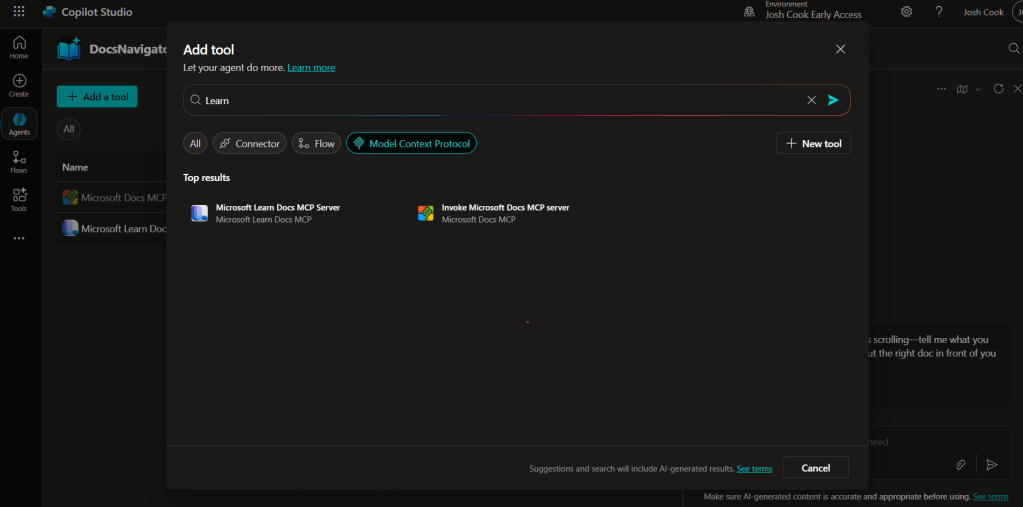
UPDATE—August 8, 2025: You no longer need to create a custom connector for the Microsoft Learn Docs MCP server. Copilot Studio now includes a native Microsoft Learn Docs MCP Server under Add tool → Model Context Protocol.
This guide has been updated to show the first-party path. If your tenant doesn’t yet show the native tile, use the Legacy approach at the bottom.
What changed
- No YAML or custom connector required
- Fewer steps, faster setup
Model Context Protocol (MCP) is the universal “USB-C” port for AI agents. It standardizes how a model discovers tools, streams data, and fires off actions—no bespoke SDKs, no brittle scraping. Add an MCP server and your agent instantly inherits whatever resources, tools, and prompts that server exposes, auto-updating as the backend evolves.
- Why you should care
- What the Microsoft Learn Docs MCP Server delivers
- Prerequisites
- Step 1 – Add the native Microsoft Learn Docs MCP Server
- Step 2 – Validate
- Legacy approach (if the native tile isn’t available)
Why you should care
- Zero-integration overhead – connect in a click inside Copilot Studio or VS Code; the protocol handles tool discovery and auth.
- Future-proof – the spec just hit GA and already ships in Microsoft, GitHub, and open-source stacks.
- Hallucination killer – answers are grounded in authoritative servers rather than fuzzy internet guesses.
What the Microsoft Learn Docs MCP Server delivers
- Tools:
microsoft_docs_search– fire a plain-English query and stream back markdown-ready excerpts, links, and code snippets from official docs. - Always current – pulls live content from Learn, so your agent cites the newest releases and preview APIs automatically.
- First-party & fast — add it in seconds from the Model Context Protocol gallery; no OpenAPI import needed.
Bottom line: MCP turns documentation (or any backend) into a first-class superpower for your agents—and the Learn Docs server is the showcase. Connect once, answer everything.
Prerequisites
- Copilot Studio environment with Generative Orchestration (might need early features on)
- Environment-maker rights
- Outbound HTTPS to
learn.microsoft.com/api/mcp
Step 1 – Add the native Microsoft Learn Docs MCP Server
- Go to Copilot Studio: https://copilotstudio.microsoft.com/
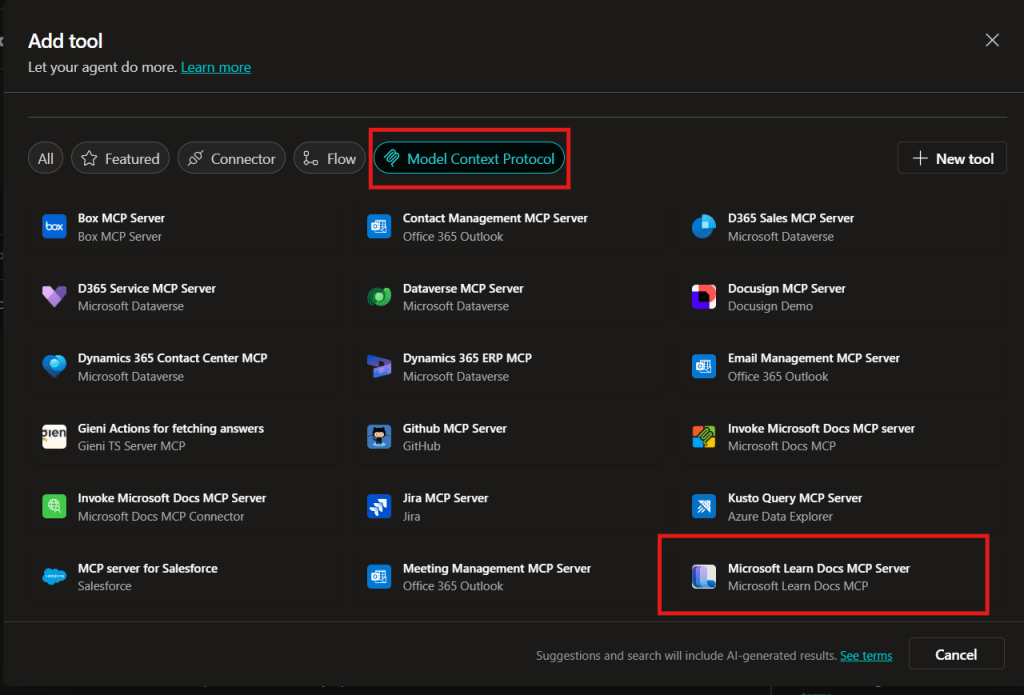
- Go to Tools → Add tool.
- Select the Model Context Protocol pill.
- Click Microsoft Learn Docs MCP Server.
- Choose the connection (usually automatic) and click Add to agent.
- Confirm the connection status is Connected.
- The MCP server should now show up in Tools.

- Click the Server to verify the tool(s) and to make sure:
– ✅ Allow agent to decide dynamically when to use this tool
– Ask the end user before running = No
– Credentials to use = End user credentials

Step 2 – Validate
- In the Test your agent pane. Turn on Activity map by clicking the wavy map icon:

- Now try a prompt like:
–What MS certs should I look at for Power Platform?
–How can I extend the Power Platform CoE Starter Kit?
–What modern controls in Power Apps are GA and which are still in preview? Format as a table


Use-Case Ideas
- Internal help-desk bot that cites docs.
- Learning-path recommender (your pipeline example).
- Governance bot that checks best-practice-links.
Troubleshooting Cheat-Sheet
- Note that currently the Learn Docs MCP server does NOT require authentication. This will most likely change in the future.
- If Model Context Protocol is not shown in your Tools for Copilot Studio. You may need to create an environment with Early Features turned on.
- Do NOT reference the MCP server in the agents instructions, you will get a tool error.
- Check Activity tab for monitoring
Legacy approach (if the native tile isn’t available)
Grab the Minimal YAML
- Open your favorite code editor or notepad. Copy and paste this YAML to a new file.
swagger: '2.0'
info:
  title: Microsoft Docs MCP
  description: Streams Microsoft official documentation to AI agents via Model Context Protocol
  version: 1.0.0
host: learn.microsoft.com
basePath: /api
schemes:
  - https
paths:
  /mcp:
    post:
      summary: Invoke Microsoft Docs MCP server
      x-ms-agentic-protocol: mcp-streamable-1.0
      operationId: InvokeDocsMcp
      consumes:
        - application/json
      produces:
        - application/json
      responses:
        '200':
          description: Success
- Save the file with .yaml extension.

Import a Custom Connector
Next we need to create a custom connector for the MCP server to connect to. We will do this by importing our yaml file we created in Step 1.
- Go to make.powerapps.com > Custom connectors > + New custom connector > Import OpenAPI.

- Upload your yaml file eg:
ms-docs‑mcp.yaml, using the Import an OpenAPI file option.
- General tab: Confirm Host and Base URL.
Host: learn.microsoft.com
Base URL: /api - Security tab > No authentication (the Docs MCP server is anonymously readable today).
- Definition tab > verify one action named
InvokeDocsMcpis present.
Also add a description.
- Click Create connector. Once the connector is created, click the Test tab, and click +New Connection.

(Note, you may see more than 1 Operation after creating the connector. Don’t worry and continue on) - When you create a connection, you will be navigated away from your custom connector. Verify your Connection is in Connected Status.

Next we will wire this up to our Agent in Copilot Studio.











 Flow Alt Delete - Josh Cook [Microsoft MVP]