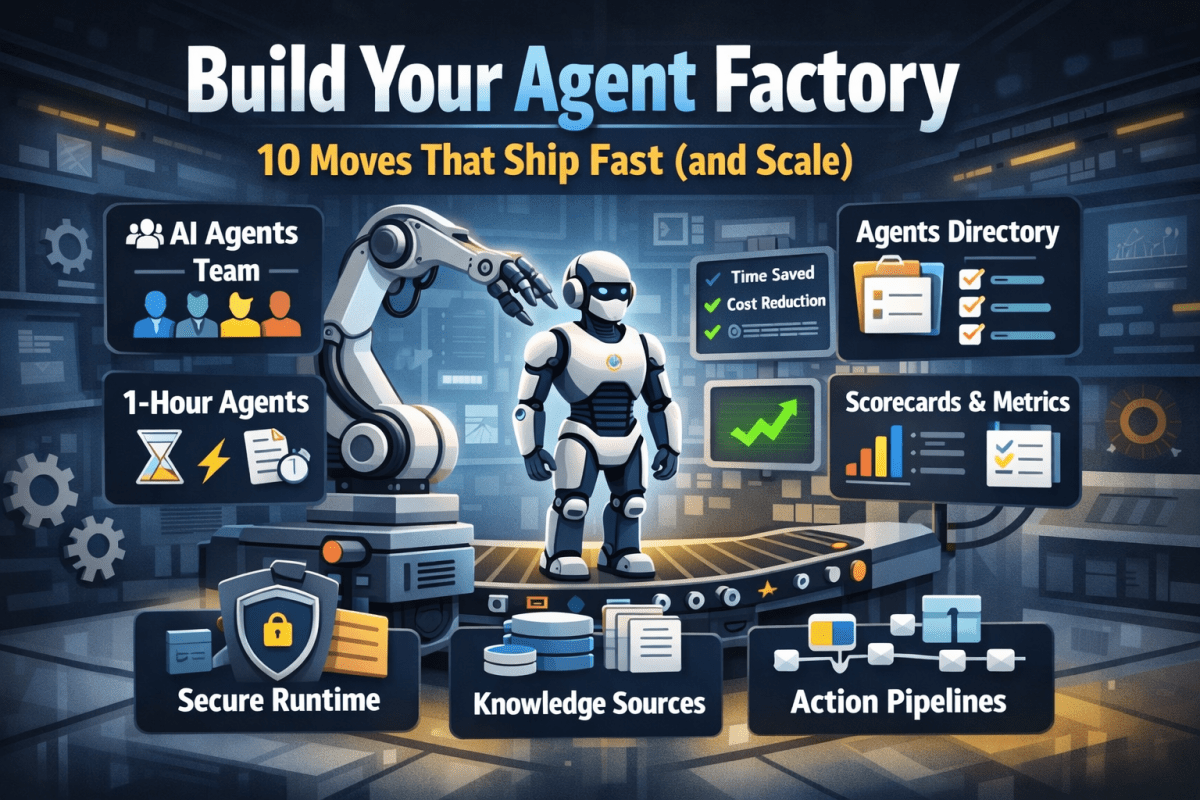
Build Your Agent Factory: 10 Moves That Ship Fast (and Scale)

The guide presents a tactical framework for implementing AI agents within organizations. It emphasizes forming a dedicated team, prioritizing quick wins, establishing an Agents Directory, and integrating secure, manageable processes. Key strategies include ensuring transparency through scorecards, keeping humans involved, and planning for scalability to achieve effective results rapidly.

Build Your Agent Factory: 10 Moves That Ship Fast (and Scale)

Agents at scale. Not POCs.

Here’s the playbook I’d hand any exec or builder who wants working agents in production—without turning the org into a science fair.

1) Stand up an AI Agents Workforce

What it is: A small cross-functional crew with authority to hunt repetitive work and ship agents.

Who’s in:

  • 1 product owner
  • 1 engineer (Copilot Studio/Power Automate)
  • 1 data person
  • 1 security/governance lead
  • 1 domain SME.

Ship this week: Write a one-page charter with scope, decision rights, and a 30-day roadmap (first 5 agents + metrics).

2) Win with horizontals first, then go vertical

Horizontals (1-hour wins): drafting, summarizing, policy Q&A, meeting notes to actions, form-fill helpers.

Verticals (outsized ROI): pick 1–2 per business unit where there’s money, risk, or SLA pain.

Guardrail: don’t start with the hardest workflow; start where you can close the loop and measure value inside two weeks.

3) Make an Agents Directory the front door

Why: Ideas die in email. A directory turns “we should build X” into spec and governance.

Minimum intake fields:

  • use case name
  • goal
  • users
  • decision rights
  • data sources + who owns it
  • tools
  • PII/sensitivity
  • KPIs
  • business owner
  • risk level
  • rollout plan.

Outcome: Every request auto-generates a lightweight PRD (goal, inputs, outputs, metrics, guardrails) and a yes/no gate.

4) Create the 1-Hour Agent template

Template anatomy:

Goal + success criteria Input schema (what the user provides) Tools (actions/connectors) and permissions Knowledge sources (files, sites, indexes) Safety rules (allowed/blocked actions, escalation) Evaluation set (10–20 test prompts with expected outcomes) Deploy script (Dev → Test → Prod)

Rule: If a use case can’t fit this page, it’s not a 1-hour agent—park it for later.

5) Tie every agent to a visible scorecard

Metrics to publish: time saved, cost avoided, error rate, CO₂/efficiency (where relevant), user satisfaction.

Simple formula: monthly users × average minutes saved × loaded cost = value.

Make it public internally: green/red status, owner, last review, next improvement.

6) Run on a secure, managed agent runtime

Non-negotiables: identity passthrough, content safety, audit logs, tool call restrictions, data boundary controls, environment isolation.

Practical tip: standardize a “sensitive sources” policy and block tools by default; allow case-by-case.

7) Split the stack to move fast without breaking things

Experience layer: Copilot Studio for UX, channels, and connectors.

Agent runtime/orchestration: managed agent service for threads, tool calls, safety, and evaluations.

Why it works: builders ship quickly at the edge; platform team keeps shared guardrails, monitoring, and upgrades stable.

8) Mix knowledge + action (or you’ll stall)

Knowledge: structured grounding (SharePoint/Fabric/Search), doc versioning, citations-on by default.

Action: flows/Logic Apps, Graph, line-of-business APIs; always ship with a dry-run mode first.

Design pattern: Answer → show sources → propose actions → execute on approval. When confidence is high and stakes are low, allow auto-execute.

9) Keep humans in the loop—by design

HITL patterns that work:

Shadow mode (observe only) → suggest mode → execute with approval → auto-execute.

Confidence thresholds where low confidence routes to a human. Escalation logic when guardrails trip or data is missing.

UX rule: one click to approve, one click to undo.

10) Plan to scale on day one

Pipelines: Dev → Test → Prod with approvals and rollback.

Evals: pre-ship test set per agent; weekly drift checks; quarterly red-team.

Ops: central logging, cost dashboards, incident playbook.

Program ritual: a quarterly “Agent Backlog Day” to harvest new ideas and retire underperformers.

Starter Architecture (fast and boring)

Experience: Copilot Studio (web, Teams, M365, chat, plugins)

Actions: Power Automate/Logic Apps + custom APIs

Knowledge: SharePoint/Fabric/AI Search with retrieval policies

Runtime: managed agent service for tool orchestration, identity, safety

Observability: evaluations, telemetry, and a simple agent scorecard per app

Security: Entra ID RBAC, private endpoints, DLP, approval gates

Prompts and policies that save you pain

Prompt contract (keep it in the repo): role, goals, inputs, allowed tools, forbidden actions, decision rights, escalation, output format, citation rules.

Data contract: what sources are permitted, freshness expectations, sensitivity tags.

Failure modes: what the agent must do when unsure (ask for clarification, route to human, or stop).

Anti-patterns I keep seeing

  • Starting with an “AI strategy deck” instead of shipping 3 agents.
  • Agents that answer but can’t act—users stop coming back.
  • No owner, no scorecard, no sunset date.
  • Canary-testing in production without a rollback plan.
  • Letting one giant use case block 20 small wins.

Your first week mapped

Day 1: Form the team and publish the charter.

Day 2: Launch the Agents Directory (intake + PRD autogeneration).

Day 3–4: Build two 1-hour agents (drafting + policy Q&A) with eval sets.

Day 5: Ship to a pilot group with scorecards visible. Book the first backlog day.


How to Use Regular Expressions in Microsoft Power Virtual Agents With Examples

Have you used RegEx in your PVA bots? Check out this post where I give patterns to the most common validations.

Regular Expressions in Power Virtual Agents? Sounds like a pretty advanced topic. But it’s actually not that difficult and can save you hours of time if you’re trying to validate user input for things such as credit card numbers, tracking IDs, custom invoice numbers or even IP addresses. In this post we’ll cover some of the basics of Regular Expression syntax so you can get started using them inside Power Virtual Agents.

Summary

To utilize regular expressions inside Power Virtual Agents, we must first create a new entity.
This can be be done by clicking the Entities tab > New entity.

Now select Regular expression (Regex)

PVA does a great job in providing some general use case examples.

The syntax is based on .NET


RegEx Examples in PVA

Below you will find some examples you can copy and paste directly into the Pattern for your Regular Expression:

PatternDescription
^(?:(?:25[0-5]|2[0-4][0-9]|[01]?[0-9][0-9]?).){3}(?:25[0-5]|2[0-4][0-9]|[01]?[0-9][0-9]?)$IP Address
– Looks for X.X.X.X format
– Each X range in 0-255
– X length 0-3
^4[0-9]{12}(?:[0-9]{3})?$Visa Credit Card numbers
– Start with a 4
– Old cards use 13 digits
– New cards use 16 digits
^3[47][0-9]{13}$American Express
– Starts with 34 OR 37
– All have 15 digits
 ^(?:5[1-5][0-9]{2}|222[1-9]|22[3-9][0-9]|2[3-6][0-9]{2}|27[01][0-9]|2720)[0-9]{12}$Mastercard
Starts with either:
51-55 OR 2221-2720
– All have 16 digits
^(?!0{3})(?!6{3})[0-8]\d{2}-(?!0{2})\d{2}-(?!0{4})\d{4}$Social Security Number
– SSN are 9 digits
– Looks for XXX-XX-XXXX format
– Cannot contain all zeros
– Cannot begin with 666 OR 900-999
^[a-fA-F0-9]{2}(:[a-fA-F0-9]{2}){5}$Mac Address
– 6 byte hex separated by colon “:” OR dash “-”
^((6553[0-5])|(655[0-2][0-9])|(65[0-4][0-9]{2})|(6[0-4][0-9]{3})|([1-5][0-9]{4})|([0-5]{0,5})|([0-9]{1,4}))$Port Number
– Matches valid port number in computer network
– 16 bit
– Ranges from 0-65535
[A-Z]{2,}-\d+Jira Ticket Number
– Looks for format Hyphen-separated Jira project key and ticket issue number
^(bc1|[13])[a-zA-HJ-NP-Z0-9]{25,39}$Bitcoin Address
26-35 alphanumeric characters
– Start with 1 OR 3 OR bc1
^[0-9a-fA-F]{8}\b-[0-9a-fA-F]{4}\b-[0-9a-fA-F]{4}\b-[0-9a-fA-F]{4}\b-[0-9a-fA-F]{12}$UUID / {guid}
– 36 characters
– 128 bit, represented in 16 octets
– Looks for format form of  8-4-4-4-12

Using them in PVA

Once we create the Entity, and define the pattern for our RegEx. We can now use this validation inside our PVA chat.

For example, I will test the IP Address pattern

^(?:(?:25[0-5]|2[0-4][0-9]|[01]?[0-9][0-9]?).){3}(?:25[0-5]|2[0-4][0-9]|[01]?[0-9][0-9]?)$

I have created a topic for testing my RegEx.

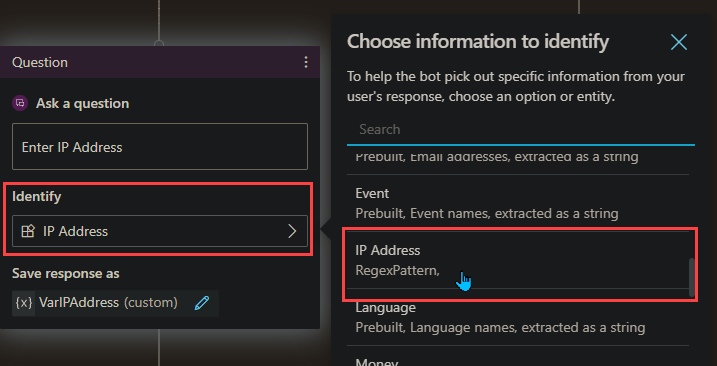
To use the newly created entity, Add a Question, under Identify select your Custom Entity

Under this, I add a message to confirm its valid.
(Note, the bot will automatically let the user know if the validation does not match)

Testing the RegEx

Okay, drumroll….
The values I will be testing are

User InputValid?
192.168.1.1Valid ✔
127.0.0.1Valid ✔
999.55.1.5Not Valid ✖
Not A IP AddressNot Valid ✖

Conclusion

Being able to use Regular Expressions inside Power Virtual Agents can be extremely powerful. And with the above list of common patterns, I hope you find value in this post.

Thank you, and have a great day!

Where Are My Flows When Building Power Virtual Agents In Teams

You added a Flow in Power Virtual Agents in Teams, you now want to edit that Flow. Where is it? Come check out the answer!

Overview

Building Power Virtual Agents (PVA) in Microsoft Teams is fast, easy, fun, and powerful, especially when we add Power Automate to the mix. A couple questions come up:

1. After the bot is build, how do we edit the Flows? Do we have to go into the PVA bot inside of Microsoft Teams?

2. Where are the Flows stored?

The Answer

The answer to the above questions, can be simplified into one response.

All Flows built inside the Teams environment for PVA chatbots are stored in the Teams environment under the Default Solution.
Now.. How do we get there?

Navigate to the Power Automate Web Portal
Power Automate | Microsoft Power Platform

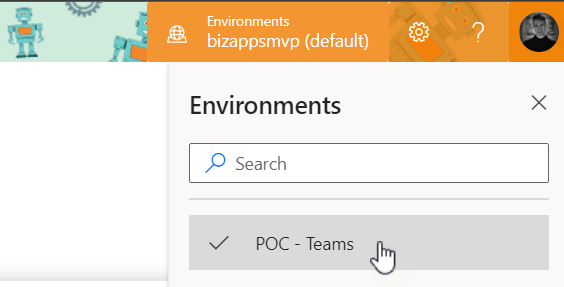
Sign in, and select the environments menu in the top right and choose the Environment that correlates to your Teams name where you built the Bot.
My Microsoft Team name is ‘POC – Teams

Next navigate to the Solutions tab on the left, and select ‘Default Solution


Once inside the ‘Default Solution‘ we can see many different types of artifacts. To narrow this list down:
On the top right of the page there is a dropdown with different types. Select ‘Flow

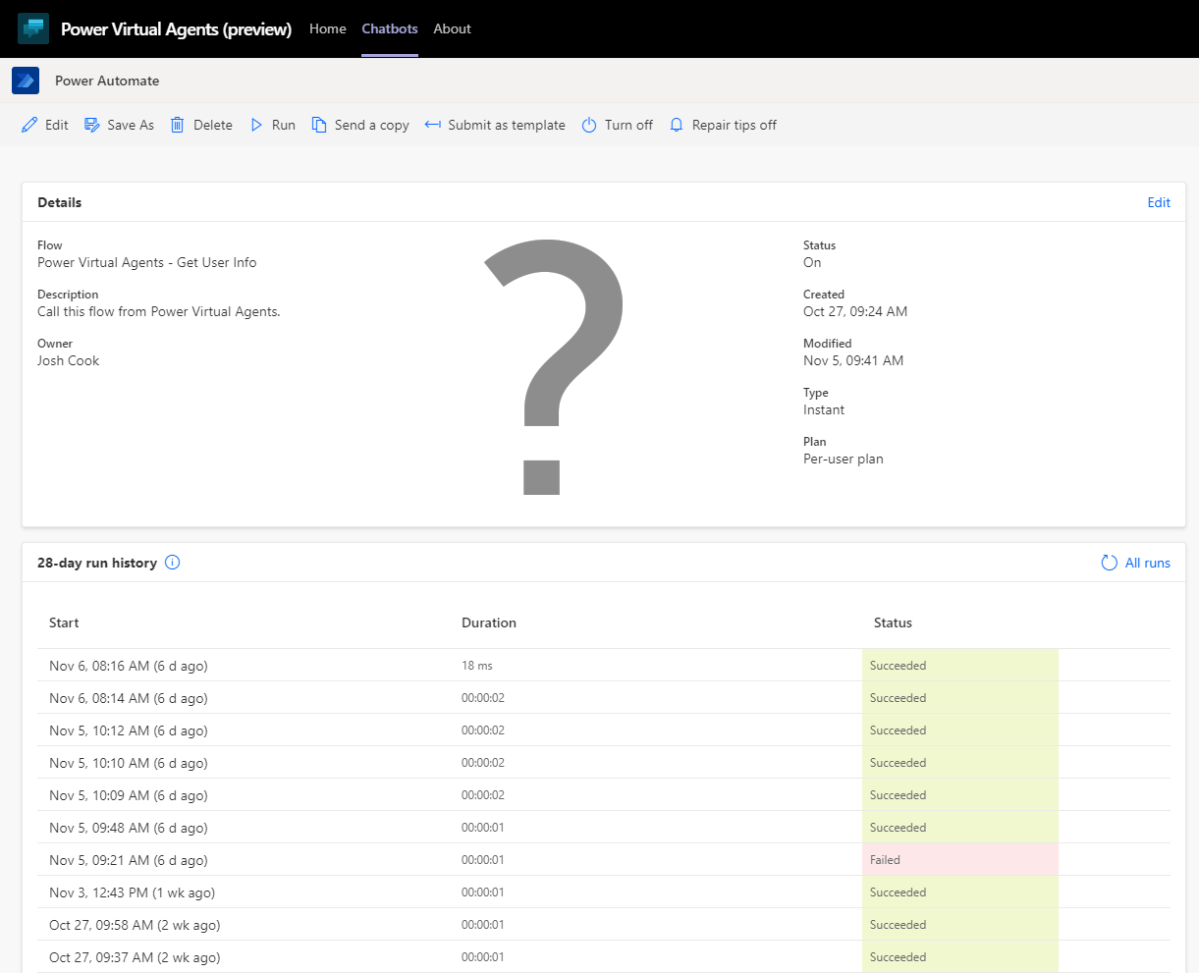
That’s it. Now we can see all the Flows inside this Teams Environment.

Want to learn how to get user info from Office365 to use in Power Virtual Agents? Check out my blog on the flow you see above
Get User Info

Limitations

There are some limitations:
– There is no way to import a Flow into this Environment

– When using the Save As feature, the Flow is saved outside of the Solution, thus cannot be used for your PVA Bot in Teams

– When modifying the Flows Inputs and Outputs you will have to remove the Flow action inside of PVA to properly refresh.

Conclusion

If you need help with anything Power Platform related, check out the community sites:

Power Virtual Agents Community – Power Platform Community (microsoft.com)

Power Automate community (microsoft.com)

Power Apps community (microsoft.com)

Home – Microsoft Power BI Community

Getting User Details To Use In Power Virtual Agents (Teams)

Lets use Power Automate inside Power Virtual Agents to get all the users details who is interacting with the bot. We can customize our greetings, or simply use any information that Office365 returns

Things to Know

This examples is based on building a Virtual Agent in Microsoft Teams.
We will be using the ‘Only for teams’ Authentication on the bot.

Summary

By default PVA in Teams has some valuable variables handy, like ‘bot.UserDisplayName‘. This is awesome, but what if we want more information about the logged in user?

This post will show both scenarios, on using the bot.UserDisplayName variable as well as getting all the user details that are stored in Office365 like:
– Email Address
– First Name
– Last Name
– Job Title
– Etc.

We can also use this in the Greetings Topic to address the user by their first name, rather than their display name. (Keep in mind this might affect performance by a couple seconds)

Contents

Bot Setup
Scenario 1 (Display Name)
Scenario 2 (Office365 Details)
Conclusion

Bot Setup

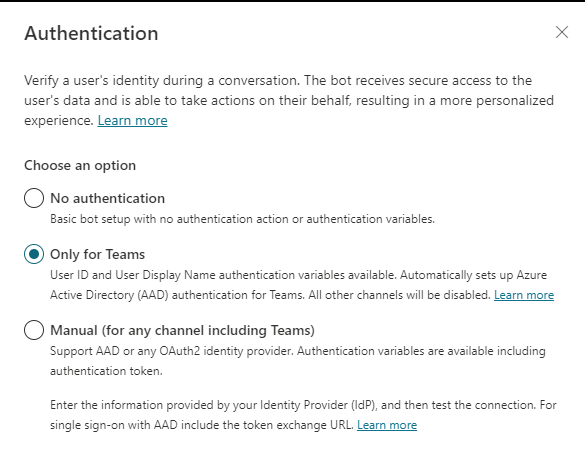
Once you have your Bot created, make sure the Authentication is set to ‘Only for teams’. To check click
Manage > Security, Authentication

For this example we will be using the ‘Only for Teams’ option. This will work for ‘Manual’ as well, but will require additional steps to setup a App Registration in Azure.

Select ‘Only for Teams’

Customize Greeting Scenario 1 (DisplayName)

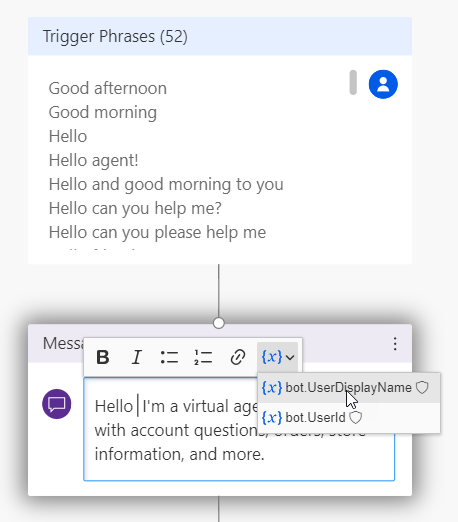
After enabling the Authentication, you will now have access to Two variables,
bot.UserDisplayName
bot.UserId

Now lets customize our greeting.

Navigate to ‘Topics’ and select the ‘Greeting’ Topic, this is under ‘System Topics’. Click on the Authoring Canvas button.

Inside the message under the Trigger, you can customize the greeting message to include the variable bot.UserDisplayName

Testing this, the Bot now knows my Display Name. This variable can be used in any topic. Which gives the Bot more of a human type feel.

To get all the user details from Office365, scenario 2 will cover this

Customize Greeting Scenario 2 (Office365)

Navigate to ‘Topics’ and select the ‘Greeting’ Topic, this is under ‘System Topics’. Click on the Authoring Canvas button.


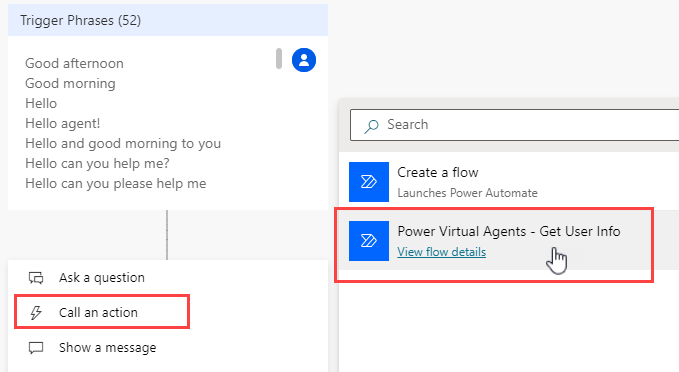
Under the ‘Trigger Phrases’ and select ‘Call an action’. We will now build a new Flow to get the user details we want.

You will now be navigated to a new screen where you will build your Flow.
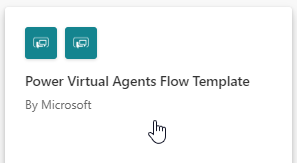
Select the Basic PVA Flow Template

First give the Flow a meaningful name. Mine is:
Power Virtual Agents – Get User Info

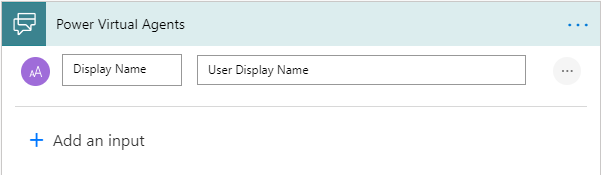
Add a Text Input to pass in the Display Name variable

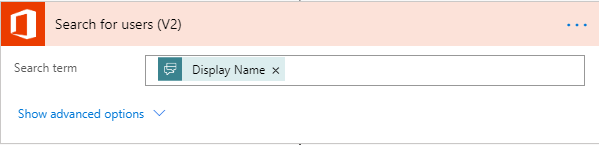
Next add a ‘Search for users‘ action from office365 connector, and pass in the PVA dynamic value from the trigger

Now we have all the user details. The results are returned as an Array. To get around this.
We can add a ‘Get user profile‘ action and pass in the first User Principal Name(UPN)

We have to use the first() expression, so we don’t get put into an Apply to each loop, my expression:

first(outputs('Search_for_users_(V2)')?['body/value'])?['UserPrincipalName']
@{first(outputs(‘Search_for_users_(V2)’)?[‘body/value’])?[‘UserPrincipalName’]}

Lastly in the Return values to PVA action, add all the values you want from ‘Get user profile‘ dynamic content

Click Save, and close on top right of the screen. Back at the PVA Canvas screen, add your Flow

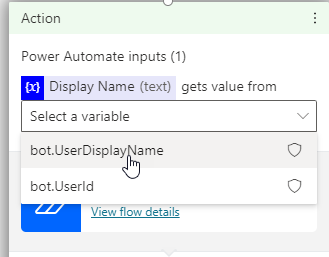
Pass in the bot.UserDisplayName variable

Now we can customize our greeting to only address the user by first name

As a test I created a Topic called User Details

Conclusion

This can be a great way to give your bot more personality. Do keep in mind that this may affect performance.