Add the Microsoft Learn Docs MCP Server in Copilot Studio

Add Microsoft’s Learn Docs MCP server in Copilot Studio, verify the tool, and query official docs—fast, first-party, step-by-step.

UPDATE—August 8, 2025: You no longer need to create a custom connector for the Microsoft Learn Docs MCP server. Copilot Studio now includes a native Microsoft Learn Docs MCP Server under Add tool → Model Context Protocol.
This guide has been updated to show the first-party path. If your tenant doesn’t yet show the native tile, use the Legacy approach at the bottom.

What changed

  • No YAML or custom connector required
  • Fewer steps, faster setup

Model Context Protocol (MCP) is the universal “USB-C” port for AI agents. It standardizes how a model discovers tools, streams data, and fires off actions—no bespoke SDKs, no brittle scraping. Add an MCP server and your agent instantly inherits whatever resources, tools, and prompts that server exposes, auto-updating as the backend evolves.

  1. Why you should care
  2. What the Microsoft Learn Docs MCP Server delivers
  3. Prerequisites
  4. Step 1 – Add the native Microsoft Learn Docs MCP Server
  5. Step 2 – Validate
  6. Legacy approach (if the native tile isn’t available)

Why you should care

  • Zero-integration overhead – connect in a click inside Copilot Studio or VS Code; the protocol handles tool discovery and auth.
  • Future-proof – the spec just hit GA and already ships in Microsoft, GitHub, and open-source stacks.
  • Hallucination killer – answers are grounded in authoritative servers rather than fuzzy internet guesses.

What the Microsoft Learn Docs MCP Server delivers

  • Tools: microsoft_docs_search – fire a plain-English query and stream back markdown-ready excerpts, links, and code snippets from official docs.
  • Always current – pulls live content from Learn, so your agent cites the newest releases and preview APIs automatically.
  • First-party & fast — add it in seconds from the Model Context Protocol gallery; no OpenAPI import needed.

Bottom line: MCP turns documentation (or any backend) into a first-class superpower for your agents—and the Learn Docs server is the showcase. Connect once, answer everything.

Prerequisites

  • Copilot Studio environment with Generative Orchestration (might need early features on)
  • Environment-maker rights
  • Outbound HTTPS to learn.microsoft.com/api/mcp

Step 1 – Add the native Microsoft Learn Docs MCP Server

  1. Go to Copilot Studio: https://copilotstudio.microsoft.com/
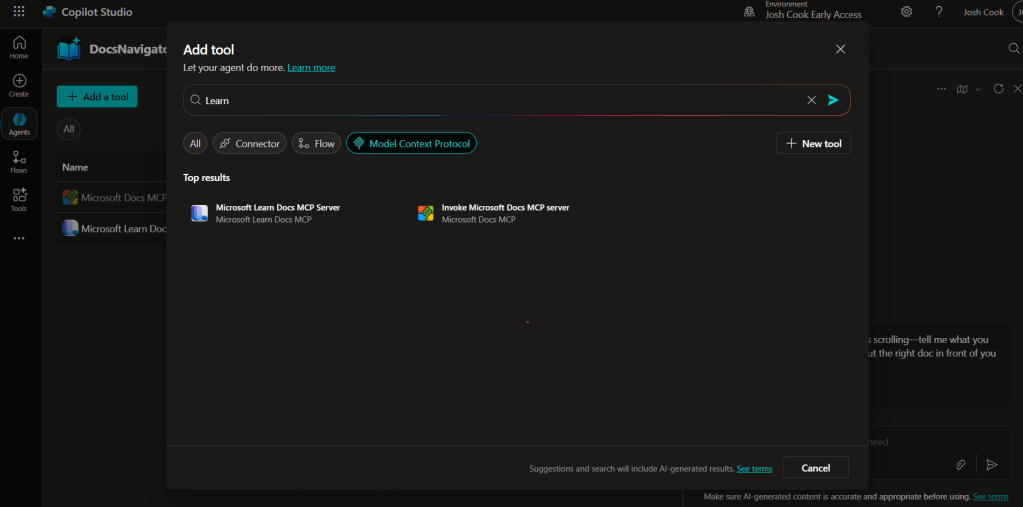
  2. Go to Tools → Add tool.
  3. Select the Model Context Protocol pill.
  4. Click Microsoft Learn Docs MCP Server.
  5. Choose the connection (usually automatic) and click Add to agent.
  6. Confirm the connection status is Connected.
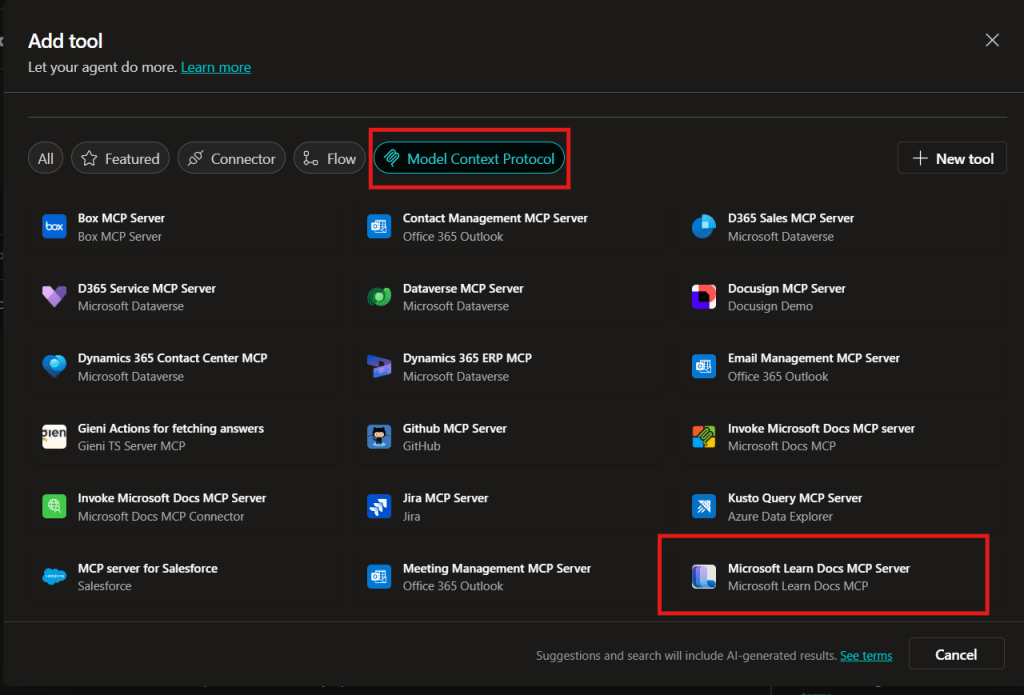
Copilot Studio Add tool panel showing Model Context Protocol category and Microsoft Learn Docs MCP Server tile highlighted.
  1. The MCP server should now show up in Tools.
  1. Click the Server to verify the tool(s) and to make sure:
    – ✅ Allow agent to decide dynamically when to use this tool
    – Ask the end user before running = No
    – Credentials to use = End user credentials

Step 2 – Validate

  1. In the Test your agent pane. Turn on Activity map by clicking the wavy map icon:

  2. Now try a prompt like:
    What MS certs should I look at for Power Platform?
    How can I extend the Power Platform CoE Starter Kit?
    What modern controls in Power Apps are GA and which are still in preview? Format as a table

Use-Case Ideas

  • Internal help-desk bot that cites docs.
  • Learning-path recommender (your pipeline example).
  • Governance bot that checks best-practice-links.

Troubleshooting Cheat-Sheet

  • Note that currently the Learn Docs MCP server does NOT require authentication. This will most likely change in the future.
  • If Model Context Protocol is not shown in your Tools for Copilot Studio. You may need to create an environment with Early Features turned on.
  • Do NOT reference the MCP server in the agents instructions, you will get a tool error.
  • Check Activity tab for monitoring

Legacy approach (if the native tile isn’t available)

Grab the Minimal YAML

  1. Open your favorite code editor or notepad. Copy and paste this YAML to a new file.
swagger: '2.0'
info:
  title: Microsoft Docs MCP
  description: Streams Microsoft official documentation to AI agents via Model Context Protocol
  version: 1.0.0
host: learn.microsoft.com
basePath: /api
schemes:
  - https
paths:
  /mcp:
    post:
      summary: Invoke Microsoft Docs MCP server
      x-ms-agentic-protocol: mcp-streamable-1.0
      operationId: InvokeDocsMcp
      consumes:
        - application/json
      produces:
        - application/json
      responses:
        '200':
          description: Success
  1. Save the file with .yaml extension.

Import a Custom Connector

Next we need to create a custom connector for the MCP server to connect to. We will do this by importing our yaml file we created in Step 1.

  1. Go to make.powerapps.com > Custom connectors > + New custom connector > Import OpenAPI.

  2. Upload your yaml file eg: ms-docs‑mcp.yaml, using the Import an OpenAPI file option.

  3. General tab: Confirm Host and Base URL.
    Host: learn.microsoft.com
    Base URL: /api
  4. Security tab > No authentication (the Docs MCP server is anonymously readable today).
  5. Definition tab > verify one action named InvokeDocsMcp is present.
    Also add a description.

  6. Click Create connector. Once the connector is created, click the Test tab, and click +New Connection.

    (Note, you may see more than 1 Operation after creating the connector. Don’t worry and continue on)
  7. When you create a connection, you will be navigated away from your custom connector. Verify your Connection is in Connected Status.

    Next we will wire this up to our Agent in Copilot Studio.
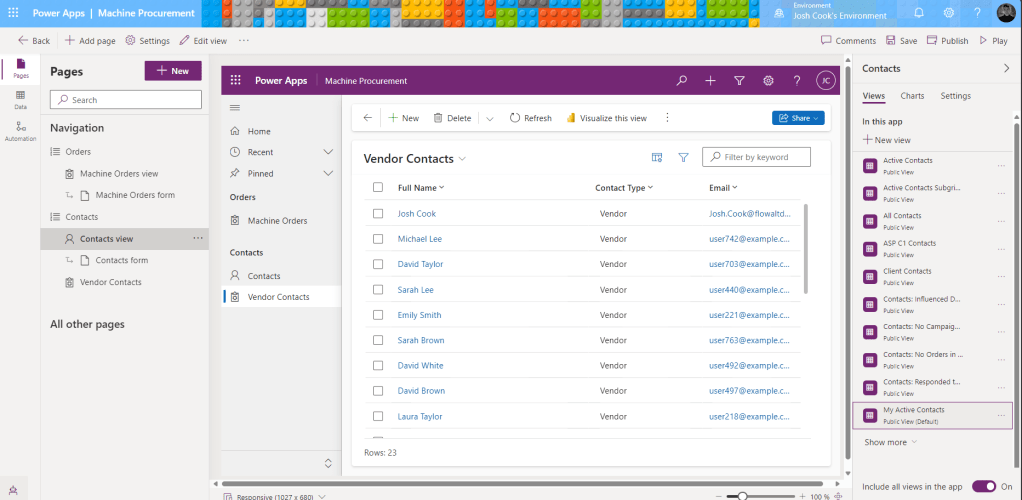
Creating Navigation Buttons for Different Views in Model-Driven Apps

This blog post addresses common frustrations in model-driven apps where users can only access a default view for tables like Contacts. It proposes a solution to enhance user experience by adding separate navigation buttons for each view using URL-based navigation. The steps include creating views, obtaining entitylist and view IDs, and editing the app to add navigation links.

When building model-driven apps, one common frustration is the limitation of adding a single table with only a default view. For example, if you have a Contacts table with a Choice field, and you’ve created a view for each choice, users have to select Contacts first, then navigate to the desired view manually.

But what if you could streamline this process by adding separate navigation buttons for each view directly in the app’s left-hand navigation bar? This blog post will walk you through how to achieve that using URL-based navigation—no extra coding required.

  1. The Scenario
  2. Setup
    1. Step 1: Create views
    2. Step 2: Get the entitylist ID and view ID
    3. Step 3: Edit model-driven app to add URL

The Scenario

This is a small example, but the functionality I am about to show you is very powerful, and can help streamline UX.

Imagine you have:

  • A Contacts table in Dataverse.
  • A Choice field in the Contacts table called Contact Type with options like Client, Vendor, and Partner.
  • Custom views for each Contact Type, such as Client Contacts, Vendor Contacts, and Partner Contacts.

By default, when adding the Contacts table to your app, only one button appears on the navigation bar, leading to the default view. Users must manually switch to the other views. This approach isn’t user-friendly for frequent switching between views. Especially when some users only care about certain contact types.

Setup

Step 1: Create views

First you will want to create a view for each button on the navigation. In my case I created a view for Vendor Contacts, and Client Contacts. Each view I added a simple filter to show only that Contact Type

Example:


Step 2: Get the entitylist ID and view ID

Play your model driven app, select the Table and choose the view.
Now look at the URL, and copy everything after entitylist&etn=

So in my example the Vendor Contacts view URL is:
contact&viewid=ee7b9134-7cb2-ef11-a72f-000d3af40ac9&viewType=1039

Next add this to the beginning of the URL you just copied:
/main.aspx?pagetype=entitylist&etn=

So my final URL will be:
/main.aspx?pagetype=entitylist&etn=contact&viewid=ee7b9134-7cb2-ef11-a72f-000d3af40ac9&viewType=1039

This will be the URL we use as our navigation link.


Step 3: Edit model-driven app to add URL

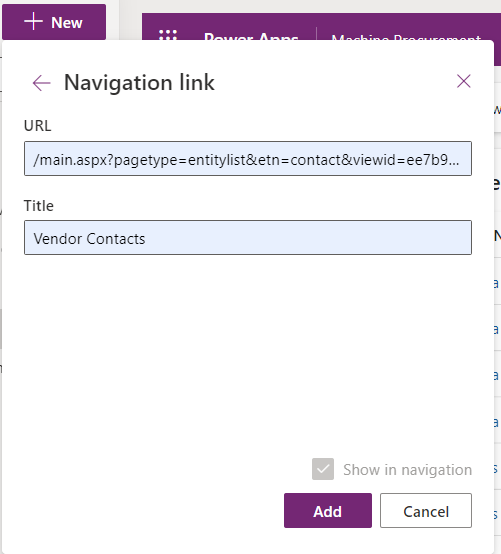
Edit your model driven app, click +New, and select Navigation link

Add the URL we built in Step 2, and give it a name, click Add

NOTE: If you get an error, it means your URL is wrong. Follow Step 2.

By leveraging this simple yet effective approach, you can elevate the user experience in your model-driven apps, making navigation more intuitive and streamlined for your team.

Special thanks to Kevin Nguyen for showing me how to do this.

Let me know how this works for your app or if you have other creative solutions to share!

Dataverse Record Level Security

Record (row) level security in Canvas or Model-driven apps. Using Dataverse security models.

The scenario here is to enable row level security within the concepts of Dataverse inside a Model-Driven App. Important to note, this can be applied to Canvas or Model-driven apps.

For example:
I have a Sale Commission table which is connected to a Model-Driven App. One of the columns is a choice called Store.

The concept is; we only want users to see records from their own respective stores. This concept seems straight forward and easy.. After some digging and reading documentation and asking some friends in understanding this model. I found a way to do this. So here it is!

Video Tutorial

Prerequisites

The feature that will help us in this concept is called Matrix data access structure (Modernized Business Units). Click the link to read more into it. But I will articulate what we need to do.

Enable record ownership across business units (preview)

First we need to enable this feature on an environment. Follow the steps below to enable this feature.

  1. Sign in to the Power Platform admin center, as an admin (Dynamics 365 admin, Global admin, or Microsoft Power Platform admin).
  2. Select the Environments tab, and then choose the environment that you want to enable this feature for.
  3. Select Settings > Product > Features.
  4. Turn On the Record ownership across business units toggle.
  5. Click Save.
Record ownership across business units (Preview)

Setup steps

This guide is assuming you have your Dataverse tables built.
We need to setup a few things to get this functionality to work:

  1. Create Business Units
  2. Create security role
  3. Assign security role
  4. Create Business rule

Create Business Units

We are creating a Business unit for each “Store” in this example.
Creating business units in the Power Platform Admin center:

  1. In the Admin center, select your environment.
  2. Select the Settings cog in the top.
  3. Under Users + permissions.
  4. Select Business units.
Showing step 4. Clicking Business units
  1. Click New, and create as many business units as you need.
  2. In this example, I am creating 3. One for each store.
Showing all business units that have been created

Create security role

We want to create a security role. This is a role to give access to the custom tables we have for Dataverse, as well as privileges for Business unit. This will allow users to append different Business units to new records.

While still in the Admin center;

  1. Click See all under Security roles.
Admin center showing the security role option
  1. Click, New role or edit an existing role.
  2. When editing the role click the Custom Entities tab.
  3. Find your table that users will be interacting with. In this example, its Sale Commission table.
  4. Set this table to:
    Read = Business unit
    Create = Parent child business unit
Showing the Sale commission permission
  1. Next, click the Business Management tab.
  2. Set the Business Unit table to:
    Read = Parent child business unit
    Write = Parent child business unit
    Append To = Parent child business unit
Showing the Business Unit permissions
  1. Click Save and Close.

Assign security role

Now we need to assign the security role to users based on the Business unit. To do that follow the steps:

While in the Admin center;

  1. Click See all under Users.
  2. Select a user to assign the Business unit role to.
  3. Click Manage roles.

Notice that we can change the Business unit the Security role can be assigned under.

Showing the new option to select Security roles under each Business unit

In this example, I am assigning the role under each Business unit to give permissions.

  1. Select the Business unit and assign the role.
UserRoles assigned + Business unit
AdeleSales Contributor in MainStore-BU
AlexSales Contributor in NorthStore-BU
Sales Contributor in DowntownStore-BU
Showing a table of permissions

Based on the table above.

  • Adele can see all records part of the Main store
  • Alex can see all records in North Store and Downtown Stores
  1. Click Save.

Create Business rule

Now that the feature has been enabled and configured, we still need to change the Owning Business Unit field based on the selected store. There are many ways to do this, but for this example, I will be using a Business rule.

To configure a Business rule;

  1. Navigate to your solution, or where the table (Sale Commission) is in Power Apps.
  2. Select the table, and click Forms.
  3. Select the form that users will be using when creating records.
  4. Once the form is opened, add the Owning Business Unit field, and select it
  5. Once selected, click Business rules on the right pane.
  6. Click New business rule.
  7. Give the rule a meaningful name.
  8. In the default condition, in the properties tab mine looks like this:
Business rule condition 1

For the rule, I am going to add a Condition to the “is false” and continue to do this for each Business unit / Store I want to check.
Here is what mine looks like after adding all the conditions:

All conditions added to Rule

Next we need to Set the values of the business unit based on the store.

  1. In the components tab, add a Set Field Value action to all the “Is true” paths.
  2. With the Set Field Value selected, click on the Properties tab.
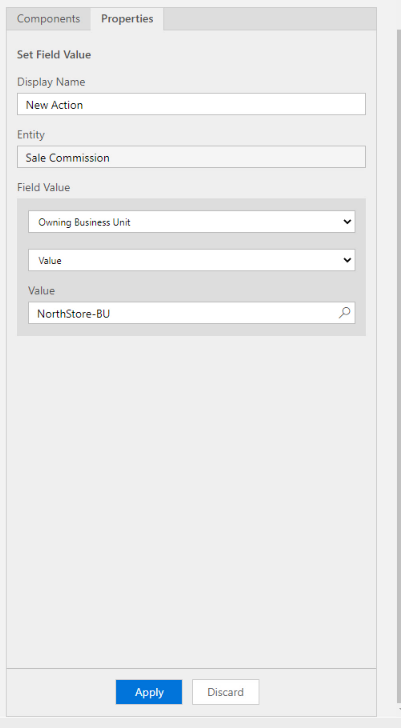
  3. Select Owning Business Unit for Field and the right Value. Example for the NorthStore:
Set Field Value properties for North Store
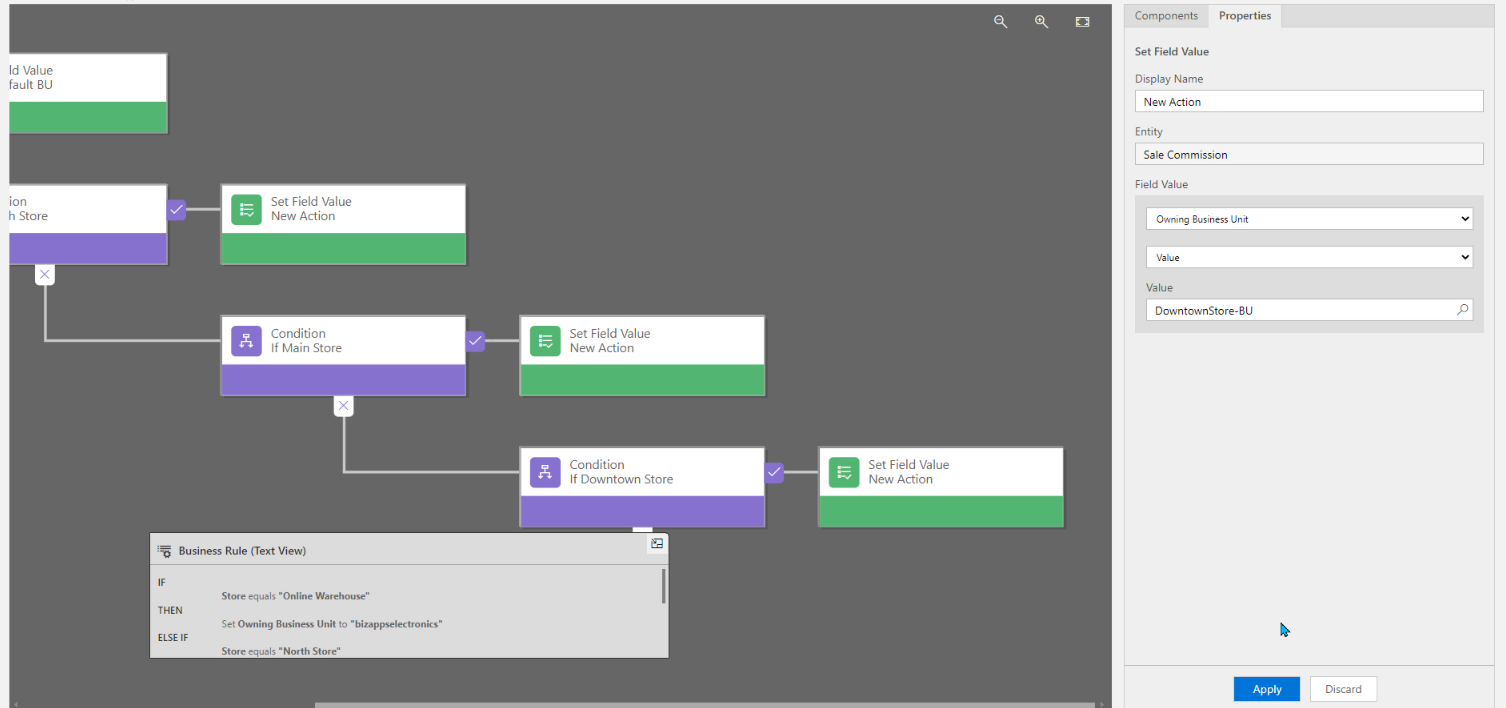
  1. Do this for all the Conditions. Mine looks like this:
Completed Business Rule
  1. After you’re done, click Validate.
  2. If validation is good, click Save.
  3. After saved, click Activate.

That’s it. Done!!
Now when a user selects the Store, it will automatically change the Owning Business Unit.

Form view of Owning Business Unit changing based on Store selected.

Tip For Testing Your Flows In Power Automate

Wouldn’t it be nice if we can Test our Flows without executing some of the actions like Sending Emails, creating items in SharePoint or Dataverse?

Guess what we can! And its very easy to do. Check this out!

If your like me, you test your Flows over and over again. This results in sending unwanted emails, creating items in SharePoint or Dataverse, Creating files on OneDrive or SharePoint.
Every time you test your Flow, these actions inside our Flow get executed and cause unwanted behavior when Testing.

Wouldn’t it be nice if we can Test our Flows without executing these actions? Guess what we can! And its very easy to do. Check this out!

Scenario

For example, I have a Flow that Create a new row in Dataverse, and then send an email to the person who created the new row. That is fine, but what happens when we have other actions in our Flow that we want to test to make sure they are correct.
I may want to test the Flow multiple times if I am doing some data manipulation, but this will result in Creating multiple unwanted rows (records) in Dataverse, as well as send emails every time.

We can clean up the testing process easily.

How?

We can utilize a feature called Static Result.

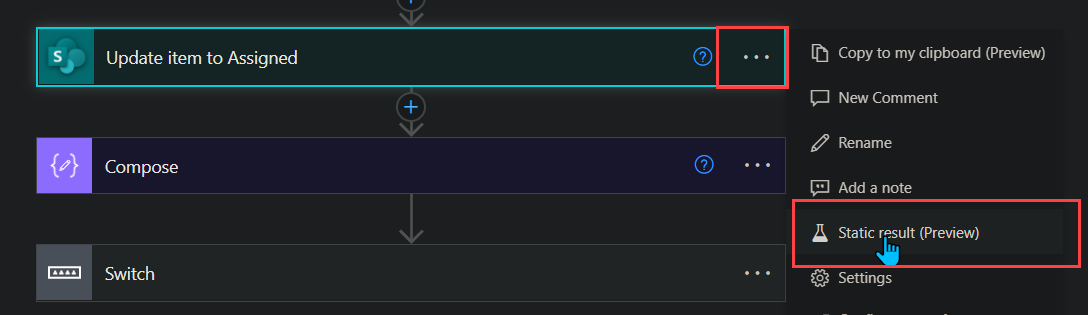
First click the 3 dots on the action, and select Static Results.

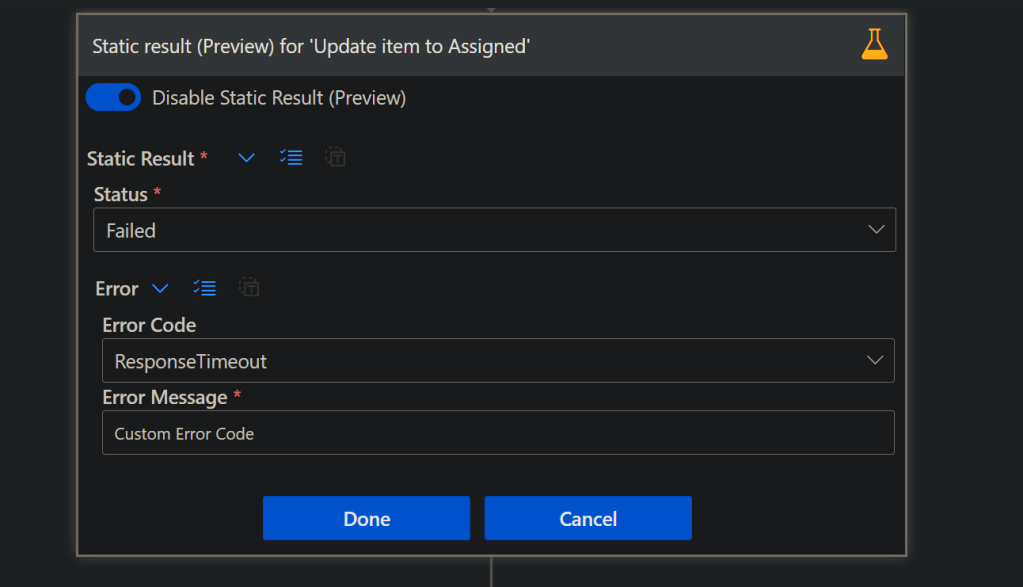
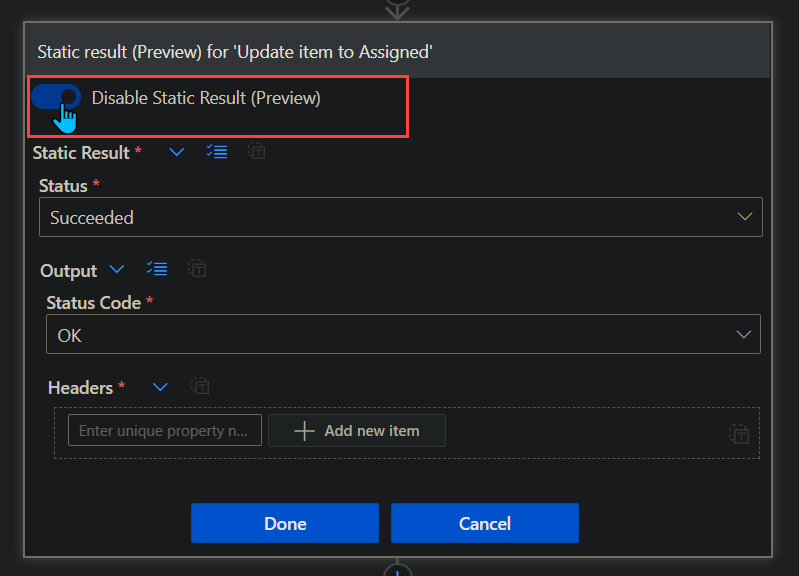
Next we can configure the static results. For easy example click the radio button to enable, select your Status, and the Status Code.

Click Done.

Now the action will have a yellow beaker, indicating that the action is using Static results.

Things to note:
– Static Result are in ‘Preview’ so it could change at any time
– Not all actions will be able to use them
– If the option is greyed out, and you’re certain the action is able to use it, save the Flow and re open

This is only the beginning, as you can create a custom failed response, or create any result you want. This can help troubleshooting and testing certain scenarios.

REMEMBER!! To turn off static results when you want to execute the actions like normal.

Examples

Some examples on when to use static results:

  • Flow runs without sending emails
  • Flow runs without Approvals needed
  • Flow runs that need to test errors on certain actions
  • Flow runs testing different error codes (Advanced) + Custom error codes

Conclusion

I have used this feature for awhile now, and noticed not many know about it. It’s so useful in many testing scenarios. Just remember to disable the static results once your done testing!

If you have any questions or want to add anything please leave a comment and like this post! Thank you!

Power Apps Choosing Which Connections To Use Using Power Automate

Uploading data from Power Apps can be scary on a security standpoint, since the user will need access to the Data Source. Lets use Child Flows to get around this, and use any connection we want.

You may have run into an issue when creating Power Apps that needs to submit data to SharePoint, Dataverse, etc. But did not want to give everyone in the app access to these.
The problem is, Power Apps uses the connections of the user using the app, meaning if the app writes to a SharePoint List, the user will need Read/Write access.
The same goes for Power Automate if we try to send the data to Power Automate from Power Apps, it still uses the users connection who triggered the Flow.
How can we get around this? Read below!

Table of Contents


Known Issues

  1. If you block the HTTP Request connector via data loss prevention (DLP), child flows are also blocked because child flows are implemented using the HTTP connector. Work is underway to separate DLP enforcement for child flows so that they are treated like other cloud flows.
  2. You must create the parent flow and all child flows directly in the same solution. If you import a flow into a solution, you will get unexpected results.
    Call Child Flows – Power Automate | Microsoft Docs

Prerequisites

  1. The Flows must be created inside the same Solution, so a Dataverse database must be configured on the Power Platform Environment

The Scenario

In this scenario, I will be showing how a user can use Power Apps to create items in a SharePoint List without being a member of the Site. This will allow us to use a specific Service Account to create the data in SharePoint without giving the user in the app any permission at all!

First we will build the Child Flow, then Parent Flow, and lastly customize the Power App

Child Flow

Inside your Solution create a new Cloud Flow.

  1. For our trigger we use a Manual Button, and add the data we are expecting from Power Apps to put inside our SharePoint List
    (In my example I am only bringing in one field for Title)
  2. Next, I add a Create Item action for my SharePoint List, and add the Parameters from the trigger inside the action.
  3. Lastly, I add a ‘Respond to PowerApp or flow’ action, I create an Output called Success, and some details about what was created.
Child Flow


Make sure to use the Connection you want users of the App to use for the SharePoint Create item action.

Save and go back to the Flow dashboard screen (where you see the Details and run history screen).

There will be a Card on the right side called ‘Run only users’ click Edit

Run only users

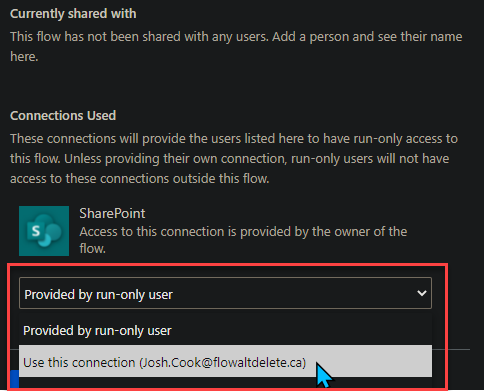
Under Connections Used, switch ‘Provided by run-only user’ to the connection you want to be used by users of the App
(They wont have access to this Connection outside this Flow)

Run only user

Click Save,

Now onto the Parent Flow

Parent Flow

Go back to the Solution and Create another Cloud Flow.

  1. For our trigger we use the PowerApps button trigger.
  2. As best practice, create Variables for your data that is coming from Power Apps. Don’t forget to name them, as this will be the parameter name in Power Apps,
    Use the ‘Ask in PowerApps‘ dynamic content for your variable values.
  3. Next we use a action called ‘Run a Child Flow’
    (If you do not see this action, your Flow was not created inside a Solution)
    Add the parameters (these were the input parameters from the last Flow that we just created).
  4. Lastly, add ‘Respond to a PowerApp or flow’ action. For this demo I am adding the parameter ‘Success’ this is from the child Flow.


Click Save.

Power App

Now onto the Power App, I am going to create a simple Power App with 1 TextInput for Title, and a Button to Pass the data to Power Automate.
Here are my controls for reference:

TextInput_Title
Button_SendToFlow

For the Button:
1. Add the Flow to the button by clicking on the Button,
2. Clicking Action tab on top of page,
3. Clicking Power Automate
4. Select the Flow


Next add the parameters for the Flow, in my case I am adding the TextInput_Title.Text

Now, I want to add a Notification that the Item has been added, which will confirm my Flow has Run correctly. Ill be using the ‘Success’ Output parameter from the Flow for this.

To add this, I put my Flow run inside a Variable inside Power Apps. Ill call my variable Results, and IO add this to the OnSelect property of the Button where my Flow is:

Now I use the ‘Notify’ function to notify the user of the item being created, I add this after the semicolon. So my function looks like this in the end:


So my final code looks like this:

Set(
    Results,
    'PA-Trigger1'.Run(TextInput_Title.Text)
);
Notify(
    Results.success,
    NotificationType.Success
);
Reset(TextInput_Title)

Now lets test it!

Conclusion

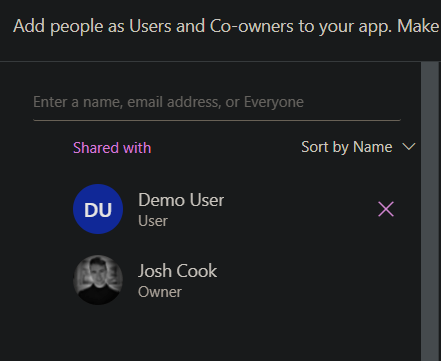
I am using a User called ‘Demo User’ I have shared the App with this user. But they are not part of the SharePoint Site


Here is the SharePoint Site:

Now Logged in as the Demo User to test this:

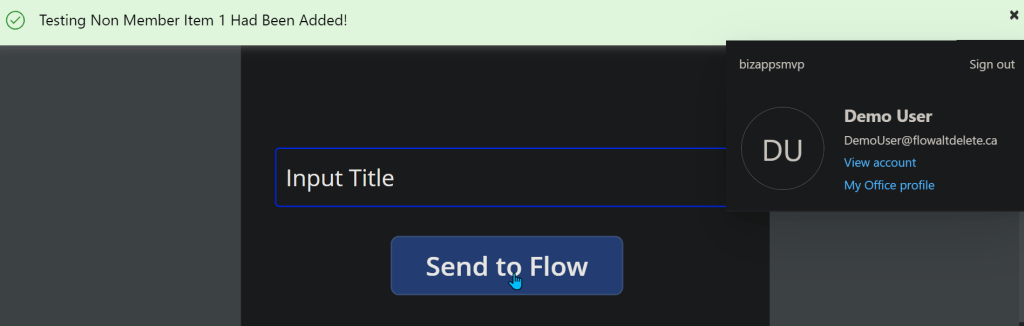
Logged in as Demo User


Button Clicked >

Button Pressed, Flow Completed

Now to check SharePoint >

Test Success!!

Done!
So this was just a basic example on how we can create data inside a Data Source that the user of the App does not need access too.

Using Environment Variables as Parameters for Power Automate Deployments (ALM)

Deploying Power Automate Flows can be a headache if you have to manually change values inside the Flow for each environment. You also run the risk of missing a value.

Summary

Deploying Power Automate Flows can be a headache if you have to manually change values inside the Flow for each environment. You also run the risk of missing a value.

This post will go in depth on using Environment variables inside solutions to allow certain values to be used in different environments.
I will be using Two(2) environments for this demo:
Dev, and Test

This demo will utilize the data type ‘JSON’, this will save loads of time.

Terms / Glossary

Here are some familiar terms that will help in this post:
Default Value = The value that you’re expecting after you deploy the Flow.
This will be our Test environment values

Current Value = The value that overrides the Default Value.
This will be our Dev environment values

Parameters = These are just values. For example 2 + 2. Each 2 is a parameter of the addition expression (+)

ALM = Application Lifecycle Management
Documentation on ALM

Contents

Prerequisites
The Scenario
Getting Parameter Values
Creating Environment Variables
Creating The Flow
Using The Parameters
Export And Import Deployment
Conclusion

Prerequisites

  • Access to Common Data Service
  • Access to create, export, and import Solutions

** Note: I Have created this guide to be as simple as possible, If you name everything as I do, you will be able to copy and paste all my expressions directly into your Flow **

The Scenario

My Flow posts a message into Microsoft Teams group. When deploying the Flow into different environments, I want to change the Teams content like:

  • Team Name
  • Channel ID
  • Subject

Usually after deploying, we can go in to the Flow and manually change the values. This can cause errors, especially if we forget to change some values after deploying (I may have done this a few times).

Getting Parameter Values

It is important to note that not all Action values can be parameterized. Follow the steps below to see if the values can be parameterized:

Teams Example:
My Teams action, I want to parameterize the Team Name, Channel ID, and Subject. For this I add the Action, and select the values as needed.

Now with the information filled in, click the 3 dots ‘. . .’ on the action, and click ‘Peek Code’.

Dev Parameters

In the ‘Peek code’ view, we can see the different parameters and the values that this action uses in the background. Copy these values into notepad or code editor for use later. I have created a simple JSON to be placed in my Environment Variable later on.

I will be using the Env value for my Subject in the teams message

For example:
Team = 1861402b-5d49-4850-a54b-5eda568e7e8b
Channel = 19:be3759762df64d94a509938aa9962b29@thread.tacv2
Subject = Message From Dev Environment

To test that we can use custom values as parameters, we want to grab these values from above and insert them into the ‘Teams Post a message’ action as custom value, than run the Flow

Mine looks like this now:

Now run the Flow to make sure everything works as expected using the Custom values

Now that we know Custom values work for the inputs/parameters for the action. We now want to get the values for the other environment. Remove the custom values from the inputs and choose the correct value that we want to point to when this Flow is deployed to another environment. For example:

Again we do a ‘Peek code’ to get the parameter IDs that this action uses

Test Parameters

Copy these values into notepad or a code editor for use later. Now we have two sets of values, one for Dev, and one for Test. I have created a simple JSON to be placed in my Environment Variable later on.

I will be using the Env value for my Subject in the teams message

Make sure the Two(2) JSONs have the same structure. We will be using the data to populate the Environment Variables in the following steps

Creating Environment Variables

Environment variables can only be created inside a solution, there are multiple ways you or your organization may want this set up.

In this demo I have created a Publisher in CDS called ‘param’, this will better define the parameters that we create inside the solution. (this is optional) The default CDS publisher could also be used.

Create a solution inside Power Automate.
Click Solutions on the left navigation menu,
Than click ‘New Solution’ on the top on menu, and fill the information out

Once the solution is created,
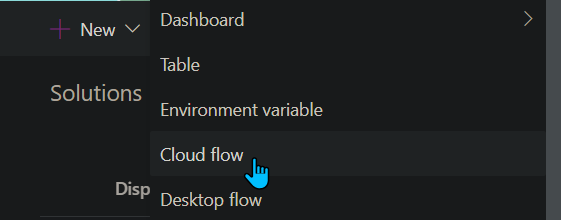
Click ‘New’ > Environment variable

Now fill in the information like the screenshot below.

Note, I will be using the Data Type as JSON. I use this for simplicity, as I have more than one value I want to add. Also we can use the Parse JSON action in Flow to reference each value separately. You can use any Data Type you like

Now we populate the values we want to use per environment, the way we do this is fill in the Default Value, and the Current Value.


Default Value = The values we want for the other environment, in this case Test
Current Value = The values we want to use for this environment, in this case Dev

Once the values are pasted in click ‘Save’

Creating The Flow

I will be creating the Flow inside the solution that the Environment Variable is in from above.
Inside the solution click ‘New’ > Flow

For the demo I will use a Manual trigger, than add Two(2) ‘Initialize Variable’ actions

Initialize variable – Schema Name
Name: schemaName
Type: String
Value: Put the Name of the environment variable in the value (This can be found on the main screen of the solution under Name column)

Initialize variable – Parameters
Name: parameters
Type: String
Value: Leave blank for now, this variable will store either the Default Value or Current Value, based on which environment we are in

Next add a ‘Scope’ action to hold all the actions that will get the parameters

I renamed my ‘Scope’ to Load Parameters.

NOTE: You can copy and paste my filter query as long as you kept the same name as I did. When you see the @ in Power Automate, this allows you to call expressions without having to go into the expression tab. If you want to build the expression yourself, I will include the syntax under each picture of the List Records actions and on

Inside the Scope, add Two(2) ‘Common Data Service Current Environment – List Records’ actions.

1) List records – Parameter Definitions
Entity name: Environment Variable Definitions
Filter Query: schemaname eq ‘@{variables(‘schemaName’)}’

schemaname eq ‘YOUR ENVIRONMENT VARIABLE NAME’

2) List records – Parameter Current Values
Entity name: Environment Variable Values
Filter Query: environmentvariabledefinitionid_value eq ‘@{first(outputs(‘List_records-_Parameter_Definitions’)?[‘body/value’])?[‘environmentvariabledefinitionid’]}’

@{first(outputs('List_records-_Parameter_Definitions')?['body/value'])?['environmentvariabledefinitionid']}
first(outputs(‘List_records-_Parameter_Definitions’)?[‘body/value’])?[‘environmentvariabledefinitionid’]

Now we need to check which value to use, the Default Value, or the Current Value.

Add an ‘If Condition‘ Build the condition like this:

If Current Value is empty
Left Value: @first(outputs(‘List_records_-_Parameter_Current_Values’)?[‘body/value’])?[‘Value’]

@first(outputs('List_records_-_Parameter_Current_Values')?['body/value'])?['Value']

is equal to
Right Value: @null

@null
first(outputs(‘List_records_-_Parameter_Current_Values’)?[‘body/value’])?[‘Value’]

Next in the ‘If yes‘ block add a ‘Set Variable

Set variable – Parameter Default
Name: parameters
Value: @{outputs(‘List_records_-_Parameter_Definitions’)?[‘body/value’][0][‘defaultvalue’]}

@{outputs('List_records_-_Parameter_Definitions')?['body/value'][0]['defaultvalue']}
outputs(‘List_records_-_Parameter_Definitions’)?[‘body/value’][0][‘defaultvalue’]

In the ‘If no‘ block add a ‘Set variable

Set variable – Parameter Current
Name: parameters
Value: @{outputs(‘List_records_-_Parameter_Current_Values’)?[‘body/value’][0][‘Value’]}

@{outputs('List_records_-_Parameter_Current_Values')?['body/value'][0]['Value']}
outputs(‘List_records_-_Parameter_Current_Values’)?[‘body/value’][0][‘Value’]

Under the ‘If condition‘ add a ‘Parse JSON
Name: Parse JSON – Parameters
Content: @{variables(‘parameters’)}
Schema: To generate your schema, Click the ‘Generate from sample’ button, than paste in the JSON that you used for Default Value

We are done with the parameter scope now..

Using The Parameters

I will be adding a Teams Action ‘Post a message‘ I will use the dynamic content from my ‘Parse JSON‘ action.

Triggering the Flow, I expect the Dev values to be used (Current Value)

Here is the Teams message:


Next we will export and import into a different Environment which will use different parameters (Default Value)

Export And Import – Deployment

Overview of this sections steps:
1. Remove Current Value from Environment variable
2. Publish Solution
3. Export Solution
4. Import Solution
5. Authorize any Connections
6. Enable Flow
7. Trigger / Test

  1. Remove Current Value from Environment variable

Inside the Solution click on the Environment variable, under Current Value click the 3 dots ( . . . ) Select Remove from this solution

This will only remove the values from this solution. The Current Values will still be in CDS and can also be added back into this solution if needed by clicking Add existing under Current Value
  1. Publish Solution

Inside your solution, click ‘Publish all customization’

  1. Export Solution

Once published click ‘Export’

Export as ‘Managed’ or ‘Unmanaged’ Choose either or based on your needs.

  1. Import Solution

Switch to your other Environment, and click Solutions tab. Click ‘Import’

Choose your Zip file from your Export, and follow instructions by clicking ‘Next’

  1. Authorize any Connections

Once the solution is imported successfully, you may need to authorize any connections inside the Flow. This can be done by clicking on the Flow from inside your solution, and clicking ‘Sign in’ on all actions > Click ‘Save’

  1. Enable Flow

Now enable / turn on the Flow

  1. Trigger / Test

Trigger the Flow to confirm the values are coming over as correct (Default Value).

Test Env – Using Default Value as expected

Now in Teams our message has been posted in a different team chat, different channel, and with the ‘Test’ text in the subject line

Conclusion

After reading this post:
https://powerapps.microsoft.com/en-us/blog/environment-variables-available-in-preview/
I wanted to build a step by step guide, that is practical and also beneficial. Since this feature is in ‘Preview’ this could change without notification.

I hope this guide is able to help you get your ALM for your Power Automate Flows more sustainable.

Flow Template Download and guide:
Loading Environment Variables – Template

Thanks

Adding Security Roles and Field Security Profiles to Users in CDS using Power Automate

The Scenario

We will be adding a Security Role / Field Security Profile to users in CDS. For this demo, our scenario will be grabbing all the users from a Office365 group and assigning them a certain Security Role / Field Security Profile.

The source of the users can be from anywhere:
– MS Form
– SharePoint
– Array inside the Flow
– Excel Table
– AAD Group / Office365 Group

Prerequisites

We will be using the Common Data Service Current Environment connector. This means that our Flow, MUST be created inside a Solution.

You will need appropriate permissions to be able to assign Security Roles and Profiles to

Steps

INFORMATION:
This Flow will work the exact same to add Field Security Profiles instead of Security Roles. The only changes you have to make are in the List records – Get Security Role, and the Relate records – Security Role to User. The changes are listed in the captions of those images.

We use a Variable to store the name of the Security Role we want to add to the users.
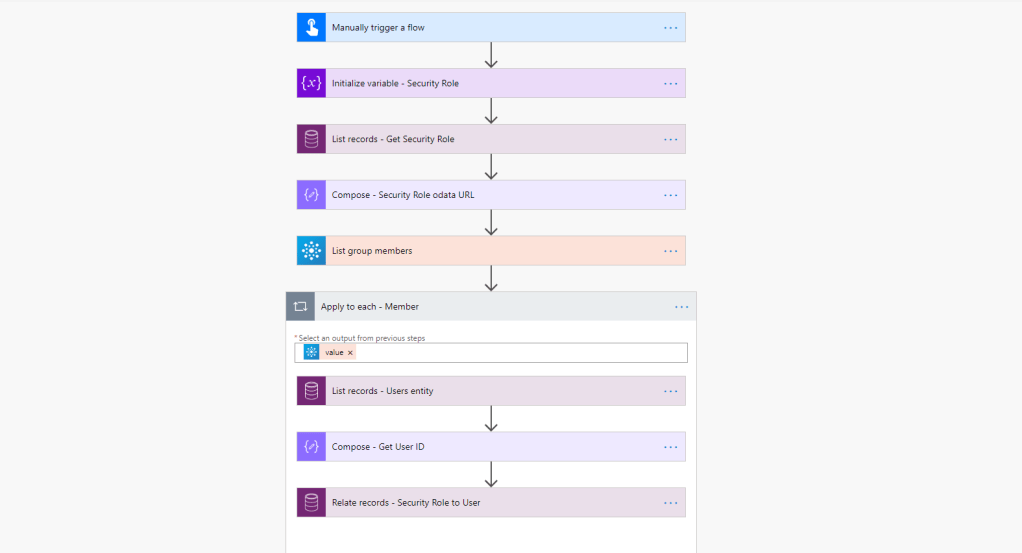
Than use a List records action on the Entity Security Roles
In our Filter Query we will use:
name eq ‘ ‘
Since we are using a variable to store the name of the Security Role, we pass this into the Filter Query

Field Security Profile = Change Entity name to Field Security Profile

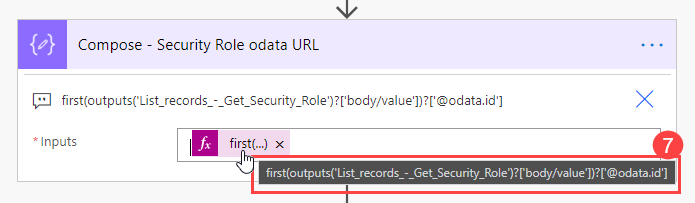
Next, add a Compose action, to get the Odata URL. This URL is how we will add the Security Role to the User later on.

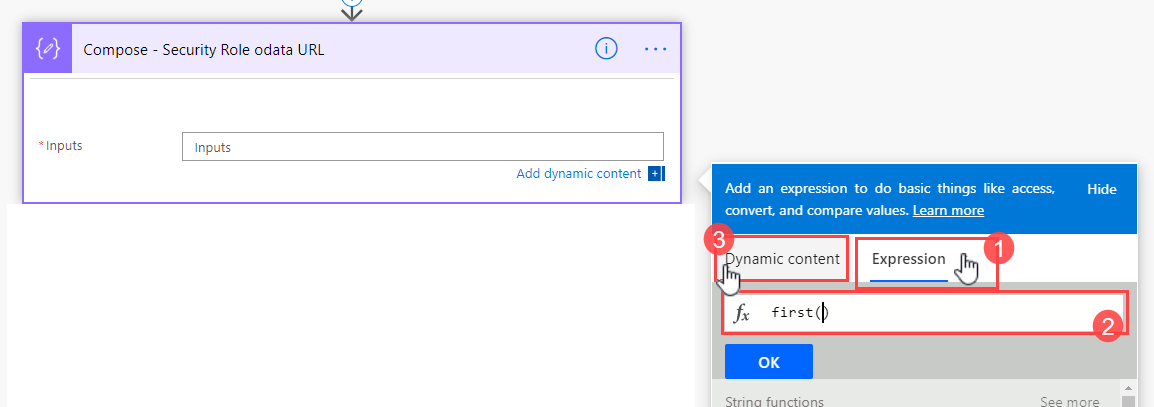
first(outputs('List_records_-_Get_Security_Role')?['body/value'])?['@odata.id']

To build the above expression follow these steps:

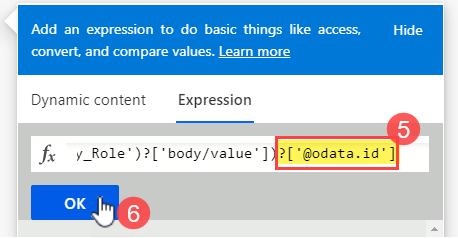
1) Inside the Compose action select Expression tab
2) Use the expression first()
3) Click back to Dynamic content tab

We use first() to get the first value in the CDS List records action. This allows us to bypass the Apply to each loop that Flow creates for us

4) In the ( ) select the Dynamic content value from the List records action

TIP: Make sure you see the fx logo in the text box, this indicates we are using an expression

5) At the end of the expression add:

?['@odata.id']

6) Click OK

7) Confirm the expression saved correctly by hovering your mouse over the expression

Next, use any data source / connector that meets your needs to get the emails of your users that you want to add – In this example I am using Office365 List group members

Add an Apply to each loop – So we can loop through each email and assign the Security Role

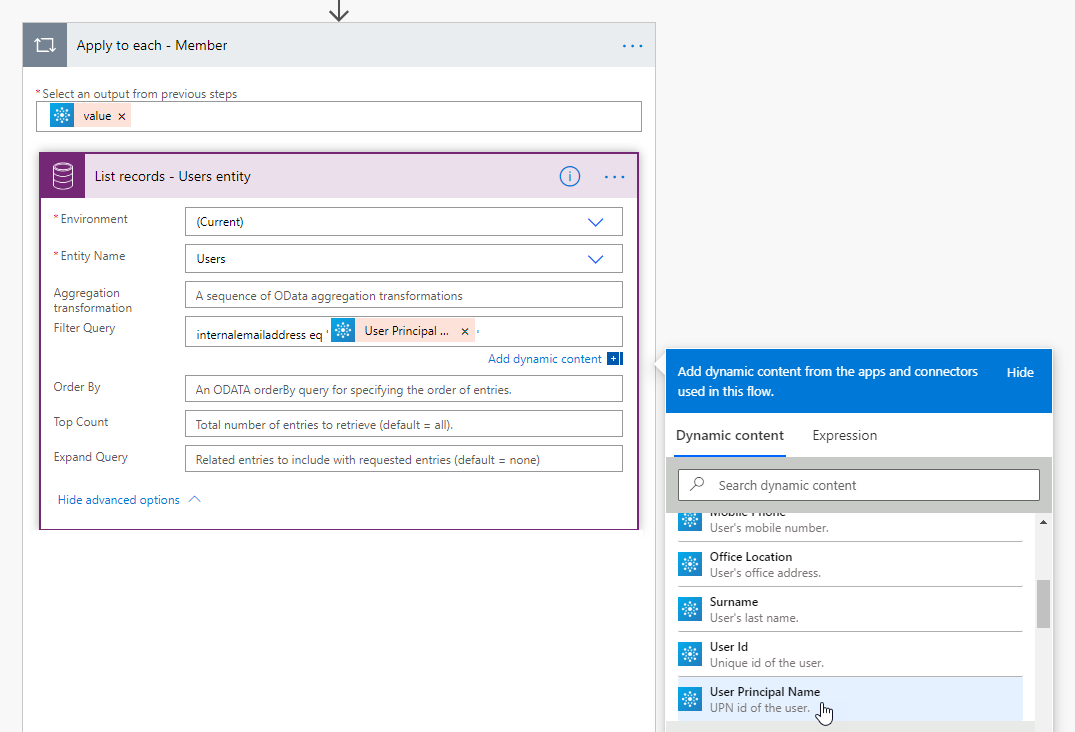
Inside the Apply to each loop, add a List records action on the Users entity
Filter Query = internalemailaddress eq ‘ ‘
Add your dynamic content that has the email address for the user to add inside the ‘ ‘

Next, add a Compose action – to store the User ID (Unique ID)
We use the same technique as mentioned above, using first() and the field name
Add this to the end of your expression

?['systemuserid']
systemuserid = the field name in CDS that stores the Unique value for each user. This value is used as a lookup guid. So we can relate the records to this guid

Still inside the Loop:
Add a Relate Records action.. This is one of the actions inside the Common Data Service Current Environment Connector.
Entity Name: Users
Item ID: The Compose – Get User ID Outputs
Relationship: Select ‘Security Role – systemuserroles_association’ from the drop-down
URL: The Compose – Security Role odata URL

Field Security Profile = Change Relationship Dropdown to — Field Security Profile – systemuserprofiles_association

Your action should look like this:

Conclusion

Adding Security roles or Field Security Profiles, can be a long and tedious process. You can add this Flow to a MS form and have users fill out what roles they need.

Thanks for reading!