Add the Microsoft Learn Docs MCP Server in Copilot Studio

Add Microsoft’s Learn Docs MCP server in Copilot Studio, verify the tool, and query official docs—fast, first-party, step-by-step.

UPDATE—August 8, 2025: You no longer need to create a custom connector for the Microsoft Learn Docs MCP server. Copilot Studio now includes a native Microsoft Learn Docs MCP Server under Add tool → Model Context Protocol.
This guide has been updated to show the first-party path. If your tenant doesn’t yet show the native tile, use the Legacy approach at the bottom.

What changed

  • No YAML or custom connector required
  • Fewer steps, faster setup

Model Context Protocol (MCP) is the universal “USB-C” port for AI agents. It standardizes how a model discovers tools, streams data, and fires off actions—no bespoke SDKs, no brittle scraping. Add an MCP server and your agent instantly inherits whatever resources, tools, and prompts that server exposes, auto-updating as the backend evolves.

  1. Why you should care
  2. What the Microsoft Learn Docs MCP Server delivers
  3. Prerequisites
  4. Step 1 – Add the native Microsoft Learn Docs MCP Server
  5. Step 2 – Validate
  6. Legacy approach (if the native tile isn’t available)

Why you should care

  • Zero-integration overhead – connect in a click inside Copilot Studio or VS Code; the protocol handles tool discovery and auth.
  • Future-proof – the spec just hit GA and already ships in Microsoft, GitHub, and open-source stacks.
  • Hallucination killer – answers are grounded in authoritative servers rather than fuzzy internet guesses.

What the Microsoft Learn Docs MCP Server delivers

  • Tools: microsoft_docs_search – fire a plain-English query and stream back markdown-ready excerpts, links, and code snippets from official docs.
  • Always current – pulls live content from Learn, so your agent cites the newest releases and preview APIs automatically.
  • First-party & fast — add it in seconds from the Model Context Protocol gallery; no OpenAPI import needed.

Bottom line: MCP turns documentation (or any backend) into a first-class superpower for your agents—and the Learn Docs server is the showcase. Connect once, answer everything.

Prerequisites

  • Copilot Studio environment with Generative Orchestration (might need early features on)
  • Environment-maker rights
  • Outbound HTTPS to learn.microsoft.com/api/mcp

Step 1 – Add the native Microsoft Learn Docs MCP Server

  1. Go to Copilot Studio: https://copilotstudio.microsoft.com/
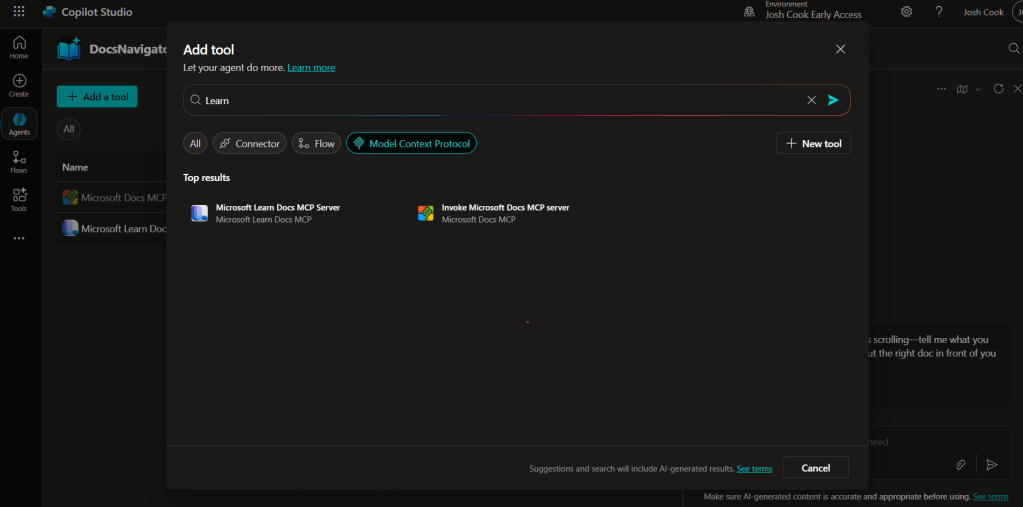
  2. Go to Tools → Add tool.
  3. Select the Model Context Protocol pill.
  4. Click Microsoft Learn Docs MCP Server.
  5. Choose the connection (usually automatic) and click Add to agent.
  6. Confirm the connection status is Connected.
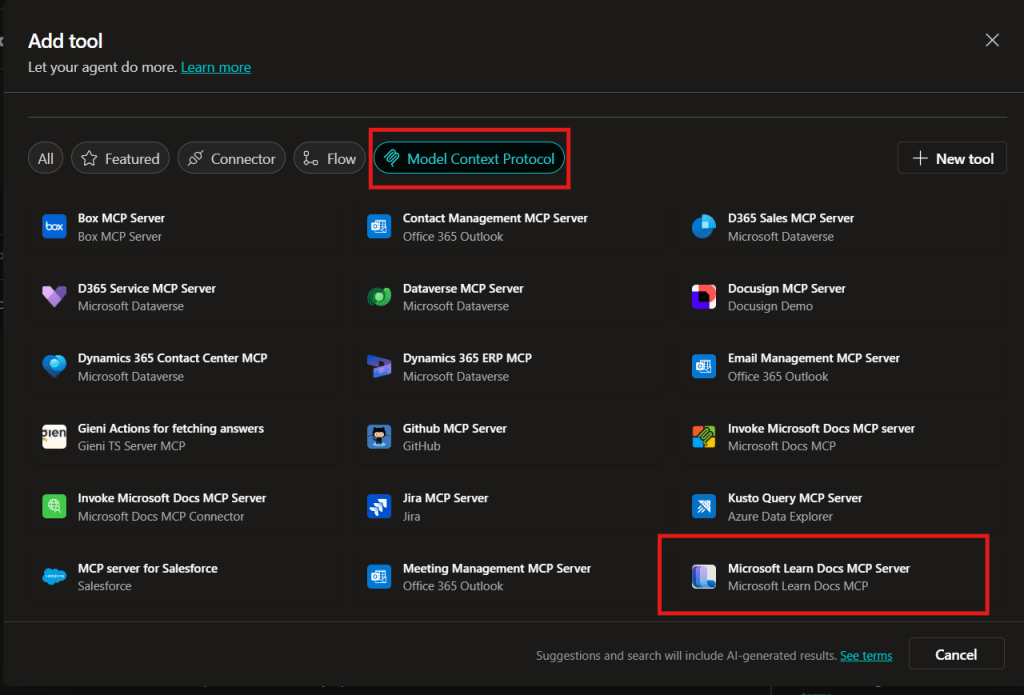
Copilot Studio Add tool panel showing Model Context Protocol category and Microsoft Learn Docs MCP Server tile highlighted.
  1. The MCP server should now show up in Tools.
  1. Click the Server to verify the tool(s) and to make sure:
    – ✅ Allow agent to decide dynamically when to use this tool
    – Ask the end user before running = No
    – Credentials to use = End user credentials

Step 2 – Validate

  1. In the Test your agent pane. Turn on Activity map by clicking the wavy map icon:

  2. Now try a prompt like:
    What MS certs should I look at for Power Platform?
    How can I extend the Power Platform CoE Starter Kit?
    What modern controls in Power Apps are GA and which are still in preview? Format as a table

Use-Case Ideas

  • Internal help-desk bot that cites docs.
  • Learning-path recommender (your pipeline example).
  • Governance bot that checks best-practice-links.

Troubleshooting Cheat-Sheet

  • Note that currently the Learn Docs MCP server does NOT require authentication. This will most likely change in the future.
  • If Model Context Protocol is not shown in your Tools for Copilot Studio. You may need to create an environment with Early Features turned on.
  • Do NOT reference the MCP server in the agents instructions, you will get a tool error.
  • Check Activity tab for monitoring

Legacy approach (if the native tile isn’t available)

Grab the Minimal YAML

  1. Open your favorite code editor or notepad. Copy and paste this YAML to a new file.
swagger: '2.0'
info:
  title: Microsoft Docs MCP
  description: Streams Microsoft official documentation to AI agents via Model Context Protocol
  version: 1.0.0
host: learn.microsoft.com
basePath: /api
schemes:
  - https
paths:
  /mcp:
    post:
      summary: Invoke Microsoft Docs MCP server
      x-ms-agentic-protocol: mcp-streamable-1.0
      operationId: InvokeDocsMcp
      consumes:
        - application/json
      produces:
        - application/json
      responses:
        '200':
          description: Success
  1. Save the file with .yaml extension.

Import a Custom Connector

Next we need to create a custom connector for the MCP server to connect to. We will do this by importing our yaml file we created in Step 1.

  1. Go to make.powerapps.com > Custom connectors > + New custom connector > Import OpenAPI.

  2. Upload your yaml file eg: ms-docs‑mcp.yaml, using the Import an OpenAPI file option.

  3. General tab: Confirm Host and Base URL.
    Host: learn.microsoft.com
    Base URL: /api
  4. Security tab > No authentication (the Docs MCP server is anonymously readable today).
  5. Definition tab > verify one action named InvokeDocsMcp is present.
    Also add a description.

  6. Click Create connector. Once the connector is created, click the Test tab, and click +New Connection.

    (Note, you may see more than 1 Operation after creating the connector. Don’t worry and continue on)
  7. When you create a connection, you will be navigated away from your custom connector. Verify your Connection is in Connected Status.

    Next we will wire this up to our Agent in Copilot Studio.

Get the difference between two dates (Updated 2025)

Many Power Automate users encounter issues with the dateDifference() function when calculating the difference between two dates. The problem arises when the output format varies depending on the duration, causing errors in extracting Days, Hours, Minutes, and Seconds.

This blog provides a robust and easy-to-implement solution that works seamlessly in all scenarios, including durations less than a day. Learn how to use a single expression with conditional logic to avoid these common pitfalls and ensure your date calculations are accurate every time. This is your ultimate fix for handling dateDifference() errors!

  1. The Flow
    1. dateDifference expression
      1. How it works
    2. Steps to Access Each Value
  2. Download my Flow
    1. Classic designer
    2. New designer
  3. Conclusion

The Flow

  1. Compose action: named StartDate = 2024-12-10T15:58:28
  2. Compose action: named EndDate = 2024-12-10T19:22:20
  3. Compose action: uses dateDifference() expression. see below

Below is the expression used in the ‘Date Difference’ compose action. It dynamically handles all scenarios—when days are included and when they are not (same with hours and minutes).

dateDifference expression

Create a compose action for StartDate and EndDate

if(
   contains(
     dateDifference(outputs('StartDate'), outputs('EndDate')), 
     '.'
   ),
   json(
     concat(
       '{"Days":', string(int(split(dateDifference(outputs('StartDate'), outputs('EndDate')), '.')[0])),
       ',"Hours":', string(int(split(split(dateDifference(outputs('StartDate'), outputs('EndDate')), '.')[1], ':')[0])),
       ',"Minutes":', string(int(split(split(dateDifference(outputs('StartDate'), outputs('EndDate')), '.')[1], ':')[1])),
       ',"Seconds":', string(int(split(split(dateDifference(outputs('StartDate'), outputs('EndDate')), '.')[1], ':')[2])),
       '}'
     )
   ),
   json(
     concat(
       '{"Days":0',
       ',"Hours":', string(int(split(dateDifference(outputs('StartDate'), outputs('EndDate')), ':')[0])),
       ',"Minutes":', string(int(split(dateDifference(outputs('StartDate'), outputs('EndDate')), ':')[1])),
       ',"Seconds":', string(int(split(dateDifference(outputs('StartDate'), outputs('EndDate')), ':')[2])),
       '}'
     )
   )
)

How it works

  • The if() function checks if the dateDifference() result contains a . (dot).
  • If it does, it means the result has a days component (e.g., 1268.04:15:30), so we parse out Days, Hours, Minutes, and Seconds accordingly.
  • If it does not, it means the result is less than a day (e.g., 12:57:47.2544602), so we treat Days as 0 and parse Hours, Minutes, and Seconds directly from the string.

Result:

This will produce a JSON object like:
{
"Days": 1268,
"Hours": 4,
"Minutes": 15,
"Seconds": 30
}

Or
{
"Days": 0,
"Hours": 12,
"Minutes": 57,
"Seconds": 47
}

Steps to Access Each Value

If you use the fixed expression directly in a Compose action (e.g., named Date_Difference), you can reference the fields like this:

  • Days: outputs('Date_Difference')?['Days']
  • Hours: outputs('Date_Difference')?['Hours']
  • Minutes: outputs('Date_Difference')?['Minutes']
  • Seconds: outputs('Date_Difference')?['Seconds']

Use these expressions in subsequent actions (like another Compose, a Condition, or Apply to Each) to reference the specific values.

Download my Flow

You can easily copy and paste actions in Power Automate. Allowing you to copy and paste my example.

  1. Classic designer
  2. New designer

Classic designer

Step 1: Copy the code snippet

{"id":"b6b531e2-b7b5-4a9e-86bd-7e2a069529a0","brandColor":"#8C3900","connectionReferences":{},"connectorDisplayName":"Control","icon":"data:image/svg+xml;base64,PHN2ZyB3aWR0aD0iMzIiIGhlaWdodD0iMzIiIHZlcnNpb249IjEuMSIgdmlld0JveD0iMCAwIDMyIDMyIiB4bWxucz0iaHR0cDovL3d3dy53My5vcmcvMjAwMC9zdmciPg0KIDxwYXRoIGQ9Im0wIDBoMzJ2MzJoLTMyeiIgZmlsbD0iIzhDMzkwMCIvPg0KIDxwYXRoIGQ9Im04IDEwaDE2djEyaC0xNnptMTUgMTF2LTEwaC0xNHYxMHptLTItOHY2aC0xMHYtNnptLTEgNXYtNGgtOHY0eiIgZmlsbD0iI2ZmZiIvPg0KPC9zdmc+DQo=","isTrigger":false,"operationName":"Get_date_difference_object","operationDefinition":{"type":"Scope","actions":{"StartDate":{"type":"Compose","inputs":"2024-12-10T15:58:28","runAfter":{}},"EndDate":{"type":"Compose","inputs":"2024-12-10T19:22:20","runAfter":{"StartDate":["Succeeded"]}},"Date_Difference":{"type":"Compose","inputs":"@if(\r\n   contains(\r\n     dateDifference(outputs('StartDate'), outputs('EndDate')), \r\n     '.'\r\n   ),\r\n   json(\r\n     concat(\r\n       '{\"Days\":', string(int(split(dateDifference(outputs('StartDate'), outputs('EndDate')), '.')[0])),\r\n       ',\"Hours\":', string(int(split(split(dateDifference(outputs('StartDate'), outputs('EndDate')), '.')[1], ':')[0])),\r\n       ',\"Minutes\":', string(int(split(split(dateDifference(outputs('StartDate'), outputs('EndDate')), '.')[1], ':')[1])),\r\n       ',\"Seconds\":', string(int(split(split(dateDifference(outputs('StartDate'), outputs('EndDate')), '.')[1], ':')[2])),\r\n       '}'\r\n     )\r\n   ),\r\n   json(\r\n     concat(\r\n       '{\"Days\":0',\r\n       ',\"Hours\":', string(int(split(dateDifference(outputs('StartDate'), outputs('EndDate')), ':')[0])),\r\n       ',\"Minutes\":', string(int(split(dateDifference(outputs('StartDate'), outputs('EndDate')), ':')[1])),\r\n       ',\"Seconds\":', string(int(split(dateDifference(outputs('StartDate'), outputs('EndDate')), ':')[2])),\r\n       '}'\r\n     )\r\n   )\r\n)","runAfter":{"EndDate":["Succeeded"]},"metadata":{"operationMetadataId":"03c8d578-576a-41a3-8d63-609a15ce594b"}}},"runAfter":{"Add_to_time":["Succeeded"]}}}

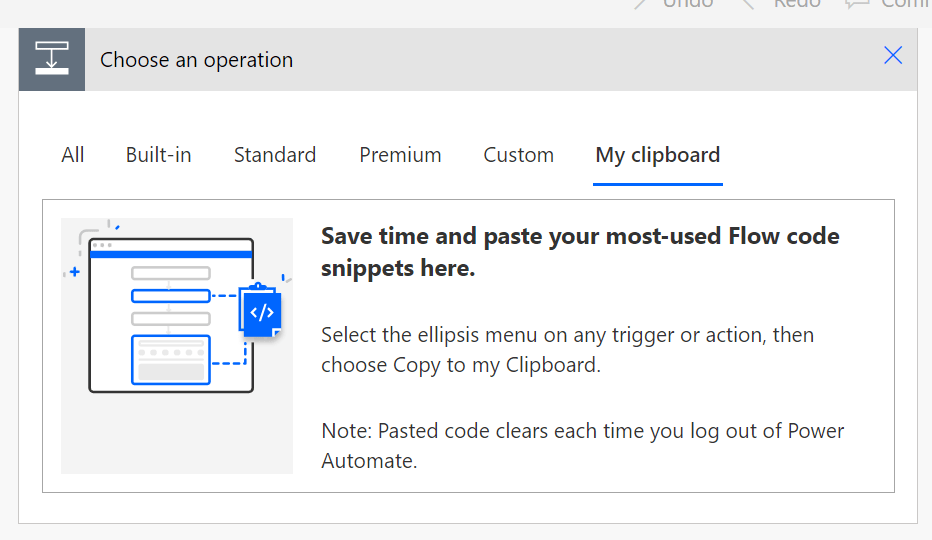
Step 2: In Power Automate when adding a new action click My clipboard .

Step 3: Ctrl + V


New designer

Step 1: Copy the code snippet

{"nodeId":"Get_date_difference_object-copy","serializedOperation":{"type":"Scope","actions":{"StartDate":{"type":"Compose","inputs":"2024-12-10T15:58:28"},"EndDate":{"type":"Compose","inputs":"2024-12-10T19:22:20","runAfter":{"StartDate":["Succeeded"]}},"Date_Difference":{"type":"Compose","inputs":"@if(\r\n   contains(\r\n     dateDifference(outputs('StartDate'), outputs('EndDate')), \r\n     '.'\r\n   ),\r\n   json(\r\n     concat(\r\n       '{\"Days\":', string(int(split(dateDifference(outputs('StartDate'), outputs('EndDate')), '.')[0])),\r\n       ',\"Hours\":', string(int(split(split(dateDifference(outputs('StartDate'), outputs('EndDate')), '.')[1], ':')[0])),\r\n       ',\"Minutes\":', string(int(split(split(dateDifference(outputs('StartDate'), outputs('EndDate')), '.')[1], ':')[1])),\r\n       ',\"Seconds\":', string(int(split(split(dateDifference(outputs('StartDate'), outputs('EndDate')), '.')[1], ':')[2])),\r\n       '}'\r\n     )\r\n   ),\r\n   json(\r\n     concat(\r\n       '{\"Days\":0',\r\n       ',\"Hours\":', string(int(split(dateDifference(outputs('StartDate'), outputs('EndDate')), ':')[0])),\r\n       ',\"Minutes\":', string(int(split(dateDifference(outputs('StartDate'), outputs('EndDate')), ':')[1])),\r\n       ',\"Seconds\":', string(int(split(dateDifference(outputs('StartDate'), outputs('EndDate')), ':')[2])),\r\n       '}'\r\n     )\r\n   )\r\n)","runAfter":{"EndDate":["Succeeded"]},"metadata":{"operationMetadataId":"03c8d578-576a-41a3-8d63-609a15ce594b"}}},"runAfter":{"Add_to_time":["Succeeded"]}},"allConnectionData":{},"staticResults":{},"isScopeNode":true,"mslaNode":true}

Step 2: In Power Automate click the + to add an action. Click Paste an action

Conclusion

That’s it! pretty easy right? if you encounter any issues, comment below!

Get the difference between two dates EASY

We have all been there, we need to check the difference between 2 dates, and if you ever had to implement this you would need to use some crazy mathematical equations using the ticks() expression. But now..

I’m not sure when this expression got added, but we can now use dateDifference() expression instead of using ticks().

The dateDifference() expression is a powerful tool in Power Automate and Logic Apps for calculating the difference between two dates.

Allowing to easily determine the number of days, months, or years between two dates, which can be useful in a variety of scenarios.

  1. Syntax and Parameters
  2. How to Use
  3. Extracting the Result
    1. Extracting Days
    2. Extracting Hours
    3. Extracting Minutes
    4. Extracting Seconds
  4. Things to Know
  5. Links

Syntax and Parameters

The syntax is easy with only 2 parameters:

dateDifference('<startDate>', '<endDate>')

How to Use

Below is a simple example of how to use this expression:

dateDifference('2015-02-08T10:30:00', '2018-07-30T14:45:30')

This returns

"1268.04:15:30"

The result is in the format of:
Days.Hours:Minutes:Seconds

Note:: If the dates passed in have no time interval, the result shows zeros for the hours, minutes, and seconds. We can extract the different parts of the return by using some expressions inside a Compose action, which we will do next.

Extracting the Result

If you need to extract certain parts of the result into the hours, minutes, or even seconds, you can use the split() expression.
Below you will find the explanation on the extraction, as well as the exact expressions to use.

  • The split() function splits the output of dateDifference() at the period (‘.’) into an array with two elements: days and the rest (hours:minutes:seconds).
  • The [0] indexer retrieves the first element of the array, which represents the number of days.
  • The int() function converts the days from a string to an integer.
  • Replace the date time values with your dates/time

Extracting Days

To extract the days from the result we can use

int(split(dateDifference('2015-02-08T10:30:00', '2018-07-30T14:45:30'), '.')[0])

This returns:

1268

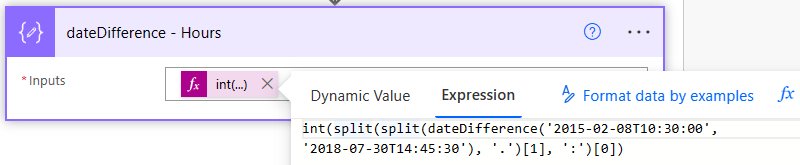
Extracting Hours

To extract the hours interval from the result we can use

int(split(split(dateDifference('2015-02-08T10:30:00', '2018-07-30T14:45:30'), '.')[1], ':')[0])

This returns:

4

Extracting Minutes

To extract the minutes interval from the result we can use

int(split(split(dateDifference('2015-02-08T10:30:00', '2018-07-30T14:45:30'), '.')[1], ':')[1])

This returns:

15

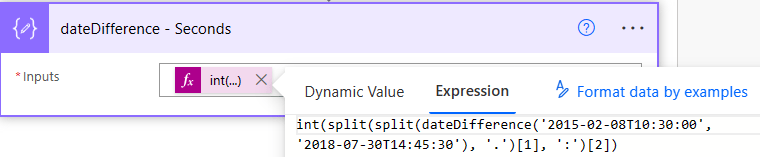
Extracting Seconds

To extract the seconds interval from the result we can use

int(split(split(dateDifference('2015-02-08T10:30:00', '2018-07-30T14:45:30'), '.')[1], ':')[2])

This returns:

30

Things to Know

There are a few things to be aware of:

  • Be aware of time zones, Power Automate uses UTC as a baseline for all time formats.
  • If pulling dates from SharePoint be aware of what time zone your site is in.
  • You can convert the time zones by using expressions or by using actions. Read more about converting time zones here.

date Difference – Reference guide for expression functions – Azure Logic Apps | Microsoft Learn

Tip For Testing Your Flows In Power Automate

Wouldn’t it be nice if we can Test our Flows without executing some of the actions like Sending Emails, creating items in SharePoint or Dataverse?

Guess what we can! And its very easy to do. Check this out!

If your like me, you test your Flows over and over again. This results in sending unwanted emails, creating items in SharePoint or Dataverse, Creating files on OneDrive or SharePoint.
Every time you test your Flow, these actions inside our Flow get executed and cause unwanted behavior when Testing.

Wouldn’t it be nice if we can Test our Flows without executing these actions? Guess what we can! And its very easy to do. Check this out!

Scenario

For example, I have a Flow that Create a new row in Dataverse, and then send an email to the person who created the new row. That is fine, but what happens when we have other actions in our Flow that we want to test to make sure they are correct.
I may want to test the Flow multiple times if I am doing some data manipulation, but this will result in Creating multiple unwanted rows (records) in Dataverse, as well as send emails every time.

We can clean up the testing process easily.

How?

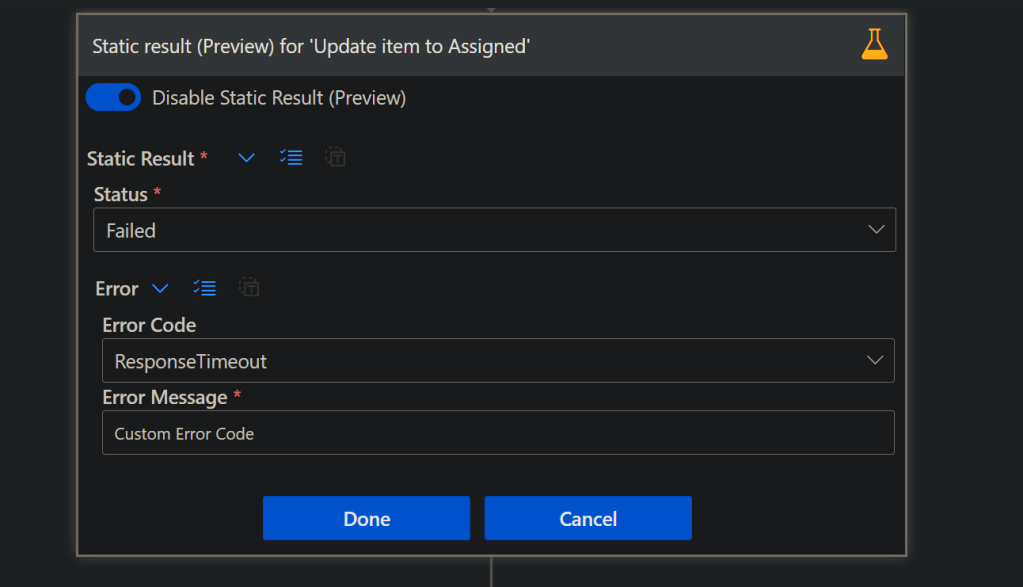
We can utilize a feature called Static Result.

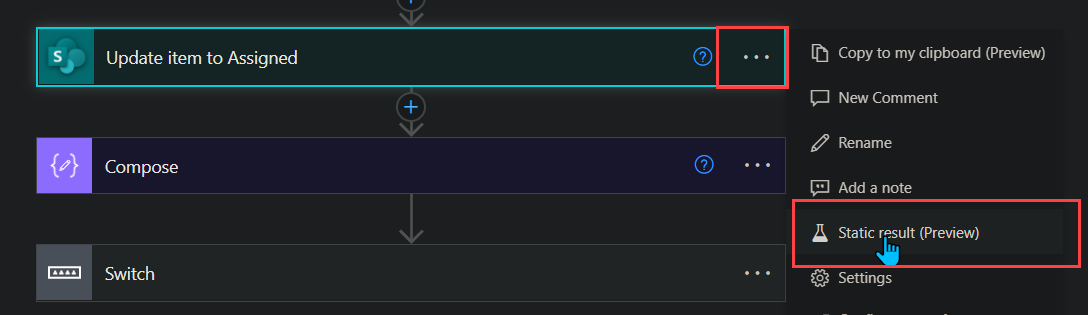
First click the 3 dots on the action, and select Static Results.

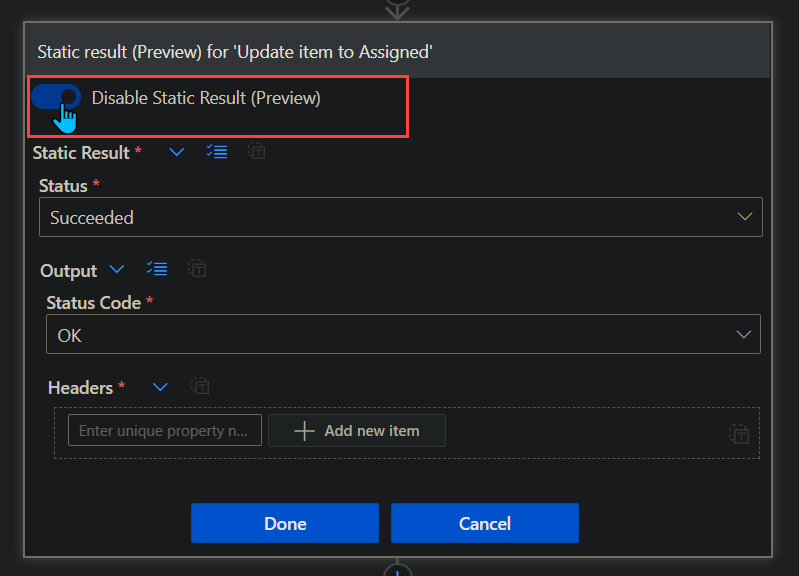
Next we can configure the static results. For easy example click the radio button to enable, select your Status, and the Status Code.

Click Done.

Now the action will have a yellow beaker, indicating that the action is using Static results.

Things to note:
– Static Result are in ‘Preview’ so it could change at any time
– Not all actions will be able to use them
– If the option is greyed out, and you’re certain the action is able to use it, save the Flow and re open

This is only the beginning, as you can create a custom failed response, or create any result you want. This can help troubleshooting and testing certain scenarios.

REMEMBER!! To turn off static results when you want to execute the actions like normal.

Examples

Some examples on when to use static results:

  • Flow runs without sending emails
  • Flow runs without Approvals needed
  • Flow runs that need to test errors on certain actions
  • Flow runs testing different error codes (Advanced) + Custom error codes

Conclusion

I have used this feature for awhile now, and noticed not many know about it. It’s so useful in many testing scenarios. Just remember to disable the static results once your done testing!

If you have any questions or want to add anything please leave a comment and like this post! Thank you!

Power Apps Choosing Which Connections To Use Using Power Automate

Uploading data from Power Apps can be scary on a security standpoint, since the user will need access to the Data Source. Lets use Child Flows to get around this, and use any connection we want.

You may have run into an issue when creating Power Apps that needs to submit data to SharePoint, Dataverse, etc. But did not want to give everyone in the app access to these.
The problem is, Power Apps uses the connections of the user using the app, meaning if the app writes to a SharePoint List, the user will need Read/Write access.
The same goes for Power Automate if we try to send the data to Power Automate from Power Apps, it still uses the users connection who triggered the Flow.
How can we get around this? Read below!

Table of Contents


Known Issues

  1. If you block the HTTP Request connector via data loss prevention (DLP), child flows are also blocked because child flows are implemented using the HTTP connector. Work is underway to separate DLP enforcement for child flows so that they are treated like other cloud flows.
  2. You must create the parent flow and all child flows directly in the same solution. If you import a flow into a solution, you will get unexpected results.
    Call Child Flows – Power Automate | Microsoft Docs

Prerequisites

  1. The Flows must be created inside the same Solution, so a Dataverse database must be configured on the Power Platform Environment

The Scenario

In this scenario, I will be showing how a user can use Power Apps to create items in a SharePoint List without being a member of the Site. This will allow us to use a specific Service Account to create the data in SharePoint without giving the user in the app any permission at all!

First we will build the Child Flow, then Parent Flow, and lastly customize the Power App

Child Flow

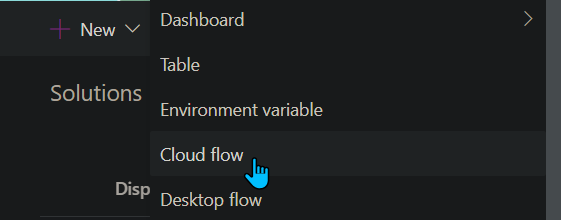
Inside your Solution create a new Cloud Flow.

  1. For our trigger we use a Manual Button, and add the data we are expecting from Power Apps to put inside our SharePoint List
    (In my example I am only bringing in one field for Title)
  2. Next, I add a Create Item action for my SharePoint List, and add the Parameters from the trigger inside the action.
  3. Lastly, I add a ‘Respond to PowerApp or flow’ action, I create an Output called Success, and some details about what was created.
Child Flow


Make sure to use the Connection you want users of the App to use for the SharePoint Create item action.

Save and go back to the Flow dashboard screen (where you see the Details and run history screen).

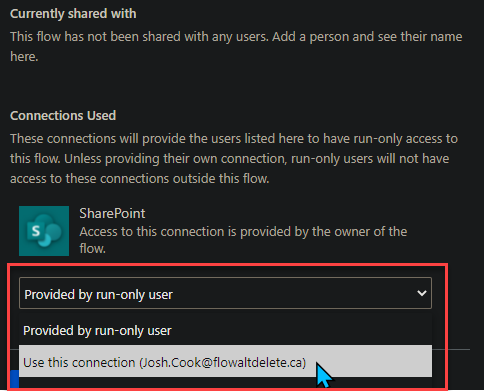
There will be a Card on the right side called ‘Run only users’ click Edit

Run only users

Under Connections Used, switch ‘Provided by run-only user’ to the connection you want to be used by users of the App
(They wont have access to this Connection outside this Flow)

Run only user

Click Save,

Now onto the Parent Flow

Parent Flow

Go back to the Solution and Create another Cloud Flow.

  1. For our trigger we use the PowerApps button trigger.
  2. As best practice, create Variables for your data that is coming from Power Apps. Don’t forget to name them, as this will be the parameter name in Power Apps,
    Use the ‘Ask in PowerApps‘ dynamic content for your variable values.
  3. Next we use a action called ‘Run a Child Flow’
    (If you do not see this action, your Flow was not created inside a Solution)
    Add the parameters (these were the input parameters from the last Flow that we just created).
  4. Lastly, add ‘Respond to a PowerApp or flow’ action. For this demo I am adding the parameter ‘Success’ this is from the child Flow.


Click Save.

Power App

Now onto the Power App, I am going to create a simple Power App with 1 TextInput for Title, and a Button to Pass the data to Power Automate.
Here are my controls for reference:

TextInput_Title
Button_SendToFlow

For the Button:
1. Add the Flow to the button by clicking on the Button,
2. Clicking Action tab on top of page,
3. Clicking Power Automate
4. Select the Flow


Next add the parameters for the Flow, in my case I am adding the TextInput_Title.Text

Now, I want to add a Notification that the Item has been added, which will confirm my Flow has Run correctly. Ill be using the ‘Success’ Output parameter from the Flow for this.

To add this, I put my Flow run inside a Variable inside Power Apps. Ill call my variable Results, and IO add this to the OnSelect property of the Button where my Flow is:

Now I use the ‘Notify’ function to notify the user of the item being created, I add this after the semicolon. So my function looks like this in the end:


So my final code looks like this:

Set(
    Results,
    'PA-Trigger1'.Run(TextInput_Title.Text)
);
Notify(
    Results.success,
    NotificationType.Success
);
Reset(TextInput_Title)

Now lets test it!

Conclusion

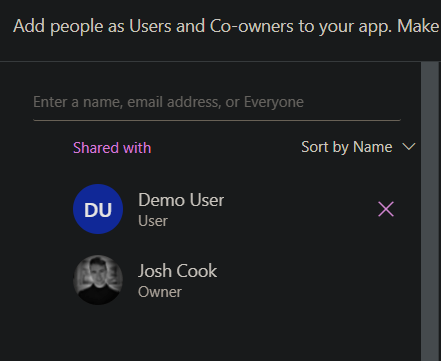
I am using a User called ‘Demo User’ I have shared the App with this user. But they are not part of the SharePoint Site


Here is the SharePoint Site:

Now Logged in as the Demo User to test this:

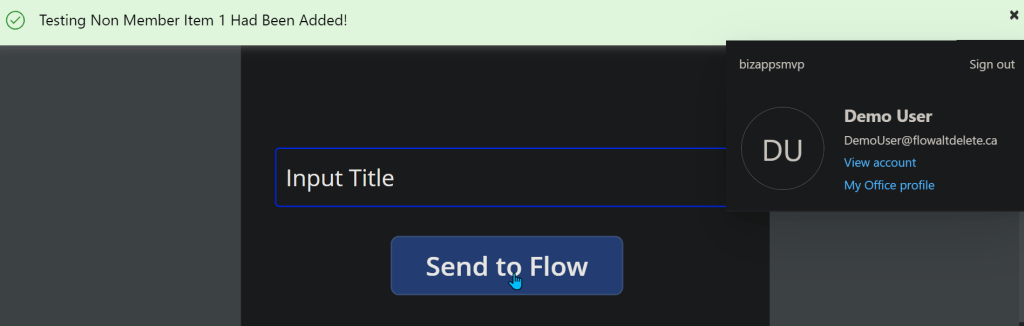
Logged in as Demo User


Button Clicked >

Button Pressed, Flow Completed

Now to check SharePoint >

Test Success!!

Done!
So this was just a basic example on how we can create data inside a Data Source that the user of the App does not need access too.

Check Conditions In Power Automate During Run

Is your IF condition always evaluating to False? Debugging and Testing your Flows should be easy. When using a Condition in Power Automate, in the run we cannot see the expression or the results of what is being evaluated.

I will go over a quick workaround to debug and find out what is happening in the condition

The Problem?

Is your Condition not working as expected?
The problem is when we use a Condition action inside Power Automate, we cannot see the “equation” that is being evaluated when looking into the run.

The problem affects how we can troubleshoot, the following solution will show what is happening inside the Condition action during the run.

Scenario

In this scenario, I am checking:
If one value is greater than a second value

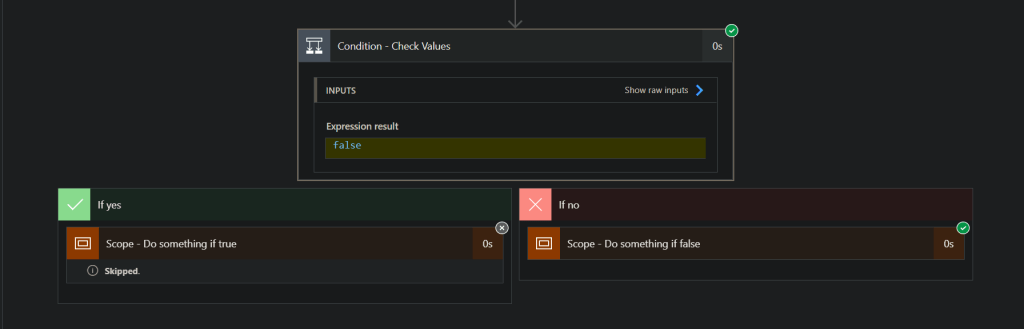
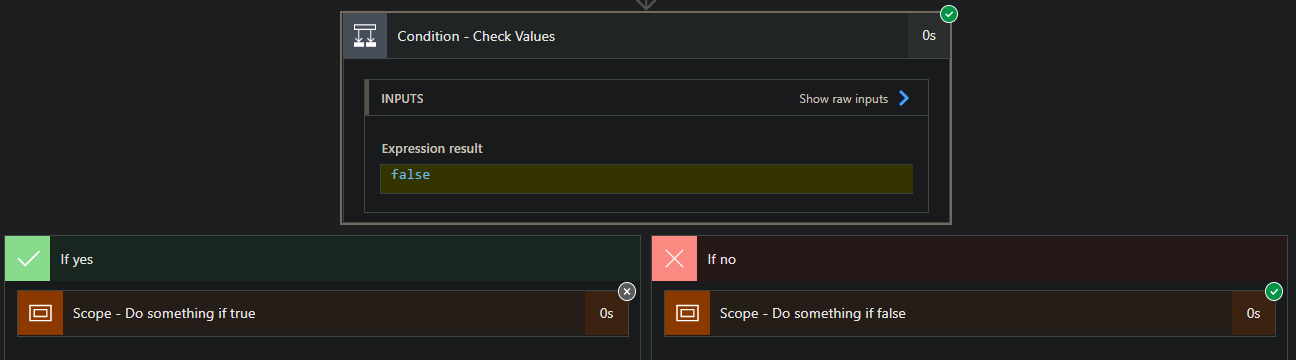
Now during a test run, I expect to see this condition true, but in my run it is always showing false and going in the If no branch.

The big problem is though, I cannot see what the values being evaluated look like. Take a look below

Clicking on the “Show raw inputs” is also not helpful..

Solution

So what is this quick and easy solution to see the condition results? A simple ‘Compose‘ action.

Lets take a look:
First add a Compose under your Condition

Next copy the values that are in the Condition to the Compose.
My Compose now looks like this:

Now make sure the Compose is above your Condition.
I am just dragging the Condition below the Compose

Next, we can run the Flow again, and see what the Compose can tell us:

Yikes! We can see our 2 values that are being evaluated are both 15.
And 15 is not greater than 15. This is why its returning false.

My Thoughts

In my opinion, this should be already visible inside the Condition action. To get this feature added to Power Automate, we can vote on this feature. Head over to the Community Forum and vote for this idea.

View details of Condition results in runs – Power Platform Community (microsoft.com)

The more votes, the better the chances of the Product team implementing this.
Thank you for reading, and have a great day!

Where Are My Flows When Building Power Virtual Agents In Teams

You added a Flow in Power Virtual Agents in Teams, you now want to edit that Flow. Where is it? Come check out the answer!

Overview

Building Power Virtual Agents (PVA) in Microsoft Teams is fast, easy, fun, and powerful, especially when we add Power Automate to the mix. A couple questions come up:

1. After the bot is build, how do we edit the Flows? Do we have to go into the PVA bot inside of Microsoft Teams?

2. Where are the Flows stored?

The Answer

The answer to the above questions, can be simplified into one response.

All Flows built inside the Teams environment for PVA chatbots are stored in the Teams environment under the Default Solution.
Now.. How do we get there?

Navigate to the Power Automate Web Portal
Power Automate | Microsoft Power Platform

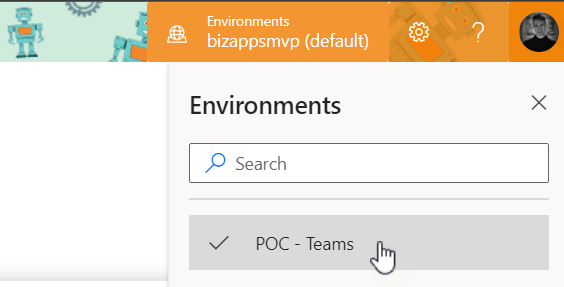
Sign in, and select the environments menu in the top right and choose the Environment that correlates to your Teams name where you built the Bot.
My Microsoft Team name is ‘POC – Teams

Next navigate to the Solutions tab on the left, and select ‘Default Solution


Once inside the ‘Default Solution‘ we can see many different types of artifacts. To narrow this list down:
On the top right of the page there is a dropdown with different types. Select ‘Flow

That’s it. Now we can see all the Flows inside this Teams Environment.

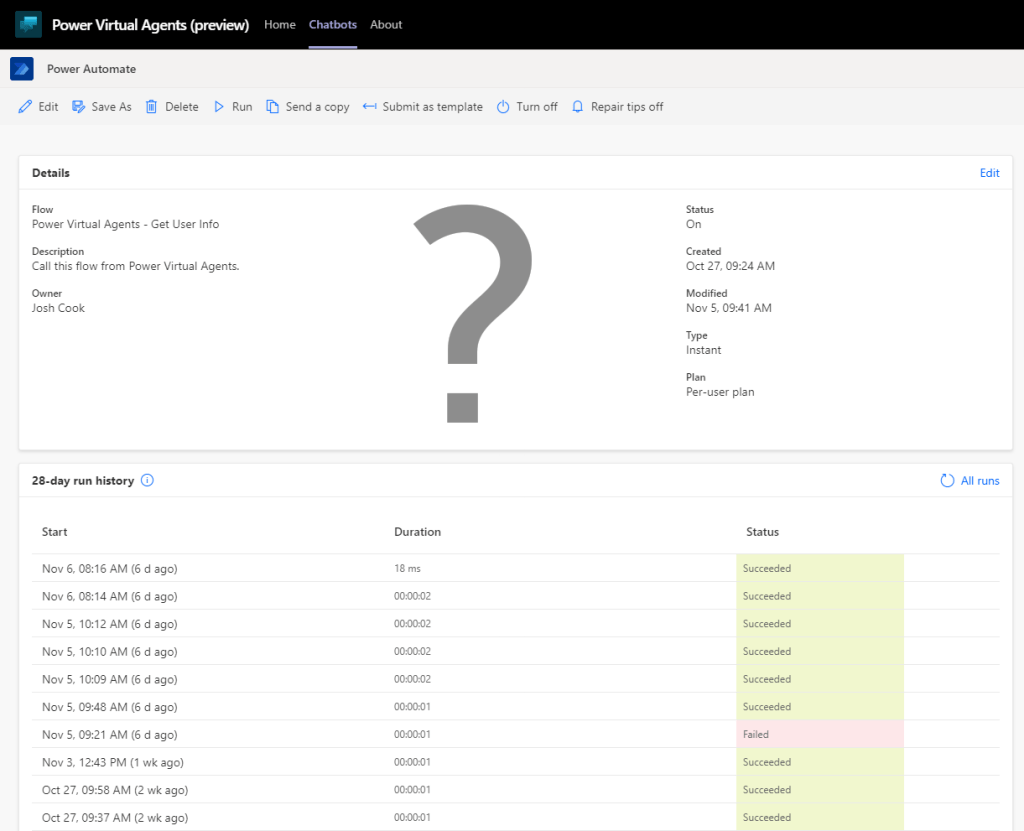
Want to learn how to get user info from Office365 to use in Power Virtual Agents? Check out my blog on the flow you see above
Get User Info

Limitations

There are some limitations:
– There is no way to import a Flow into this Environment

– When using the Save As feature, the Flow is saved outside of the Solution, thus cannot be used for your PVA Bot in Teams

– When modifying the Flows Inputs and Outputs you will have to remove the Flow action inside of PVA to properly refresh.

Conclusion

If you need help with anything Power Platform related, check out the community sites:

Power Virtual Agents Community – Power Platform Community (microsoft.com)

Power Automate community (microsoft.com)

Power Apps community (microsoft.com)

Home – Microsoft Power BI Community

Getting User Details To Use In Power Virtual Agents (Teams)

Lets use Power Automate inside Power Virtual Agents to get all the users details who is interacting with the bot. We can customize our greetings, or simply use any information that Office365 returns

Things to Know

This examples is based on building a Virtual Agent in Microsoft Teams.
We will be using the ‘Only for teams’ Authentication on the bot.

Summary

By default PVA in Teams has some valuable variables handy, like ‘bot.UserDisplayName‘. This is awesome, but what if we want more information about the logged in user?

This post will show both scenarios, on using the bot.UserDisplayName variable as well as getting all the user details that are stored in Office365 like:
– Email Address
– First Name
– Last Name
– Job Title
– Etc.

We can also use this in the Greetings Topic to address the user by their first name, rather than their display name. (Keep in mind this might affect performance by a couple seconds)

Contents

Bot Setup
Scenario 1 (Display Name)
Scenario 2 (Office365 Details)
Conclusion

Bot Setup

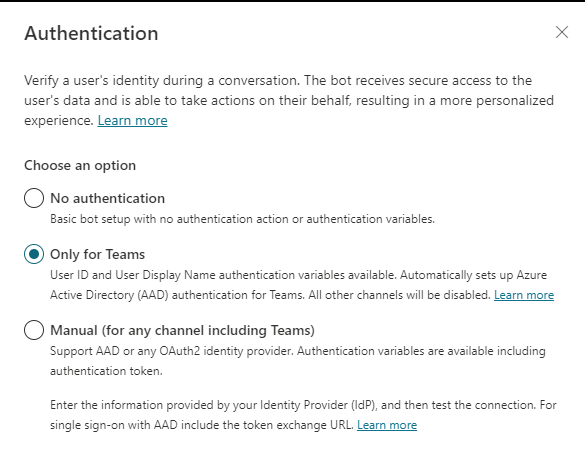
Once you have your Bot created, make sure the Authentication is set to ‘Only for teams’. To check click
Manage > Security, Authentication

For this example we will be using the ‘Only for Teams’ option. This will work for ‘Manual’ as well, but will require additional steps to setup a App Registration in Azure.

Select ‘Only for Teams’

Customize Greeting Scenario 1 (DisplayName)

After enabling the Authentication, you will now have access to Two variables,
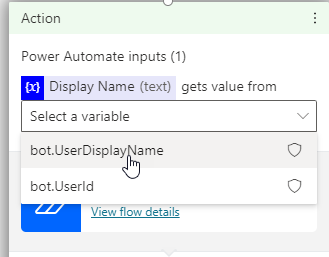
bot.UserDisplayName
bot.UserId

Now lets customize our greeting.

Navigate to ‘Topics’ and select the ‘Greeting’ Topic, this is under ‘System Topics’. Click on the Authoring Canvas button.

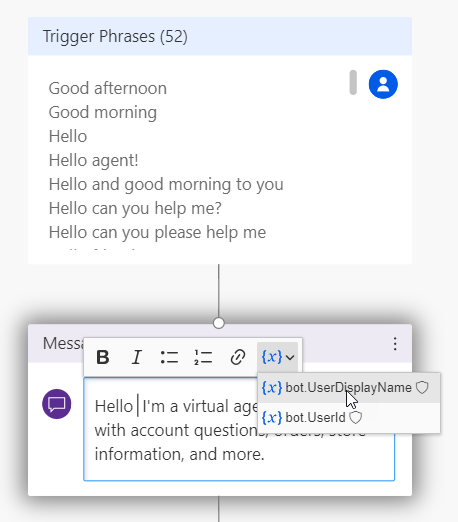
Inside the message under the Trigger, you can customize the greeting message to include the variable bot.UserDisplayName

Testing this, the Bot now knows my Display Name. This variable can be used in any topic. Which gives the Bot more of a human type feel.

To get all the user details from Office365, scenario 2 will cover this

Customize Greeting Scenario 2 (Office365)

Navigate to ‘Topics’ and select the ‘Greeting’ Topic, this is under ‘System Topics’. Click on the Authoring Canvas button.


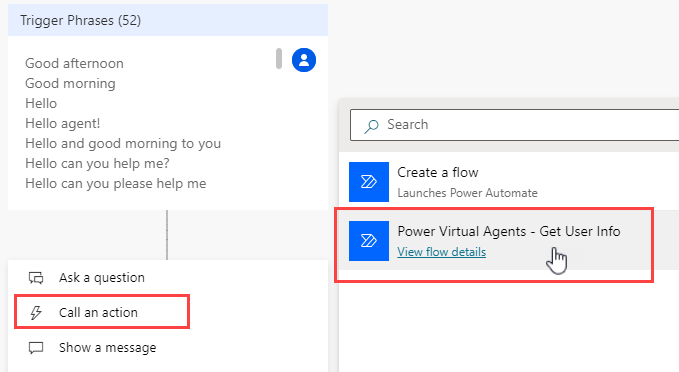
Under the ‘Trigger Phrases’ and select ‘Call an action’. We will now build a new Flow to get the user details we want.

You will now be navigated to a new screen where you will build your Flow.
Select the Basic PVA Flow Template

First give the Flow a meaningful name. Mine is:
Power Virtual Agents – Get User Info

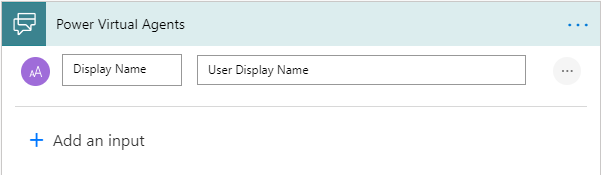
Add a Text Input to pass in the Display Name variable

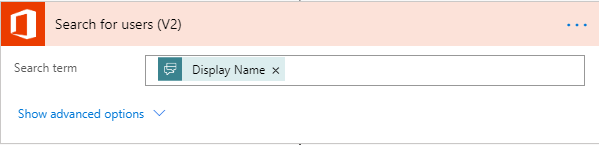
Next add a ‘Search for users‘ action from office365 connector, and pass in the PVA dynamic value from the trigger

Now we have all the user details. The results are returned as an Array. To get around this.
We can add a ‘Get user profile‘ action and pass in the first User Principal Name(UPN)

We have to use the first() expression, so we don’t get put into an Apply to each loop, my expression:

first(outputs('Search_for_users_(V2)')?['body/value'])?['UserPrincipalName']
@{first(outputs(‘Search_for_users_(V2)’)?[‘body/value’])?[‘UserPrincipalName’]}

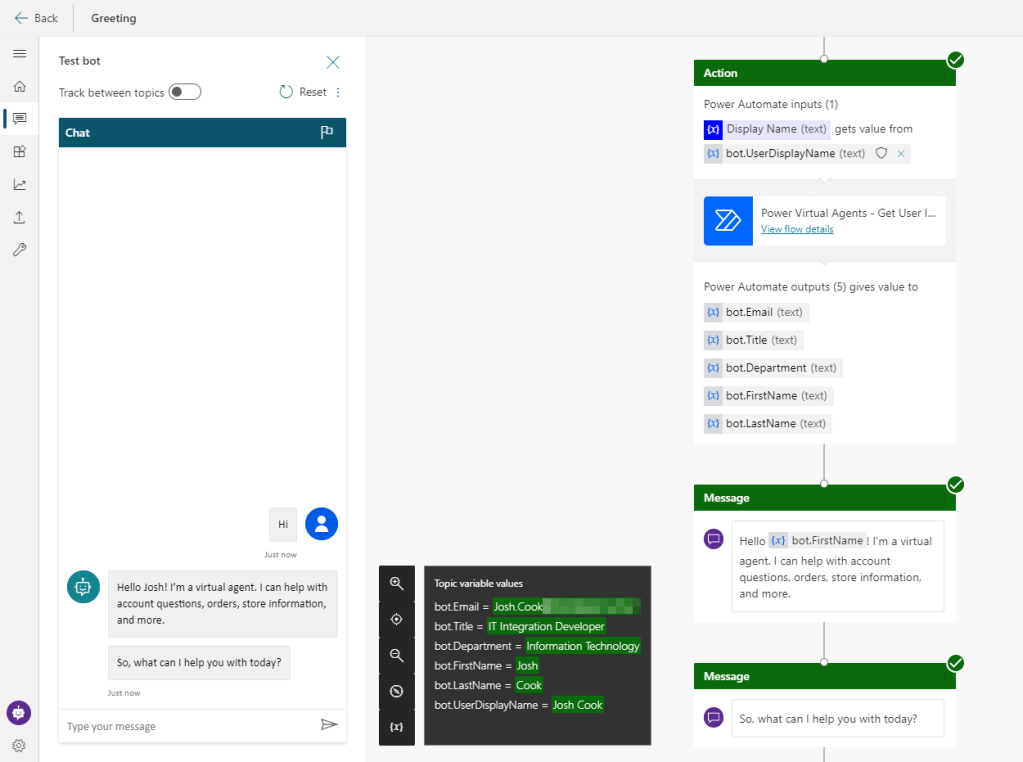
Lastly in the Return values to PVA action, add all the values you want from ‘Get user profile‘ dynamic content

Click Save, and close on top right of the screen. Back at the PVA Canvas screen, add your Flow

Pass in the bot.UserDisplayName variable

Now we can customize our greeting to only address the user by first name

As a test I created a Topic called User Details

Conclusion

This can be a great way to give your bot more personality. Do keep in mind that this may affect performance.

Checking If HTML Table Is Empty In Power Automate

I needed to check if an HTML table had data or not. Usually when I need to check I have two expressions I like to use: ’empty()’ or ‘length()’.

The Problem

I needed to check if an HTML table had data or not. Usually when I need to check I have two expressions I go to first.

  1. empty()
  2. length()

I tried using empty() and found that the HTML table even when empty, is not truly empty.
I then tried length() and found that when the HTML table is empty there is still a length of 30.

The Scenario

I have some data that is used to track different devices that can be loaned out. The data has properties like, Type of device, Serial Number, Etc.

The data comes in, and looks like this:

[
  {
    "type": "Phone",
    "device": "iPhone 11 Pro",
    "serialNumber": "0007488"
  },
  {
    "type": "Phone",
    "device": "Samsung Galaxy S20",
    "serialNumber": "1166289"
  },
  {
    "type": "Watch",
    "device": "Apple Watch Series 5",
    "serialNumber": "00013701"
  },
  {
    "type": "Laptop/Tablet",
    "device": "Surface Pro X",
    "serialNumber": "AA78442"
  }
]

I want to put this array of data inside a HTML table and send it out on an email. The problem is, my data might be empty, as only available devices will show up in my data.

I need to check if the HTML table is empty, if it is empty:
If True:
Send email with HTML table
If False:
Send email without HTML table

The Flow

For this Flow, I will be using an Array Variable to simulate my data coming in from another system.
I will call this Variable ‘Data‘.
The HTML table action will be added underneath.
You will need to determine if you want to use ‘Custom columns‘ or ‘Automatic columns‘ This can be done in the advanced options in the HTML action:

My ‘Data‘ Variable is empty at the moment. This is what we want for our first run, we want to get the length of the HTML table when its empty.

Next add a ‘Compose‘ action, and use the expression length(), pass in the HTML table as the parameter. For example, my expression looks like:

length(body('Create_HTML_table'))

Now run the Flow with no Data in the HTML table, and check your Compose action to see what the length is. In my case it is 30

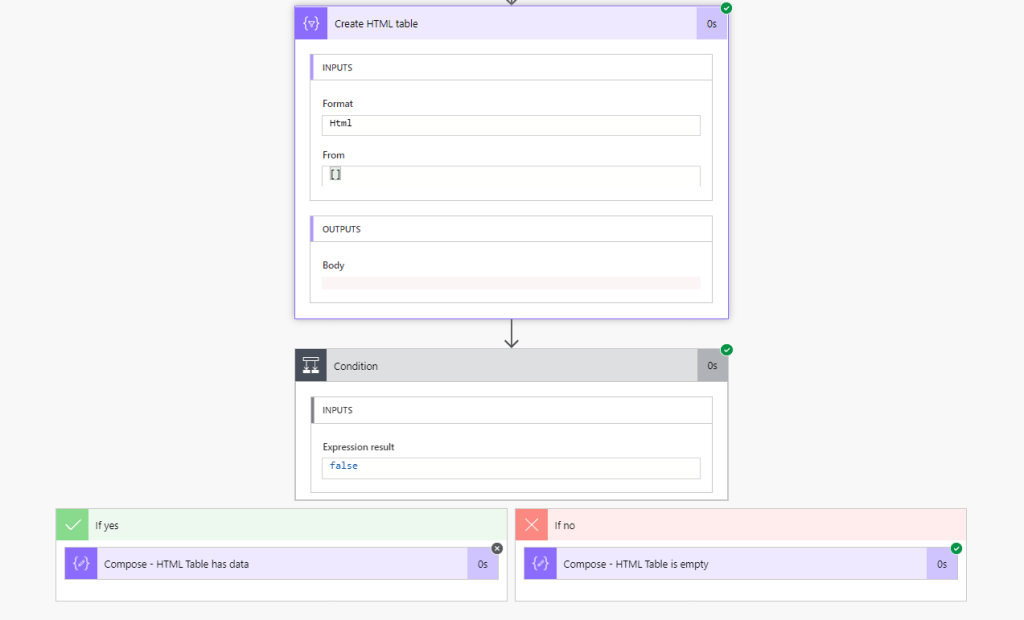
Now we can add a If Condition to check if the length is greater than 30

** TIP **
I am passing in the Compose action into the condition, this allows me to see what the outputs of the Compose action before it gets evaluated inside the condition. This is extremely useful for troubleshooting

Conclusion

The Flow will go into the ‘If yes’ block if the HTML table has data

The Flow will go into the ‘If no’ block if the HTML table is empty

Of course checking the Data Variable itself for length could work way better. This example is mainly for data that can come in that could have loads of junk. For example:
An HTTP API could bring in no data, but still have other information attached like, headers, status code, version. In this case we can only do conditional checks on the HTML table, since our Data variable will always have something being passed in.

I used this method to help someone on the Community Forum, check it out here:
https://powerusers.microsoft.com/t5/Building-Flows/Create-a-Flow-with-Condition-that-does-not-send-email-when-list/m-p/721076/highlight/false#M98488

Getting Specific Files And IDs In SharePoint Using Power Automate

I encountered an issue when trying to filter a a file by filename, that was in a SharePoint document library.

When needing to get a specific SharePoint file ID. It can be troublesome to filter the Files. For example Using a ‘Get files’ action we can see that the properties of the file are encased inside {} meaning that SharePoint is using some calculation on the Document Library to create these fields.

Contents

This post will go over a common problem I have seen using SharePoint action to get a specific file ID.
There are three parts to this post:
The Problem
The Solution
Conclusion

The Problem?

I encountered an issue when trying to filter a a file by filename, that was in a SharePoint document library.

When needing to get a specific SharePoint file ID. It can be troublesome to filter the Files. For example Using a ‘Get files‘ action we can see that the properties of the file are encased inside {} meaning that SharePoint is using some calculation on the Document Library to create these fields.

Attempting to use a filter query on any of the fields encased between {} returns an error. For example I am trying to filter the file called ‘Readthis.txt‘ I get a ‘Bad Request’ Error:

The error message I receive is:

Column ‘Name’ does not exist. It may have been deleted by another user.
clientRequestId: 75462fg8-686d-48p1-5se7-e8l97jk84025
serviceRequestId: 75462fg8-686d-48p1-5se7-e8l97jk84025

I have read online that using Title as the column name is correct, although I do not get an error, the output is empty.

The Solution

Now the best part, the solution!

The way I have been using to filter out ‘Get files‘ action is by using the ‘Filter array‘ action. This action will allow us to filter the calculated columns that SharePoint is using, like {Name}, {Link}, {FilenameWithExtension}, Etc.

To get setup, we want the ‘Get files‘ action to pull in ALL files, so we don’t want to have any filter at this stage.

Now add a ‘Filter array‘ action, put the dynamic content value in the From field. On the left side select the dynamic content from the ‘Get files‘ action. The right side put what you want to filter on.
So for example, I want to filter and get the file ‘Readthis.txt‘. So my ‘Filter array‘ action looks like this:

Now when running the Flow, the ‘Filter array’ action is properly filtering out the filename:

Conclusion

I wrote this blog post based on a scenario I have helped solved on the Power Automate Community Forum.

Hopefully someone else find this information useful.

Thanks for reading!