Add the Microsoft Learn Docs MCP Server in Copilot Studio

Add Microsoft’s Learn Docs MCP server in Copilot Studio, verify the tool, and query official docs—fast, first-party, step-by-step.

UPDATE—August 8, 2025: You no longer need to create a custom connector for the Microsoft Learn Docs MCP server. Copilot Studio now includes a native Microsoft Learn Docs MCP Server under Add tool → Model Context Protocol.
This guide has been updated to show the first-party path. If your tenant doesn’t yet show the native tile, use the Legacy approach at the bottom.

What changed

  • No YAML or custom connector required
  • Fewer steps, faster setup

Model Context Protocol (MCP) is the universal “USB-C” port for AI agents. It standardizes how a model discovers tools, streams data, and fires off actions—no bespoke SDKs, no brittle scraping. Add an MCP server and your agent instantly inherits whatever resources, tools, and prompts that server exposes, auto-updating as the backend evolves.

  1. Why you should care
  2. What the Microsoft Learn Docs MCP Server delivers
  3. Prerequisites
  4. Step 1 – Add the native Microsoft Learn Docs MCP Server
  5. Step 2 – Validate
  6. Legacy approach (if the native tile isn’t available)

Why you should care

  • Zero-integration overhead – connect in a click inside Copilot Studio or VS Code; the protocol handles tool discovery and auth.
  • Future-proof – the spec just hit GA and already ships in Microsoft, GitHub, and open-source stacks.
  • Hallucination killer – answers are grounded in authoritative servers rather than fuzzy internet guesses.

What the Microsoft Learn Docs MCP Server delivers

  • Tools: microsoft_docs_search – fire a plain-English query and stream back markdown-ready excerpts, links, and code snippets from official docs.
  • Always current – pulls live content from Learn, so your agent cites the newest releases and preview APIs automatically.
  • First-party & fast — add it in seconds from the Model Context Protocol gallery; no OpenAPI import needed.

Bottom line: MCP turns documentation (or any backend) into a first-class superpower for your agents—and the Learn Docs server is the showcase. Connect once, answer everything.

Prerequisites

  • Copilot Studio environment with Generative Orchestration (might need early features on)
  • Environment-maker rights
  • Outbound HTTPS to learn.microsoft.com/api/mcp

Step 1 – Add the native Microsoft Learn Docs MCP Server

  1. Go to Copilot Studio: https://copilotstudio.microsoft.com/
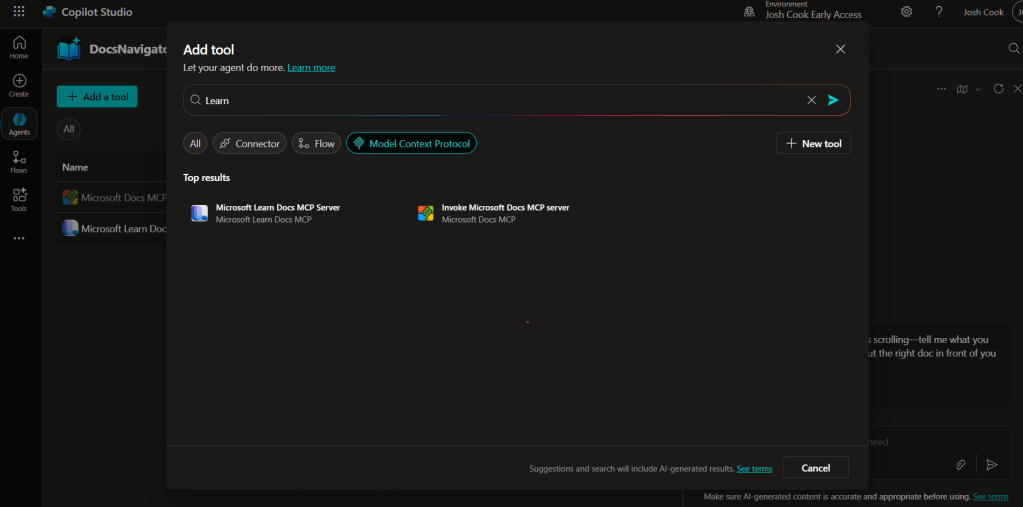
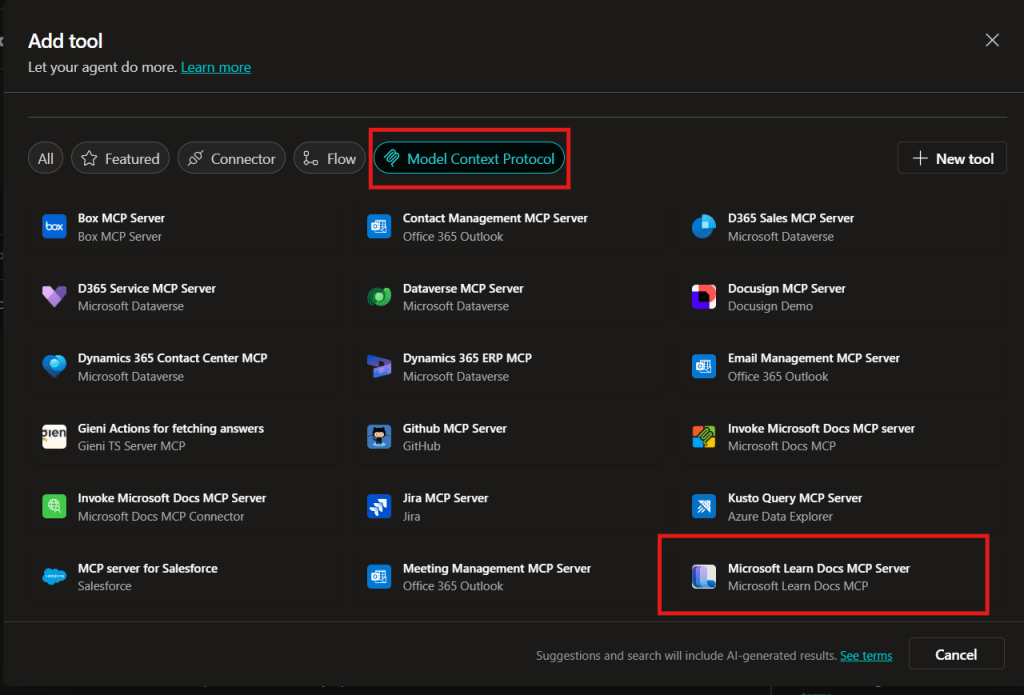
  2. Go to Tools → Add tool.
  3. Select the Model Context Protocol pill.
  4. Click Microsoft Learn Docs MCP Server.
  5. Choose the connection (usually automatic) and click Add to agent.
  6. Confirm the connection status is Connected.
Copilot Studio Add tool panel showing Model Context Protocol category and Microsoft Learn Docs MCP Server tile highlighted.
  1. The MCP server should now show up in Tools.
  1. Click the Server to verify the tool(s) and to make sure:
    – ✅ Allow agent to decide dynamically when to use this tool
    – Ask the end user before running = No
    – Credentials to use = End user credentials

Step 2 – Validate

  1. In the Test your agent pane. Turn on Activity map by clicking the wavy map icon:

  2. Now try a prompt like:
    What MS certs should I look at for Power Platform?
    How can I extend the Power Platform CoE Starter Kit?
    What modern controls in Power Apps are GA and which are still in preview? Format as a table

Use-Case Ideas

  • Internal help-desk bot that cites docs.
  • Learning-path recommender (your pipeline example).
  • Governance bot that checks best-practice-links.

Troubleshooting Cheat-Sheet

  • Note that currently the Learn Docs MCP server does NOT require authentication. This will most likely change in the future.
  • If Model Context Protocol is not shown in your Tools for Copilot Studio. You may need to create an environment with Early Features turned on.
  • Do NOT reference the MCP server in the agents instructions, you will get a tool error.
  • Check Activity tab for monitoring

Legacy approach (if the native tile isn’t available)

Grab the Minimal YAML

  1. Open your favorite code editor or notepad. Copy and paste this YAML to a new file.
swagger: '2.0'
info:
  title: Microsoft Docs MCP
  description: Streams Microsoft official documentation to AI agents via Model Context Protocol
  version: 1.0.0
host: learn.microsoft.com
basePath: /api
schemes:
  - https
paths:
  /mcp:
    post:
      summary: Invoke Microsoft Docs MCP server
      x-ms-agentic-protocol: mcp-streamable-1.0
      operationId: InvokeDocsMcp
      consumes:
        - application/json
      produces:
        - application/json
      responses:
        '200':
          description: Success
  1. Save the file with .yaml extension.

Import a Custom Connector

Next we need to create a custom connector for the MCP server to connect to. We will do this by importing our yaml file we created in Step 1.

  1. Go to make.powerapps.com > Custom connectors > + New custom connector > Import OpenAPI.

  2. Upload your yaml file eg: ms-docs‑mcp.yaml, using the Import an OpenAPI file option.

  3. General tab: Confirm Host and Base URL.
    Host: learn.microsoft.com
    Base URL: /api
  4. Security tab > No authentication (the Docs MCP server is anonymously readable today).
  5. Definition tab > verify one action named InvokeDocsMcp is present.
    Also add a description.

  6. Click Create connector. Once the connector is created, click the Test tab, and click +New Connection.

    (Note, you may see more than 1 Operation after creating the connector. Don’t worry and continue on)
  7. When you create a connection, you will be navigated away from your custom connector. Verify your Connection is in Connected Status.

    Next we will wire this up to our Agent in Copilot Studio.

Get the difference between two dates (Updated 2025)

Many Power Automate users encounter issues with the dateDifference() function when calculating the difference between two dates. The problem arises when the output format varies depending on the duration, causing errors in extracting Days, Hours, Minutes, and Seconds.

This blog provides a robust and easy-to-implement solution that works seamlessly in all scenarios, including durations less than a day. Learn how to use a single expression with conditional logic to avoid these common pitfalls and ensure your date calculations are accurate every time. This is your ultimate fix for handling dateDifference() errors!

  1. The Flow
    1. dateDifference expression
      1. How it works
    2. Steps to Access Each Value
  2. Download my Flow
    1. Classic designer
    2. New designer
  3. Conclusion

The Flow

  1. Compose action: named StartDate = 2024-12-10T15:58:28
  2. Compose action: named EndDate = 2024-12-10T19:22:20
  3. Compose action: uses dateDifference() expression. see below

Below is the expression used in the ‘Date Difference’ compose action. It dynamically handles all scenarios—when days are included and when they are not (same with hours and minutes).

dateDifference expression

Create a compose action for StartDate and EndDate

if(
   contains(
     dateDifference(outputs('StartDate'), outputs('EndDate')), 
     '.'
   ),
   json(
     concat(
       '{"Days":', string(int(split(dateDifference(outputs('StartDate'), outputs('EndDate')), '.')[0])),
       ',"Hours":', string(int(split(split(dateDifference(outputs('StartDate'), outputs('EndDate')), '.')[1], ':')[0])),
       ',"Minutes":', string(int(split(split(dateDifference(outputs('StartDate'), outputs('EndDate')), '.')[1], ':')[1])),
       ',"Seconds":', string(int(split(split(dateDifference(outputs('StartDate'), outputs('EndDate')), '.')[1], ':')[2])),
       '}'
     )
   ),
   json(
     concat(
       '{"Days":0',
       ',"Hours":', string(int(split(dateDifference(outputs('StartDate'), outputs('EndDate')), ':')[0])),
       ',"Minutes":', string(int(split(dateDifference(outputs('StartDate'), outputs('EndDate')), ':')[1])),
       ',"Seconds":', string(int(split(dateDifference(outputs('StartDate'), outputs('EndDate')), ':')[2])),
       '}'
     )
   )
)

How it works

  • The if() function checks if the dateDifference() result contains a . (dot).
  • If it does, it means the result has a days component (e.g., 1268.04:15:30), so we parse out Days, Hours, Minutes, and Seconds accordingly.
  • If it does not, it means the result is less than a day (e.g., 12:57:47.2544602), so we treat Days as 0 and parse Hours, Minutes, and Seconds directly from the string.

Result:

This will produce a JSON object like:
{
"Days": 1268,
"Hours": 4,
"Minutes": 15,
"Seconds": 30
}

Or
{
"Days": 0,
"Hours": 12,
"Minutes": 57,
"Seconds": 47
}

Steps to Access Each Value

If you use the fixed expression directly in a Compose action (e.g., named Date_Difference), you can reference the fields like this:

  • Days: outputs('Date_Difference')?['Days']
  • Hours: outputs('Date_Difference')?['Hours']
  • Minutes: outputs('Date_Difference')?['Minutes']
  • Seconds: outputs('Date_Difference')?['Seconds']

Use these expressions in subsequent actions (like another Compose, a Condition, or Apply to Each) to reference the specific values.

Download my Flow

You can easily copy and paste actions in Power Automate. Allowing you to copy and paste my example.

  1. Classic designer
  2. New designer

Classic designer

Step 1: Copy the code snippet

{"id":"b6b531e2-b7b5-4a9e-86bd-7e2a069529a0","brandColor":"#8C3900","connectionReferences":{},"connectorDisplayName":"Control","icon":"data:image/svg+xml;base64,PHN2ZyB3aWR0aD0iMzIiIGhlaWdodD0iMzIiIHZlcnNpb249IjEuMSIgdmlld0JveD0iMCAwIDMyIDMyIiB4bWxucz0iaHR0cDovL3d3dy53My5vcmcvMjAwMC9zdmciPg0KIDxwYXRoIGQ9Im0wIDBoMzJ2MzJoLTMyeiIgZmlsbD0iIzhDMzkwMCIvPg0KIDxwYXRoIGQ9Im04IDEwaDE2djEyaC0xNnptMTUgMTF2LTEwaC0xNHYxMHptLTItOHY2aC0xMHYtNnptLTEgNXYtNGgtOHY0eiIgZmlsbD0iI2ZmZiIvPg0KPC9zdmc+DQo=","isTrigger":false,"operationName":"Get_date_difference_object","operationDefinition":{"type":"Scope","actions":{"StartDate":{"type":"Compose","inputs":"2024-12-10T15:58:28","runAfter":{}},"EndDate":{"type":"Compose","inputs":"2024-12-10T19:22:20","runAfter":{"StartDate":["Succeeded"]}},"Date_Difference":{"type":"Compose","inputs":"@if(\r\n   contains(\r\n     dateDifference(outputs('StartDate'), outputs('EndDate')), \r\n     '.'\r\n   ),\r\n   json(\r\n     concat(\r\n       '{\"Days\":', string(int(split(dateDifference(outputs('StartDate'), outputs('EndDate')), '.')[0])),\r\n       ',\"Hours\":', string(int(split(split(dateDifference(outputs('StartDate'), outputs('EndDate')), '.')[1], ':')[0])),\r\n       ',\"Minutes\":', string(int(split(split(dateDifference(outputs('StartDate'), outputs('EndDate')), '.')[1], ':')[1])),\r\n       ',\"Seconds\":', string(int(split(split(dateDifference(outputs('StartDate'), outputs('EndDate')), '.')[1], ':')[2])),\r\n       '}'\r\n     )\r\n   ),\r\n   json(\r\n     concat(\r\n       '{\"Days\":0',\r\n       ',\"Hours\":', string(int(split(dateDifference(outputs('StartDate'), outputs('EndDate')), ':')[0])),\r\n       ',\"Minutes\":', string(int(split(dateDifference(outputs('StartDate'), outputs('EndDate')), ':')[1])),\r\n       ',\"Seconds\":', string(int(split(dateDifference(outputs('StartDate'), outputs('EndDate')), ':')[2])),\r\n       '}'\r\n     )\r\n   )\r\n)","runAfter":{"EndDate":["Succeeded"]},"metadata":{"operationMetadataId":"03c8d578-576a-41a3-8d63-609a15ce594b"}}},"runAfter":{"Add_to_time":["Succeeded"]}}}

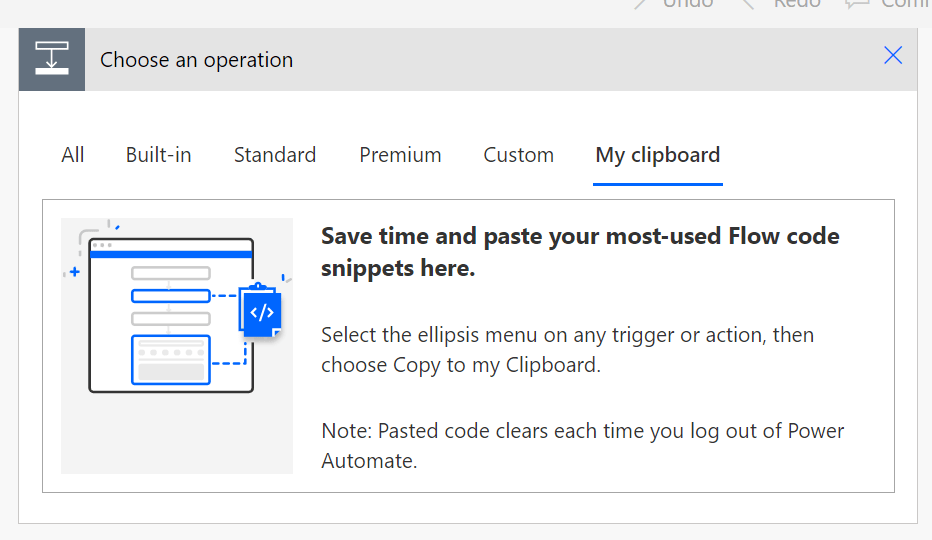
Step 2: In Power Automate when adding a new action click My clipboard .

Step 3: Ctrl + V


New designer

Step 1: Copy the code snippet

{"nodeId":"Get_date_difference_object-copy","serializedOperation":{"type":"Scope","actions":{"StartDate":{"type":"Compose","inputs":"2024-12-10T15:58:28"},"EndDate":{"type":"Compose","inputs":"2024-12-10T19:22:20","runAfter":{"StartDate":["Succeeded"]}},"Date_Difference":{"type":"Compose","inputs":"@if(\r\n   contains(\r\n     dateDifference(outputs('StartDate'), outputs('EndDate')), \r\n     '.'\r\n   ),\r\n   json(\r\n     concat(\r\n       '{\"Days\":', string(int(split(dateDifference(outputs('StartDate'), outputs('EndDate')), '.')[0])),\r\n       ',\"Hours\":', string(int(split(split(dateDifference(outputs('StartDate'), outputs('EndDate')), '.')[1], ':')[0])),\r\n       ',\"Minutes\":', string(int(split(split(dateDifference(outputs('StartDate'), outputs('EndDate')), '.')[1], ':')[1])),\r\n       ',\"Seconds\":', string(int(split(split(dateDifference(outputs('StartDate'), outputs('EndDate')), '.')[1], ':')[2])),\r\n       '}'\r\n     )\r\n   ),\r\n   json(\r\n     concat(\r\n       '{\"Days\":0',\r\n       ',\"Hours\":', string(int(split(dateDifference(outputs('StartDate'), outputs('EndDate')), ':')[0])),\r\n       ',\"Minutes\":', string(int(split(dateDifference(outputs('StartDate'), outputs('EndDate')), ':')[1])),\r\n       ',\"Seconds\":', string(int(split(dateDifference(outputs('StartDate'), outputs('EndDate')), ':')[2])),\r\n       '}'\r\n     )\r\n   )\r\n)","runAfter":{"EndDate":["Succeeded"]},"metadata":{"operationMetadataId":"03c8d578-576a-41a3-8d63-609a15ce594b"}}},"runAfter":{"Add_to_time":["Succeeded"]}},"allConnectionData":{},"staticResults":{},"isScopeNode":true,"mslaNode":true}

Step 2: In Power Automate click the + to add an action. Click Paste an action

Conclusion

That’s it! pretty easy right? if you encounter any issues, comment below!

Power Automate Substring and Text Positions Made Easy

Expressions can be confusing when starting out in Power Automate. Luckily the product team makes things easier each day. I will be showing how to grab an email address Josh.Cook@flowaltdelete.ca and transforming it to Josh Cook

Expressions can be confusing when starting out in Power Automate. Luckily the product team makes things easier each day. I will be showing how to grab an email address Josh.Cook@flowaltdelete.ca and transforming it to Josh Cook

The Scenario

For this demo, we will be formatting an email address and removing everything after the ‘@‘ symbol, to form a first name and last name.

We will be using Substring to achieve this. However we wont be using the expression Substring, we will be using a Action called Substring, this action can be found in the ‘Text Functions‘ connector.

The Flow

In my Flow I will use a Compose action to store an email address, this can be any data source or action that fits your needs.

In this example, we want to remove the At sign and everything after. To do this we could use an expression. But.. The Power Automate team has put together some actions that make Text Functions more easy.

At this time there is Two(2) Text Function action we can utilize.
1. Find text position
2. Substring
We will you both in this example

First we will add the ‘Find text position‘ action. This action has Two(2) parameters to fill in:
Text – The text we want to use, in this case we use the dynamic content of our Compose with the email
Search text – This is the text we want to find the position of

In the string Josh.Cook@flowaltdelete.ca the ‘@’ sign is in position 9. This is because in indexing values we count the first value as index 0

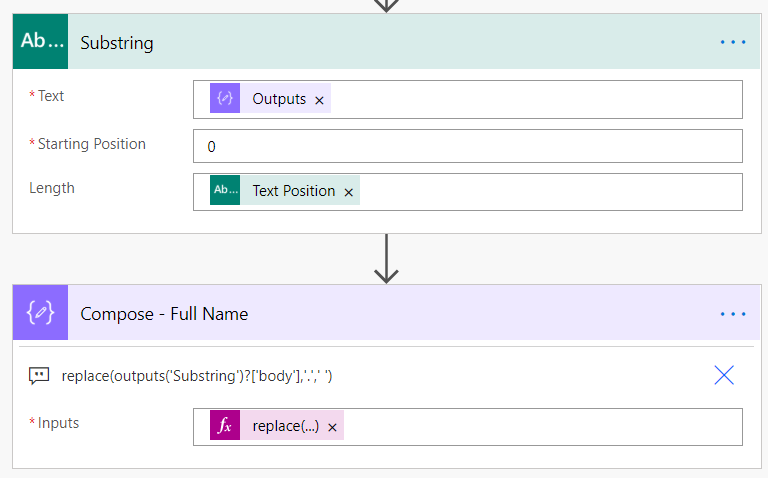
Next we add the ‘Substring‘ action. This action has three(3) parameters.
1. Text – The string of text to extract the substring from
2. Starting position – since we want to extract ‘Josh.Cook‘ our position will be 0
3. Length – This is how long the substring will be, so this is where we use the dynamic value from Text Position action (Which is 9)

Now when we run the Flow, we should take the value:
Josh.Cook@flowaltdelete.ca‘ And output ‘Josh.Cook

Mhm.. Not bad, now all that is needed is getting rid of the ‘.’ This can easily be done by using the replace() expression.
replace(<Dynamic Substring Body>,’.’,’ ‘)
The replace expression is replacing the ‘.’ with a white space char

replace(outputs('Substring')?['body'],'.',' ')

Now when we run the flow:

Conclusion

These new Text Function actions in Power Automate makes expressions even easier. I cannot wait to see what the Product group adds to these.
Thanks for reading, and as always please reach out to me on Twitter with any questions you may have. Thanks again!